> ## Documentation Index
> Fetch the complete documentation index at: https://docs.jelou.ai/llms.txt
> Use this file to discover all available pages before exploring further.
# Sending campaigns
> Create and send a WhatsApp campaign step by step: what each template format asks for, how to load recipients, map parameters, and schedule the send.
A campaign sends an approved template to a contact list over WhatsApp. You can start it from **Campaigns**, from **Templates**, or from the **Inbox**: all three open the same five-step wizard.
If you enter from Templates, the channel and template arrive already selected and, if you cancel, you go back to the template list.
**Each template format asks for different things** in the first step, and some require a setup in the Advanced step.
## Before you start
* **An active WhatsApp channel.** The picker only lists active WhatsApp channels from your company.
* **An approved template.** The picker only brings templates in **Approved** status. If you created it recently and it is still under review, it won't show up yet.
***
## Create the campaign
You upload a CSV with your contact list and choose whether the campaign goes out right away or on a schedule: promotions, announcements, or reminders to many recipients at once.
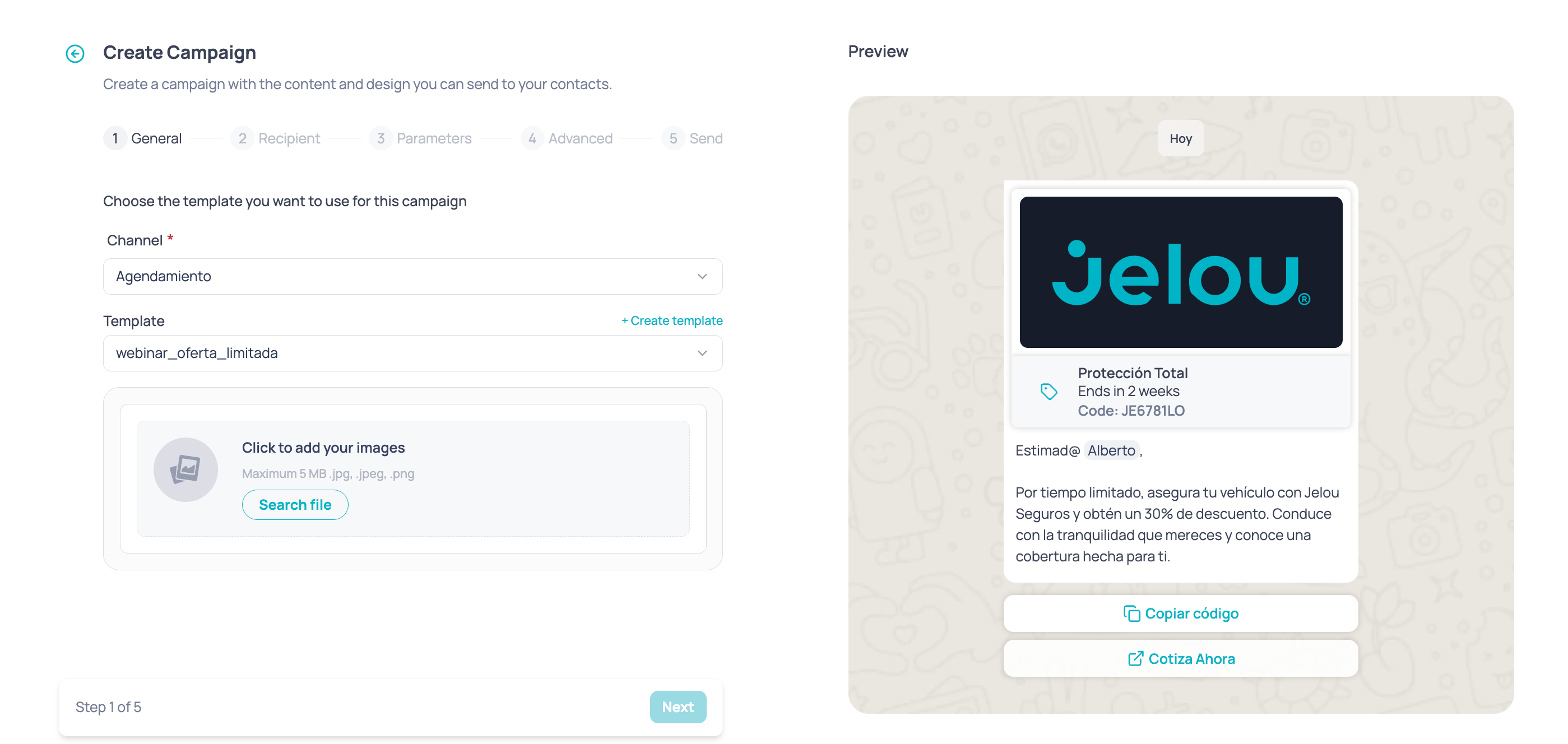 It's completed in five steps.
Channel, template, and everything the format needs: header file, store branch, or product from your store.
A CSV file with your contact list, plus the campaign name.
Map the template's `{{1}}`, `{{2}}`… to CSV columns.
What happens after the contact receives the message: workflow, buttons, additional parameters, and CRM.
Immediate or scheduled send. Before it fires you'll see a confirmation screen with the full summary.
The **Next** button stays locked until the step is complete, and the locking rules change depending on the template format.
### How to complete each step
You upload a **CSV** with the contact list and give the campaign a **name** (between 5 and 80 characters). You can download a sample CSV template.
Numbers must include the international country code, with no `+` and no spaces. Without a file or a valid name, the step stays locked.
Each parameter is **mapped to a CSV column**.
Parameters are grouped by where they live: header, content, buttons, and — for carousels — one group per card. None of them can be left empty.
If the template has no parameters you'll see the "The selected template has no parameters to map" notice and you can move on.
To build the CSV and see best practices, check [Campaign parameters](/en/connect/campaigns/campaign-parameters).
This is where you define what happens **after** the contact receives the message.
| Setup | When it appears | What it defines |
| -------------------------- | ---------------------------------- | ------------------------------------------------------------------------------------------------------- |
| **Workflow** | Always | The workflow that handles the contact's reply. |
| **Buttons** | Templates with quick reply buttons | Which workflow each button triggers, whether the button is single-use, and whether a reply is required. |
| **Post-purchase workflow** | Jelou Shop templates | Workflow on reply and workflow when the purchase is completed in the store. |
You can reuse a saved setup or create a new one; the name requires at least 5 characters. You can also add **additional parameters** and **CRM parameters**, which travel as message data.
For the formats with a required setup (quick reply buttons and Jelou Shop), the step stays locked until you pick or create a valid setup for that template.
* **Send now**: the campaign fires immediately.
* **Schedule**: you pick a date and time. It's saved with your user's time zone. Without a date and time, the step stays locked.
Before the send fires you'll see a summary with the channel and template, the number of recipients, how many parameters were mapped, which setup was attached, and when it goes out.
If you don't have enough credits, a notice appears before you continue.
### What each template format asks for
The formats are the same ones you pick when creating the template. What changes in a campaign is what each one asks for before letting you move on.
| Format | What the General step asks for | Requires Advanced setup? |
| ------------------------------------------ | -------------------------------------------------------------- | ---------------------------------------------------- |
| Custom message (text) | Nothing extra | No |
| Custom message (image, video, or document) | Upload the header file | No |
| Carousel | An image or video per card | No |
| Jelou Shop message | Store branch, plus product or category depending on the format | **Yes** — post-purchase workflow |
| Limited-time offer | Header image or video | No, but it asks for an expiration date in Parameters |
| WhatsApp Flow | Header file, if the template has one | No |
| Authentication | Nothing extra | No |
On top of that, **any** format whose buttons are quick replies requires a button setup in the Advanced step.
### Guides by format
**Text only.** The simplest case: pick a channel and a template and move on. If the template has parameters, you map them in step 3.
**With media.** If the header is an image, video, or document, a file uploader appears. It's required: without a file you can't move forward.
| Header | Formats | Maximum size |
| -------- | ----------------- | ------------ |
| Image | .jpg, .jpeg, .png | 5 MB |
| Video | .mp4 | 15 MB |
| Document | .pdf | 15 MB |
The file is uploaded per campaign, not saved into the template. Every send can carry a different image. Check the [media recommendations](/en/connect/campaigns/template-dimensions) for the suggested dimensions.
The template already defines how many cards it carries and what type of header they use. For every card you must **upload its file**: image (.jpg, .jpeg, .png) up to 5 MB or video (.mp4) up to 15 MB.
Every card must have its file before you can move on. Cards can also have their own parameters, mapped separately in step 3.
The template is approved once and **the product, category, or store branch is picked here**, when you create the campaign. A dedicated section appears in the General step:
* **Store branch**: if the store has only one, it's auto-selected and hidden. With two or more it's required. **Changing the branch clears the selected product**, because the catalog and prices change.
* **Product** (*Single product* format): a **Select product** button that opens a panel with search and a category filter.
* **Category** (*Product category* format): a required picker, loaded based on the branch.
* **Full catalog**: asks for nothing beyond the branch.
Jelou resolves the product name and price at send time: they don't show up in the Parameters step or in the confirmation.
Configuring the **post-purchase workflow** in the Advanced step is **required**.
If your company doesn't have Jelou Shop configured, you'll see a red banner and the step stays locked.
In the General step it behaves like a template with a media header: you upload the image or video and move on.
What's specific happens in **step 3**: an **expiration date and time** block appears for the offer. It's required and the date has to be in the **future**; with a past date the step won't let you continue.
If the header is media, you upload the file (image 5 MB, video 15 MB, document 15 MB).
The **associated flow shows in a disabled picker**: it's fixed by the template. To change it you have to edit the template in **Campaigns → Templates**.
It asks for nothing special in the General step. It usually carries a parameter with the code, mapped in step 3.
### Resending a campaign
From the detail of a campaign you already sent, you can resend it. The setup comes in **read-only** — channel, template, parameters, and advanced — and you only upload a new CSV and choose when to send.
The CSV must carry the same columns as the original campaign.
Jelou Shop campaigns have two exceptions: if the product no longer exists in the catalog the resend is blocked, and if the catalog doesn't respond the campaign is resent with the original data and you'll see a yellow warning banner.
***
How each template format is created before you can send it.
Delivered, read, and replied after the send.
What to check when a campaign fails or doesn't arrive.
It's completed in five steps.
Channel, template, and everything the format needs: header file, store branch, or product from your store.
A CSV file with your contact list, plus the campaign name.
Map the template's `{{1}}`, `{{2}}`… to CSV columns.
What happens after the contact receives the message: workflow, buttons, additional parameters, and CRM.
Immediate or scheduled send. Before it fires you'll see a confirmation screen with the full summary.
The **Next** button stays locked until the step is complete, and the locking rules change depending on the template format.
### How to complete each step
You upload a **CSV** with the contact list and give the campaign a **name** (between 5 and 80 characters). You can download a sample CSV template.
Numbers must include the international country code, with no `+` and no spaces. Without a file or a valid name, the step stays locked.
Each parameter is **mapped to a CSV column**.
Parameters are grouped by where they live: header, content, buttons, and — for carousels — one group per card. None of them can be left empty.
If the template has no parameters you'll see the "The selected template has no parameters to map" notice and you can move on.
To build the CSV and see best practices, check [Campaign parameters](/en/connect/campaigns/campaign-parameters).
This is where you define what happens **after** the contact receives the message.
| Setup | When it appears | What it defines |
| -------------------------- | ---------------------------------- | ------------------------------------------------------------------------------------------------------- |
| **Workflow** | Always | The workflow that handles the contact's reply. |
| **Buttons** | Templates with quick reply buttons | Which workflow each button triggers, whether the button is single-use, and whether a reply is required. |
| **Post-purchase workflow** | Jelou Shop templates | Workflow on reply and workflow when the purchase is completed in the store. |
You can reuse a saved setup or create a new one; the name requires at least 5 characters. You can also add **additional parameters** and **CRM parameters**, which travel as message data.
For the formats with a required setup (quick reply buttons and Jelou Shop), the step stays locked until you pick or create a valid setup for that template.
* **Send now**: the campaign fires immediately.
* **Schedule**: you pick a date and time. It's saved with your user's time zone. Without a date and time, the step stays locked.
Before the send fires you'll see a summary with the channel and template, the number of recipients, how many parameters were mapped, which setup was attached, and when it goes out.
If you don't have enough credits, a notice appears before you continue.
### What each template format asks for
The formats are the same ones you pick when creating the template. What changes in a campaign is what each one asks for before letting you move on.
| Format | What the General step asks for | Requires Advanced setup? |
| ------------------------------------------ | -------------------------------------------------------------- | ---------------------------------------------------- |
| Custom message (text) | Nothing extra | No |
| Custom message (image, video, or document) | Upload the header file | No |
| Carousel | An image or video per card | No |
| Jelou Shop message | Store branch, plus product or category depending on the format | **Yes** — post-purchase workflow |
| Limited-time offer | Header image or video | No, but it asks for an expiration date in Parameters |
| WhatsApp Flow | Header file, if the template has one | No |
| Authentication | Nothing extra | No |
On top of that, **any** format whose buttons are quick replies requires a button setup in the Advanced step.
### Guides by format
**Text only.** The simplest case: pick a channel and a template and move on. If the template has parameters, you map them in step 3.
**With media.** If the header is an image, video, or document, a file uploader appears. It's required: without a file you can't move forward.
| Header | Formats | Maximum size |
| -------- | ----------------- | ------------ |
| Image | .jpg, .jpeg, .png | 5 MB |
| Video | .mp4 | 15 MB |
| Document | .pdf | 15 MB |
The file is uploaded per campaign, not saved into the template. Every send can carry a different image. Check the [media recommendations](/en/connect/campaigns/template-dimensions) for the suggested dimensions.
The template already defines how many cards it carries and what type of header they use. For every card you must **upload its file**: image (.jpg, .jpeg, .png) up to 5 MB or video (.mp4) up to 15 MB.
Every card must have its file before you can move on. Cards can also have their own parameters, mapped separately in step 3.
The template is approved once and **the product, category, or store branch is picked here**, when you create the campaign. A dedicated section appears in the General step:
* **Store branch**: if the store has only one, it's auto-selected and hidden. With two or more it's required. **Changing the branch clears the selected product**, because the catalog and prices change.
* **Product** (*Single product* format): a **Select product** button that opens a panel with search and a category filter.
* **Category** (*Product category* format): a required picker, loaded based on the branch.
* **Full catalog**: asks for nothing beyond the branch.
Jelou resolves the product name and price at send time: they don't show up in the Parameters step or in the confirmation.
Configuring the **post-purchase workflow** in the Advanced step is **required**.
If your company doesn't have Jelou Shop configured, you'll see a red banner and the step stays locked.
In the General step it behaves like a template with a media header: you upload the image or video and move on.
What's specific happens in **step 3**: an **expiration date and time** block appears for the offer. It's required and the date has to be in the **future**; with a past date the step won't let you continue.
If the header is media, you upload the file (image 5 MB, video 15 MB, document 15 MB).
The **associated flow shows in a disabled picker**: it's fixed by the template. To change it you have to edit the template in **Campaigns → Templates**.
It asks for nothing special in the General step. It usually carries a parameter with the code, mapped in step 3.
### Resending a campaign
From the detail of a campaign you already sent, you can resend it. The setup comes in **read-only** — channel, template, parameters, and advanced — and you only upload a new CSV and choose when to send.
The CSV must carry the same columns as the original campaign.
Jelou Shop campaigns have two exceptions: if the product no longer exists in the catalog the resend is blocked, and if the catalog doesn't respond the campaign is resent with the original data and you'll see a yellow warning banner.
***
How each template format is created before you can send it.
Delivered, read, and replied after the send.
What to check when a campaign fails or doesn't arrive.