> ## Documentation Index
> Fetch the complete documentation index at: https://docs.jelou.ai/llms.txt
> Use this file to discover all available pages before exploring further.
# Template formats
> Pick the right format for your WhatsApp template: custom message, carousel, limited-time offer, WhatsApp Flow, and authentication.
Templates are the messages WhatsApp has to approve before you can send them to your customers in a campaign or from the Multi-agent Panel.
A template's format comes down to two decisions you make in **step 2 (Message type)** of the wizard: the **category** and the **subformat**, which defines how the message looks.
This guide covers the subformats. To choose the category and understand how WhatsApp validates it, see [Template categorization](/en/connect/campaigns/template-categorization).
## The common steps
Every format is created with the same wizard. The button to move forward stays locked while required fields in the current step are missing, and on the right you always have a **preview** that updates as you type.
Name, language, channel, and visibility. **Create with AI** is also available here — it fills in the fields from a description of what you want to send.
Category and subformat.
Varies by format. This is what the guides below cover.
Vary by format. When you finish this step, the content is checked against WhatsApp's policies: any violations are shown on screen and you can go back to the content step to fix them.
Final review and submission to WhatsApp. The template stays **under review** until it's approved or rejected; you can see the status in the template list.
***
## Guides by format
Available in **Marketing** and **Utility**. It's the most flexible format and the recommended starting point.
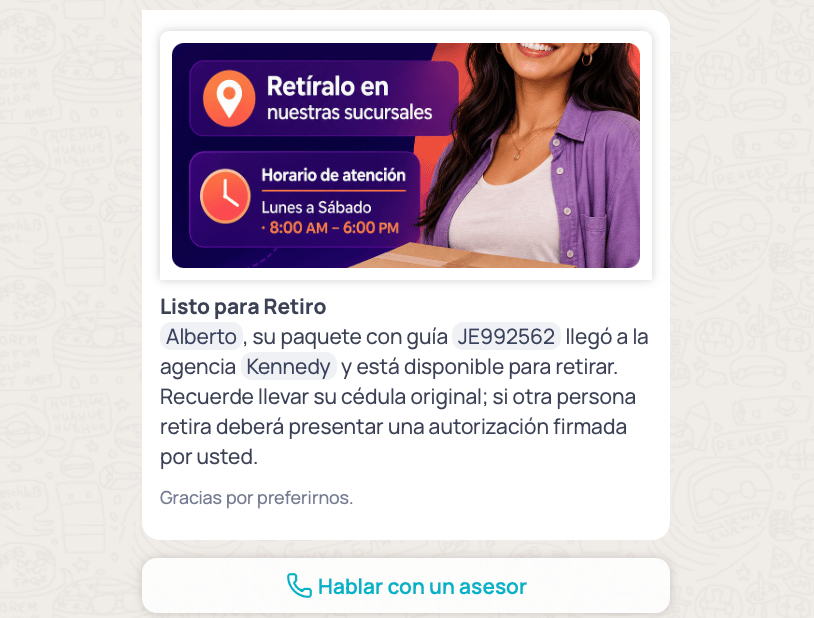 **What it's for**
* Marketing: promo announcements, product launches, discount coupons, event invitations, win-back campaigns for inactive customers.
* Utility: purchase confirmations, shipping notices, appointment reminders, invoice due dates, ticket status changes.
**Step by step**
1. In step 2, pick the category (Marketing or Utility) and then **Custom message**.
2. In step 3, pick the **message type**: Text, Image, Video, or Document.
* With **Text** you can add a text **header** (optional, up to 60 characters, supports 1 parameter).
* With **Image, Video, or Document** you have to upload the file. That asset is what the customer sees as the header.
3. Write the **message body** (required). Use **Add parameter** to insert values that change per contact (name, order number, amount). For each parameter, fill in its label and an example.
4. Optionally write a **footer** (up to 60 characters). Useful for short notices like "Reply STOP to opt out".
5. In step 4, add the buttons you need.
6. Check the preview and confirm.
| Type | Maximum | What it's for |
| ----------------- | ------- | ---------------------------------------------------------------------------------- |
| Route to workflow | 10 | The customer replies with one tap and you can route them to a workflow. |
| URL | 2 | Opens a web page. Can be fixed or have a variable portion per contact. |
| Contact | 1 | Calls one of the business's phone numbers. Can't be combined with the call button. |
| Call | 1 | Can't be combined with the contact button. |
**Marketing** category. A text message followed by a set of swipeable cards, each with its own image or video and its own buttons.
**What it's for**
* Marketing: promo announcements, product launches, discount coupons, event invitations, win-back campaigns for inactive customers.
* Utility: purchase confirmations, shipping notices, appointment reminders, invoice due dates, ticket status changes.
**Step by step**
1. In step 2, pick the category (Marketing or Utility) and then **Custom message**.
2. In step 3, pick the **message type**: Text, Image, Video, or Document.
* With **Text** you can add a text **header** (optional, up to 60 characters, supports 1 parameter).
* With **Image, Video, or Document** you have to upload the file. That asset is what the customer sees as the header.
3. Write the **message body** (required). Use **Add parameter** to insert values that change per contact (name, order number, amount). For each parameter, fill in its label and an example.
4. Optionally write a **footer** (up to 60 characters). Useful for short notices like "Reply STOP to opt out".
5. In step 4, add the buttons you need.
6. Check the preview and confirm.
| Type | Maximum | What it's for |
| ----------------- | ------- | ---------------------------------------------------------------------------------- |
| Route to workflow | 10 | The customer replies with one tap and you can route them to a workflow. |
| URL | 2 | Opens a web page. Can be fixed or have a variable portion per contact. |
| Contact | 1 | Calls one of the business's phone numbers. Can't be combined with the call button. |
| Call | 1 | Can't be combined with the contact button. |
**Marketing** category. A text message followed by a set of swipeable cards, each with its own image or video and its own buttons.
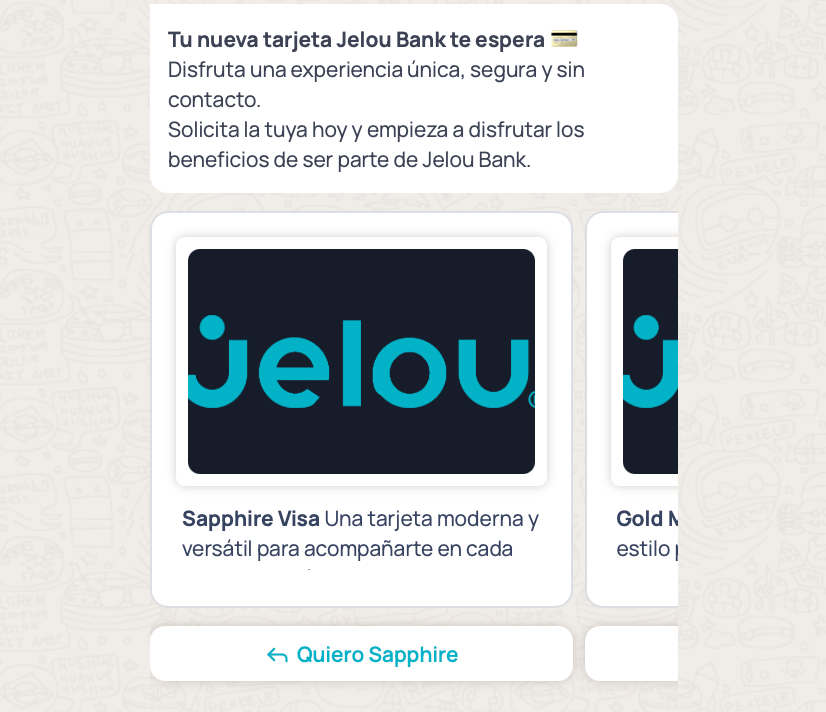 **What it's for**
* Showing several promotions at once (by category, by store, by size).
* Featuring the week's best sellers.
* Showing several plans or bundles so the customer can compare and choose.
* A visual catalog when you **don't** have a catalog connected to Meta.
**Step by step**
1. In step 2, pick **Marketing** and then **Carousel**.
2. In step 3, write the **message body**: the text that appears above the cards (required, up to 900 characters, supports up to 9 parameters). It's the hook of the message.
3. Pick the **card header type**: **Image** or **Video**. Every card shares the same type; you can't mix them.
4. Press **Add card** for each card you need. You can create **1 to 10**; the button is disabled once you reach 10.
5. In each card, write its **content** (required, up to 120 characters). Line breaks **aren't allowed** inside a card; if you need to separate ideas, use another card.
6. If a card needs variable values, give it its own parameters with a label and example. Each card handles its own, independent from the body.
7. Use the **X** in the corner of a card to delete it.
8. In step 4, set up the buttons: **the buttons you add apply to every card in the carousel**, and each card must have at least one and at most two. Only the destination changes per card (for example, each product's URL); the type and the name are shared.
9. Check the preview by swiping through the cards and confirm.
Each card's image or video shows a placeholder asset while you create the template. The real file for each card is defined when you create the campaign.
**Marketing** category. Shows an offer title with a countdown timer and, optionally, a promo code the customer copies with one tap.
**What it's for**
* Showing several promotions at once (by category, by store, by size).
* Featuring the week's best sellers.
* Showing several plans or bundles so the customer can compare and choose.
* A visual catalog when you **don't** have a catalog connected to Meta.
**Step by step**
1. In step 2, pick **Marketing** and then **Carousel**.
2. In step 3, write the **message body**: the text that appears above the cards (required, up to 900 characters, supports up to 9 parameters). It's the hook of the message.
3. Pick the **card header type**: **Image** or **Video**. Every card shares the same type; you can't mix them.
4. Press **Add card** for each card you need. You can create **1 to 10**; the button is disabled once you reach 10.
5. In each card, write its **content** (required, up to 120 characters). Line breaks **aren't allowed** inside a card; if you need to separate ideas, use another card.
6. If a card needs variable values, give it its own parameters with a label and example. Each card handles its own, independent from the body.
7. Use the **X** in the corner of a card to delete it.
8. In step 4, set up the buttons: **the buttons you add apply to every card in the carousel**, and each card must have at least one and at most two. Only the destination changes per card (for example, each product's URL); the type and the name are shared.
9. Check the preview by swiping through the cards and confirm.
Each card's image or video shows a placeholder asset while you create the template. The real file for each card is defined when you create the campaign.
**Marketing** category. Shows an offer title with a countdown timer and, optionally, a promo code the customer copies with one tap.
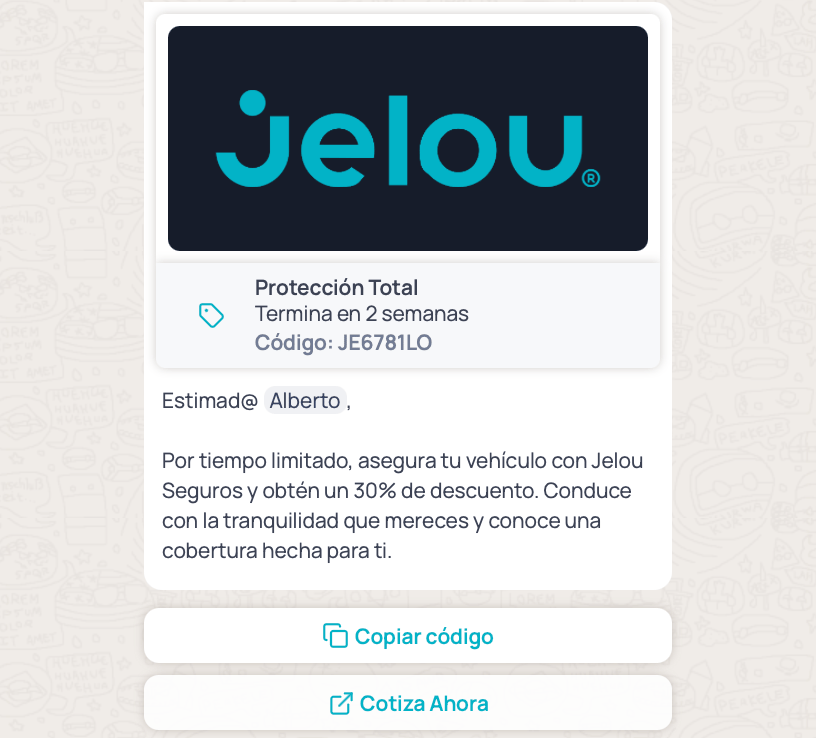 **What it's for**
* Flash sales and offers lasting a few hours.
* Coupons with an expiration date.
* Urgency campaigns: "final hours", "today only".
**Step by step**
1. In step 2, pick **Marketing** and then **Limited-time offer**.
2. In step 3, pick the **message type**: Image or Video. This format doesn't accept text-only or documents.
3. Write the **offer title** (required, maximum 16 characters). It's the text next to the timer — for example `50% OFF today`.
4. Check **Add an expiration period to this offer** if you want to show the countdown. The preview shows a sample date: **the real date is set when you create the campaign**.
5. Write the **message body** (required, up to **600** characters in this format).
6. In step 4, set up the buttons:
* **URL button**: required. Takes the customer to the store or the offer page. Can be fixed or have a variable portion per contact — in that case you have to provide a full example URL.
* **Copy code**: optional. Adds a promo code the customer copies with one tap; you have to enter a sample code.
7. Confirm.
The URL button's name can't be the same as the copy-code button's name.
Available in **Marketing** and **Utility**. Adds a button that opens a WhatsApp flow — a form or guided process inside the chat. Only available on **WhatsApp Cloud** channels.
**What it's for**
* Flash sales and offers lasting a few hours.
* Coupons with an expiration date.
* Urgency campaigns: "final hours", "today only".
**Step by step**
1. In step 2, pick **Marketing** and then **Limited-time offer**.
2. In step 3, pick the **message type**: Image or Video. This format doesn't accept text-only or documents.
3. Write the **offer title** (required, maximum 16 characters). It's the text next to the timer — for example `50% OFF today`.
4. Check **Add an expiration period to this offer** if you want to show the countdown. The preview shows a sample date: **the real date is set when you create the campaign**.
5. Write the **message body** (required, up to **600** characters in this format).
6. In step 4, set up the buttons:
* **URL button**: required. Takes the customer to the store or the offer page. Can be fixed or have a variable portion per contact — in that case you have to provide a full example URL.
* **Copy code**: optional. Adds a promo code the customer copies with one tap; you have to enter a sample code.
7. Confirm.
The URL button's name can't be the same as the copy-code button's name.
Available in **Marketing** and **Utility**. Adds a button that opens a WhatsApp flow — a form or guided process inside the chat. Only available on **WhatsApp Cloud** channels.
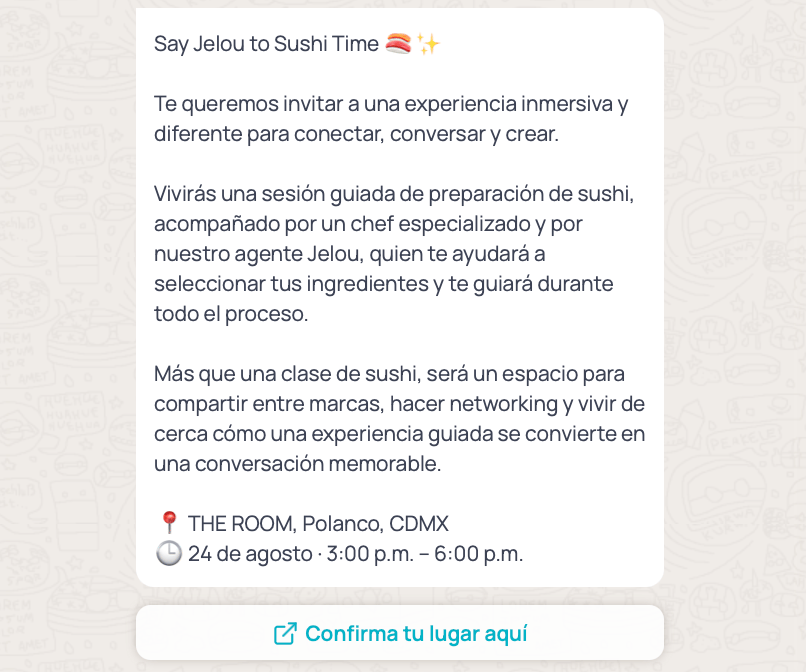 **What it's for**
* Marketing: event registration, interest surveys, quote requests.
* Utility: appointment scheduling, data updates, post-sale satisfaction surveys.
**Step by step**
1. In step 2, pick **Marketing** or **Utility** and then **WhatsApp Flow**.
2. In step 3, pick the **message type**: Text, Image, Video, or Document. With Text you can add a header; with the others you have to upload the file.
3. Write the **message body** (required) and, if you want, the **footer**.
4. In step 4, set up the flow button:
* Write the **button name** (between 2 and 24 characters).
* Pick the **flow** from the channel's list of flows.
* Pick the **screen** the flow will open on. The list loads after you pick the flow.
5. Confirm.
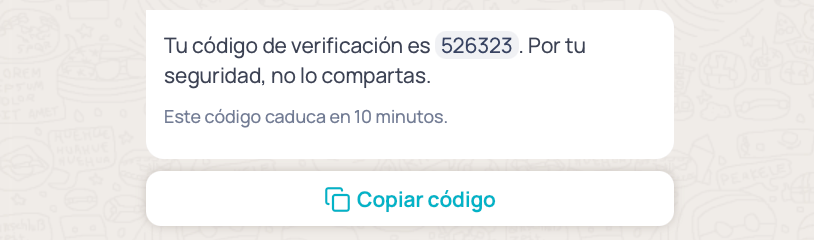
**Authentication** category. Sends a one-time code. It's the only format whose content you don't write: it's generated automatically.
**What it's for**
* Marketing: event registration, interest surveys, quote requests.
* Utility: appointment scheduling, data updates, post-sale satisfaction surveys.
**Step by step**
1. In step 2, pick **Marketing** or **Utility** and then **WhatsApp Flow**.
2. In step 3, pick the **message type**: Text, Image, Video, or Document. With Text you can add a header; with the others you have to upload the file.
3. Write the **message body** (required) and, if you want, the **footer**.
4. In step 4, set up the flow button:
* Write the **button name** (between 2 and 24 characters).
* Pick the **flow** from the channel's list of flows.
* Pick the **screen** the flow will open on. The list loads after you pick the flow.
5. Confirm.
**Authentication** category. Sends a one-time code. It's the only format whose content you don't write: it's generated automatically.
 **What it's for**
* Login verification.
* Confirming a transaction or a change to sensitive data.
* Password recovery.
**Requirement**: the account's portfolio must be verified in Meta.
**Step by step**
1. In step 2, pick **Authentication**. There are no subformats to select.
2. In step 3 you'll see the notice that the content isn't editable. The body is built from the language you picked in step 1:
* Spanish: `Tu código de verificación es {{1}}.`
* English: `{{1}} is your verification code.`
* Portuguese: `Seu código de verificação é {{1}}.`
3. Check any additional options you want:
* **Add security recommendation**: appends "For your security, do not share it."
* **Add an expiration time for the code**: appends "This code expires in N minutes" to the footer. The value must be **between 1 and 90**; outside that range you'll see "Enter a value between 1 and 90".
4. In step 4 you'll see the **Copy code** button, created automatically. You can change its text.
5. Confirm.
***
## Changing the format
Changing the category or the subformat **clears the content you already loaded**: header, body, footer, media, parameters, cards, and buttons. Pick the format before you write the message.
On a template already submitted to WhatsApp that is **pending approval, the category can't be changed**. You'll see the notice "The category of an approved template cannot be modified."
Meta automatically handles changing a template's category when it considers it incorrect, so it can approve it.
## Notes
* Parameters can't sit at the very start or end of the text, and consecutive line breaks aren't allowed.
* Button names can't repeat within the same template.
* Only **approved** templates can be used in campaigns.
Dimensions, file sizes, and design best practices for images, videos, and documents.
How WhatsApp validates the category and what to do if yours gets recategorized.
Use an approved template to send your first bulk message.
**What it's for**
* Login verification.
* Confirming a transaction or a change to sensitive data.
* Password recovery.
**Requirement**: the account's portfolio must be verified in Meta.
**Step by step**
1. In step 2, pick **Authentication**. There are no subformats to select.
2. In step 3 you'll see the notice that the content isn't editable. The body is built from the language you picked in step 1:
* Spanish: `Tu código de verificación es {{1}}.`
* English: `{{1}} is your verification code.`
* Portuguese: `Seu código de verificação é {{1}}.`
3. Check any additional options you want:
* **Add security recommendation**: appends "For your security, do not share it."
* **Add an expiration time for the code**: appends "This code expires in N minutes" to the footer. The value must be **between 1 and 90**; outside that range you'll see "Enter a value between 1 and 90".
4. In step 4 you'll see the **Copy code** button, created automatically. You can change its text.
5. Confirm.
***
## Changing the format
Changing the category or the subformat **clears the content you already loaded**: header, body, footer, media, parameters, cards, and buttons. Pick the format before you write the message.
On a template already submitted to WhatsApp that is **pending approval, the category can't be changed**. You'll see the notice "The category of an approved template cannot be modified."
Meta automatically handles changing a template's category when it considers it incorrect, so it can approve it.
## Notes
* Parameters can't sit at the very start or end of the text, and consecutive line breaks aren't allowed.
* Button names can't repeat within the same template.
* Only **approved** templates can be used in campaigns.
Dimensions, file sizes, and design best practices for images, videos, and documents.
How WhatsApp validates the category and what to do if yours gets recategorized.
Use an approved template to send your first bulk message.