> ## Documentation Index
> Fetch the complete documentation index at: https://docs.jelou.ai/llms.txt
> Use this file to discover all available pages before exploring further.
# Your First Template
> Design and submit your first template (HSM) for Meta review from Jelou.
WhatsApp templates let you send proactive messages outside the 24-hour window.\
In this guide you will create your first template in Jelou and get it ready for Meta review.
## Before you begin
Make sure you have:
* A WhatsApp channel already connected
* A defined message objective (informational, promotional, or authentication)
***
Navigate to `Campaigns` → `Templates`.
Click `+ Create`.
Here you can see all your templates and their status:
* Pending
* Approved
* Rejected
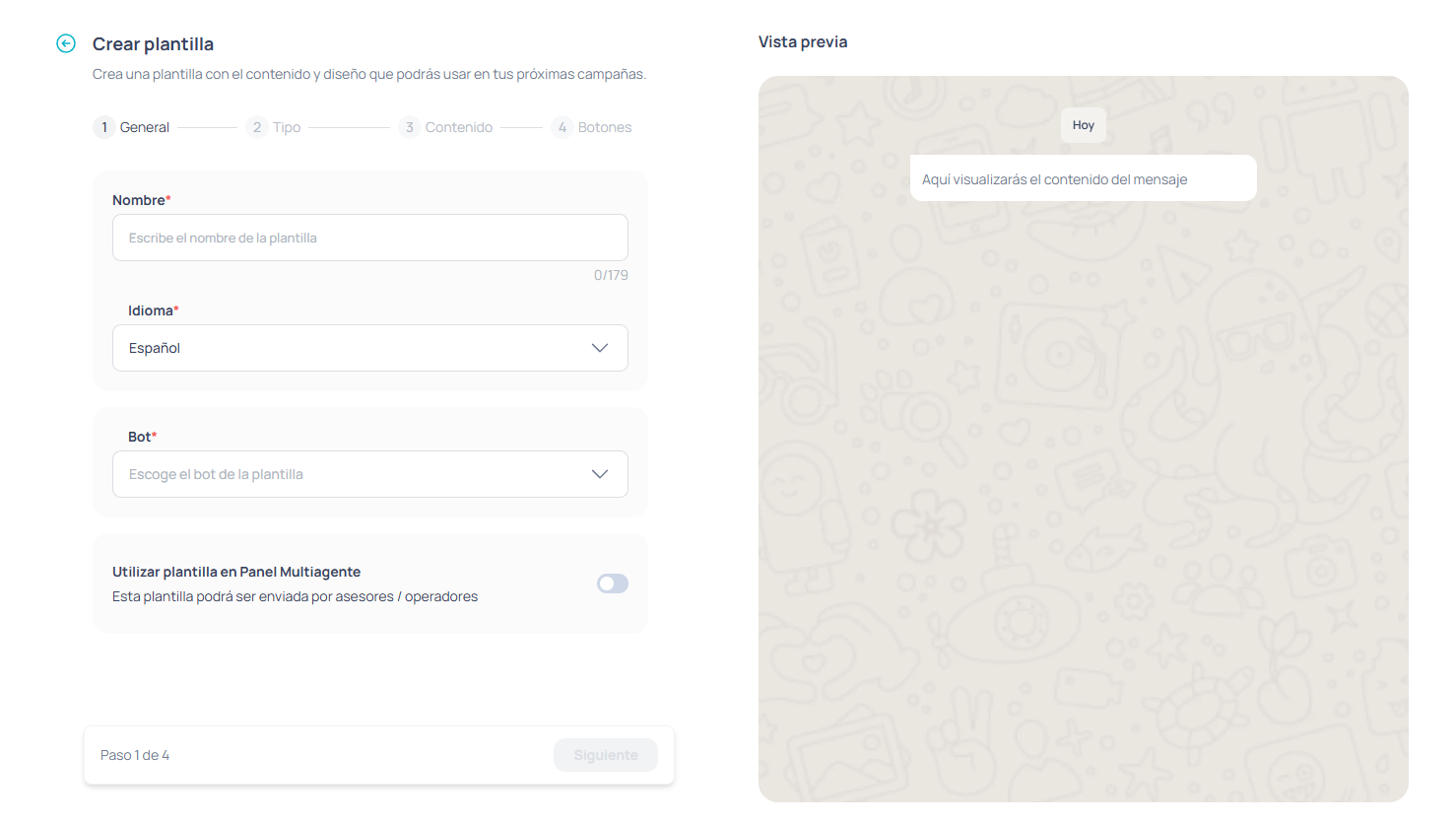 Define the basic template details:
**Name**\
Use a clear and descriptive name (e.g., `appointment_reminder`).
The technical identifier is generated automatically according to Meta's rules.
**Language**\
Select the message language:
* Spanish
* English
* Portuguese
**Associated bot**\
Define which bot or flow will use this template to start or continue the conversation.
**Visibility in Connect**\
Decide whether agents can use this template manually from the Multi-agent Panel.
Choose the category based on the message objective:
* **Utility**: operational or transactional messages (confirmations, reminders).
* **Marketing**: promotions, campaigns, announcements.
* **Authentication**: sending security codes (OTP).
If the category does not match the content, Meta may automatically reclassify it.
Choose the format:
* Text only
* Image
* Video
* Document
Then write the main message.
If you need personalization, add **parameters** (e.g., name, order number, date).
For each parameter you must:
* Indicate how many you are using
* Provide an example
The footer is optional.
Authentication (OTP) templates do not allow this free format.
Best practices:
* Do not use consecutive parameters.
* Always separate parameters with text.
* Keep the message focused on a single intent.
Depending on the template type, you can include buttons:
* Redirect to a flow or workflow
* URL (static or dynamic)
* Phone call
The number and type of buttons allowed depends on the selected category.
Before submitting:
* Review the preview
* Verify parameters and buttons
* Confirm the creation
Once submitted, the template will enter Meta's review process.
**Approval time:** Meta may take up to 48 hours to review the template, although the process is usually faster.
***
## Done
With your approved template you will be able to:
* Start conversations outside the 24-hour window
* Launch bulk campaigns
* Allow agents to use templates from Connect
* Automate operational or promotional notifications
This is how you build the foundation of your proactive communication on WhatsApp.
Define the basic template details:
**Name**\
Use a clear and descriptive name (e.g., `appointment_reminder`).
The technical identifier is generated automatically according to Meta's rules.
**Language**\
Select the message language:
* Spanish
* English
* Portuguese
**Associated bot**\
Define which bot or flow will use this template to start or continue the conversation.
**Visibility in Connect**\
Decide whether agents can use this template manually from the Multi-agent Panel.
Choose the category based on the message objective:
* **Utility**: operational or transactional messages (confirmations, reminders).
* **Marketing**: promotions, campaigns, announcements.
* **Authentication**: sending security codes (OTP).
If the category does not match the content, Meta may automatically reclassify it.
Choose the format:
* Text only
* Image
* Video
* Document
Then write the main message.
If you need personalization, add **parameters** (e.g., name, order number, date).
For each parameter you must:
* Indicate how many you are using
* Provide an example
The footer is optional.
Authentication (OTP) templates do not allow this free format.
Best practices:
* Do not use consecutive parameters.
* Always separate parameters with text.
* Keep the message focused on a single intent.
Depending on the template type, you can include buttons:
* Redirect to a flow or workflow
* URL (static or dynamic)
* Phone call
The number and type of buttons allowed depends on the selected category.
Before submitting:
* Review the preview
* Verify parameters and buttons
* Confirm the creation
Once submitted, the template will enter Meta's review process.
**Approval time:** Meta may take up to 48 hours to review the template, although the process is usually faster.
***
## Done
With your approved template you will be able to:
* Start conversations outside the 24-hour window
* Launch bulk campaigns
* Allow agents to use templates from Connect
* Automate operational or promotional notifications
This is how you build the foundation of your proactive communication on WhatsApp.