> ## Documentation Index
> Fetch the complete documentation index at: https://docs.jelou.ai/llms.txt
> Use this file to discover all available pages before exploring further.
# HubSpot Integration
> Connect Jelou with HubSpot to manage conversations, automate flows, and centralize customer support.
Jelou integrates communication channels and conversational automations with HubSpot, enabling users to:
* Manage conversations from HubSpot using communication channels connected in Jelou.
* Automate conversational flows through bots configured from the Brain module.
* Transfer conversations and customer support to HubSpot Inbox or custom channels.
* Centralize customer support and automations on a single platform.
## Prerequisites
To use the HubSpot integration, you need:
* An active **Enterprise** account on Jelou.
* The **HubSpot** node enabled on your account.
***
## Install the app
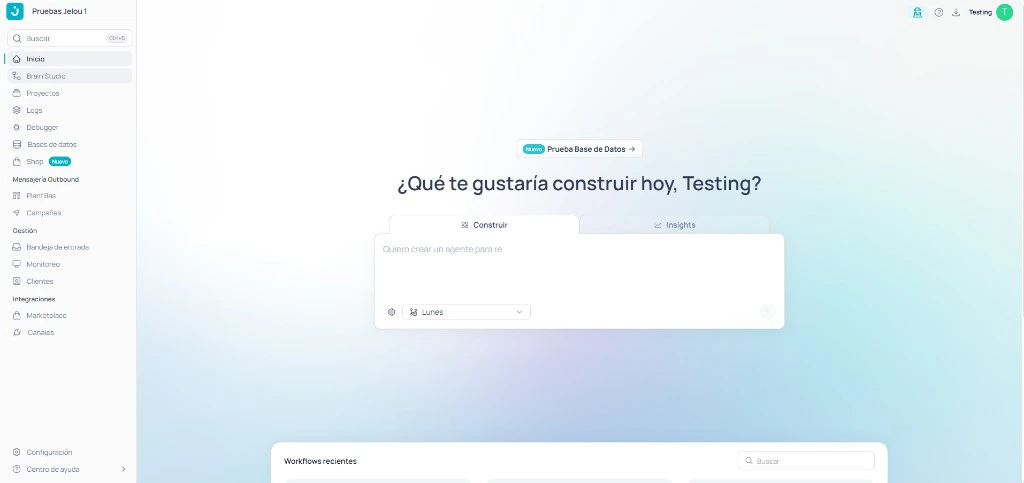
Log in to Jelou. Navigate to the **Brain** module and select the **Canvas** section.
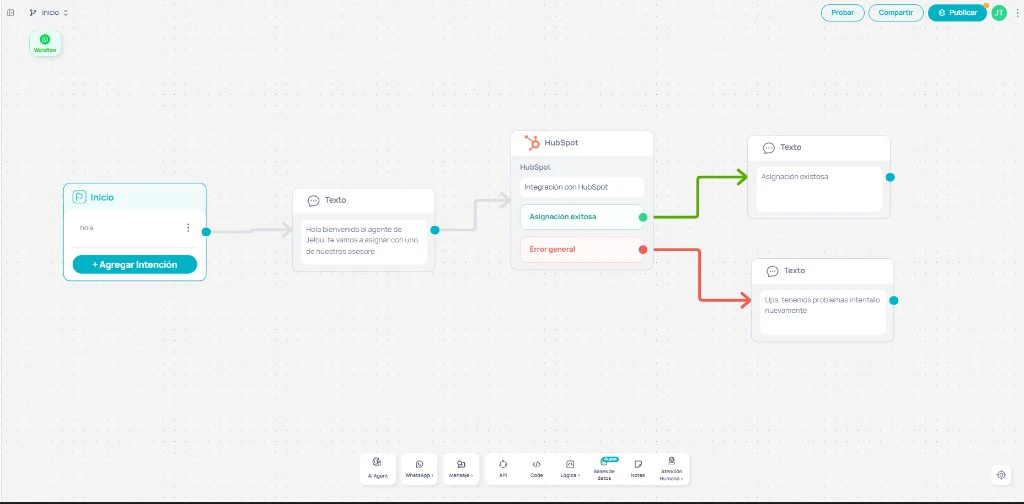
 Inside the Canvas, create a new flow according to your needs. For this example:
1. Add a **text node** and configure a **welcome message** for the test bot.
2. From the node sidebar, drag the **HubSpot node** into the flow.
It is recommended to add:
* A confirmation message for successful assignments.
* An error handling message in case of integration failure.
Inside the Canvas, create a new flow according to your needs. For this example:
1. Add a **text node** and configure a **welcome message** for the test bot.
2. From the node sidebar, drag the **HubSpot node** into the flow.
It is recommended to add:
* A confirmation message for successful assignments.
* An error handling message in case of integration failure.
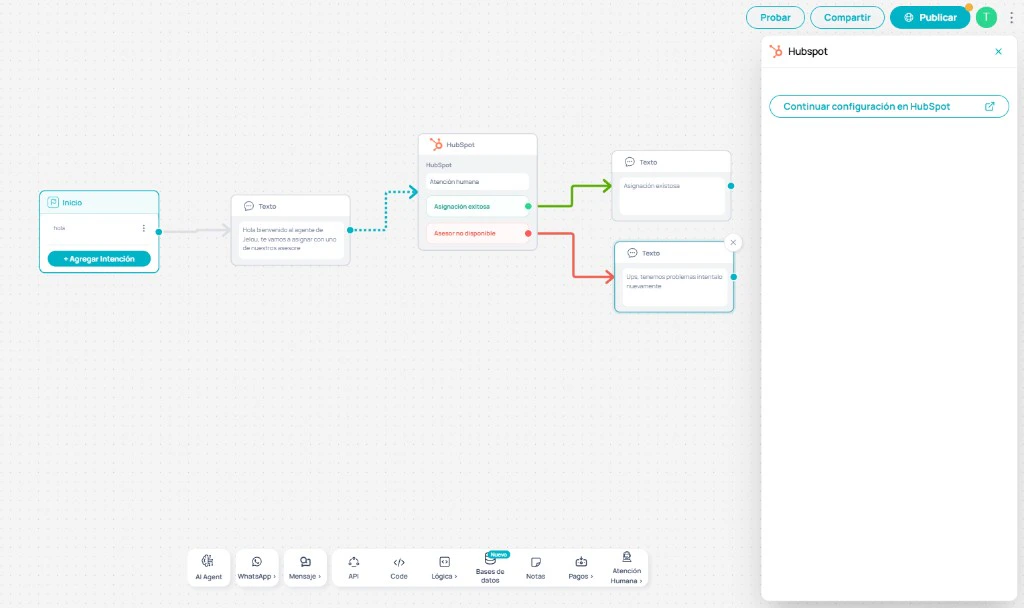
 Inside the HubSpot node, click **Continue setup in HubSpot**. The platform will automatically redirect to HubSpot to complete the app installation and authorization.
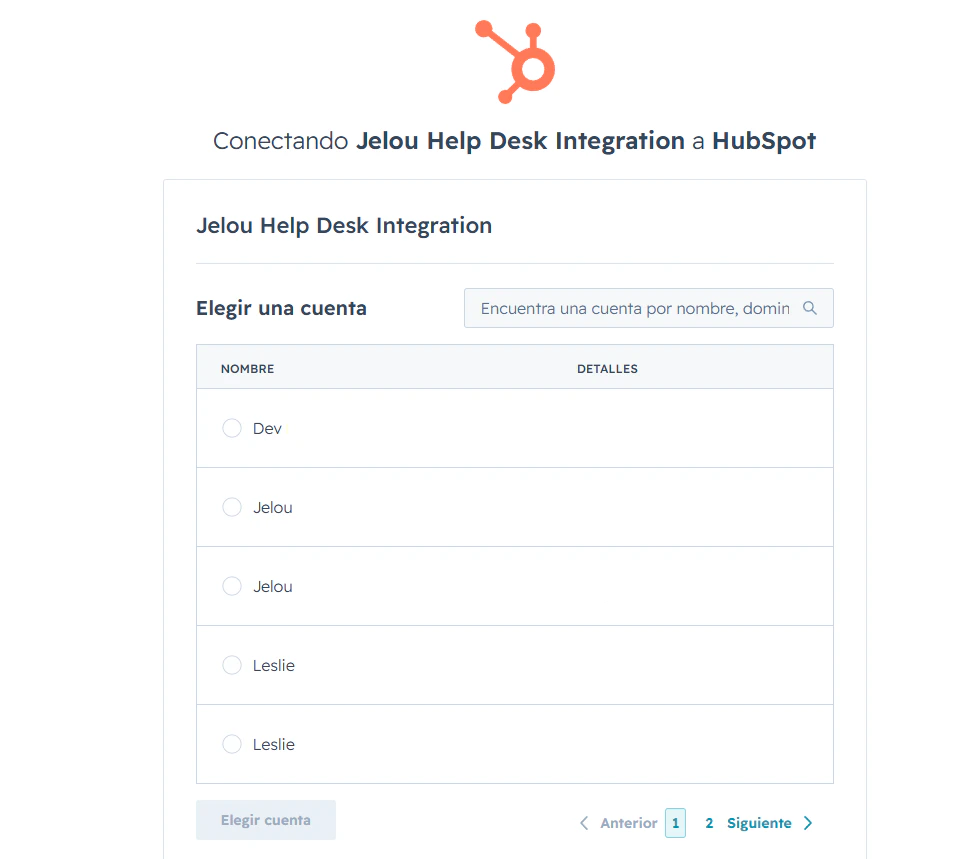
 HubSpot will ask you to select the account you want to connect with Jelou. Choose the corresponding account and click **Choose account**.
 Next, review the permissions the app requests to send and receive messages, manage conversations, and access your account information.
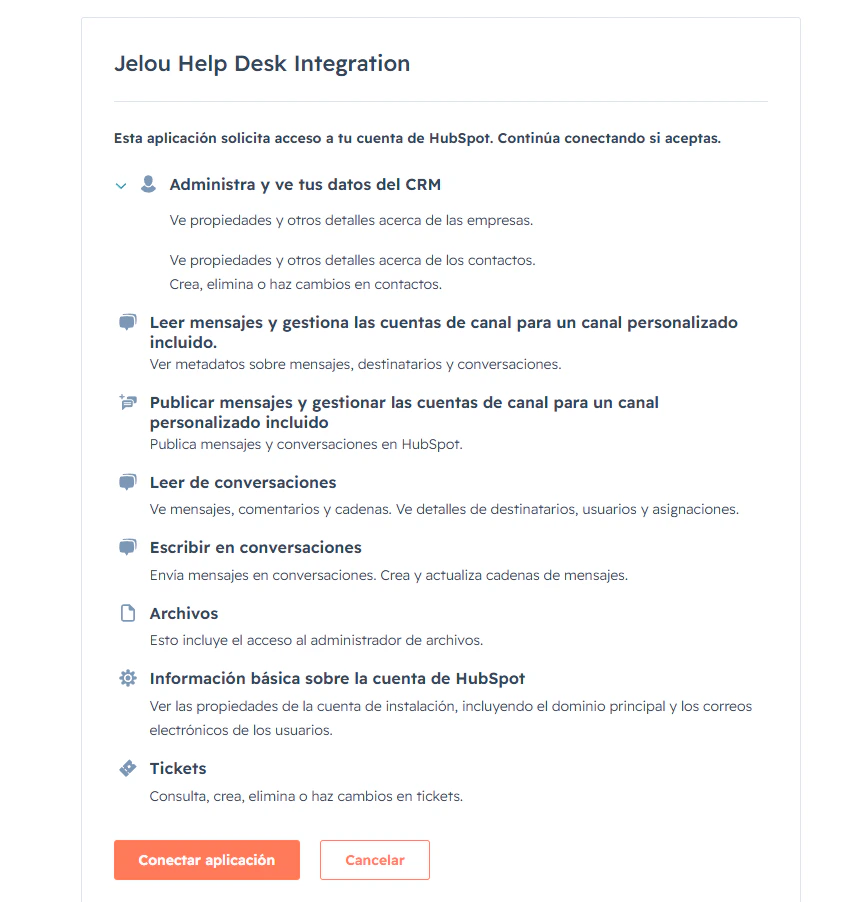 Click **Connect app**. Once the authorization is complete, you will automatically return to Jelou.
***
## Configure the app
After installing the integration:
Go back to the **Brain** module and select the **HubSpot node** within your flow.
Configure the communication channel you will use:
* **HubSpot Inbox** — to manage conversations directly from HubSpot.
* **Custom channel** — for independently configured channels.
Click **Connect app**. Once the authorization is complete, you will automatically return to Jelou.
***
## Configure the app
After installing the integration:
Go back to the **Brain** module and select the **HubSpot node** within your flow.
Configure the communication channel you will use:
* **HubSpot Inbox** — to manage conversations directly from HubSpot.
* **Custom channel** — for independently configured channels.
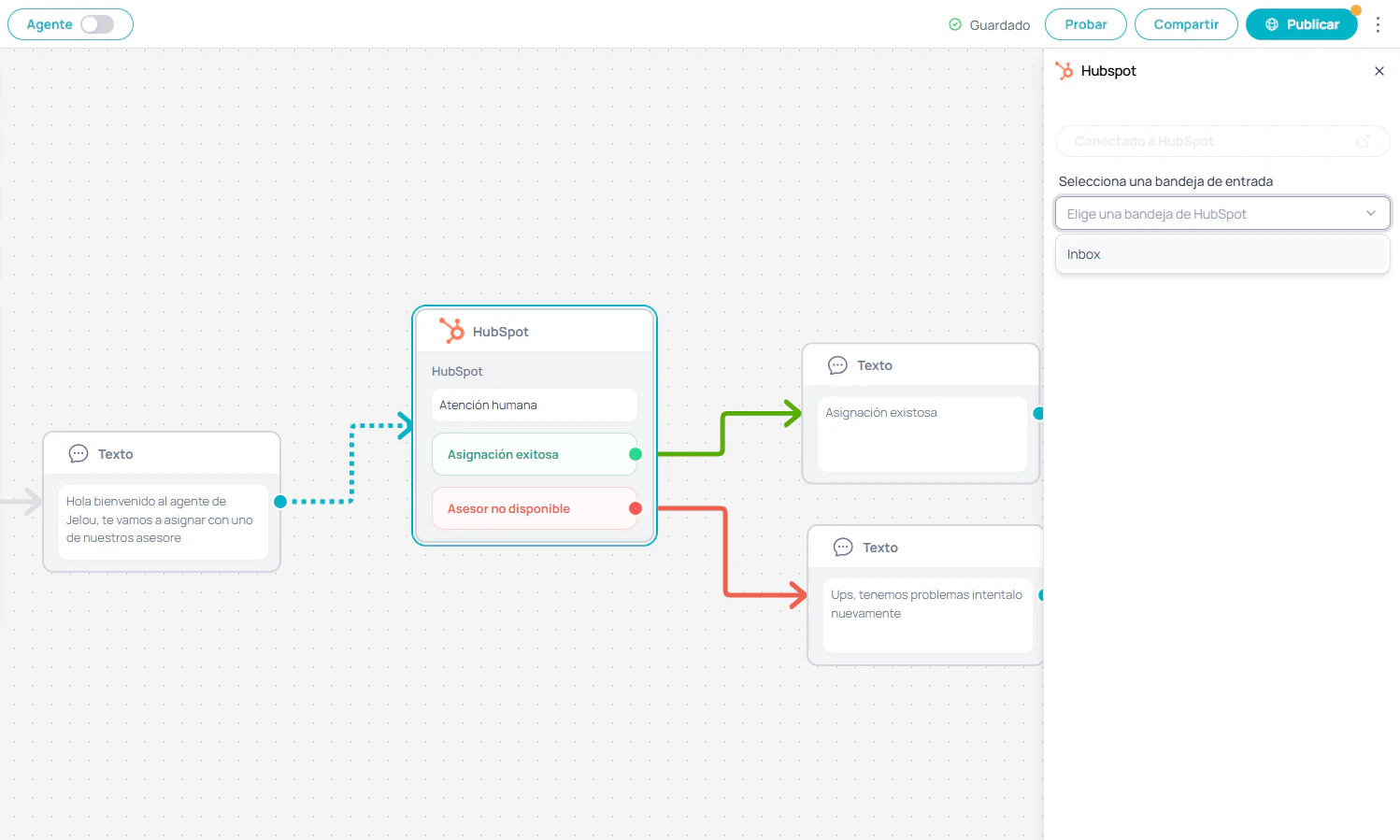 Configure the desired actions for customer support and automations within the flow.
When the configuration is ready, **save and publish** the flow.
***
## Use the app
Once the integration is configured:
* Conversations received from connected channels can be transferred and managed from HubSpot.
* Bots created in Jelou can automate initial customer support.
* Agents can continue the conversation directly from HubSpot Inbox or from the configured channel.
* Conversation synchronizations and transfers are performed automatically based on the configuration set in the flow.
No additional manual actions are required once the automation is published.
***
## Uninstall the app
To uninstall the Jelou app from HubSpot:
Log in to your HubSpot account. Click the **settings** icon in the top navigation bar.
In the left sidebar menu, navigate to **Integrations > Connected apps**. Locate the **Jelou** app.
Click **Actions** and then select **Uninstall**. In the confirmation window, type `uninstall` and click **Uninstall** to confirm the action.
Once the app is uninstalled:
* Jelou will no longer have access to the HubSpot account.
* Automations and transfers configured through the HubSpot node will stop working.
* To completely remove the integration from the flow, you must delete the HubSpot node within the Brain module in Jelou.
Configure the desired actions for customer support and automations within the flow.
When the configuration is ready, **save and publish** the flow.
***
## Use the app
Once the integration is configured:
* Conversations received from connected channels can be transferred and managed from HubSpot.
* Bots created in Jelou can automate initial customer support.
* Agents can continue the conversation directly from HubSpot Inbox or from the configured channel.
* Conversation synchronizations and transfers are performed automatically based on the configuration set in the flow.
No additional manual actions are required once the automation is published.
***
## Uninstall the app
To uninstall the Jelou app from HubSpot:
Log in to your HubSpot account. Click the **settings** icon in the top navigation bar.
In the left sidebar menu, navigate to **Integrations > Connected apps**. Locate the **Jelou** app.
Click **Actions** and then select **Uninstall**. In the confirmation window, type `uninstall` and click **Uninstall** to confirm the action.
Once the app is uninstalled:
* Jelou will no longer have access to the HubSpot account.
* Automations and transfers configured through the HubSpot node will stop working.
* To completely remove the integration from the flow, you must delete the HubSpot node within the Brain module in Jelou.