> ## Documentation Index
> Fetch the complete documentation index at: https://docs.jelou.ai/llms.txt
> Use this file to discover all available pages before exploring further.
# Coexistence - Support from WhatsApp Business
> Pause the workflow when an agent replies from WhatsApp Business and hand control back to the AI with keywords.
Coexistence lets you use the same WhatsApp number in Jelou while you keep replying from the **WhatsApp Business** app. When a human agent answers manually from the app, Jelou automatically pauses the bot's workflow so the AI doesn't interrupt the conversation, and hands control back when the agent signals it with a keyword.
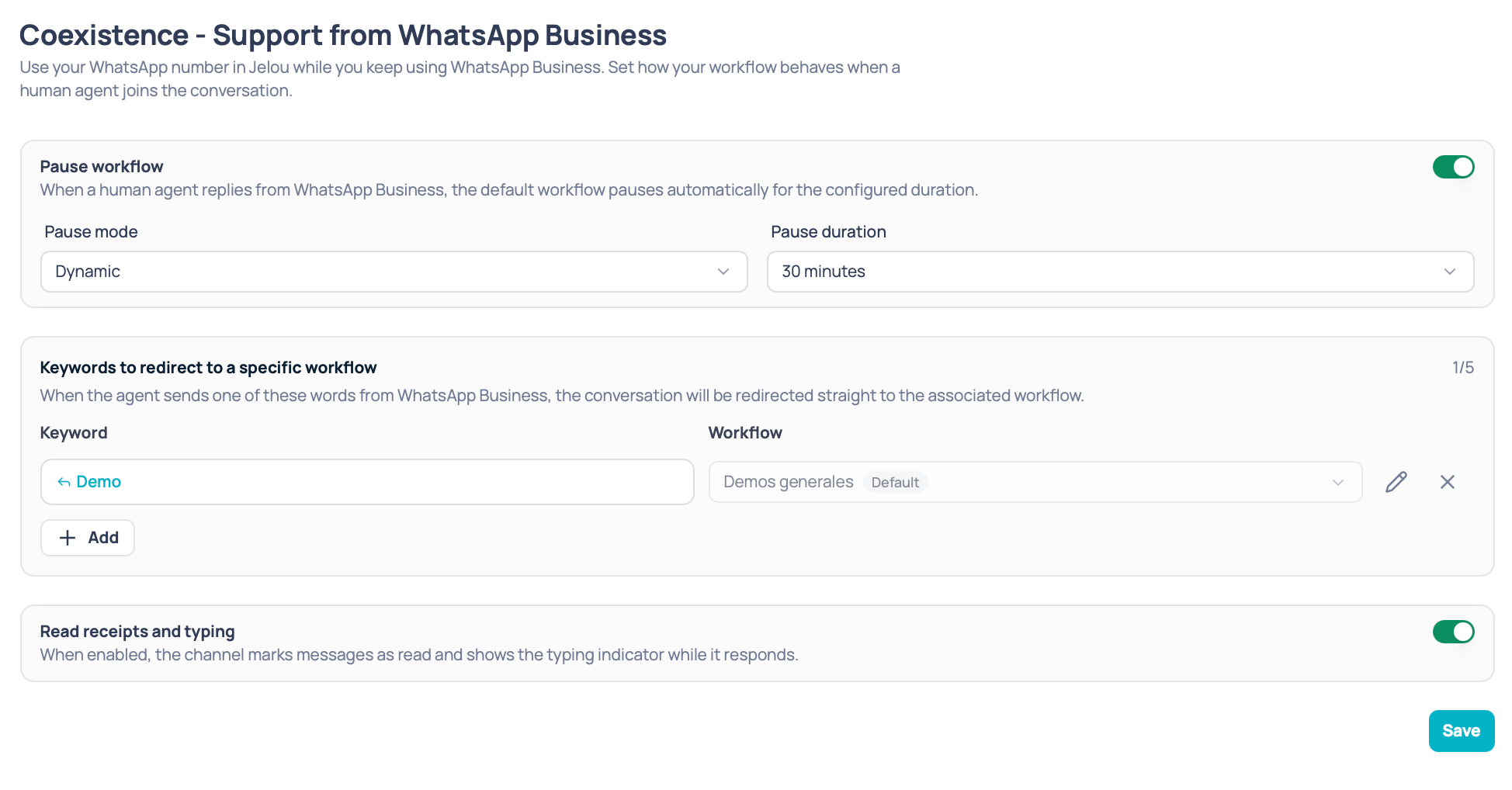 From `Settings` → `Coexistence` you define, for each WhatsApp channel:
* Whether the workflow pauses when a human agent steps in, and for how long.
* Which keywords the agent uses to route the conversation to a specific workflow.
* Whether the channel sends read receipts and the typing indicator.
This screen configures how the bot behaves during coexistence. To connect a WhatsApp Business App number to the Cloud API, see the [Coexistence](/en/connect/prerequisites/coexistence) guide.
## Prerequisite: select a channel
Settings are saved **per channel**, so you first need to pick one in the selector on the left.
The selector only lists channels that meet all of the following:
* They are **WhatsApp** channels.
* They are **in production** and **active**.
## Pause workflow
This is the main block on the screen and it's controlled by a toggle.
| Element | Description |
| ------------------ | -------------------------------------------------------------------------------------------------------------------------------------------------------------- |
| **Pause workflow** | When enabled, the default workflow pauses automatically for the configured time as soon as a human agent replies from WhatsApp Business. |
| **Pause type** | **Dynamic**: the pause restarts every time the agent sends a message.
From `Settings` → `Coexistence` you define, for each WhatsApp channel:
* Whether the workflow pauses when a human agent steps in, and for how long.
* Which keywords the agent uses to route the conversation to a specific workflow.
* Whether the channel sends read receipts and the typing indicator.
This screen configures how the bot behaves during coexistence. To connect a WhatsApp Business App number to the Cloud API, see the [Coexistence](/en/connect/prerequisites/coexistence) guide.
## Prerequisite: select a channel
Settings are saved **per channel**, so you first need to pick one in the selector on the left.
The selector only lists channels that meet all of the following:
* They are **WhatsApp** channels.
* They are **in production** and **active**.
## Pause workflow
This is the main block on the screen and it's controlled by a toggle.
| Element | Description |
| ------------------ | -------------------------------------------------------------------------------------------------------------------------------------------------------------- |
| **Pause workflow** | When enabled, the default workflow pauses automatically for the configured time as soon as a human agent replies from WhatsApp Business. |
| **Pause type** | **Dynamic**: the pause restarts every time the agent sends a message.
**Fixed time**: the pause starts with the agent's first message and doesn't extend. |
| **Pause duration** | How long the workflow stays paused. Options: 15 minutes, 30 minutes, 1 hour, 2 hours, and 4 hours. Default: 30 minutes. |
Use **Dynamic** when you want the bot to wait as long as the agent keeps typing, and **Fixed time** when you prefer a predictable limit from the first message.
## Keywords to route to a specific workflow
When the agent types one of these words from WhatsApp Business, the conversation is routed straight to the associated workflow. This is how you hand control back to the AI in a specific flow — a satisfaction survey, for example — without waiting for the pause to end.
Each row in the list has two columns:
| Column | Description |
| ------------ | ----------------------------------------------------------------------------------------------------------------------------------------------------------------------------------------------------------------------------- |
| **Keyword** | The word the agent will send over WhatsApp Business. Example: `survey`. |
| **Workflow** | The workflow the conversation will be routed to. The list shows the selected channel's workflows; the default workflow appears with the **Fallback** label. If there are more than 6 workflows, the selector includes search. |
### Keyword rules
* Up to **5 keywords** per channel. The counter in the top right shows how many you've used, for example `2/5`.
* Between **3 and 10 characters**.
* **No spaces** (a single word) and **no emojis**.
* You can't repeat a keyword already used in the list.
* You can't use a word already reserved for routing to the default workflow.
While **Pause workflow** is off, this section stays disabled.
## Read receipts and typing indicator
This is a toggle independent from the rest of the configuration.
| Element | Description |
| -------------------------------------- | ---------------------------------------------------------------------------------------------------------------------------------------------------------------------------------- |
| **Read receipts and typing indicator** | When enabled, the channel marks the customer's messages as read and shows the typing indicator while it prepares the reply. When disabled, the channel stops sending both signals. |
This toggle works even when **Pause workflow** is off; it's only disabled when no channel is selected.
## Saving changes
The **Save** button stays disabled until there's at least one change compared to what's already configured, and it shows a loading state while the request is in flight.
Only what changed is saved: the pause and keyword configuration on one side, and read receipts and typing indicator on the other. A notification with the result appears when it finishes. If saving fails, your changes stay on screen so you can retry.