> ## Documentation Index
> Fetch the complete documentation index at: https://docs.jelou.ai/llms.txt
> Use this file to discover all available pages before exploring further.
# Facebook
> Connecting your Facebook page to Jelou allows all conversations you receive on Messenger to be managed directly from the platform, whether by an AI Agent, a bot, or a human operator.
## Before you begin
Before starting the process, make sure you have the following:
* **Administrator permissions** on the Facebook page you are going to connect.
* An **active Jelou account** and access to the **Channels** module.
* Facebook **Business Manager** configured with your page.
> 💡 Without administrator permissions on Facebook you will not be able to complete the connection. If in doubt, check the role settings within Business Manager.
***
## Connect Facebook to Jelou
### 1. Open the *Channels* section in Jelou
1. Sign in to Jelou.
2. Go to **Channels**.
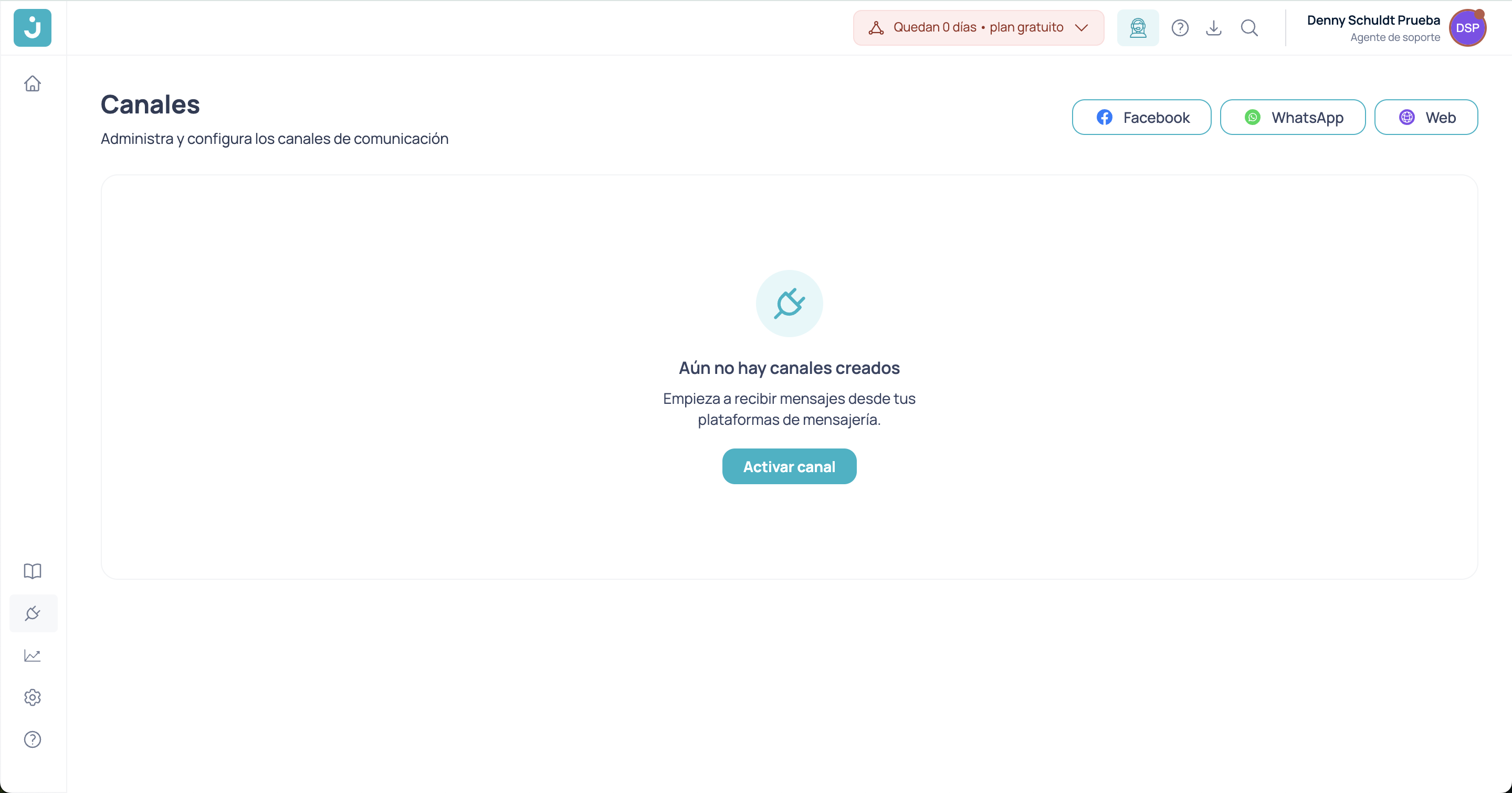
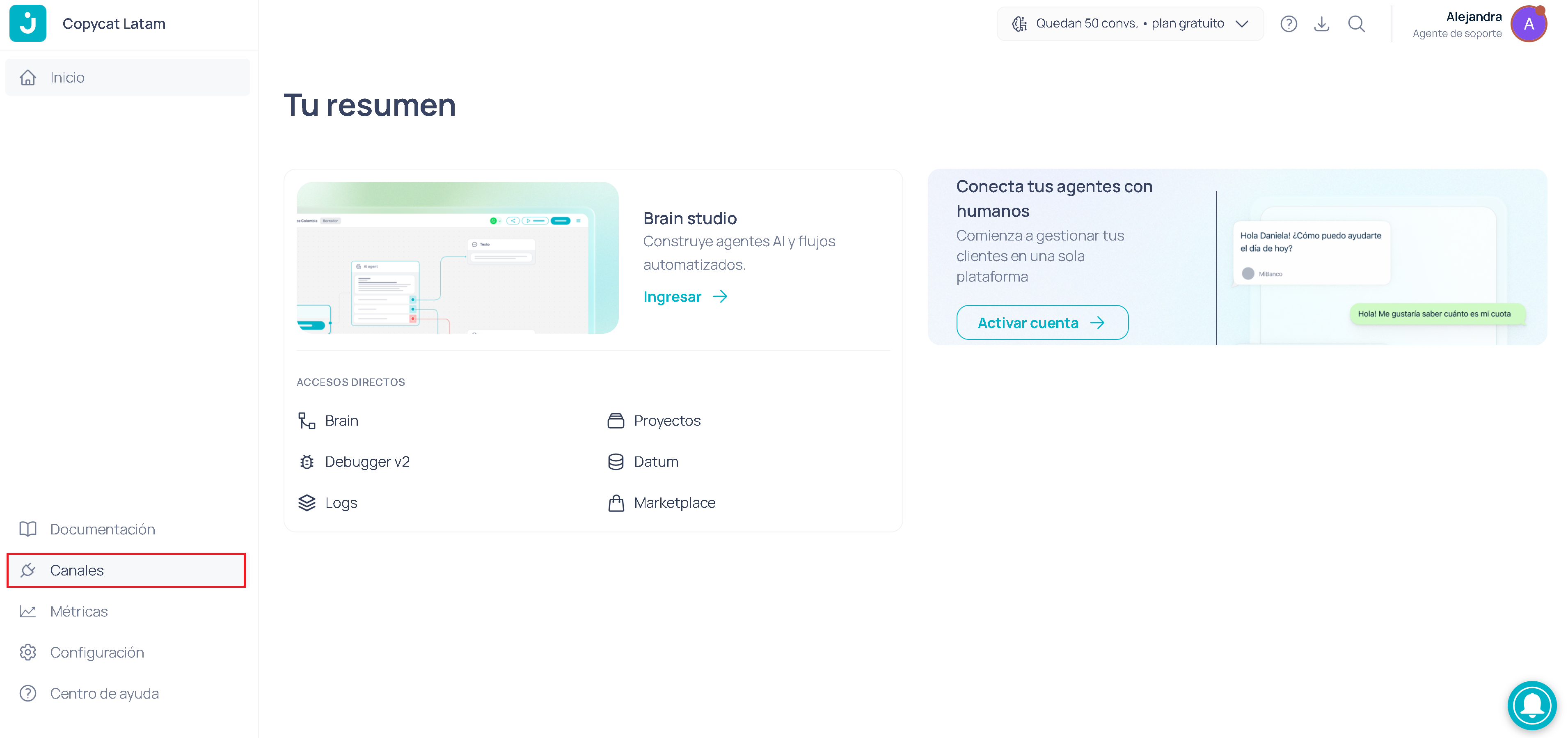 3. Select the channel you want to connect (**Facebook**).
> This is the same area where you can view and manage other channels like WhatsApp or Web.
3. Select the channel you want to connect (**Facebook**).
> This is the same area where you can view and manage other channels like WhatsApp or Web.
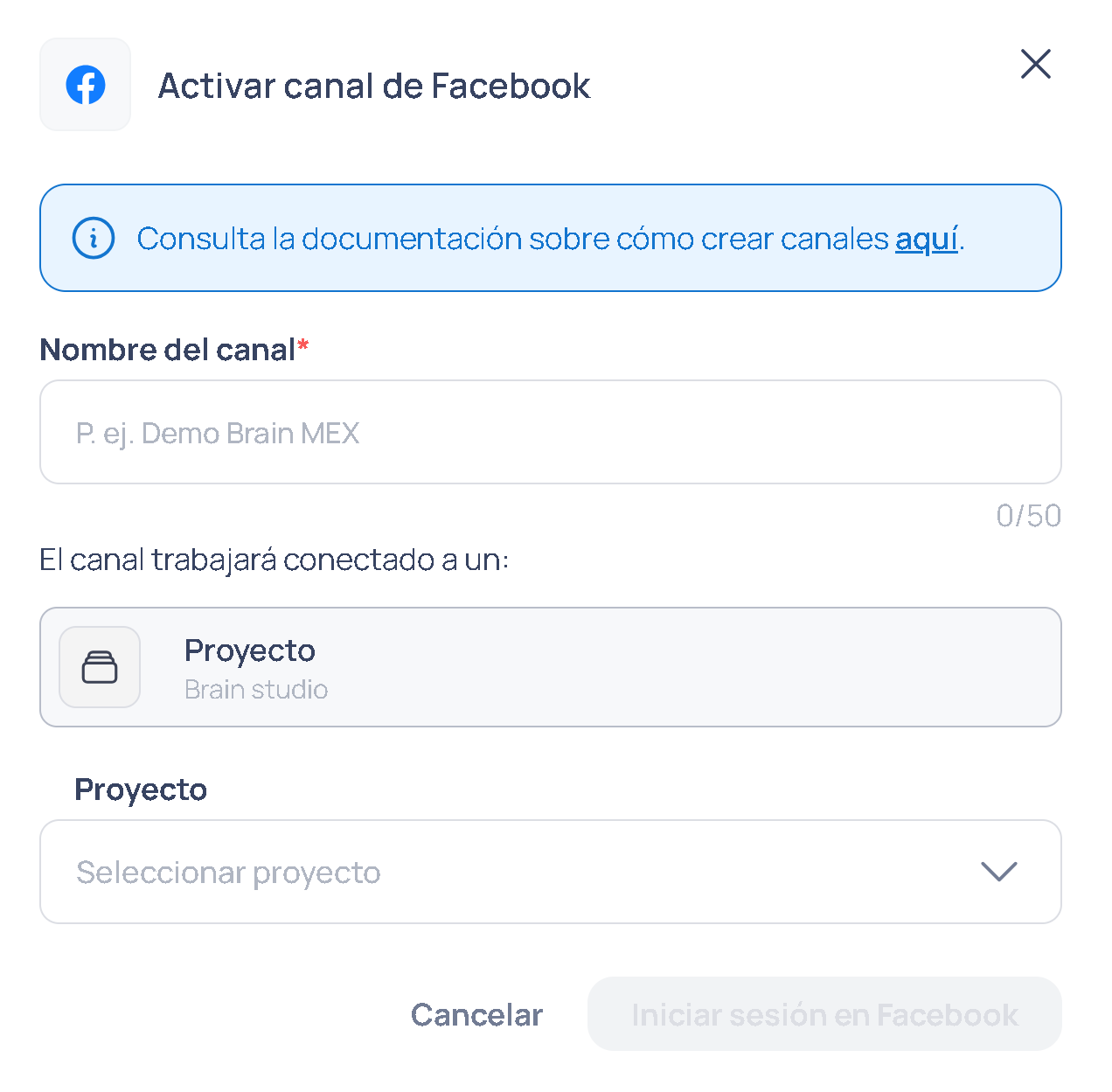
 ### 2. Assign a descriptive name to the channel
* Use a clear name that helps you identify it among other channels, for example:\
**Facebook – Customer Support** or **Messenger – General Support**.
* The name must be at least 4 characters and at most 50.
### 2. Assign a descriptive name to the channel
* Use a clear name that helps you identify it among other channels, for example:\
**Facebook – Customer Support** or **Messenger – General Support**.
* The name must be at least 4 characters and at most 50.
 ***
### 3. Grant permissions to access Facebook
When you choose **Sign in to** **Facebook** from Jelou:
1. An authorization flow from Meta (Facebook) will open.
2. You must **accept the requested permissions** so that Jelou can access your page.
If you do not see the page or the connect button does not appear, check your permissions in Facebook **Business Manager** and make sure you are an administrator of the page.
### Connect your Jelou channel with Facebook
1. Sign in to Facebook with the profile where you have your company's Business Manager.
***
### 3. Grant permissions to access Facebook
When you choose **Sign in to** **Facebook** from Jelou:
1. An authorization flow from Meta (Facebook) will open.
2. You must **accept the requested permissions** so that Jelou can access your page.
If you do not see the page or the connect button does not appear, check your permissions in Facebook **Business Manager** and make sure you are an administrator of the page.
### Connect your Jelou channel with Facebook
1. Sign in to Facebook with the profile where you have your company's Business Manager.
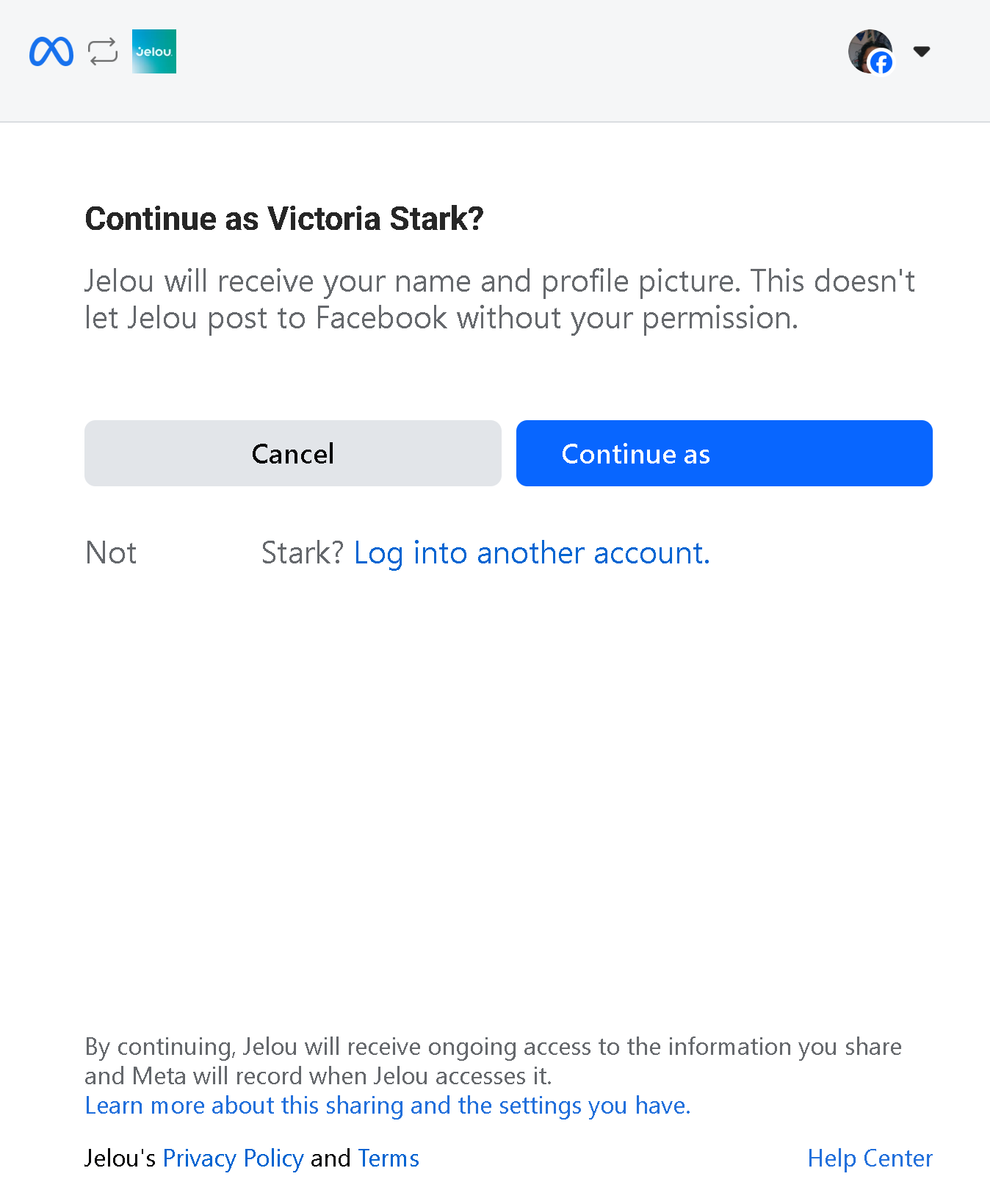 2. Choose the Commercial portfolio of your company to which you will link the channel.
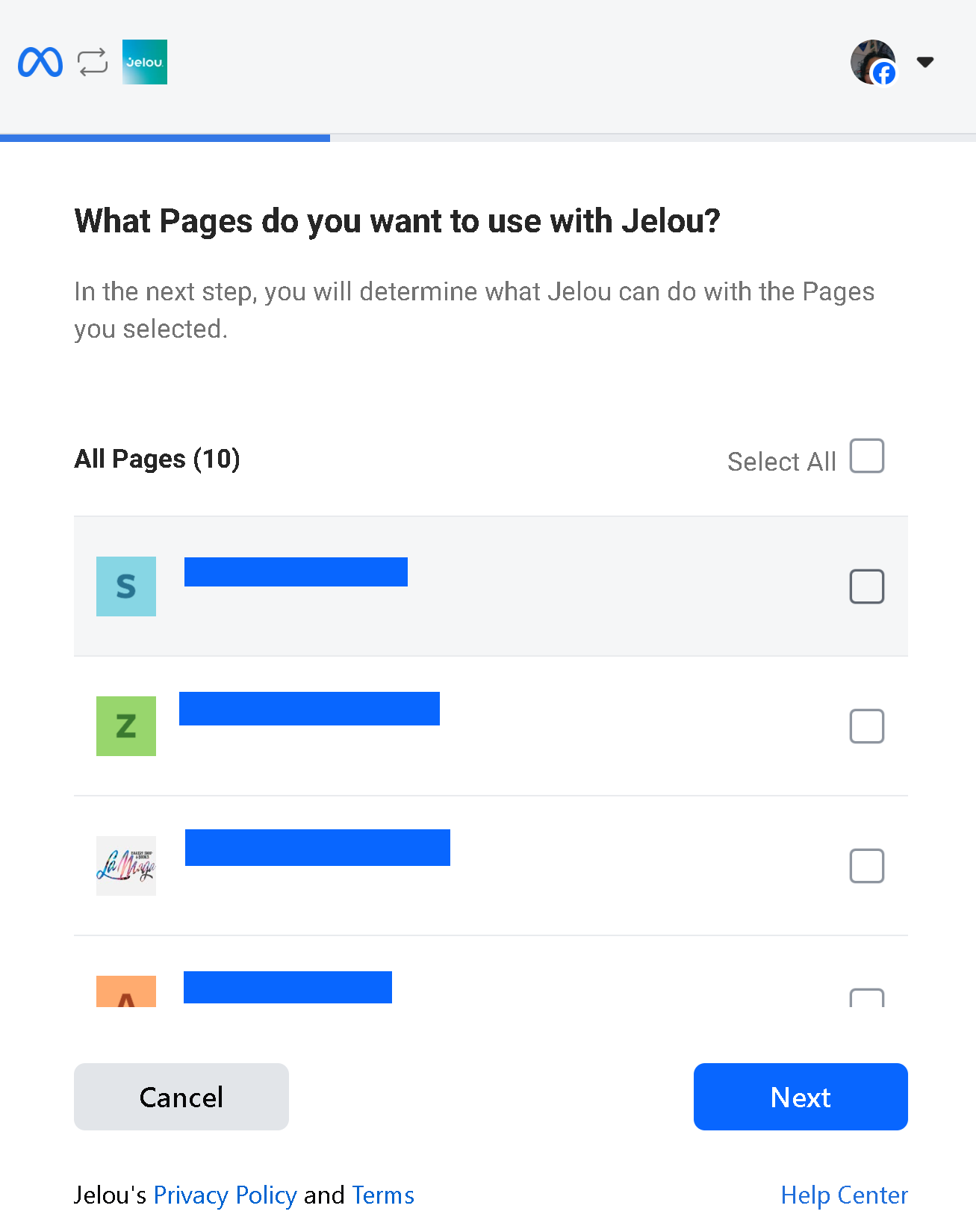 3. Choose the permissions that Jelou can access (**Page conversations in Messenger**).
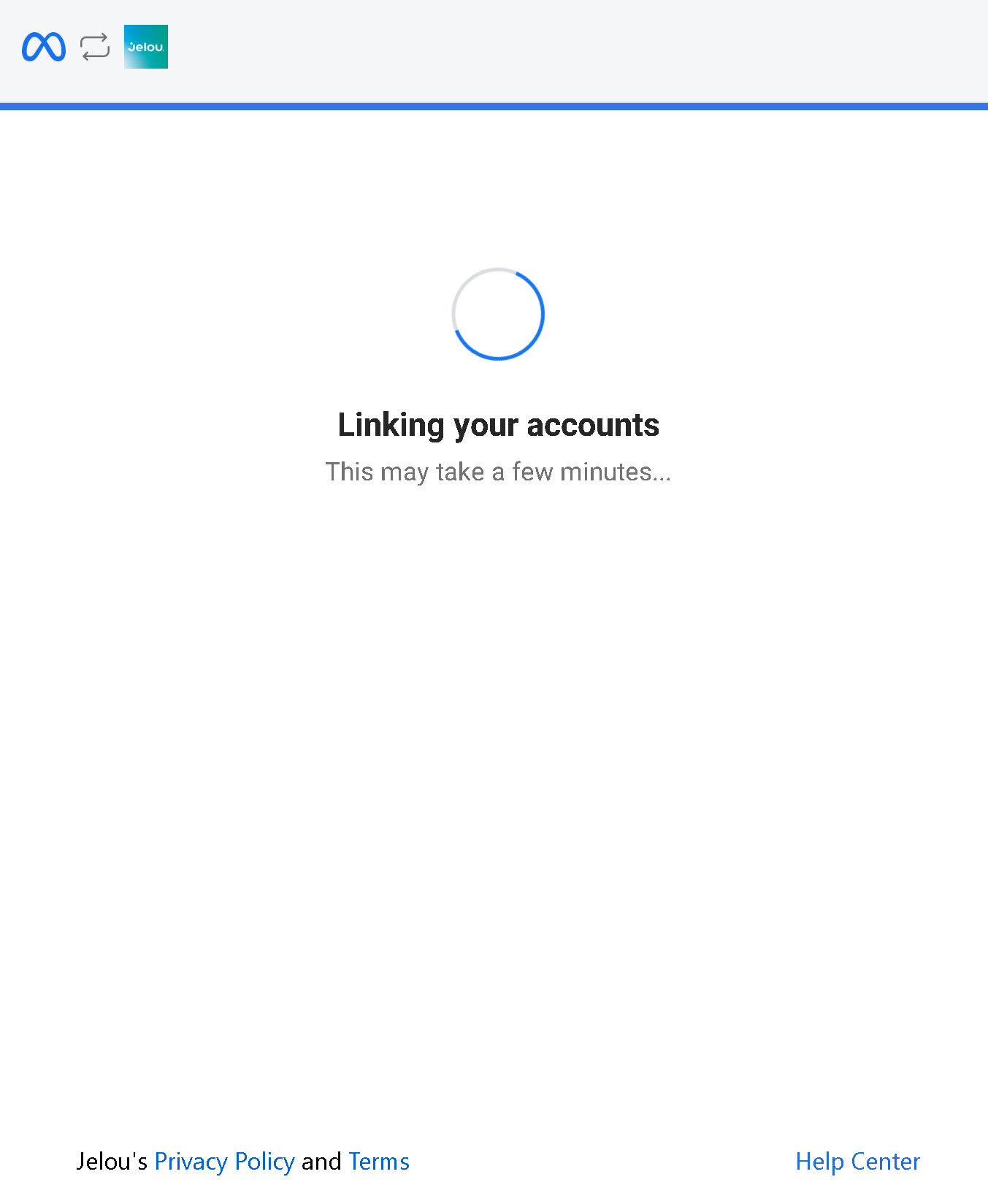
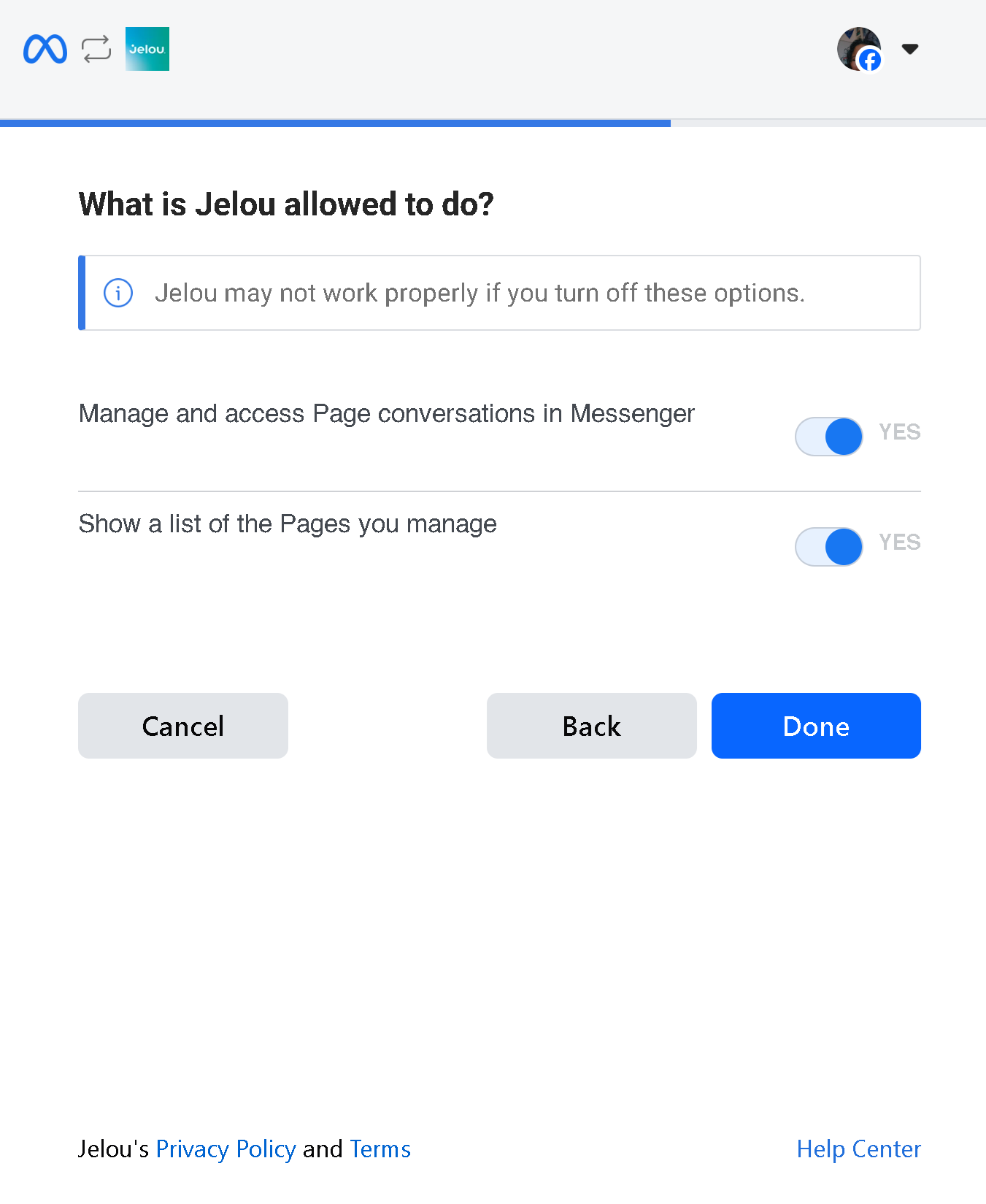 4. Accept and your Facebook page will be linked to your Jelou channel.
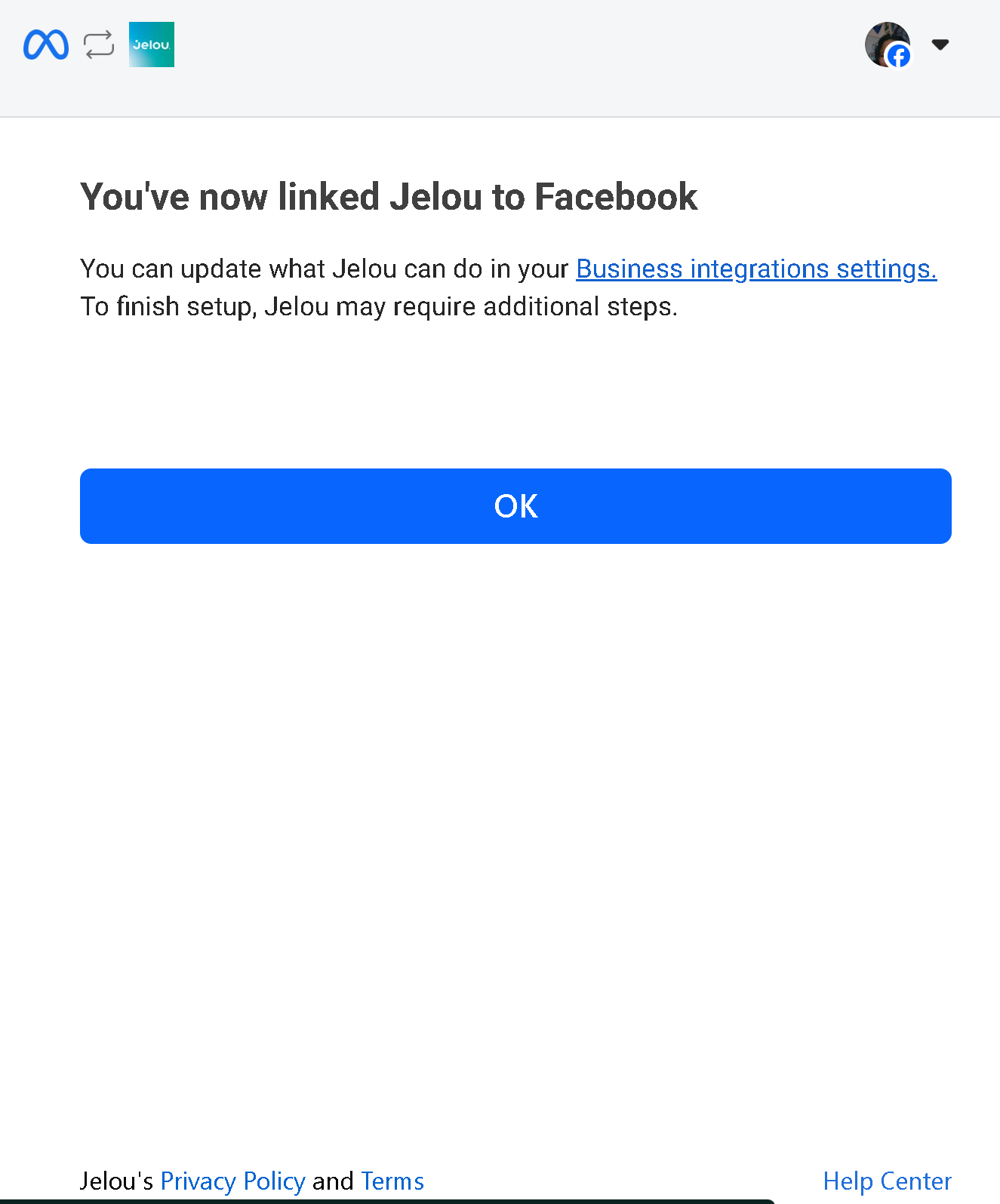
 5. You have successfully linked your channels.
 ***
## What happens after connecting?
Once connected:
* Conversations arriving via Messenger will appear in Jelou.
* You can configure **automatic responses**, **AI flows**, or integrate them with your **human operator (Connect)**.
* You will be able to manage all chat interactions from the same place.
***
## Avoiding common mistakes
✅ **Insufficient permissions**: Before starting, confirm that your Facebook user is an **Administrator** of the page; you need to be one to grant authorization and complete the process from start to finish.\
\
✅ **Misconfigured Business Manager**: Sometimes the page is not associated with the correct Business Manager. Verify that it is properly assigned and active.
Perform thorough tests of the widget before launching it to production to ensure an optimal experience for your users.
## Quick summary
1. Go to **Channels** in your dashboard.
2. Select **Facebook**.
3. Name the channel.
4. Choose whether it will be handled by an Agent or an Operator.
5. Authorize permissions from Meta.
6. Finish and start managing messages from Jelou.
***
## What happens after connecting?
Once connected:
* Conversations arriving via Messenger will appear in Jelou.
* You can configure **automatic responses**, **AI flows**, or integrate them with your **human operator (Connect)**.
* You will be able to manage all chat interactions from the same place.
***
## Avoiding common mistakes
✅ **Insufficient permissions**: Before starting, confirm that your Facebook user is an **Administrator** of the page; you need to be one to grant authorization and complete the process from start to finish.\
\
✅ **Misconfigured Business Manager**: Sometimes the page is not associated with the correct Business Manager. Verify that it is properly assigned and active.
Perform thorough tests of the widget before launching it to production to ensure an optimal experience for your users.
## Quick summary
1. Go to **Channels** in your dashboard.
2. Select **Facebook**.
3. Name the channel.
4. Choose whether it will be handled by an Agent or an Operator.
5. Authorize permissions from Meta.
6. Finish and start managing messages from Jelou.