> ## Documentation Index
> Fetch the complete documentation index at: https://docs.jelou.ai/llms.txt
> Use this file to discover all available pages before exploring further.
# Instagram
> Connect a professional Instagram account to Jelou so you can handle direct messages from the platform.
## Introduction
The Instagram channel connects a professional Instagram account to Jelou so that **direct messages (DMs)** reach the platform. The channel can be connected in two ways:
* To a Brain **project**, where a workflow answers.
* To the **inbox**, where operators answer.
## Prerequisites
The entire flow relies on Meta, so your account must be ready **before** you go into Jelou:
* A **professional Instagram account**.
* The account **linked to a Facebook page**. Jelou doesn't list Instagram accounts: it lists Facebook pages and resolves the linked Instagram account from there. If the account isn't linked to a page, it won't show up.
* The account **added to your business portfolio** in Meta Business Suite.
* Being an **admin** of that Facebook page with the user you'll log in with.
If your plan has a channel limit and you've already reached it, you'll see an upgrade notice instead of the form.
## Where can you connect Instagram from?
From your Jelou dashboard, go to the left menu and click **Channels**. Then use the **Add channel** button and select **Instagram**.
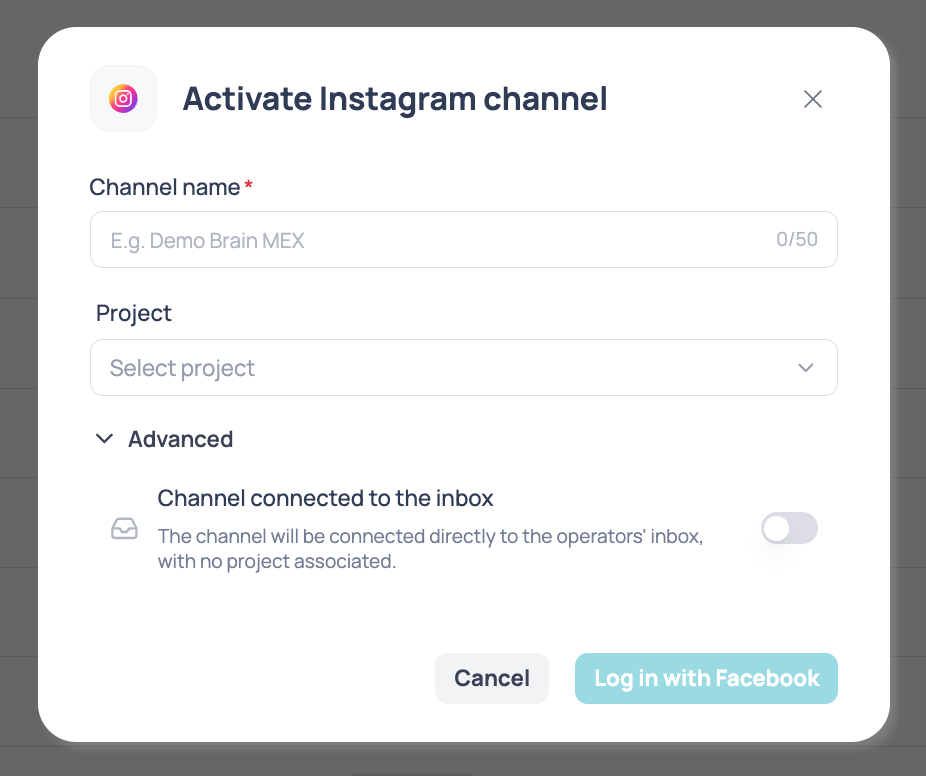
## Step 1: basic details
| Field | Required | Description |
| ---------------- | ----------------------------------------- | ------------------------------------------------------------------------------------------------------------------------------------------------- |
| **Channel name** | Yes | The name you'll use to identify the channel inside Jelou. Minimum 4 characters, maximum 50. It doesn't have to match your Instagram account name. |
| **Project** | Yes, if the channel connects to a project | The Brain project that will handle the channel. This is the default option. |
If you'd rather have operators answer, open the **Advanced** section and turn on **Channel connected to the inbox**. Turning it on hides the **Project** field.
Use a descriptive name like "Instagram Support" or "Instagram Sales" to tell it apart from other channels.
To continue you need two things: a name of at least 4 characters and a defined connection, meaning either a selected project or the inbox turned on. Until both are in place, the **Log in with Facebook** button stays disabled.
## Step 2: log in with Facebook
The Meta window opens so you can log in and authorize the permissions. This is a **Facebook** login, not an Instagram one: use the account that administers the linked page.
The permissions requested are reading your pages, basic Instagram information, and **managing Instagram messages**.
Accept **all** the permissions. If you uncheck any of them, the connection may complete but the channel won't receive messages.
When you're done, Jelou pulls the list of Facebook pages you administer (up to 100) and moves on to the next step.
## Step 3: pick the page and confirm the account
Pick the page linked to the Instagram account you want to connect. The selector shows each page with its picture and name.
If no pages show up, you'll see an alert with a link to Meta's help article on creating one. Check that you logged in with the right user and that it has the admin role.
As soon as you pick the page, Jelou asks Meta which Instagram Business account is linked to it and shows it with its picture and name.
* **The account appears**: it's the right one, you can continue.
* **"No Instagram Business account is linked to this page"**: that page won't work. Pick another one, or link the account from Meta Business Suite and start over.
The create button stays blocked until the Instagram account resolves. This isn't optional: no detected account, no channel.
Click **Create and connect channel**. Jelou then:
1. Subscribes the account to Meta's events, so messages reach Jelou.
2. Saves a copy of the account's avatar, so the picture doesn't depend on a temporary Meta link.
3. Creates the channel and connects it to the project or the inbox you chose.
4. Marks it as **in production**.
When it finishes you'll see the success message and the channel appears in the **Channels** list.
## After connecting
The channel appears in the **Channels** list. When you open it you'll see the connected account with its picture and name, plus a shortcut to **open the Instagram chat** (`ig.me/m/your_username`) — useful for testing end to end that messages arrive.