> ## Documentation Index
> Fetch the complete documentation index at: https://docs.jelou.ai/llms.txt
> Use this file to discover all available pages before exploring further.
# X (Twitter)
> Connect your X (Twitter) account to Jelou and handle conversations from a Brain project or from the inbox.
## Introduction
The X channel connects your X (formerly Twitter) account to Jelou so conversations reach the platform. The channel can be connected in two ways:
* To a Brain **project**, where a workflow replies.
* To the **inbox**, where operators reply.
Once connected, the channel appears in the **Channels** table alongside your other channels and can be edited or deleted from there.
## Prerequisites
Before connecting the X channel, make sure you have:
* The **API Key** for your X account, longer than 20 characters.
* The **username** of the X account that will handle the conversations, longer than 3 characters.
If your plan has a channel limit and you already reached it, instead of the form you'll see a notice to upgrade your plan.
## Where can you connect X from?
From your Jelou dashboard, go to the left menu and click **Channels**. Then use the **Add channel** button and select **X**.
You can also start the activation from a project in Brain. In that case the project is already set and the form only asks for the channel name.
Either way, the **Enable X channel** window opens.
## Step 1: basic details
| Field | Required | Description |
| ---------------- | ----------------------------------------- | ---------------------------------------------------------------------------------------------------------------------------------------------------------------------------------------- |
| **Channel name** | Yes | Name you'll use to identify the channel inside Jelou. More than 3 characters and up to 50. If you type 3 or fewer, the minimum length error is shown. |
| **Project** | Yes, if the channel connects to a project | Brain project that will handle the channel. The list is searchable. This is the default option. It's disabled if you don't have project permissions or if you used up your plan's quota. |
If you'd rather have operators reply, open the **Advanced options** section and turn on **Inbox**. Doing so removes the **Project** field. This option requires the inbox view permission.
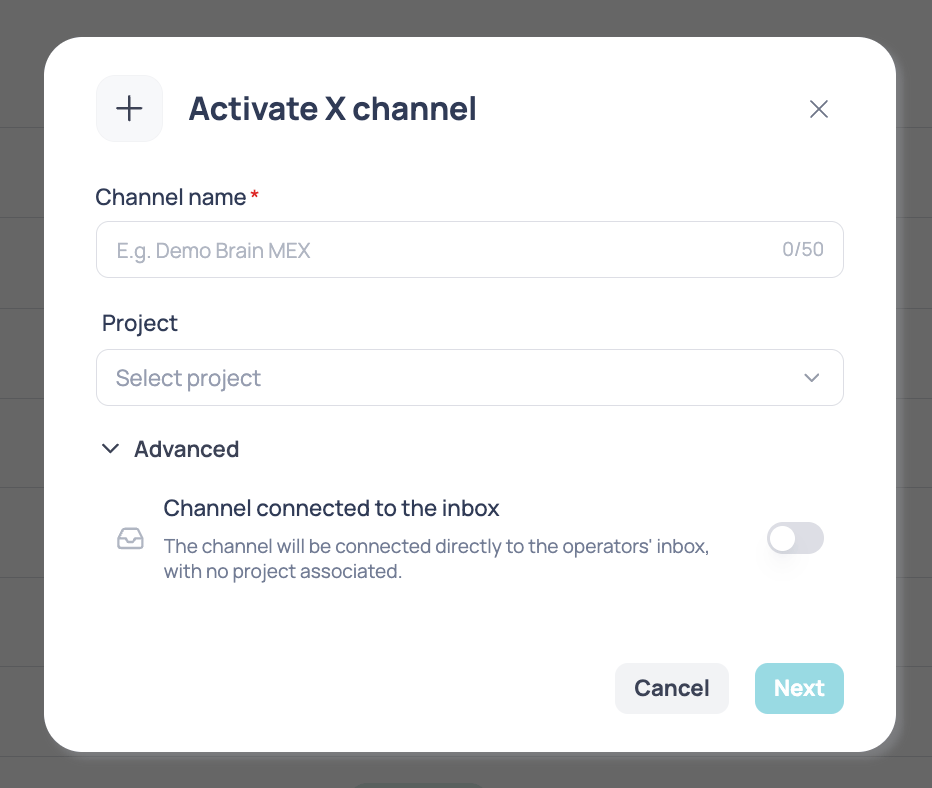 Use a descriptive name like "X Support" or "X Sales" to tell it apart from your other channels.
## Step 2: X credentials
Enter your X account credentials to connect the channel. Both fields are required.
| Field | Description |
| ------------ | ----------------------------------------------------------------------------------------------- |
| **API Key** | Key for your X account. It's typed hidden and must be longer than 20 characters. |
| **Username** | Username of the X account that will handle the conversations. Must be longer than 3 characters. |
When it finishes, the channel appears in the **Channels** list connected to the project or the inbox you chose.
## Step 3: validate the channel connection
Open the channel from the **Channels** table to see its configuration. The connection details are shown read-only:
| Item | What it's for |
| --------------------- | --------------------------------------------------------- |
| **Username** | X account associated with the channel. |
| **Channel name** | Editable from the header title. |
| **Connected project** | Can be swapped for another one, with a confirmation step. |
## Next steps
Once the channel is active you'll be able to:
1. Send a message to your X account to verify the conversation reaches Jelou
2. Review the execution logs in Brain Studio to confirm the flow runs
3. Connect the channel to an automated flow in Brain Studio
4. Escalate conversations to a human operator in the inbox
## Notes
* **The API Key can't be edited after the channel is created.** The edit screen only shows the username and the production type read-only. To change the credential you have to delete the channel and connect it again.
* The channel name and the connected project can still be edited afterwards.
Use a descriptive name like "X Support" or "X Sales" to tell it apart from your other channels.
## Step 2: X credentials
Enter your X account credentials to connect the channel. Both fields are required.
| Field | Description |
| ------------ | ----------------------------------------------------------------------------------------------- |
| **API Key** | Key for your X account. It's typed hidden and must be longer than 20 characters. |
| **Username** | Username of the X account that will handle the conversations. Must be longer than 3 characters. |
When it finishes, the channel appears in the **Channels** list connected to the project or the inbox you chose.
## Step 3: validate the channel connection
Open the channel from the **Channels** table to see its configuration. The connection details are shown read-only:
| Item | What it's for |
| --------------------- | --------------------------------------------------------- |
| **Username** | X account associated with the channel. |
| **Channel name** | Editable from the header title. |
| **Connected project** | Can be swapped for another one, with a confirmation step. |
## Next steps
Once the channel is active you'll be able to:
1. Send a message to your X account to verify the conversation reaches Jelou
2. Review the execution logs in Brain Studio to confirm the flow runs
3. Connect the channel to an automated flow in Brain Studio
4. Escalate conversations to a human operator in the inbox
## Notes
* **The API Key can't be edited after the channel is created.** The edit screen only shows the username and the production type read-only. To change the credential you have to delete the channel and connect it again.
* The channel name and the connected project can still be edited afterwards.