> ## Documentation Index
> Fetch the complete documentation index at: https://docs.jelou.ai/llms.txt
> Use this file to discover all available pages before exploring further.
# WhatsApp
> Connect your WhatsApp Business number to Brain Studio to manage automated conversations with your customers.
## Prerequisites
Before connecting the WhatsApp channel, make sure you have:
* An active Jelou account
* An active and verified **Facebook / Meta Business Manager** account
* An available phone number (we recommend one that is not linked to other WhatsApp applications)
**Self Service** accounts connect their WhatsApp number by signing in directly with Facebook. No additional technical setup or intervention from the Jelou team is required.
## Where can you connect WhatsApp?
You can start connecting a WhatsApp channel from two places in Jelou:
While working on a project in Brain Studio, you can connect a channel from two places:
* **Publish button**: click **Publish** and then **Connect your channel** at the bottom of the panel.
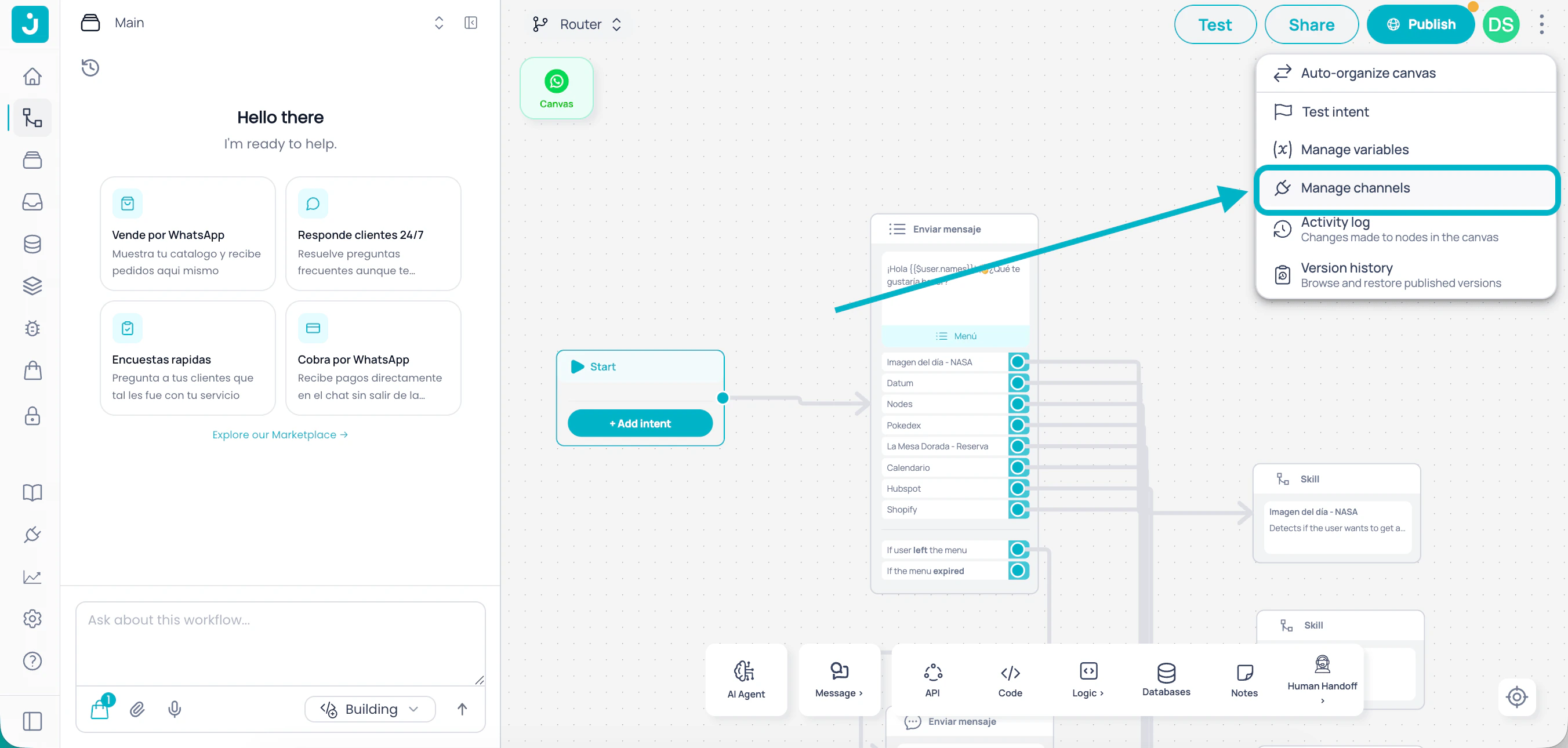
* **Manage channels**: click **Manage channels** in the menu at the top-right corner of the canvas.
From your Jelou dashboard, open the left menu and click **Channels**.
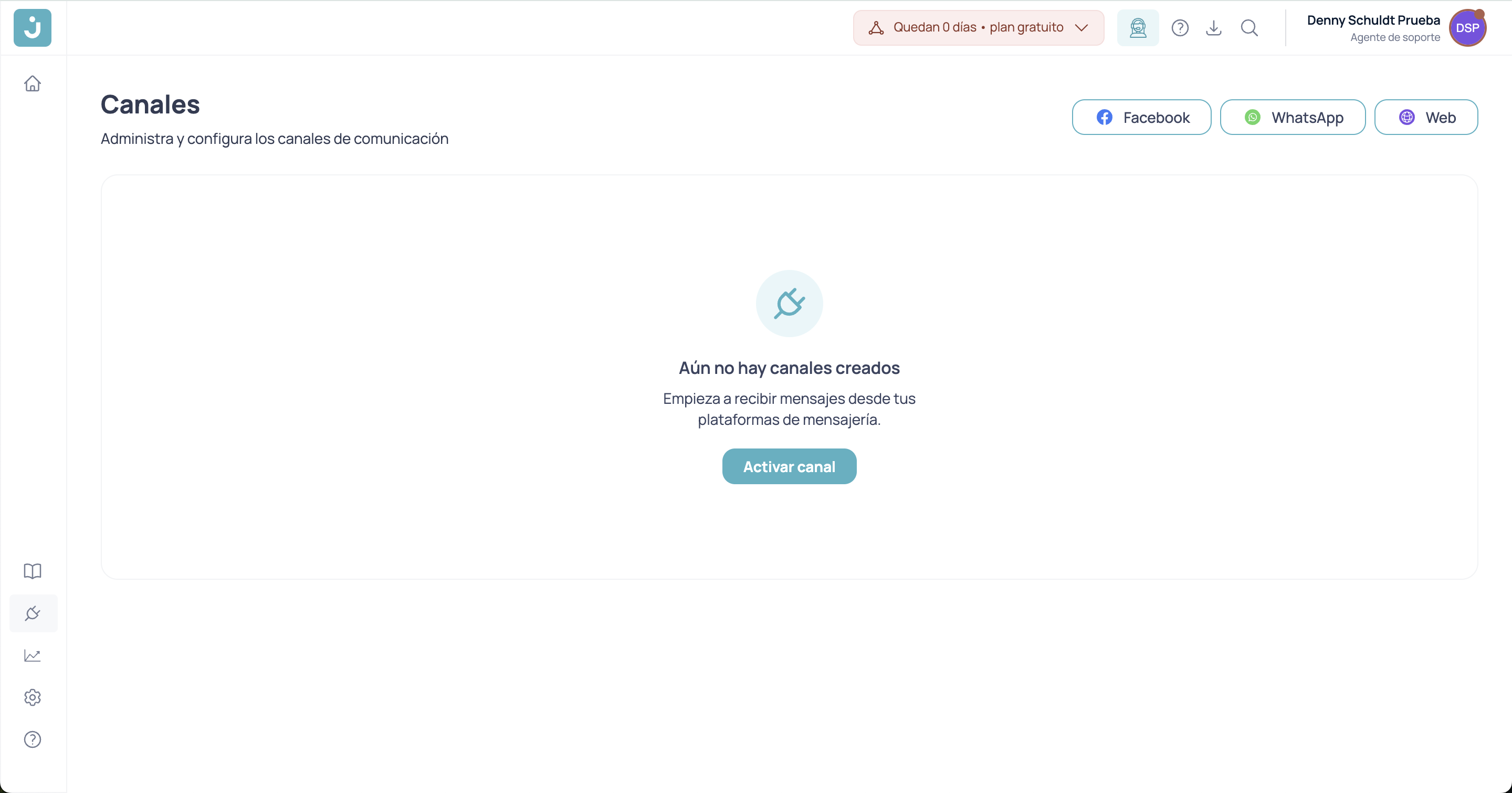
On the Channels screen you will see existing projects and their associated channels. Select the project you want to connect the channel to and click **Add channel**.
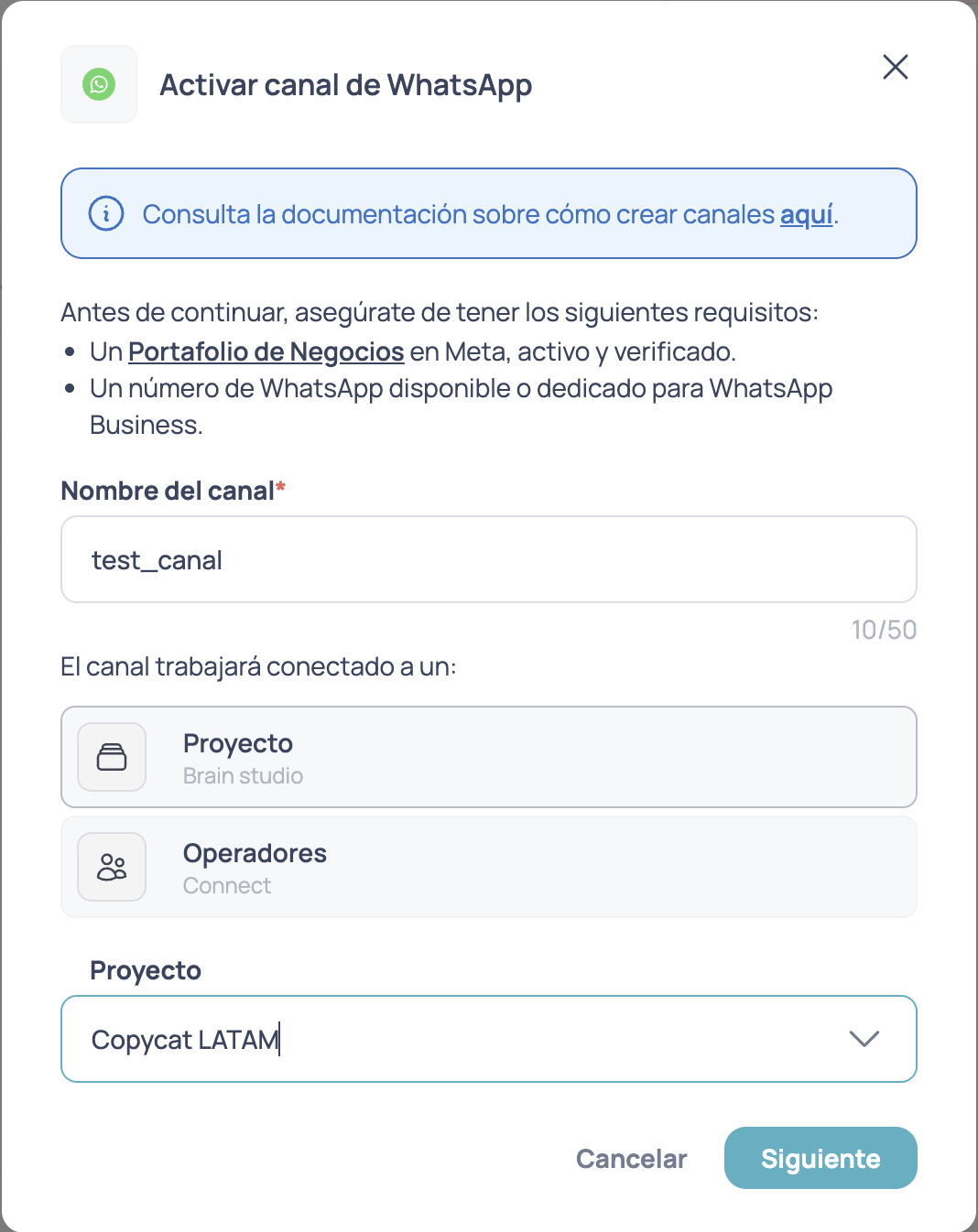
In both cases the same configuration modal opens with the following steps:
## Step 1: Channel name
Assign a name that clearly identifies the channel. It must meet:
* Minimum **4 characters**
* Maximum **50 characters**
Use a descriptive name such as "WhatsApp – Support" or "WhatsApp – Mexico Sales" to tell it apart from other channels.
## Step 2: Select the integration
Choose which Jelou product this channel will connect to:
| Option | Description |
| ---------------- | ---------------------------------------------------------------------------------------- |
| **Brain Studio** | Connects the channel to an automated flow in [Brain Studio](https://apps.jelou.ai/brain) |
| **Connect** | Connects the channel to a human support team in [Connect](https://apps.jelou.ai/connect) |
## Step 3: Select a project
If you chose **Brain Studio**, you must select the project that will handle conversations.
If you started the connection from Brain Studio, the active project is selected automatically. If you came from the Channels section, you must choose it manually.
## Step 4: Connect with Facebook
This is the core of the process for **Self Service** accounts. Jelou uses Meta’s official flow to link your WhatsApp Business, so you must sign in with your Facebook account.
Click **Log in with Facebook**. A popup will open with Meta’s authentication flow.
Sign in with the Facebook account that has access to your company’s **Business Manager**.
Choose the **Facebook Business** account that will own the WhatsApp number.
If you are connecting on behalf of a client, use the client’s Business account, not your agency’s.
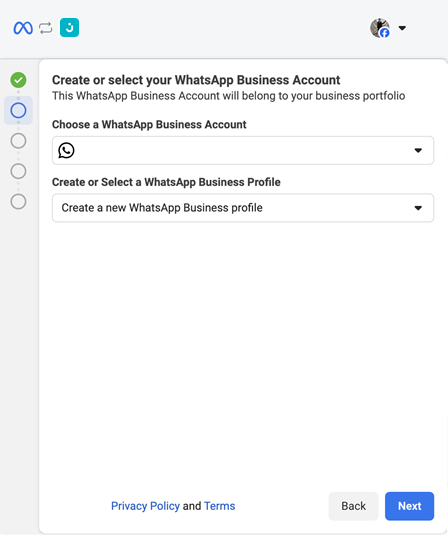
You can create a new WABA or select an existing one. If there is no WABA associated with the chosen business, one will be created automatically.
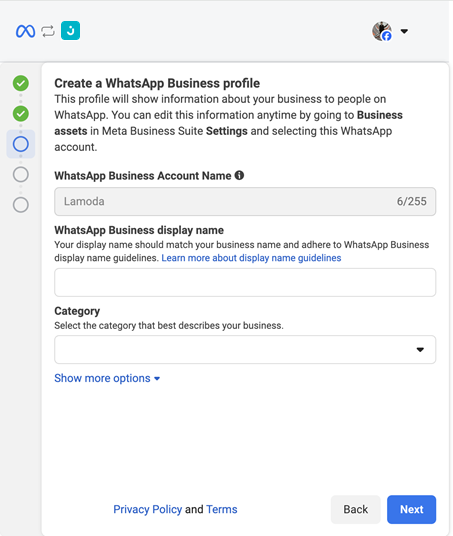
* Enter your business **display name** on WhatsApp (follow Meta’s guidelines to avoid rejections).
* Select the **category** that best describes your company.
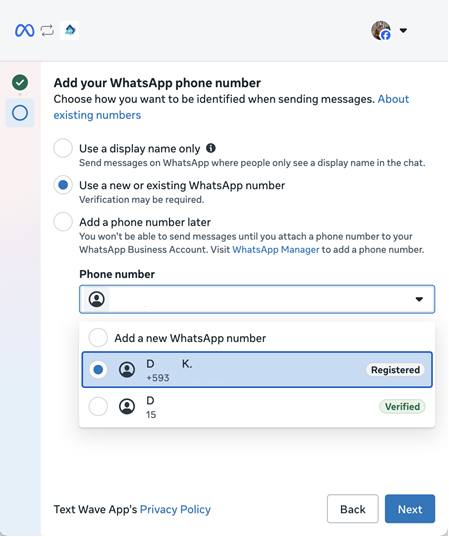
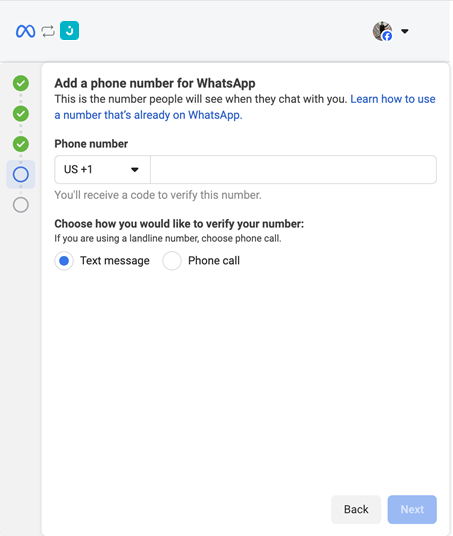
Connect the phone number you will use on WhatsApp:
* If it is a **new number**: enter it and provide the verification code you receive by SMS or call.
* If you already have a **WhatsApp Business number in use**: select it from the list of available numbers.
The verification code appears in Jelou. Enter it before it expires.
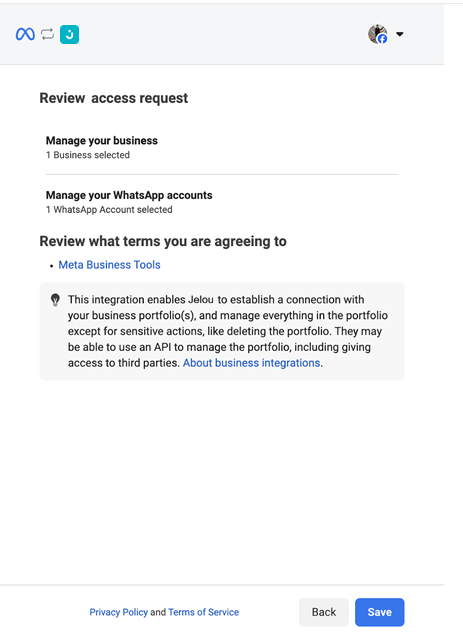
Accept the permissions Jelou requests to manage messages on your behalf.
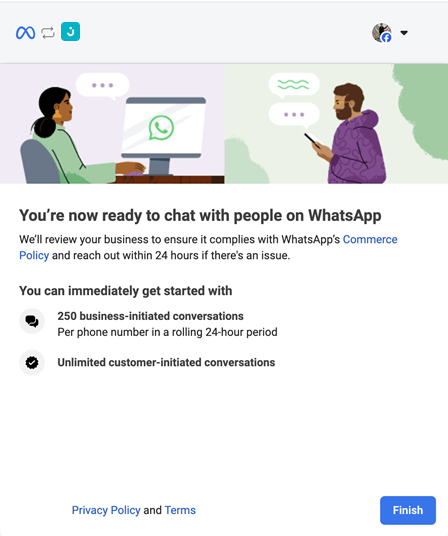
If you see the confirmation screen, click **Finish**. This closes the Facebook window and returns you to the configuration modal in Jelou.
## Step 5: Accept the terms and activate the channel
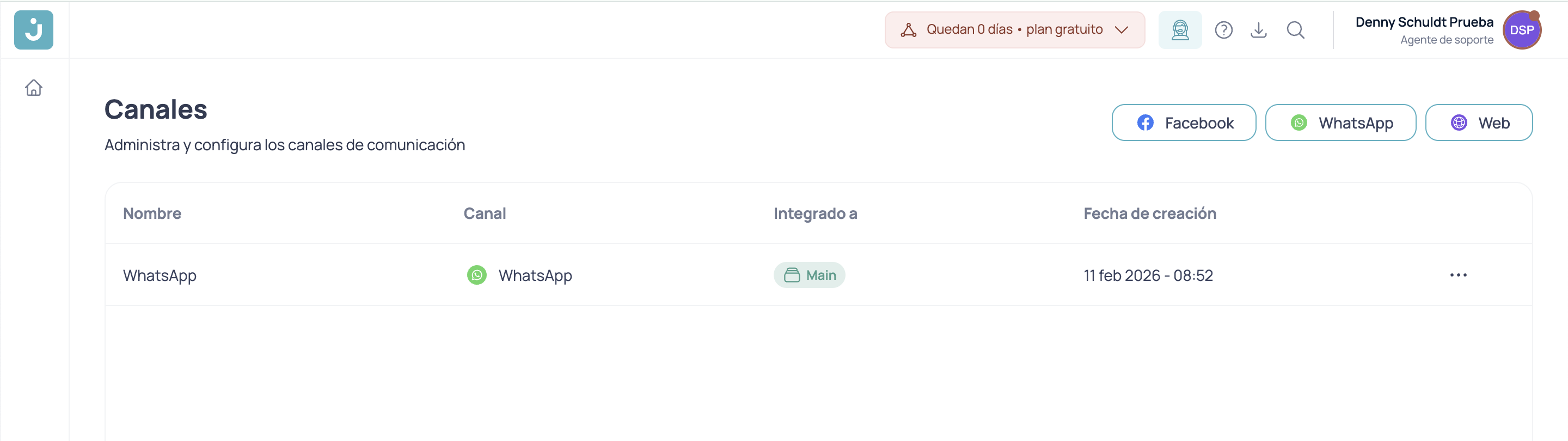
Back in the Jelou modal, accept the terms and conditions. Your number will be registered on **Facebook Cloud** and ready to receive and send conversations.
## WhatsApp Business account verification
Verifying your WhatsApp Business account lets you move beyond the **250 conversations per month** limit and reach **1,000 or more**. Without verification, your number will operate at reduced capacity.
To verify your account you need a **verified Facebook Business Manager**. This also shows your official business name to customers. See Meta’s [guidelines](https://developers.facebook.com/documentation/business-messaging/whatsapp/messaging-limits#quality) for more details.
## Next steps
Once the channel is active you can:
1. Configure your WhatsApp-approved **message templates** (HSM)
2. Test sending and receiving messages
3. Connect the channel to an automated flow in Brain Studio
4. Escalate conversations to human agents in Connect
5. Run **campaigns** using approved templates
## Best practices
* **Respond quickly**: WhatsApp monitors response times and may limit your account if they are slow.
* **Respect the 24-hour window**: After 24 hours without a user reply, you need an approved template to resume the conversation.
* **Maintain quality**: Avoid unsolicited bulk messages; user complaints can restrict your number.
* **Use appropriate templates**: Pick the right template for each conversation context.
WhatsApp charges per conversation according to its pricing model. See [Billing](/en/guides/billing/introduccion) for more on costs.
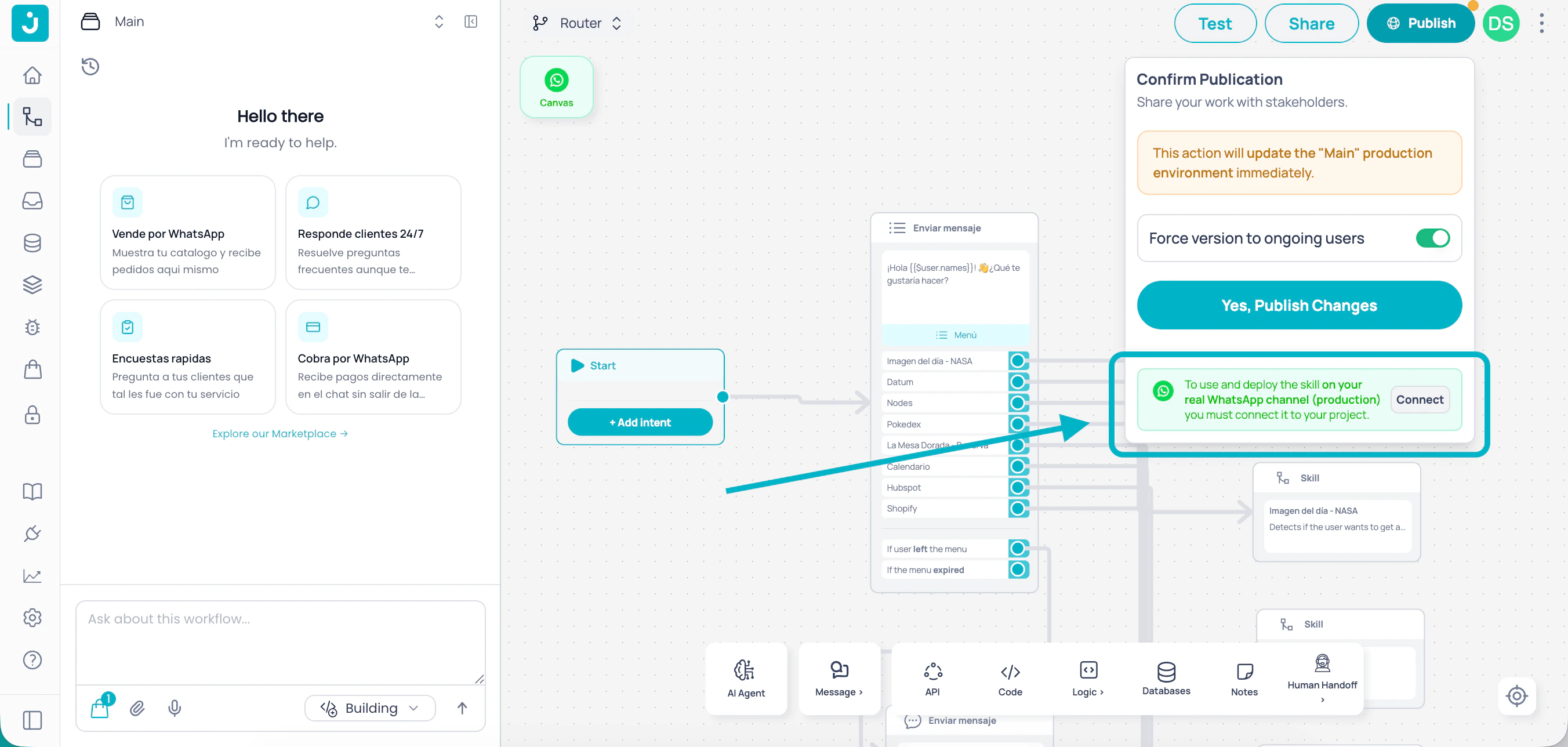 * **Manage channels**: click **Manage channels** in the menu at the top-right corner of the canvas.
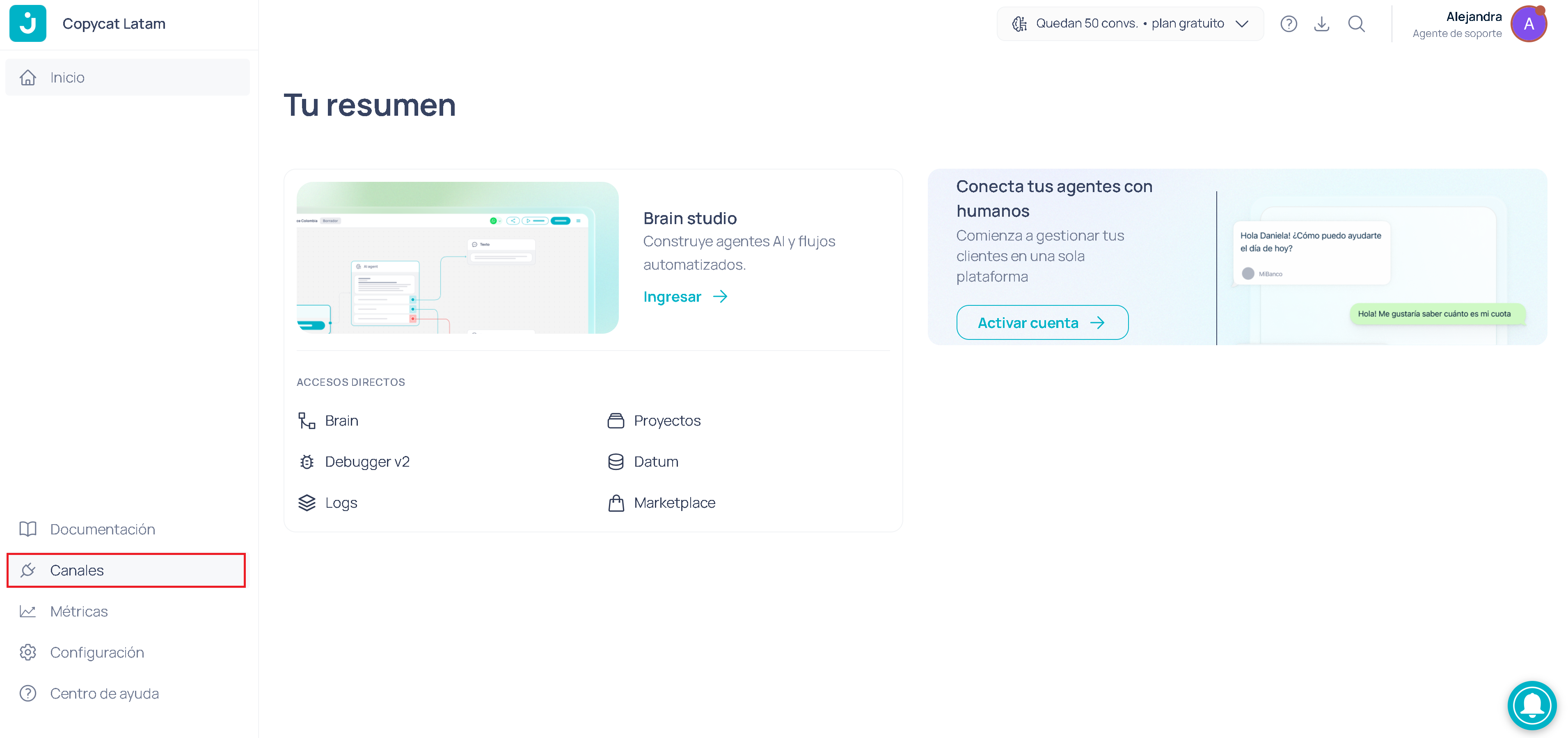 On the Channels screen you will see existing projects and their associated channels. Select the project you want to connect the channel to and click **Add channel**.
 ## Step 4: Connect with Facebook
This is the core of the process for **Self Service** accounts. Jelou uses Meta’s official flow to link your WhatsApp Business, so you must sign in with your Facebook account.
## Step 4: Connect with Facebook
This is the core of the process for **Self Service** accounts. Jelou uses Meta’s official flow to link your WhatsApp Business, so you must sign in with your Facebook account.
 Sign in with the Facebook account that has access to your company’s **Business Manager**.
 * Enter your business **display name** on WhatsApp (follow Meta’s guidelines to avoid rejections).
* Select the **category** that best describes your company.
* Enter your business **display name** on WhatsApp (follow Meta’s guidelines to avoid rejections).
* Select the **category** that best describes your company.
 If you see the confirmation screen, click **Finish**. This closes the Facebook window and returns you to the configuration modal in Jelou.
 ## WhatsApp Business account verification