> ## Documentation Index
> Fetch the complete documentation index at: https://docs.jelou.ai/llms.txt
> Use this file to discover all available pages before exploring further.
# API Keys
> Create and manage API keys to integrate external services with your Jelou account
API keys allow you to authenticate requests to the Jelou API from external applications or services. With them you can send messages, manage campaigns, query conversations, and more, programmatically.
## Accessing API Keys
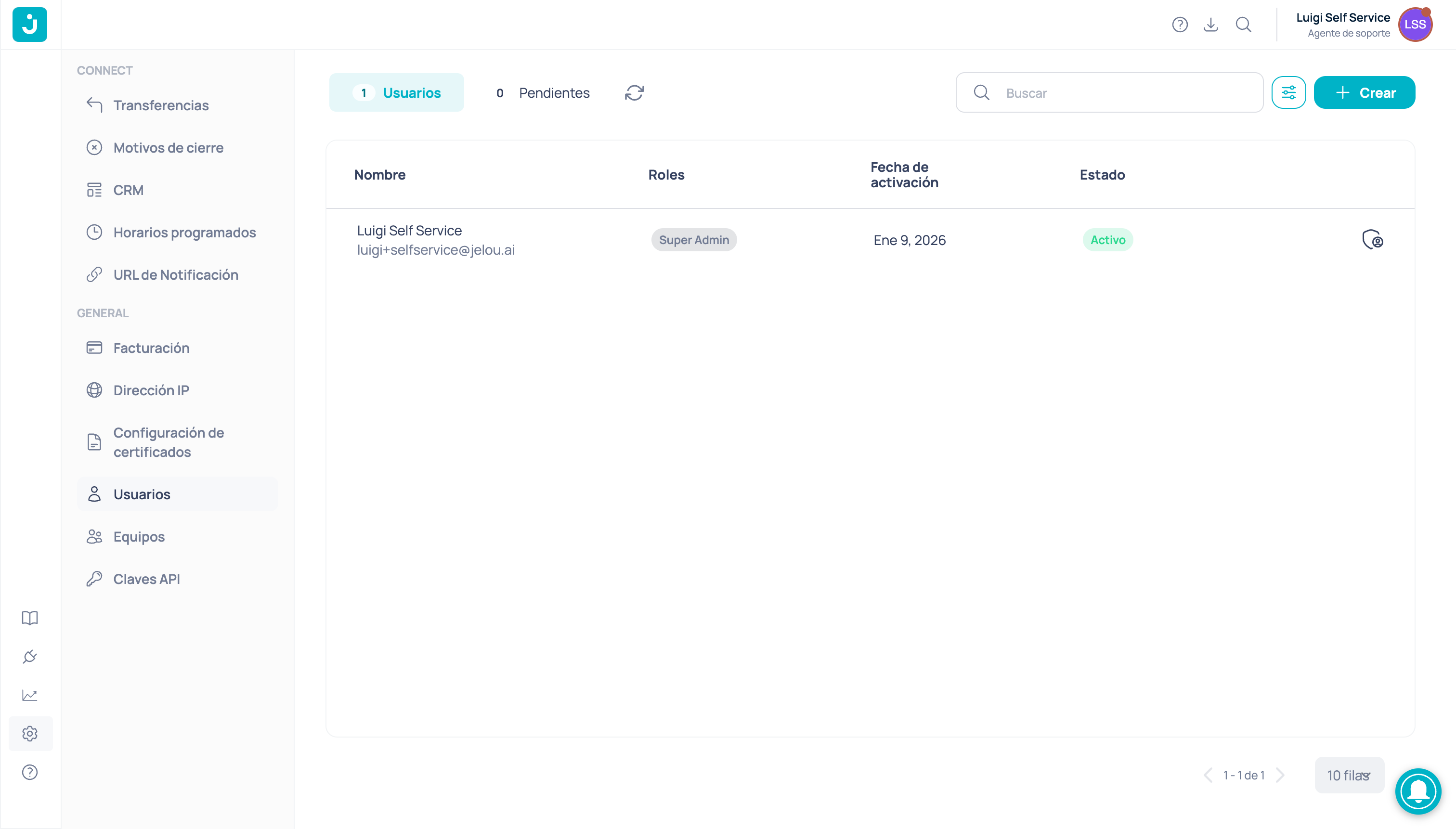
To manage your API keys, go to **Settings** > **API Keys** in the side menu.
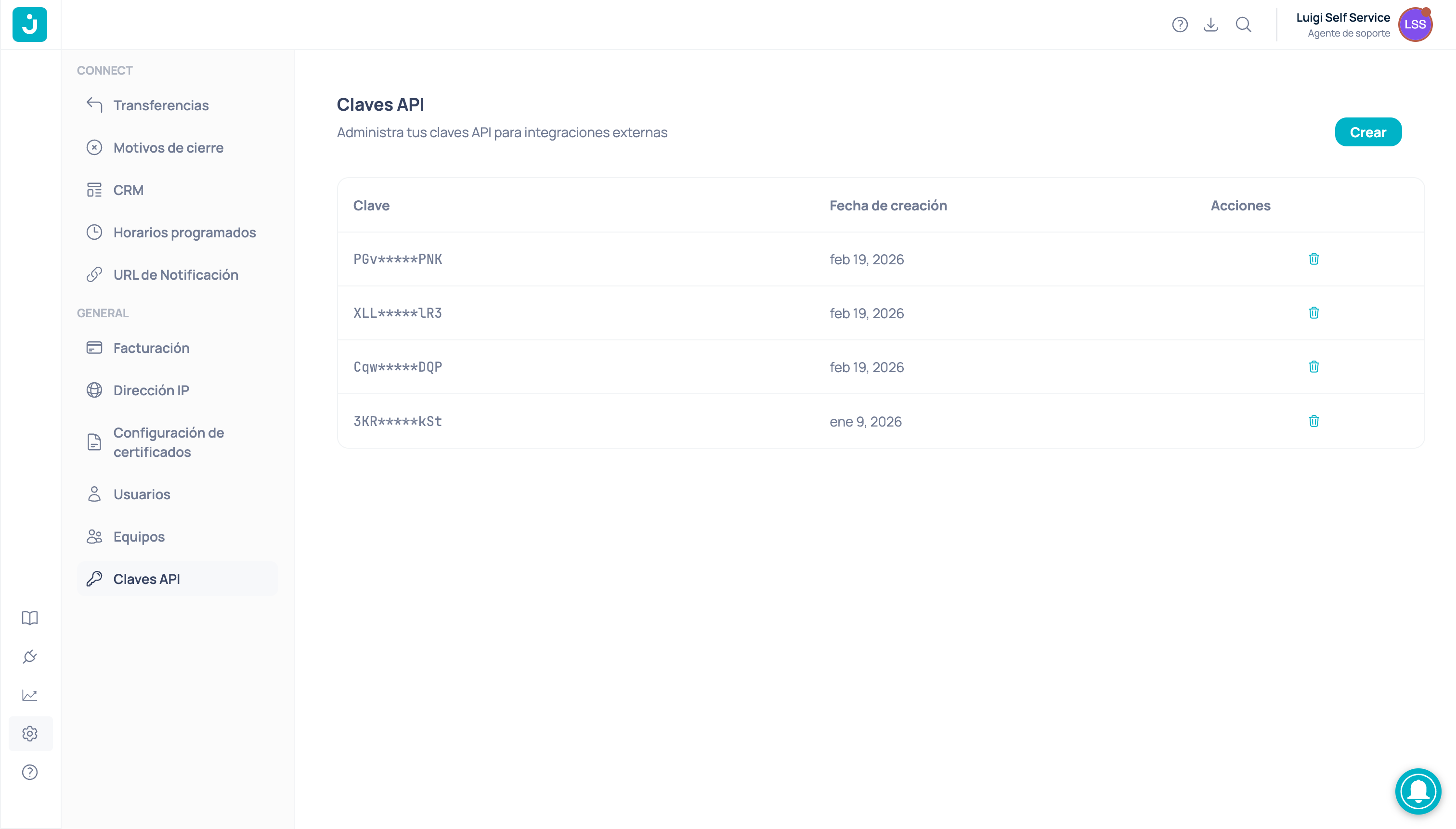
 You will see a table with all existing API keys in your account, including:
* **Key**: Partially hidden identifier of the key
* **Creation date**: When it was generated
* **Actions**: Available options for each key
You will see a table with all existing API keys in your account, including:
* **Key**: Partially hidden identifier of the key
* **Creation date**: When it was generated
* **Actions**: Available options for each key
 ## Create an API key
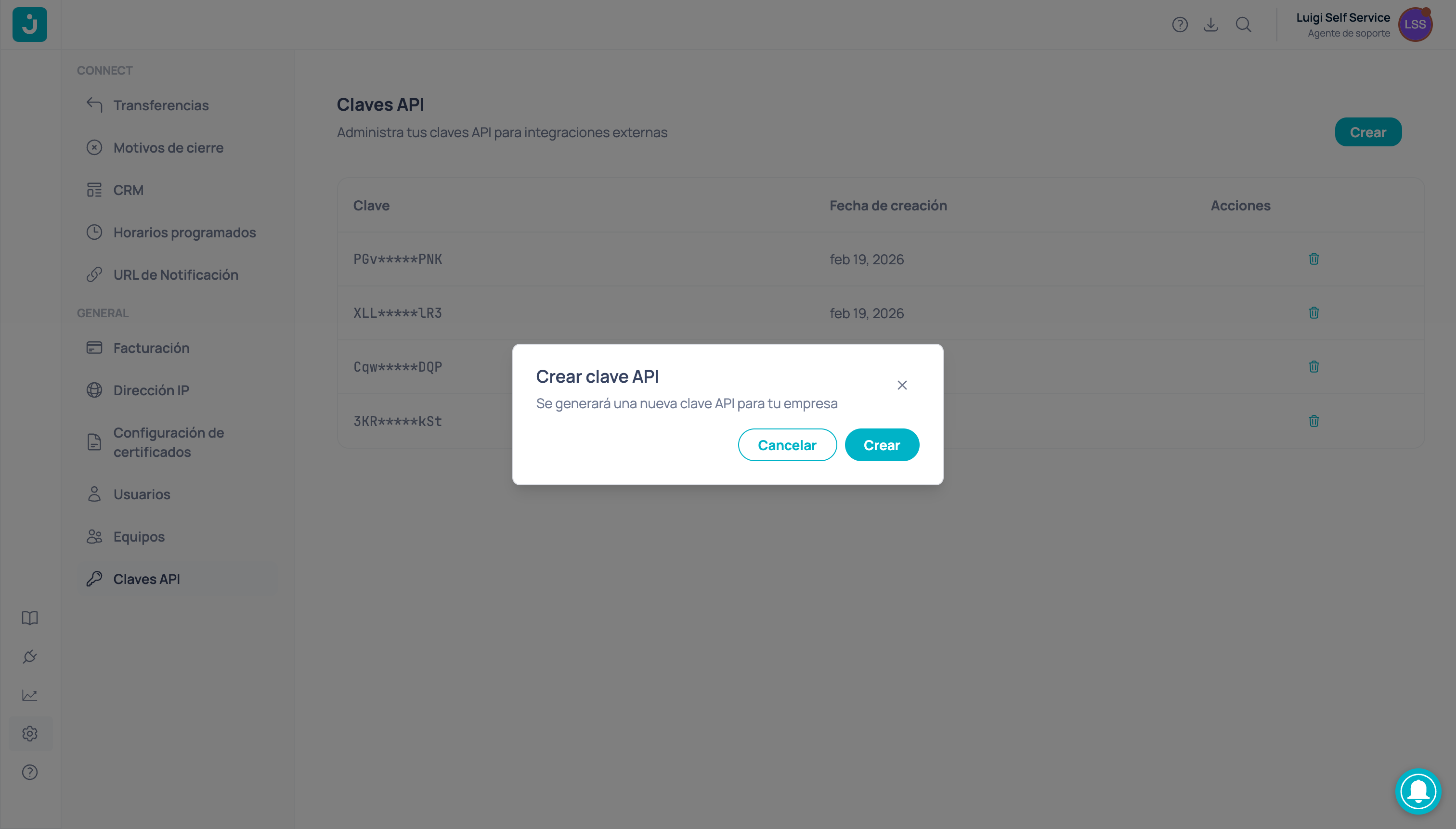
Click the **Create** button located in the upper right corner of the page.
A confirmation dialog will appear. Click **Create** to generate the new key.
## Create an API key
Click the **Create** button located in the upper right corner of the page.
A confirmation dialog will appear. Click **Create** to generate the new key.
 The generated key will be displayed on screen. Use the copy button to save it to your clipboard.
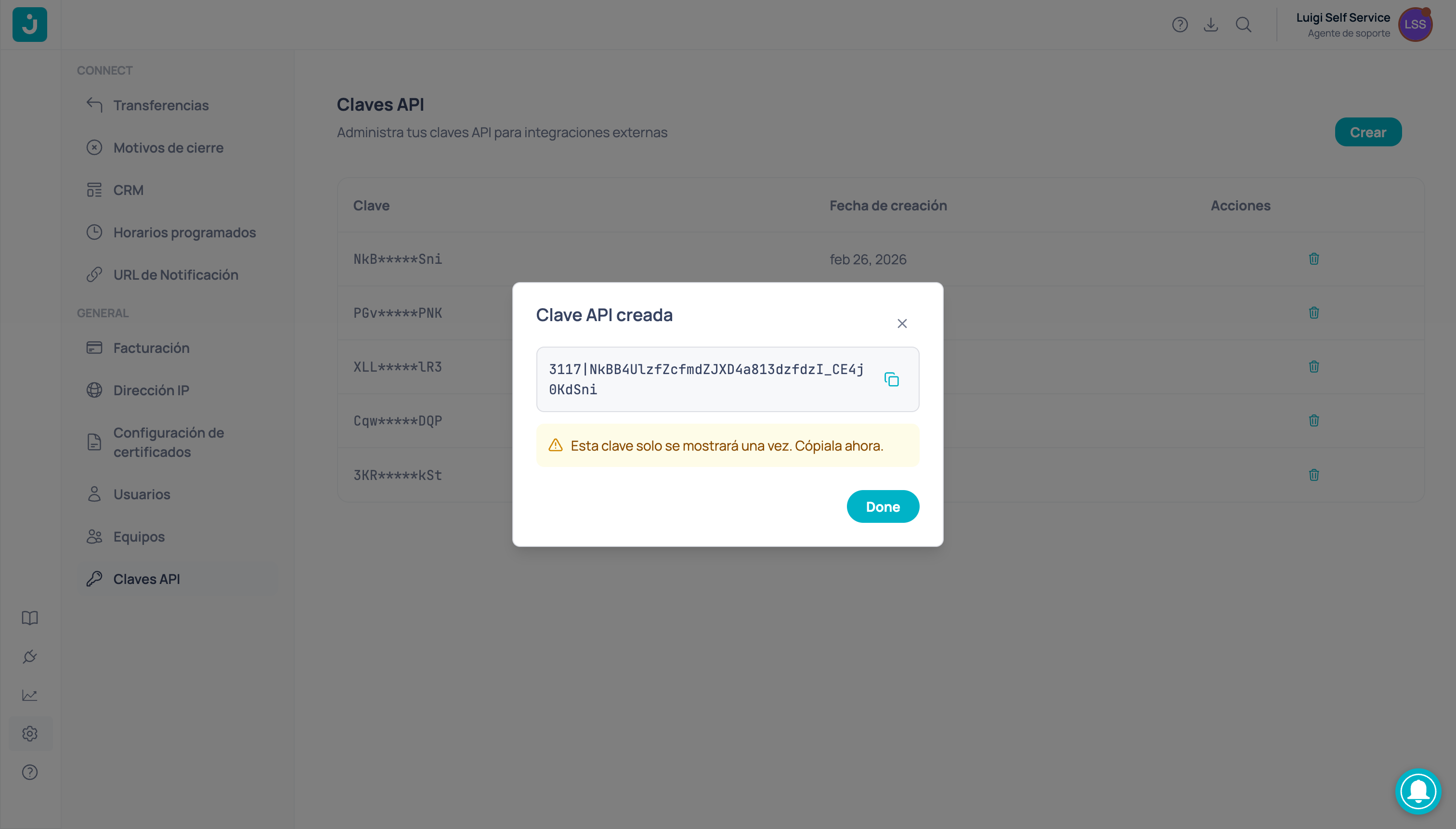 The key is only shown **once**. Copy it and store it in a safe place before closing the dialog. If you lose it, you will need to create a new one.
## Delete an API key
To delete a key you no longer need, click the delete icon (trash can) in the **Actions** column of the corresponding key.
A confirmation dialog will be shown before proceeding.
The key is only shown **once**. Copy it and store it in a safe place before closing the dialog. If you lose it, you will need to create a new one.
## Delete an API key
To delete a key you no longer need, click the delete icon (trash can) in the **Actions** column of the corresponding key.
A confirmation dialog will be shown before proceeding.
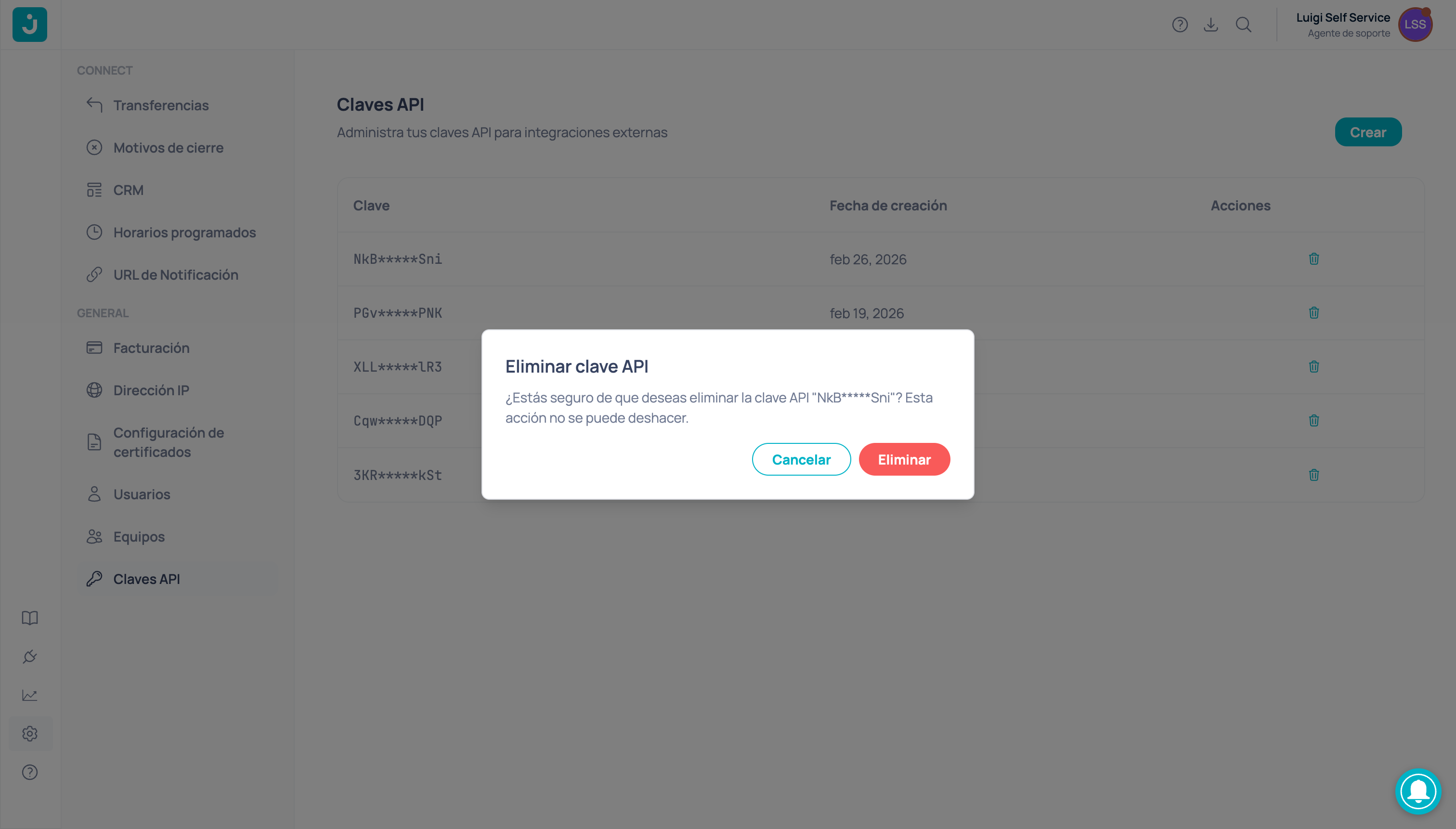 Deleting an API key is an **irreversible** action. Any integration using that key will stop working immediately. Verify that no active service depends on the key before deleting it.
## Use your API key
Include the API key in the `x-api-key` header of your HTTP requests:
```bash cURL theme={null}
curl --request GET \
--url https://gateway.jelou.ai/platform/v1/company/{companyId} \
--header 'x-api-key: YOUR_API_KEY'
```
```javascript JavaScript theme={null}
const response = await fetch(
"https://gateway.jelou.ai/platform/v1/company/{companyId}",
{
headers: {
"x-api-key": "YOUR_API_KEY",
},
}
);
```
```python Python theme={null}
import requests
response = requests.get(
"https://gateway.jelou.ai/platform/v1/company/{companyId}",
headers={"x-api-key": "YOUR_API_KEY"},
)
```
Check the [API reference](/api/introduction) to see all available endpoints.
## Best practices
* **Do not share keys** in public repositories or messages. Use environment variables to store them.
* **Rotate your keys periodically**. Create a new key, update your integrations, and delete the old one.
* **Use one key per integration**. If a key is compromised, you can revoke it without affecting other services.
Deleting an API key is an **irreversible** action. Any integration using that key will stop working immediately. Verify that no active service depends on the key before deleting it.
## Use your API key
Include the API key in the `x-api-key` header of your HTTP requests:
```bash cURL theme={null}
curl --request GET \
--url https://gateway.jelou.ai/platform/v1/company/{companyId} \
--header 'x-api-key: YOUR_API_KEY'
```
```javascript JavaScript theme={null}
const response = await fetch(
"https://gateway.jelou.ai/platform/v1/company/{companyId}",
{
headers: {
"x-api-key": "YOUR_API_KEY",
},
}
);
```
```python Python theme={null}
import requests
response = requests.get(
"https://gateway.jelou.ai/platform/v1/company/{companyId}",
headers={"x-api-key": "YOUR_API_KEY"},
)
```
Check the [API reference](/api/introduction) to see all available endpoints.
## Best practices
* **Do not share keys** in public repositories or messages. Use environment variables to store them.
* **Rotate your keys periodically**. Create a new key, update your integrations, and delete the old one.
* **Use one key per integration**. If a key is compromised, you can revoke it without affecting other services.