> ## Documentation Index
> Fetch the complete documentation index at: https://docs.jelou.ai/llms.txt
> Use this file to discover all available pages before exploring further.
# Multi-organization
> Belong to several organizations with a single account: create your own, accept invitations and switch between organizations without signing out.
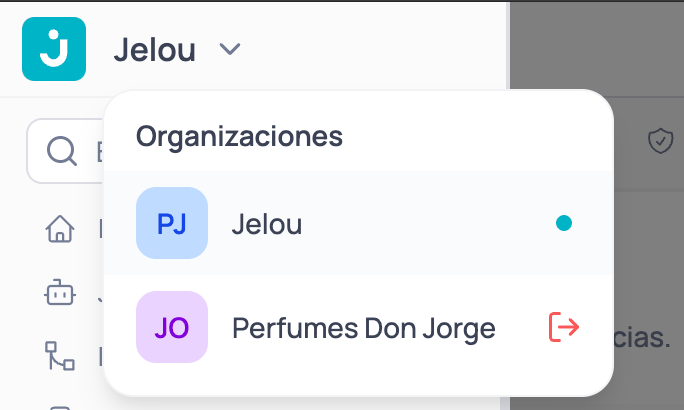 With multi-organization, a single account can work across several organizations. You always have your own —the one created when you sign up— and you can also be invited to other people's or companies' organizations. One email, one password and one profile for all of them.
Multi-organization is available on the **Builder** and **Business** plans. Enterprise accounts keep working as they do today.
## How it works
* **One account, several organizations**: your email and password are the same everywhere.
* **You work in one organization at a time**: the active organization defines what you see and what you can do — projects, workflows, conversations, metrics and billing always belong to that organization.
* **Each session has its own active organization**: if you have the platform open in two browsers or devices, switching organizations in one does not affect the other.
* **Your role is set by whoever invites you**: the role you get in that organization is chosen when the invitation is sent.
## Your own organization
Your own organization is created when you sign up. It is your main space and it has two rules:
* **You cannot leave it.** You can only close it, and that is the super admin's decision.
* **It is unique.** Every other organization you belong to is an access you received through an invitation.
## Switching organizations
The organization picker lists every organization you belong to and lets you switch between them without signing out. When you switch, the platform loads the new organization's content: anything you had in progress in the previous one stays saved there, but you no longer see it until you go back.
## Inviting people to your organization
Invitations are sent from **Settings → Users**, just like before. With multi-organization, the invited person does not lose their own account: they gain an additional access.
Organizations on the **FREE** plan cannot invite members. Upgrade your plan to enable it.
Before inviting, keep in mind:
* The **role is mandatory**: an invitation cannot be sent without assigning one.
* Your plan must have **available seats**. Seats are checked at the moment the person accepts: if none are left, the acceptance fails and you need to free a seat or upgrade your plan.
### What happens when the person accepts
The flow depends on whether the invited email already has a Jelou account:
The person completes a regular sign-up: their details, their password and the name of their organization.
When they finish they have two things: **their own organization** and **access to yours**. From then on they can switch between both using the organization picker.
No new account or organization is created. The person signs in with the credentials they already use and your organization appears in their picker.
If they accept the same invitation twice, the access is not duplicated.
### When an invitation cannot be sent
| Situation | What happens |
| --------------------------------------------------------------------- | ---------------------------------------------------------------------------------------- |
| The person is already a member of the organization | The invitation is rejected: *"User is already a member of this company."* |
| The organization you are inviting them to is their own organization | The invitation is rejected: *"User already belongs to this company."* |
| A live invitation for that person already exists in that organization | It is rejected. Revoke the previous one or wait for it to expire before sending another. |
| Your organization or the invited person's is an Enterprise account | Multi-organization does not apply; access is managed as it is today. |
| Your organization is on the FREE plan | You cannot invite members. |
Invitations from different organizations are independent from each other. The same person can have several pending invitations from different organizations at the same time and accept them all.
### Resending, revoking and expiring
* A pending invitation can be **resent once**. If you try to resend it again, the platform does not send it and tells you why: it was already resent and is still pending, it was already accepted, it was revoked or it expired.
* A **revoked or expired** invitation can no longer be accepted. Send a new one.
Learn how to invite people, edit users and track the status of your invitations.
## Leaving an organization
You can leave any organization you were invited to. The option appears in the organization picker, only on organizations you joined through an invitation. Before removing your access, the platform asks you to confirm.
With multi-organization, a single account can work across several organizations. You always have your own —the one created when you sign up— and you can also be invited to other people's or companies' organizations. One email, one password and one profile for all of them.
Multi-organization is available on the **Builder** and **Business** plans. Enterprise accounts keep working as they do today.
## How it works
* **One account, several organizations**: your email and password are the same everywhere.
* **You work in one organization at a time**: the active organization defines what you see and what you can do — projects, workflows, conversations, metrics and billing always belong to that organization.
* **Each session has its own active organization**: if you have the platform open in two browsers or devices, switching organizations in one does not affect the other.
* **Your role is set by whoever invites you**: the role you get in that organization is chosen when the invitation is sent.
## Your own organization
Your own organization is created when you sign up. It is your main space and it has two rules:
* **You cannot leave it.** You can only close it, and that is the super admin's decision.
* **It is unique.** Every other organization you belong to is an access you received through an invitation.
## Switching organizations
The organization picker lists every organization you belong to and lets you switch between them without signing out. When you switch, the platform loads the new organization's content: anything you had in progress in the previous one stays saved there, but you no longer see it until you go back.
## Inviting people to your organization
Invitations are sent from **Settings → Users**, just like before. With multi-organization, the invited person does not lose their own account: they gain an additional access.
Organizations on the **FREE** plan cannot invite members. Upgrade your plan to enable it.
Before inviting, keep in mind:
* The **role is mandatory**: an invitation cannot be sent without assigning one.
* Your plan must have **available seats**. Seats are checked at the moment the person accepts: if none are left, the acceptance fails and you need to free a seat or upgrade your plan.
### What happens when the person accepts
The flow depends on whether the invited email already has a Jelou account:
The person completes a regular sign-up: their details, their password and the name of their organization.
When they finish they have two things: **their own organization** and **access to yours**. From then on they can switch between both using the organization picker.
No new account or organization is created. The person signs in with the credentials they already use and your organization appears in their picker.
If they accept the same invitation twice, the access is not duplicated.
### When an invitation cannot be sent
| Situation | What happens |
| --------------------------------------------------------------------- | ---------------------------------------------------------------------------------------- |
| The person is already a member of the organization | The invitation is rejected: *"User is already a member of this company."* |
| The organization you are inviting them to is their own organization | The invitation is rejected: *"User already belongs to this company."* |
| A live invitation for that person already exists in that organization | It is rejected. Revoke the previous one or wait for it to expire before sending another. |
| Your organization or the invited person's is an Enterprise account | Multi-organization does not apply; access is managed as it is today. |
| Your organization is on the FREE plan | You cannot invite members. |
Invitations from different organizations are independent from each other. The same person can have several pending invitations from different organizations at the same time and accept them all.
### Resending, revoking and expiring
* A pending invitation can be **resent once**. If you try to resend it again, the platform does not send it and tells you why: it was already resent and is still pending, it was already accepted, it was revoked or it expired.
* A **revoked or expired** invitation can no longer be accepted. Send a new one.
Learn how to invite people, edit users and track the status of your invitations.
## Leaving an organization
You can leave any organization you were invited to. The option appears in the organization picker, only on organizations you joined through an invitation. Before removing your access, the platform asks you to confirm.
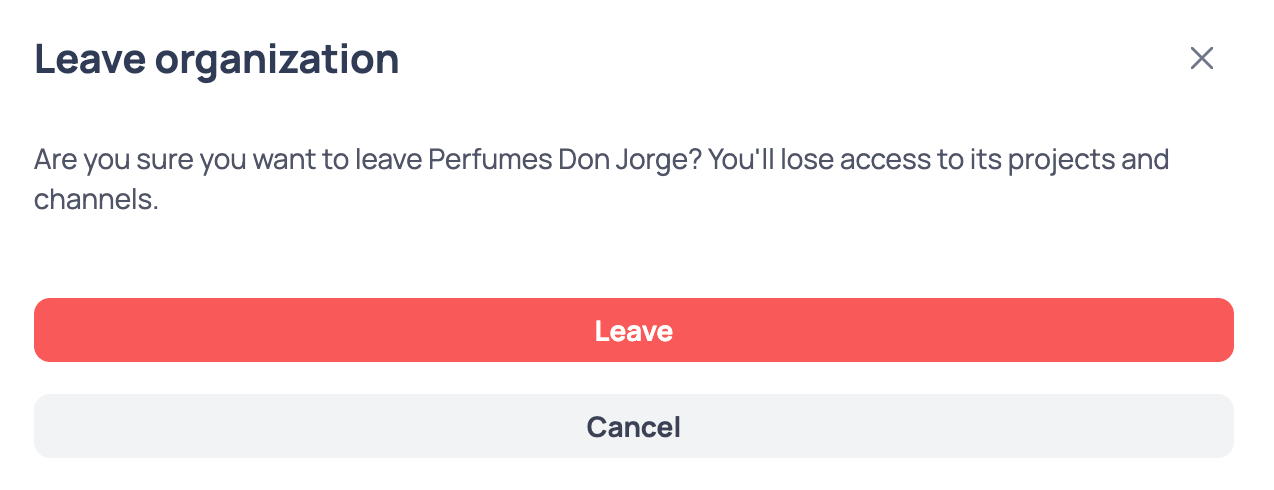 * **You cannot leave your own organization.** If you try, the platform blocks it.
* When you leave, you lose access immediately and your session goes back to your own organization.
* You can be invited again later.
## Removing a member from your organization
The super admin can remove any invited member.
Access is revoked instantly. If the person was working in your organization at that moment, their session automatically goes back to their own organization.
They are notified by email that they no longer have access to your organization, so they don't find out when trying to sign in.
Keep in mind that:
* Removing someone **does not delete their account or their own organization**. They only lose access to yours.
* **You can invite them again** whenever you want: there is no block list.
## Two-factor authentication across organizations
If you are invited to an organization that requires two-factor authentication (2FA), you must set it up in order to accept the invitation. The platform shows you the setup step and does not let you continue until you complete it.
From that moment on, two-factor authentication is tied to **your account**, not to that organization. You will always be asked for it, no matter which organization you sign in through, even if that organization changes its policy or you later leave it.
* The invitation email states whether the organization requires two-factor authentication.
* You cannot turn it off on your own. If you lose access to your verification method, contact your organization's administrator.
## Closing an organization
Closing an organization is a decision only its super admin can make: it never closes on its own, even if every invited member leaves or is removed.
When it closes, all of its members' accesses are revoked. Each person keeps their own organization and any other one they belong to.
## Frequently asked questions
No. You have a single organization of your own: the one created when you sign up. Every other organization you belong to is an access received through an invitation.
No. You sign in with the credentials you already have and the new organization appears in your picker. No extra account or password is created.
No. Each organization keeps its own content. When you switch you stop seeing the previous one's content, and it is available again as soon as you go back to it.
You lose access immediately and your session goes back to your own organization. You also receive an email letting you know.
* **You cannot leave your own organization.** If you try, the platform blocks it.
* When you leave, you lose access immediately and your session goes back to your own organization.
* You can be invited again later.
## Removing a member from your organization
The super admin can remove any invited member.
Access is revoked instantly. If the person was working in your organization at that moment, their session automatically goes back to their own organization.
They are notified by email that they no longer have access to your organization, so they don't find out when trying to sign in.
Keep in mind that:
* Removing someone **does not delete their account or their own organization**. They only lose access to yours.
* **You can invite them again** whenever you want: there is no block list.
## Two-factor authentication across organizations
If you are invited to an organization that requires two-factor authentication (2FA), you must set it up in order to accept the invitation. The platform shows you the setup step and does not let you continue until you complete it.
From that moment on, two-factor authentication is tied to **your account**, not to that organization. You will always be asked for it, no matter which organization you sign in through, even if that organization changes its policy or you later leave it.
* The invitation email states whether the organization requires two-factor authentication.
* You cannot turn it off on your own. If you lose access to your verification method, contact your organization's administrator.
## Closing an organization
Closing an organization is a decision only its super admin can make: it never closes on its own, even if every invited member leaves or is removed.
When it closes, all of its members' accesses are revoked. Each person keeps their own organization and any other one they belong to.
## Frequently asked questions
No. You have a single organization of your own: the one created when you sign up. Every other organization you belong to is an access received through an invitation.
No. You sign in with the credentials you already have and the new organization appears in your picker. No extra account or password is created.
No. Each organization keeps its own content. When you switch you stop seeing the previous one's content, and it is available again as soon as you go back to it.
You lose access immediately and your session goes back to your own organization. You also receive an email letting you know.