> ## Documentation Index
> Fetch the complete documentation index at: https://docs.jelou.ai/llms.txt
> Use this file to discover all available pages before exploring further.
# Secrets
> Store and manage sensitive credentials securely to use them in your workflows and projects
Secrets are encrypted key-value pairs that let you store sensitive credentials, such as API tokens, passwords, or private keys, without exposing them directly in the canvas. You can reference them in workflows with a special syntax, so the real value is never visible in node configuration.
## Access Secrets
Go to **Settings** > **Secrets** in the side menu.
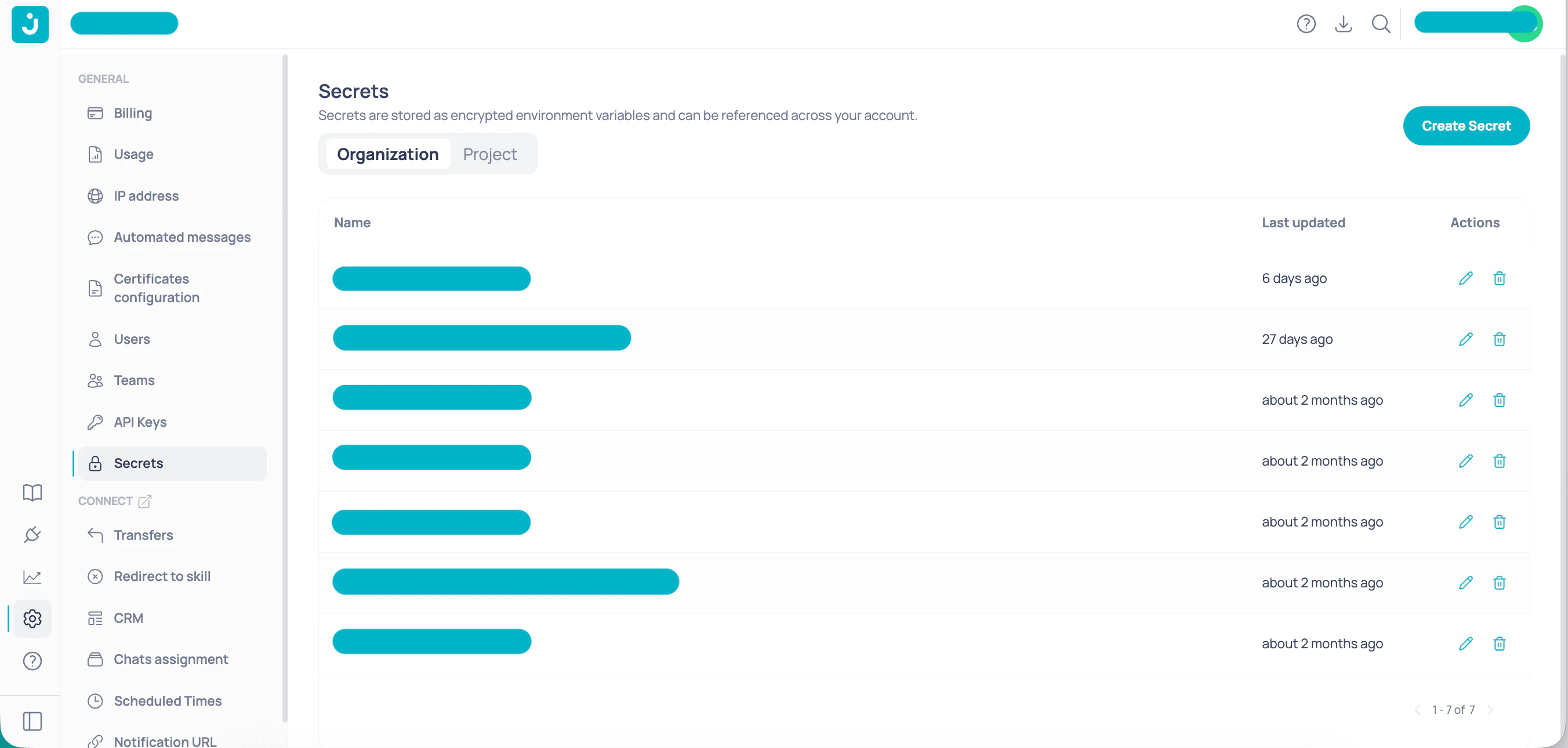 The page is divided into two tabs based on the Secret scope:
| Tab | Scope |
| ---------------- | ------------------------------------------------------------------------------------------ |
| **Organization** | The Secret is available in all projects in your account |
| **Project** | The Secret is limited to a specific project; select the project with the built-in selector |
## Create a Secret
Select **Organization** or **Project** depending on the scope you need, then click **Create** in the top-right corner.
The form requires two fields:
* **Name**: Secret identifier. Only uppercase letters, numbers, and underscores are allowed (`A-Z`, `0-9`, `_`). The field automatically converts text to uppercase.
* **Value**: The sensitive credential. It is masked; use the visibility icon to temporarily reveal what you type.
The name **cannot be changed** after creating the Secret. Choose a clear, consistent name from the start, for example: `STRIPE_SECRET_KEY` or `OPENAI_API_KEY`.
Click **Create**. The Secret appears in the table with its name and last updated date.
## Edit a Secret
To update the value of an existing Secret, click the edit icon (pencil) in the corresponding row.
In the edit modal:
* The **Name** field is disabled and cannot be changed.
* Enter the new **Value** and confirm.
## Delete a Secret
Click the delete icon (trash) in the row of the Secret you no longer need. A confirmation dialog appears with the Secret name highlighted.
Deleting a Secret is **irreversible**. If any active workflow references that Secret with `{{$secret.NAME}}`, it will stop working. Verify that no production node uses it before deleting.
## Use Secrets in workflows
Reference any Secret in a node configuration field with this syntax:
```
{{$secret.SECRET_NAME}}
```
For example, if you have a Secret called `OPENAI_API_KEY`, use it in an HTTP node authentication field like this:
```
{{$secret.OPENAI_API_KEY}}
```
The workflow engine replaces the expression with the real value at runtime, without exposing the value in logs or exported configuration.
**Organization** Secrets are available in all projects; use them for shared credentials like payment gateways or AI services. Use **Project** Secrets for credentials exclusive to a specific workflow.
## Permissions
| Action | Required permission |
| ----------------------- | --------------------- |
| View Secrets list | Read access to Brain |
| Create, edit, or delete | Write access to Brain |
Users with read-only access can view names and updated dates, but not values or management actions.
## Best practices
* **One Secret per credential**: do not reuse the same Secret for different integrations. If one key is compromised, you can rotate it without affecting other workflows.
* **Use descriptive names**: include the service and key type in the name, for example `STRIPE_SECRET_KEY` or `OPENAI_API_TOKEN`.
* **Prefer Organization for shared credentials**: avoid duplicating the same Secret across multiple projects.
* **Rotate periodically**: update the Secret value when rotating keys in the external service, without changing workflows that already use it.
The page is divided into two tabs based on the Secret scope:
| Tab | Scope |
| ---------------- | ------------------------------------------------------------------------------------------ |
| **Organization** | The Secret is available in all projects in your account |
| **Project** | The Secret is limited to a specific project; select the project with the built-in selector |
## Create a Secret
Select **Organization** or **Project** depending on the scope you need, then click **Create** in the top-right corner.
The form requires two fields:
* **Name**: Secret identifier. Only uppercase letters, numbers, and underscores are allowed (`A-Z`, `0-9`, `_`). The field automatically converts text to uppercase.
* **Value**: The sensitive credential. It is masked; use the visibility icon to temporarily reveal what you type.
The name **cannot be changed** after creating the Secret. Choose a clear, consistent name from the start, for example: `STRIPE_SECRET_KEY` or `OPENAI_API_KEY`.
Click **Create**. The Secret appears in the table with its name and last updated date.
## Edit a Secret
To update the value of an existing Secret, click the edit icon (pencil) in the corresponding row.
In the edit modal:
* The **Name** field is disabled and cannot be changed.
* Enter the new **Value** and confirm.
## Delete a Secret
Click the delete icon (trash) in the row of the Secret you no longer need. A confirmation dialog appears with the Secret name highlighted.
Deleting a Secret is **irreversible**. If any active workflow references that Secret with `{{$secret.NAME}}`, it will stop working. Verify that no production node uses it before deleting.
## Use Secrets in workflows
Reference any Secret in a node configuration field with this syntax:
```
{{$secret.SECRET_NAME}}
```
For example, if you have a Secret called `OPENAI_API_KEY`, use it in an HTTP node authentication field like this:
```
{{$secret.OPENAI_API_KEY}}
```
The workflow engine replaces the expression with the real value at runtime, without exposing the value in logs or exported configuration.
**Organization** Secrets are available in all projects; use them for shared credentials like payment gateways or AI services. Use **Project** Secrets for credentials exclusive to a specific workflow.
## Permissions
| Action | Required permission |
| ----------------------- | --------------------- |
| View Secrets list | Read access to Brain |
| Create, edit, or delete | Write access to Brain |
Users with read-only access can view names and updated dates, but not values or management actions.
## Best practices
* **One Secret per credential**: do not reuse the same Secret for different integrations. If one key is compromised, you can rotate it without affecting other workflows.
* **Use descriptive names**: include the service and key type in the name, for example `STRIPE_SECRET_KEY` or `OPENAI_API_TOKEN`.
* **Prefer Organization for shared credentials**: avoid duplicating the same Secret across multiple projects.
* **Rotate periodically**: update the Secret value when rotating keys in the external service, without changing workflows that already use it.