> ## Documentation Index
> Fetch the complete documentation index at: https://docs.jelou.ai/llms.txt
> Use this file to discover all available pages before exploring further.
# Collections
> Create and configure collections to organize your data with typed fields, validations, and indexes
A **collection** is the equivalent of a table in a traditional database. Each collection has fields (columns) with specific data types and stores records (rows) that you can create, search, edit, and delete.
## Creating a collection
 In the left sidebar, click the **+ New collection** button located at the bottom of the collections panel.
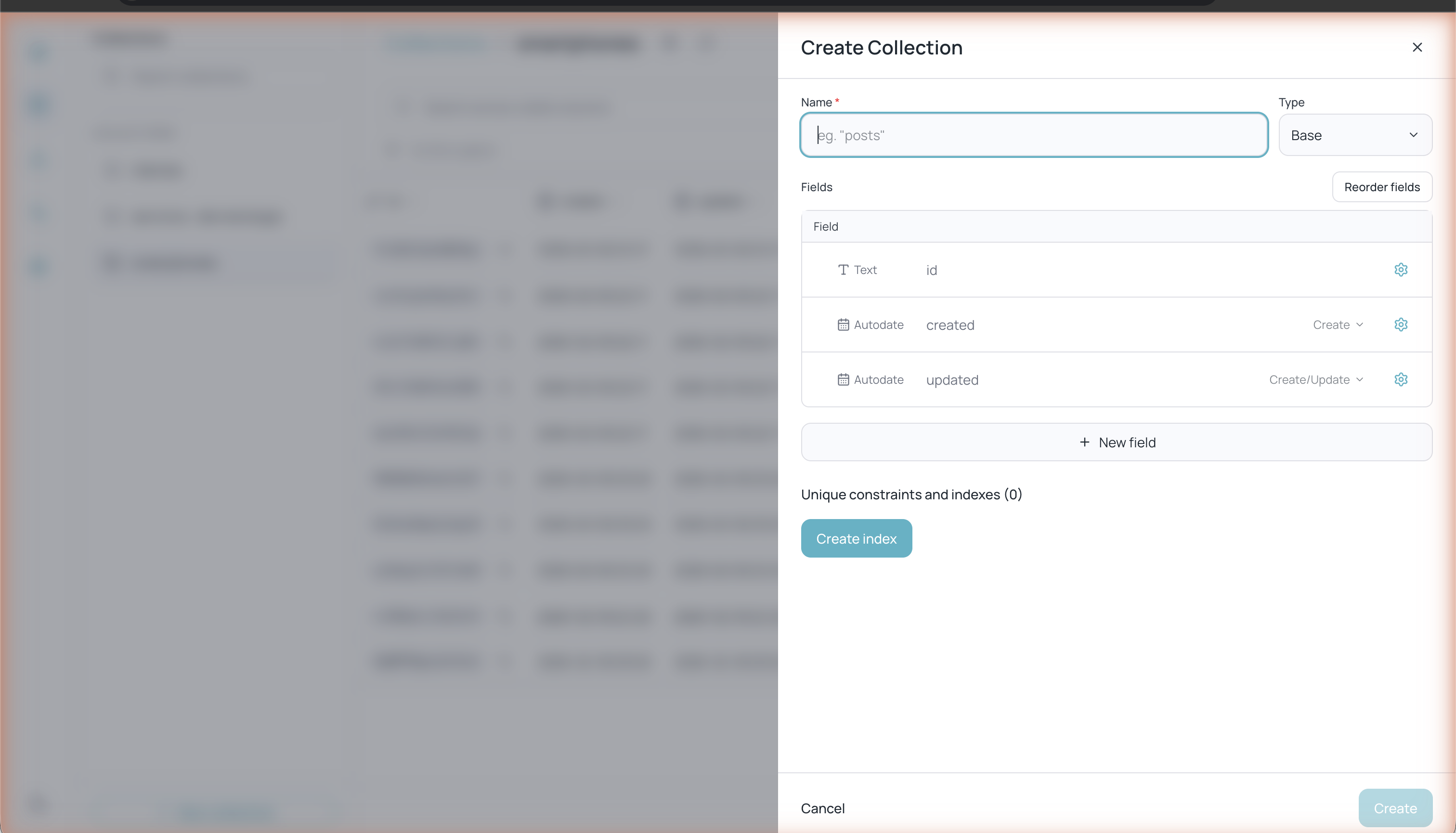
Fill in the following fields:
* **Name** — Collection name (required, e.g. "customers", "products")
* **Type** — Collection type (Base by default)
Every new collection includes three automatic fields:
* **id** — Unique record identifier (auto-generated)
* **created** — Record creation date (Autodate)
* **updated** — Date of last update (Autodate)
Click **+ New field** to add your own fields.
Click **Create** to confirm.
## Field types
Each field has a type that determines what data it can store and what validations apply:
| Type | Description |
| ------------ | ---------------------------------------------------------------------------------------- |
| **Text** | Text strings (5,000 characters maximum by default) |
| **Editor** | Rich formatted text (bold, lists, links, etc.) |
| **Number** | Numeric values (integers or decimals) |
| **Boolean** | True/false values |
| **Email** | Email addresses with format validation |
| **URL** | URLs with format validation |
| **Date** | Date and time set manually by the user on each record |
| **Autodate** | Date and time assigned automatically by the system (e.g. `created` and `updated` fields) |
| **Select** | Selection of one option from a predefined list |
| **Relation** | Reference to records in another collection |
| **File** | File attachments |
| **JSON** | Structured data in JSON format |
| **GeoPoint** | Geographic coordinates (latitude and longitude) |
| **Password** | Masked text for storing passwords or secrets |
## Configuring fields
Click the gear icon (⚙) on any field to view its configuration options. Options vary depending on the field type.
For **Text** type fields:
* **Min length / Max length** — Minimum and maximum text length (5,000 characters maximum by default)
* **Validation pattern** — Regular expression to validate the format (e.g. `^[a-z0-9]+$`)
* **Nonempty** — Marks the field as required
* **Hidden** — Hides the field in the user interface
* **Presentable** — Marks the field as the representative field of the record
You can change the type of an existing field from the type dropdown in the collection settings. Keep in mind that changing the type may affect existing data.
## Reordering fields
Click **Reorder fields** inside the collection settings to change the order in which fields appear in the table and in forms.
## Indexes and unique constraints
At the bottom of the collection settings you will find the **Unique constraints and indexes** section. Indexes improve query performance on fields that are frequently filtered or searched.
Click **Create index** to add a new index to your collection.
## Collection settings
In the left sidebar, click the **+ New collection** button located at the bottom of the collections panel.
Fill in the following fields:
* **Name** — Collection name (required, e.g. "customers", "products")
* **Type** — Collection type (Base by default)
Every new collection includes three automatic fields:
* **id** — Unique record identifier (auto-generated)
* **created** — Record creation date (Autodate)
* **updated** — Date of last update (Autodate)
Click **+ New field** to add your own fields.
Click **Create** to confirm.
## Field types
Each field has a type that determines what data it can store and what validations apply:
| Type | Description |
| ------------ | ---------------------------------------------------------------------------------------- |
| **Text** | Text strings (5,000 characters maximum by default) |
| **Editor** | Rich formatted text (bold, lists, links, etc.) |
| **Number** | Numeric values (integers or decimals) |
| **Boolean** | True/false values |
| **Email** | Email addresses with format validation |
| **URL** | URLs with format validation |
| **Date** | Date and time set manually by the user on each record |
| **Autodate** | Date and time assigned automatically by the system (e.g. `created` and `updated` fields) |
| **Select** | Selection of one option from a predefined list |
| **Relation** | Reference to records in another collection |
| **File** | File attachments |
| **JSON** | Structured data in JSON format |
| **GeoPoint** | Geographic coordinates (latitude and longitude) |
| **Password** | Masked text for storing passwords or secrets |
## Configuring fields
Click the gear icon (⚙) on any field to view its configuration options. Options vary depending on the field type.
For **Text** type fields:
* **Min length / Max length** — Minimum and maximum text length (5,000 characters maximum by default)
* **Validation pattern** — Regular expression to validate the format (e.g. `^[a-z0-9]+$`)
* **Nonempty** — Marks the field as required
* **Hidden** — Hides the field in the user interface
* **Presentable** — Marks the field as the representative field of the record
You can change the type of an existing field from the type dropdown in the collection settings. Keep in mind that changing the type may affect existing data.
## Reordering fields
Click **Reorder fields** inside the collection settings to change the order in which fields appear in the table and in forms.
## Indexes and unique constraints
At the bottom of the collection settings you will find the **Unique constraints and indexes** section. Indexes improve query performance on fields that are frequently filtered or searched.
Click **Create index** to add a new index to your collection.
## Collection settings
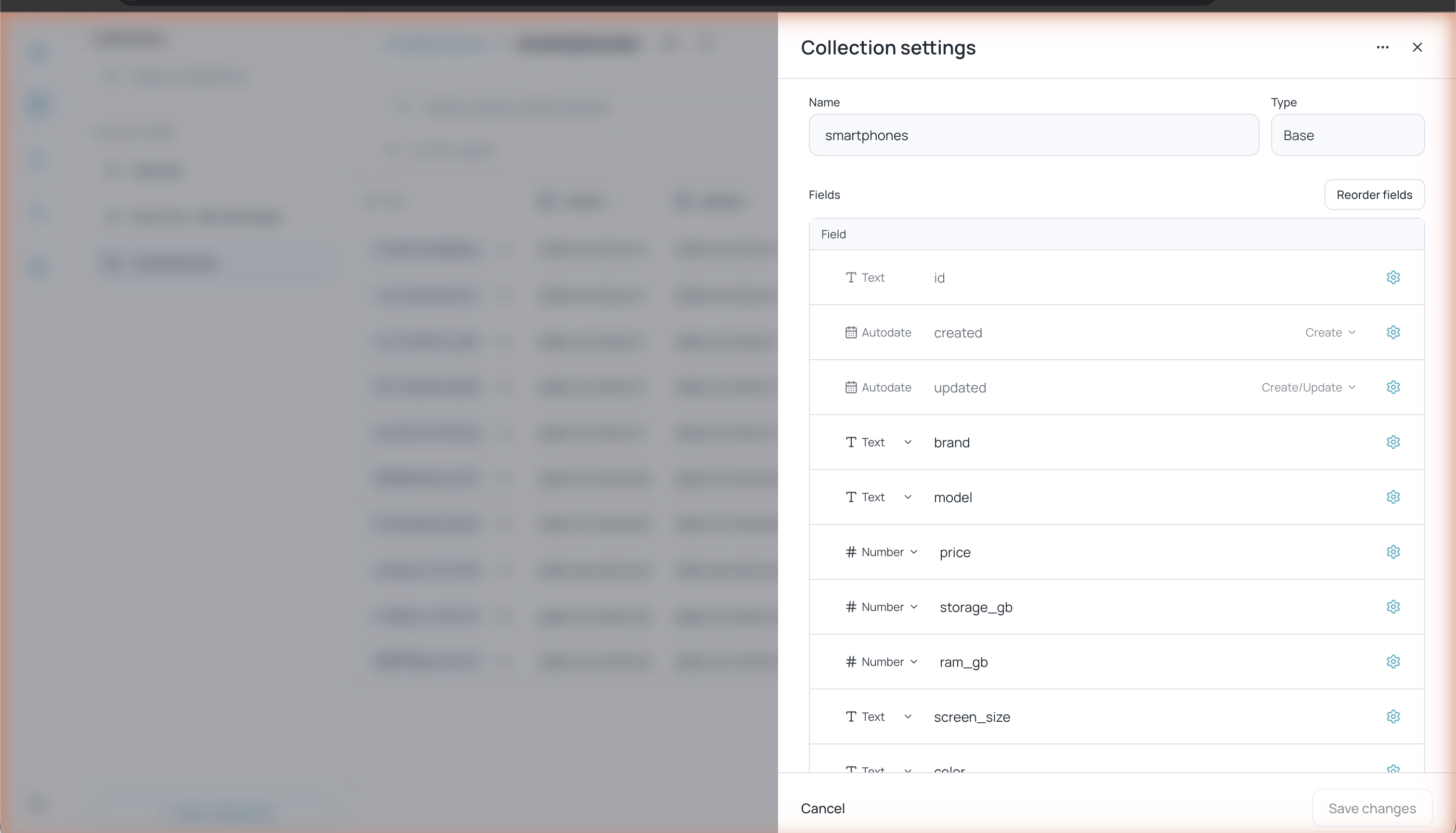 Click the gear icon (⚙) next to the collection name at the top to access the full settings. From here you can:
* Rename the collection
* Add, edit, or delete fields
* Reorder fields
* Create indexes
The **⋯** menu in the upper-right corner of the settings offers additional management options.
From this menu you can permanently delete the collection. This action deletes all records and cannot be undone.
Click the gear icon (⚙) next to the collection name at the top to access the full settings. From here you can:
* Rename the collection
* Add, edit, or delete fields
* Reorder fields
* Create indexes
The **⋯** menu in the upper-right corner of the settings offers additional management options.
From this menu you can permanently delete the collection. This action deletes all records and cannot be undone.