> ## Documentation Index
> Fetch the complete documentation index at: https://docs.jelou.ai/llms.txt
> Use this file to discover all available pages before exploring further.
# Imports
> Bulk-import data into your collections from CSV or XLSX files
The import feature lets you load bulk data into your collections from **CSV** or **XLSX** (Excel) files. You can import data into an existing collection or create a new collection during the process.
 ## Importing into an existing collection
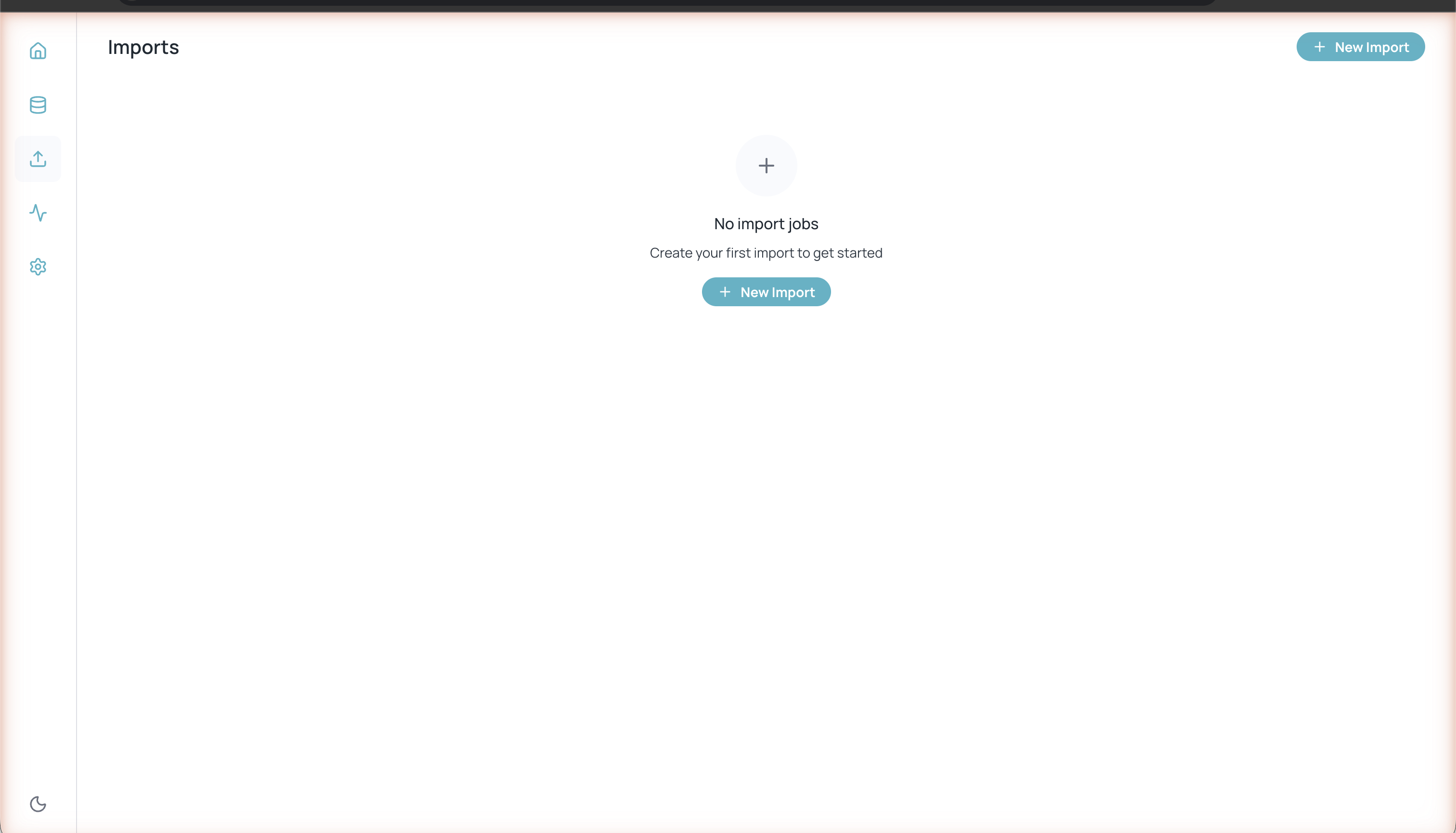
Click the import icon in the left sidebar and then **+ New Import** to open the wizard.
## Importing into an existing collection
Click the import icon in the left sidebar and then **+ New Import** to open the wizard.
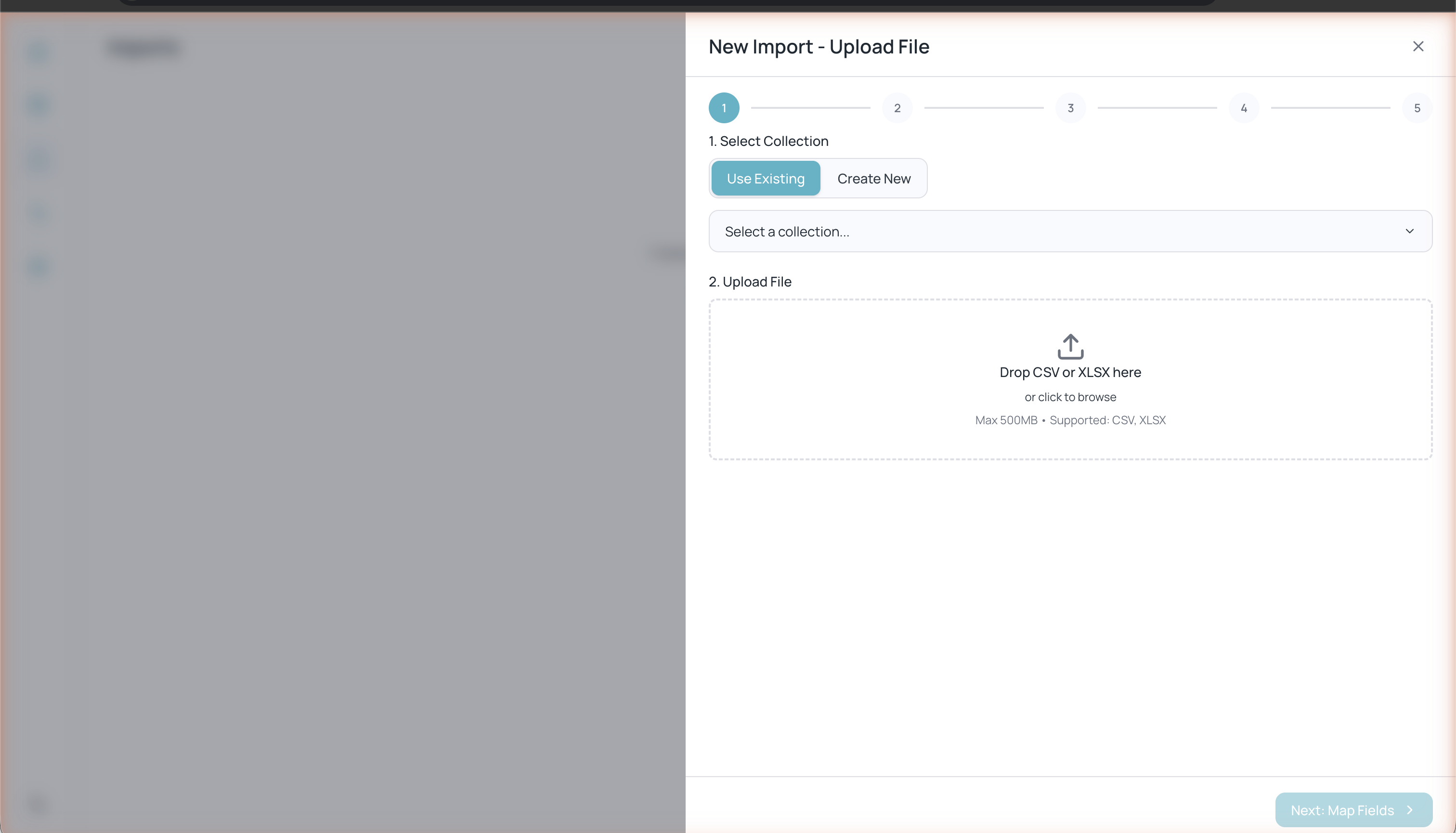 The wizard has **5 steps**:
Make sure **Use Existing** is selected, choose the target collection from the dropdown, and drag your CSV or XLSX file to the upload zone (or click to select it).
Maximum file size: **500 MB**. Supported formats: **CSV** and **XLSX**.
Map each collection field to a column in the CSV file. The wizard automatically detects matches (e.g. an `email` field is mapped automatically). For each field you can select a **Subtype** (General Text, ID Number) and a **Country** when applicable. CSV columns you don't map will appear in the **Unused CSV columns** section and will be ignored.
Optionally enable **Enable duplicate detection** so Databases checks for existing records and avoids duplicates during the import.
Review a preview of the first rows. You will see counters for valid rows, errors, and duplicates. Click any row to see the error details.
Review the final summary with the file details, target collection, column mappings, and skipped fields. Click **Start Import** to run the import.
## Importing by creating a new collection
Click **+ New Import**, select **Create New**, enter the name of the new collection, and upload your CSV or XLSX file.
Databases will automatically infer field types from the file's columns. You can adjust the types manually if needed.
Optionally enable duplicate detection.
Review the row preview and verify that the data and types are correct.
Review the final summary and click **Start Import**.
## Import history
All completed imports are shown in the Imports section with their status. From here you can monitor the progress of ongoing imports and review the results of previous ones.
The wizard has **5 steps**:
Make sure **Use Existing** is selected, choose the target collection from the dropdown, and drag your CSV or XLSX file to the upload zone (or click to select it).
Maximum file size: **500 MB**. Supported formats: **CSV** and **XLSX**.
Map each collection field to a column in the CSV file. The wizard automatically detects matches (e.g. an `email` field is mapped automatically). For each field you can select a **Subtype** (General Text, ID Number) and a **Country** when applicable. CSV columns you don't map will appear in the **Unused CSV columns** section and will be ignored.
Optionally enable **Enable duplicate detection** so Databases checks for existing records and avoids duplicates during the import.
Review a preview of the first rows. You will see counters for valid rows, errors, and duplicates. Click any row to see the error details.
Review the final summary with the file details, target collection, column mappings, and skipped fields. Click **Start Import** to run the import.
## Importing by creating a new collection
Click **+ New Import**, select **Create New**, enter the name of the new collection, and upload your CSV or XLSX file.
Databases will automatically infer field types from the file's columns. You can adjust the types manually if needed.
Optionally enable duplicate detection.
Review the row preview and verify that the data and types are correct.
Review the final summary and click **Start Import**.
## Import history
All completed imports are shown in the Imports section with their status. From here you can monitor the progress of ongoing imports and review the results of previous ones.