> ## Documentation Index
> Fetch the complete documentation index at: https://docs.jelou.ai/llms.txt
> Use this file to discover all available pages before exploring further.
# Records
> Create, edit, search, filter, and export records within your collections
**Records** are the rows of data within a collection. Each record contains values for the fields defined in the collection.
## Creating a record
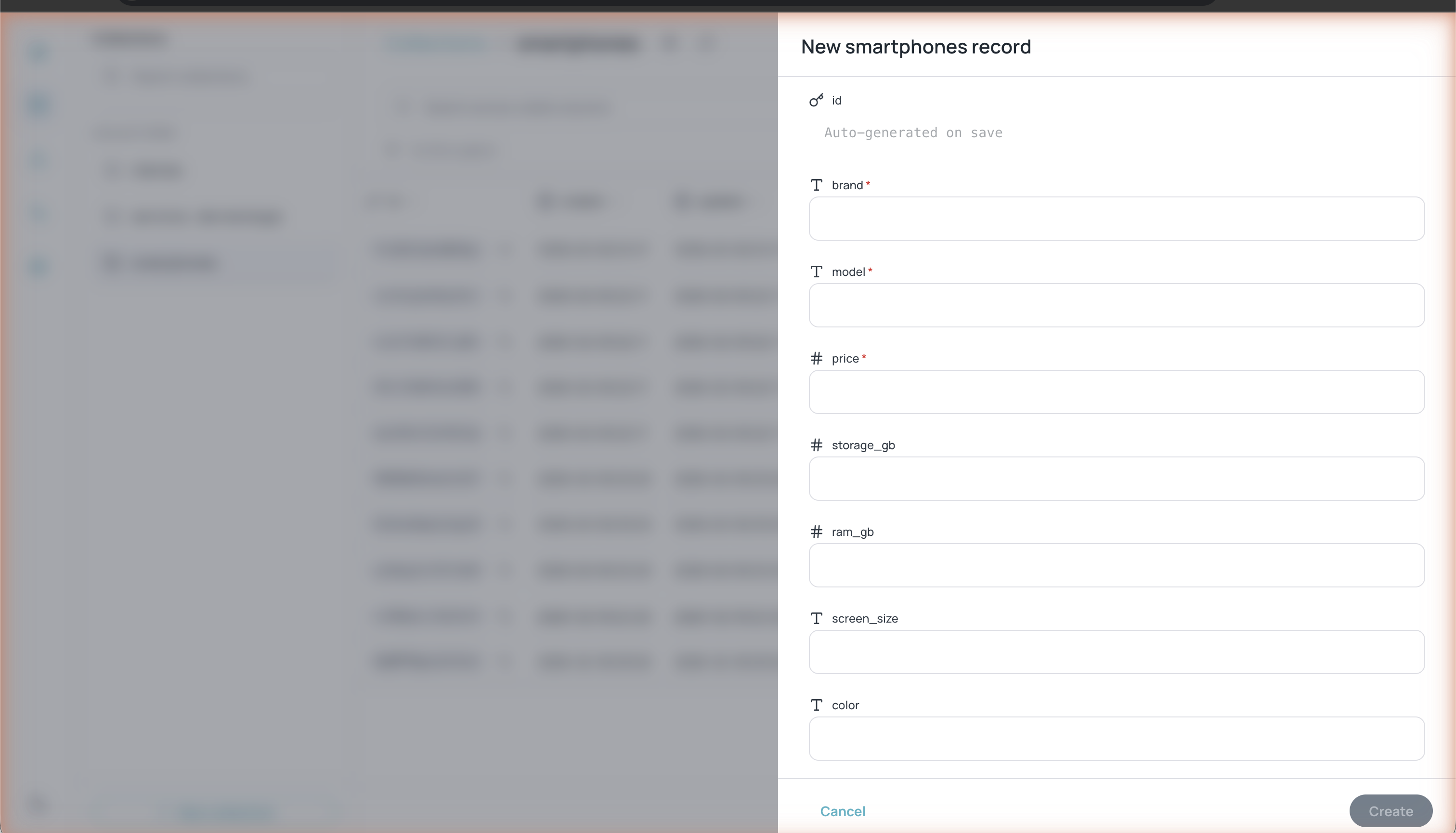 Select the collection where you want to add a record from the left sidebar.
The button is located in the upper-right corner of the collection view.
The form shows all the collection's fields with their types. Fields marked with
Select the collection where you want to add a record from the left sidebar.
The button is located in the upper-right corner of the collection view.
The form shows all the collection's fields with their types. Fields marked with \* are required. The **id** field is generated automatically when you save.
The record is created and appears in the collection table.
## Editing a record
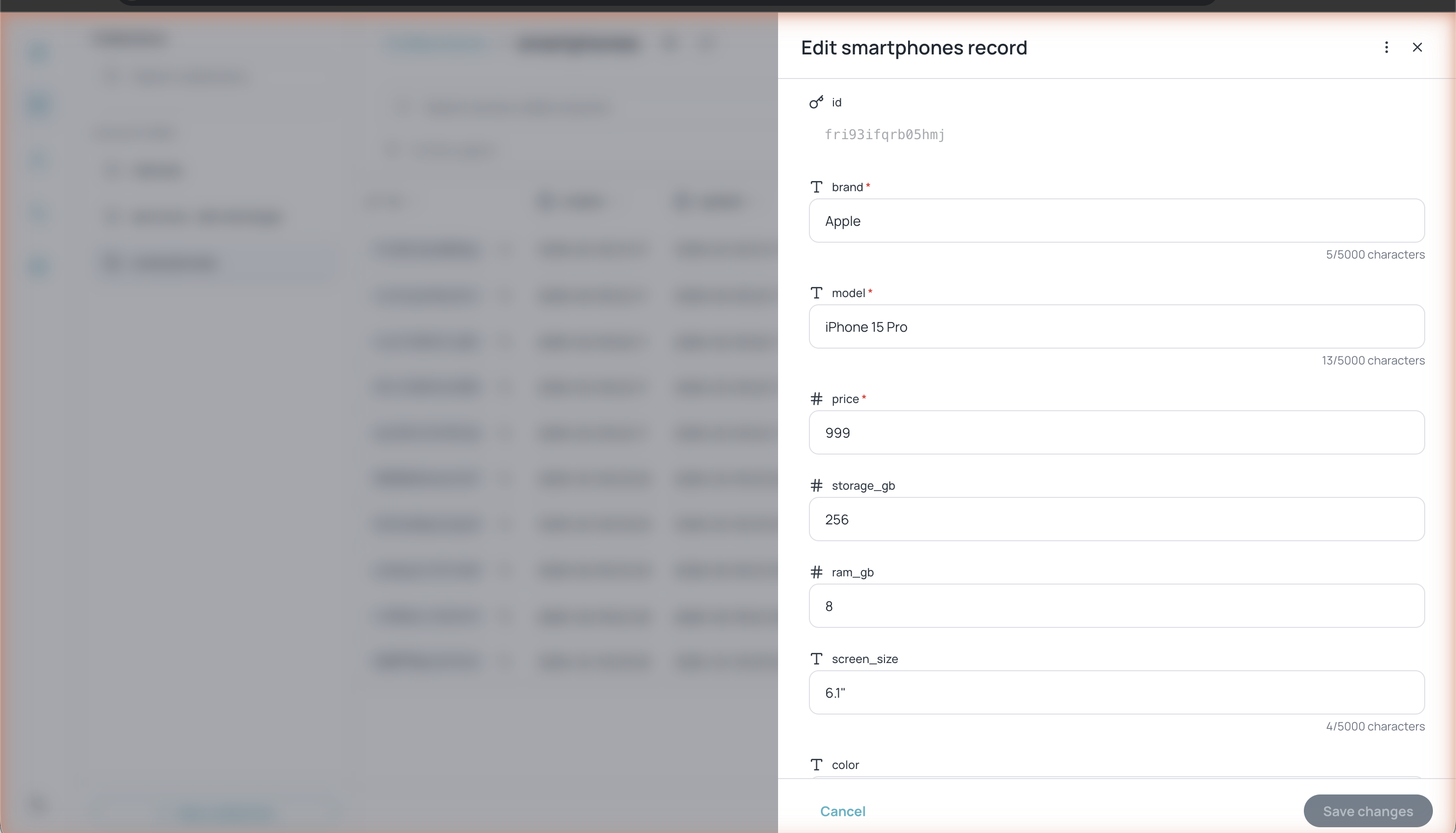 Click the arrow at the end of any row to open the editing panel. Modify the values you need and click **Save changes** to save.
Each text field shows a character counter (e.g. `5/5000 characters`) so you can control content length.
## Duplicating and deleting records
Inside the record editing panel, click the **⋮** menu (upper-right corner) to access:
* **Duplicate** — Creates a copy of the record with a new ID
* **Delete** — Permanently deletes the record
## Searching records
Use the search bar at the top of the table (**Search across visible columns**) to search text in all visible columns. You can also use the **Cmd+K** shortcut to quickly focus the search.
## Advanced filters
Click the filter icon (funnel) next to the search bar to open the **Advanced filters** panel.
Choose between **AND** (all conditions must be met) or **OR** (at least one condition must be met).
Click **+ Add** and configure each condition with:
* **Field** — Select the field to filter
* **Operator** — Choose the comparison operator
* **Value** — Enter the value to compare
Click **Apply filters** to see the filtered results.
Available operators depend on the field type:
| Field type | Operators |
| ---------- | ------------------------------------------ |
| **Text** | Equals, Not equal, Contains, Not contains |
| **Number** | Equals, Not equal, Greater than, Less than |
In the **CURRENT QUERY** section you can view and copy the generated filter expression. This is useful for reusing the filter in API calls.
You can save frequently used filter combinations with the **Save filters** button and clear all active filters with **Clear**.
## Sorting records
Click any column header to toggle the sort order of records:
* First click: **ascending** order (A→Z, 0→9)
* Second click: **descending** order (Z→A, 9→0)
* Third click: no specific order
## Exporting records
Click the **Export** button in the upper-right corner to download the records of the current collection. The export respects active filters, allowing you to export only a subset of data.
## Pagination
The table displays paginated records. In the lower-right corner you can:
* See how many records there are in total (e.g. "1 - 10 of 10")
* Navigate between pages with the previous and next arrows
* Change the number of rows per page with the row selector
## API Preview
Click the arrow at the end of any row to open the editing panel. Modify the values you need and click **Save changes** to save.
Each text field shows a character counter (e.g. `5/5000 characters`) so you can control content length.
## Duplicating and deleting records
Inside the record editing panel, click the **⋮** menu (upper-right corner) to access:
* **Duplicate** — Creates a copy of the record with a new ID
* **Delete** — Permanently deletes the record
## Searching records
Use the search bar at the top of the table (**Search across visible columns**) to search text in all visible columns. You can also use the **Cmd+K** shortcut to quickly focus the search.
## Advanced filters
Click the filter icon (funnel) next to the search bar to open the **Advanced filters** panel.
Choose between **AND** (all conditions must be met) or **OR** (at least one condition must be met).
Click **+ Add** and configure each condition with:
* **Field** — Select the field to filter
* **Operator** — Choose the comparison operator
* **Value** — Enter the value to compare
Click **Apply filters** to see the filtered results.
Available operators depend on the field type:
| Field type | Operators |
| ---------- | ------------------------------------------ |
| **Text** | Equals, Not equal, Contains, Not contains |
| **Number** | Equals, Not equal, Greater than, Less than |
In the **CURRENT QUERY** section you can view and copy the generated filter expression. This is useful for reusing the filter in API calls.
You can save frequently used filter combinations with the **Save filters** button and clear all active filters with **Clear**.
## Sorting records
Click any column header to toggle the sort order of records:
* First click: **ascending** order (A→Z, 0→9)
* Second click: **descending** order (Z→A, 9→0)
* Third click: no specific order
## Exporting records
Click the **Export** button in the upper-right corner to download the records of the current collection. The export respects active filters, allowing you to export only a subset of data.
## Pagination
The table displays paginated records. In the lower-right corner you can:
* See how many records there are in total (e.g. "1 - 10 of 10")
* Navigate between pages with the previous and next arrows
* Change the number of rows per page with the row selector
## API Preview
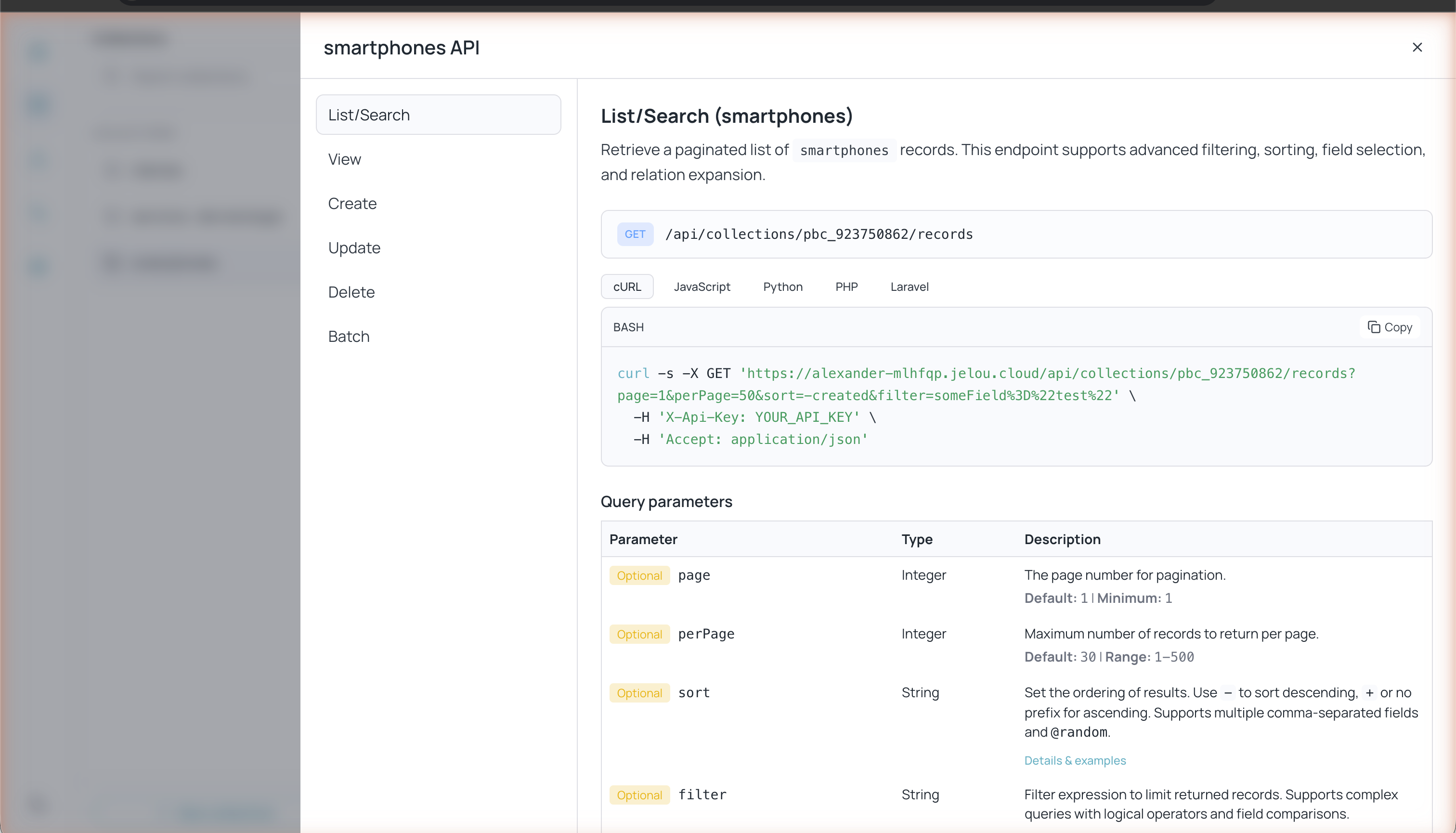 Click **API Preview** in the upper-right corner to see the interactive API documentation for the current collection. It includes:
* **List/Search** — List and search records with filters, sorting, and pagination
* **View** — Get a record by ID
* **Create** — Create a new record
* **Update** — Update an existing record
* **Delete** — Delete a record
* **Batch** — Batch operations
Each operation includes code examples in **cURL**, **JavaScript**, **Python**, **PHP**, and **Laravel** with the endpoints and parameters specific to your collection.
Click **API Preview** in the upper-right corner to see the interactive API documentation for the current collection. It includes:
* **List/Search** — List and search records with filters, sorting, and pagination
* **View** — Get a record by ID
* **Create** — Create a new record
* **Update** — Update an existing record
* **Delete** — Delete a record
* **Batch** — Batch operations
Each operation includes code examples in **cURL**, **JavaScript**, **Python**, **PHP**, and **Laravel** with the endpoints and parameters specific to your collection.