> ## Documentation Index
> Fetch the complete documentation index at: https://docs.jelou.ai/llms.txt
> Use this file to discover all available pages before exploring further.
# Publish and versions
> Manage how your changes reach production: with auto-publish every save deploys immediately, or publish manually to control which version is active and maintain the version history.
Brain Studio has two publishing modes. In new self-service accounts, **auto-publish** is active: what you save in the canvas goes directly to production with no extra steps. In existing accounts, changes stay as a draft until you click **Publish** — and each publication creates a new entry in the version history.
## Auto-publish
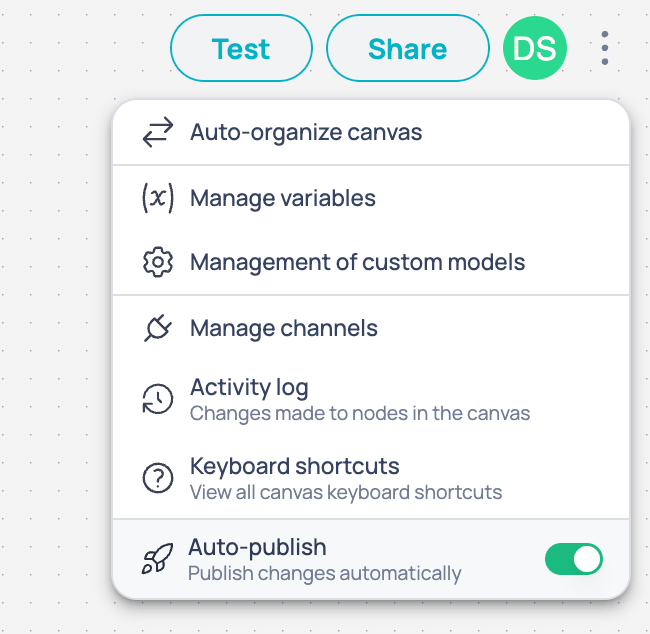
With auto-publish active, what you see in the editor is what runs in production. The **Publish** button disappears from the editor toolbar and the share button always shows the public URL of the workflow.
| Account type | Default state | Who can change the setting? |
| ---------------------------------------------- | --------------------- | --------------------------- |
| New self-service accounts | Auto-publish active | Super admin |
| Existing accounts (enterprise or self-service) | Manual publish active | Super admin |
The setting applies at the **account level**: when enabled, it affects all regular workflows in the company at the same time.
Auto-publish only applies to regular workflows. Marketplace Tools and Skills always require manual publication.
With auto-publish active, changes deploy to production immediately and no version history is generated. Rollback to a previous state is not possible.
### Enable or disable auto-publish
In the Brain top bar, click the options icon in the upper right corner.
Find the **Auto-publish** option and enable or disable the toggle as needed.
## Publish manually
When auto-publish is disabled, changes stay as a draft until you publish them explicitly. Each publication creates an **immutable version** recorded in the version history.
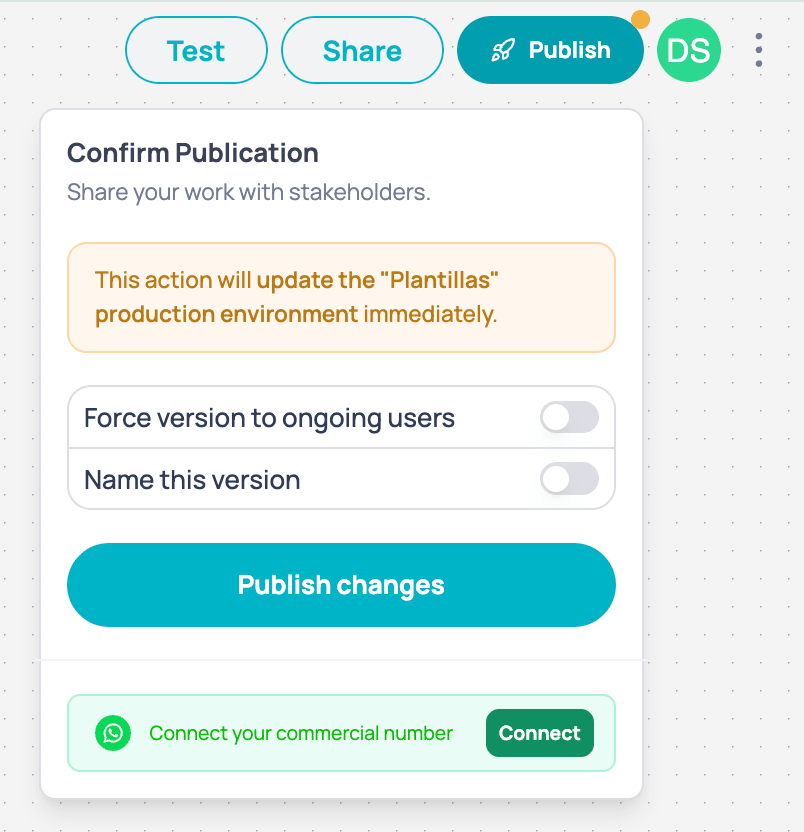
When there are unpublished changes, the **Publish** button in the top bar will show an orange indicator. This means your draft differs from the last published version.
Click the **Publish** button in the top bar. A confirmation popover opens indicating that the changes will be deployed to production.
Publishing will deploy to production all changes in the workflows of your current project. You can either force this new version so users already mid-flow adopt it, or add a name to this version to help you identify it in the version history.
Click **Publish changes**. The system creates a new commit with the date, time, and your user as the author.
Once published, the changes are applied immediately to all connected channels (WhatsApp, Web, etc.). Make sure to test your flow before publishing.
## Publish to the Marketplace
You can publish individual **Workflows** and **Tools** to the Marketplace so other teams can reuse them. This publication is always manual, regardless of your account's publishing mode.
From the canvas of your workflow or Tool, click the **Publish** button in the toolbar.
Fill in the required fields:
* **Version**: version name (e.g. `v1.0.0`, `v2.1.0`).
* **Description**: brief summary of the changes or functionality.
* **Privacy**: choose between **Public** (visible to all users) or **Private** (access only with authorization).
Click **Publish**. The version will be available in the Marketplace and can be selected from AI Agent nodes or other workflows.
### Selecting versions in nodes
When you add a published workflow or Tool to an AI Agent node, you can choose which version to use from the version selector in the configuration panel. Each version shows whether it is public or private.
If you publish a new version with changes to inputs or outputs, workflows using previous versions will not be affected until you manually update the selected version.
## Version history
The version history records all manual publications of your project. From here you can preview any version, compare changes, and restore a previous version.
The version history is only available when auto-publish is disabled. With auto-publish active, changes do not generate entries in the version history.
In the Brain top bar, open the options menu in the upper right corner and select **Version History**. A side panel will expand with the list of versions sorted by date.
Each entry shows:
* **Date and time** of publication
* **User** who made the publication
* **Current** badge on the version active in production
Select a different version to see in the canvas how your workflow was built at that moment. Use this view to compare before deciding whether to restore.
If you need to go back to a previous version, click **Restore this version** in the upper right corner — the button only appears in preview mode. Keep in mind that restoring replaces the active production version immediately.
Test your workflow before publishing
Share and test in production
 With auto-publish active, what you see in the editor is what runs in production. The **Publish** button disappears from the editor toolbar and the share button always shows the public URL of the workflow.
| Account type | Default state | Who can change the setting? |
| ---------------------------------------------- | --------------------- | --------------------------- |
| New self-service accounts | Auto-publish active | Super admin |
| Existing accounts (enterprise or self-service) | Manual publish active | Super admin |
The setting applies at the **account level**: when enabled, it affects all regular workflows in the company at the same time.
With auto-publish active, what you see in the editor is what runs in production. The **Publish** button disappears from the editor toolbar and the share button always shows the public URL of the workflow.
| Account type | Default state | Who can change the setting? |
| ---------------------------------------------- | --------------------- | --------------------------- |
| New self-service accounts | Auto-publish active | Super admin |
| Existing accounts (enterprise or self-service) | Manual publish active | Super admin |
The setting applies at the **account level**: when enabled, it affects all regular workflows in the company at the same time.
 When auto-publish is disabled, changes stay as a draft until you publish them explicitly. Each publication creates an **immutable version** recorded in the version history.