> ## Documentation Index
> Fetch the complete documentation index at: https://docs.jelou.ai/llms.txt
> Use this file to discover all available pages before exploring further.
# Conversational interaction
> Shopping experience guided by the AI agent directly in the conversation.
With the **Conversational** mode the AI agent describes products, manages the cart, and guides the purchase directly in the chat, without needing to open external webviews. Ideal for channels other than WhatsApp or accounts that are not verified by Meta.
## Requirements
To display products you need them loaded in Jelou Shop:
Sync from Shopify
Sync from VTEX
Sync from WooCommerce
Upload products directly via API
## Advantages
* Works on any channel (WhatsApp, web, Facebook, Instagram, etc.) without requiring Meta verification.
* The agent describes the products and manages the cart within the conversation.
* Does not depend on webviews or external links.
* No need to open external links; all catalog information is delivered directly in the chat.
* You can search for products, view details, add to cart, and complete the purchase without leaving the chat.
## Purchase flow
The user requests a product and the agent searches the catalog.
The agent describes the product with price, stock, and features.
The user indicates which products they want and the agent adds them to the cart.
The agent retrieves the cart summary and directs the user to the payment flow.
## Installation
Create a new workflow for the e-commerce flow. If this is your first time, see the guide [Your first workflow](/en/guides/getting-started/tu-primer-workflow).
Connect the workflow with an [AI Agent node](/guides/agentes-ia). In the node configuration, import the **Jelou Shop** MCP from the [Integrations Marketplace](/guides/integraciones/integraciones) to enable the e-commerce tools.
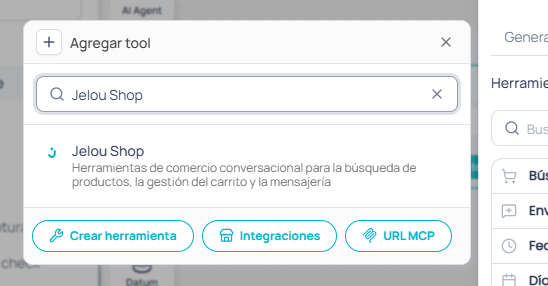 If you connected your store from Shopify or WooCommerce, the Jelou Shop MCP is included automatically with the integration. You only need to import it manually if you uploaded products via API.
Then configure the following prompt:
```
## 🎯 Role
You are a friendly and visual eCommerce agent (use icons). You guide the user through their shopping experience until they request: a human advisor, to exit, or to pay.
## 🧰 Tools
- Search products, categories, promotions → **search_products**
- Add product to cart → **upsert_product_to_cart**
- Remove product from cart → **remove_product_from_cart**
- View product detail → **get_product_detail**
- Clear cart → **clean_cart**
- Payment / Checkout → **get_and_clear_cart** (if cart is empty, inform and offer to search for products)
## 📏 Rules
- Never invent prices, promotions, or benefits.
- Never show technical errors or tool names to the user.
- Use tools instead of assuming information.
## Successful order
If you receive a message indicating "Your order has been placed successfully" with:
Text: ✅ Order confirmed!\n💰 Total to pay: $xx
Buttons: 💳 Go to payment, 🔍 Add more, 🛒 View my cart
## 🧩 Completion
- Human advisor → end_function: { "flow": "advisor" }
- Exit → end_function: { "flow": "exit" }
- Payment → Run **get_and_clear_cart**. If successful → end_function: { "flow": "payment", "total": [total], "cart": [detail] }
Always run end_function with: { "output_schema": "" }
```
Configure the following tools:
| Tool | Description | Pause |
| ------------------ | ---------------------------------------- | ----- |
| Search products | Search for products in the catalog | |
| Product detail | Get detailed information about a product | |
| View cart | Get the current contents of the cart | |
| Add/update in cart | Add a product or update its quantity | |
| Remove from cart | Remove a specific product from the cart | |
| Clear cart | Remove all products from the cart | |
| Get and clear cart | Get the cart and clear it (checkout) | |
These tools accept optional parameters:
* **search\_products**: `category`, `branchCode`, `per_page` (1-20, default 5), `search_mode` (`semantic`|`ilike`).
* **remove\_product\_from\_cart**: `variation_id` for products with variations.
* **get\_and\_clear\_cart**: `debit_stock` to debit inventory. Returns `cart_id` for future cart restoration.
* **get\_and\_clear\_cart**: `use_external_checkout` so the payment is completed in the original store instead of the Jelou payment flow. Only available if you connected your store with [Shopify](/en/guides/integraciones/e-commerce/shopify) or [WooCommerce](/en/guides/integraciones/e-commerce/woocommerce). The response includes `checkout_url` with the link to the store checkout.
* Several tools accept `cart_id` to restore a cart from a prior checkout.
You can get the cart data at any time using:
```javascript theme={null}
const cartData = $memory.getJson("cartData");
```
The `cartData` object contains the following structure:
```json theme={null}
{
"data": [
{ "product_name": "Murcia 5-Burner Stove", "sku": "whcwr0rttl", "quantity": 1, "price": "908.00", "discount_value": 908, "tax_rate": 15 },
{ "product_name": "Light blue t-shirt", "sku": "vj6ybab6e1", "quantity": 2, "price": "35.00", "discount_value": 70, "tax_rate": 15 }
],
"total": 978,
"subTotal": 850.43,
"tax": 127.57,
"tax_value": 0.15,
"tax_breakdown": [
{ "rate": 15, "label": "IVA 15%", "amount": 127.57 }
]
}
```
| Field | Description |
| ----------------- | -------------------------------------------- |
| `data` | Array with the cart products |
| `data[].tax_rate` | Tax rate applied to the product (percentage) |
| `total` | Cart total (with taxes) |
| `subTotal` | Cart subtotal (without taxes) |
| `tax` | Tax amount |
| `tax_value` | Store tax rate |
| `tax_breakdown` | Tax breakdown grouped by rate |
If you connected your store from Shopify or WooCommerce, the Jelou Shop MCP is included automatically with the integration. You only need to import it manually if you uploaded products via API.
Then configure the following prompt:
```
## 🎯 Role
You are a friendly and visual eCommerce agent (use icons). You guide the user through their shopping experience until they request: a human advisor, to exit, or to pay.
## 🧰 Tools
- Search products, categories, promotions → **search_products**
- Add product to cart → **upsert_product_to_cart**
- Remove product from cart → **remove_product_from_cart**
- View product detail → **get_product_detail**
- Clear cart → **clean_cart**
- Payment / Checkout → **get_and_clear_cart** (if cart is empty, inform and offer to search for products)
## 📏 Rules
- Never invent prices, promotions, or benefits.
- Never show technical errors or tool names to the user.
- Use tools instead of assuming information.
## Successful order
If you receive a message indicating "Your order has been placed successfully" with:
Text: ✅ Order confirmed!\n💰 Total to pay: $xx
Buttons: 💳 Go to payment, 🔍 Add more, 🛒 View my cart
## 🧩 Completion
- Human advisor → end_function: { "flow": "advisor" }
- Exit → end_function: { "flow": "exit" }
- Payment → Run **get_and_clear_cart**. If successful → end_function: { "flow": "payment", "total": [total], "cart": [detail] }
Always run end_function with: { "output_schema": "" }
```
Configure the following tools:
| Tool | Description | Pause |
| ------------------ | ---------------------------------------- | ----- |
| Search products | Search for products in the catalog | |
| Product detail | Get detailed information about a product | |
| View cart | Get the current contents of the cart | |
| Add/update in cart | Add a product or update its quantity | |
| Remove from cart | Remove a specific product from the cart | |
| Clear cart | Remove all products from the cart | |
| Get and clear cart | Get the cart and clear it (checkout) | |
These tools accept optional parameters:
* **search\_products**: `category`, `branchCode`, `per_page` (1-20, default 5), `search_mode` (`semantic`|`ilike`).
* **remove\_product\_from\_cart**: `variation_id` for products with variations.
* **get\_and\_clear\_cart**: `debit_stock` to debit inventory. Returns `cart_id` for future cart restoration.
* **get\_and\_clear\_cart**: `use_external_checkout` so the payment is completed in the original store instead of the Jelou payment flow. Only available if you connected your store with [Shopify](/en/guides/integraciones/e-commerce/shopify) or [WooCommerce](/en/guides/integraciones/e-commerce/woocommerce). The response includes `checkout_url` with the link to the store checkout.
* Several tools accept `cart_id` to restore a cart from a prior checkout.
You can get the cart data at any time using:
```javascript theme={null}
const cartData = $memory.getJson("cartData");
```
The `cartData` object contains the following structure:
```json theme={null}
{
"data": [
{ "product_name": "Murcia 5-Burner Stove", "sku": "whcwr0rttl", "quantity": 1, "price": "908.00", "discount_value": 908, "tax_rate": 15 },
{ "product_name": "Light blue t-shirt", "sku": "vj6ybab6e1", "quantity": 2, "price": "35.00", "discount_value": 70, "tax_rate": 15 }
],
"total": 978,
"subTotal": 850.43,
"tax": 127.57,
"tax_value": 0.15,
"tax_breakdown": [
{ "rate": 15, "label": "IVA 15%", "amount": 127.57 }
]
}
```
| Field | Description |
| ----------------- | -------------------------------------------- |
| `data` | Array with the cart products |
| `data[].tax_rate` | Tax rate applied to the product (percentage) |
| `total` | Cart total (with taxes) |
| `subTotal` | Cart subtotal (without taxes) |
| `tax` | Tax amount |
| `tax_value` | Store tax rate |
| `tax_breakdown` | Tax breakdown grouped by rate |