> ## Documentation Index
> Fetch the complete documentation index at: https://docs.jelou.ai/llms.txt
> Use this file to discover all available pages before exploring further.
# Shopify
> Connect your Shopify store with Jelou.
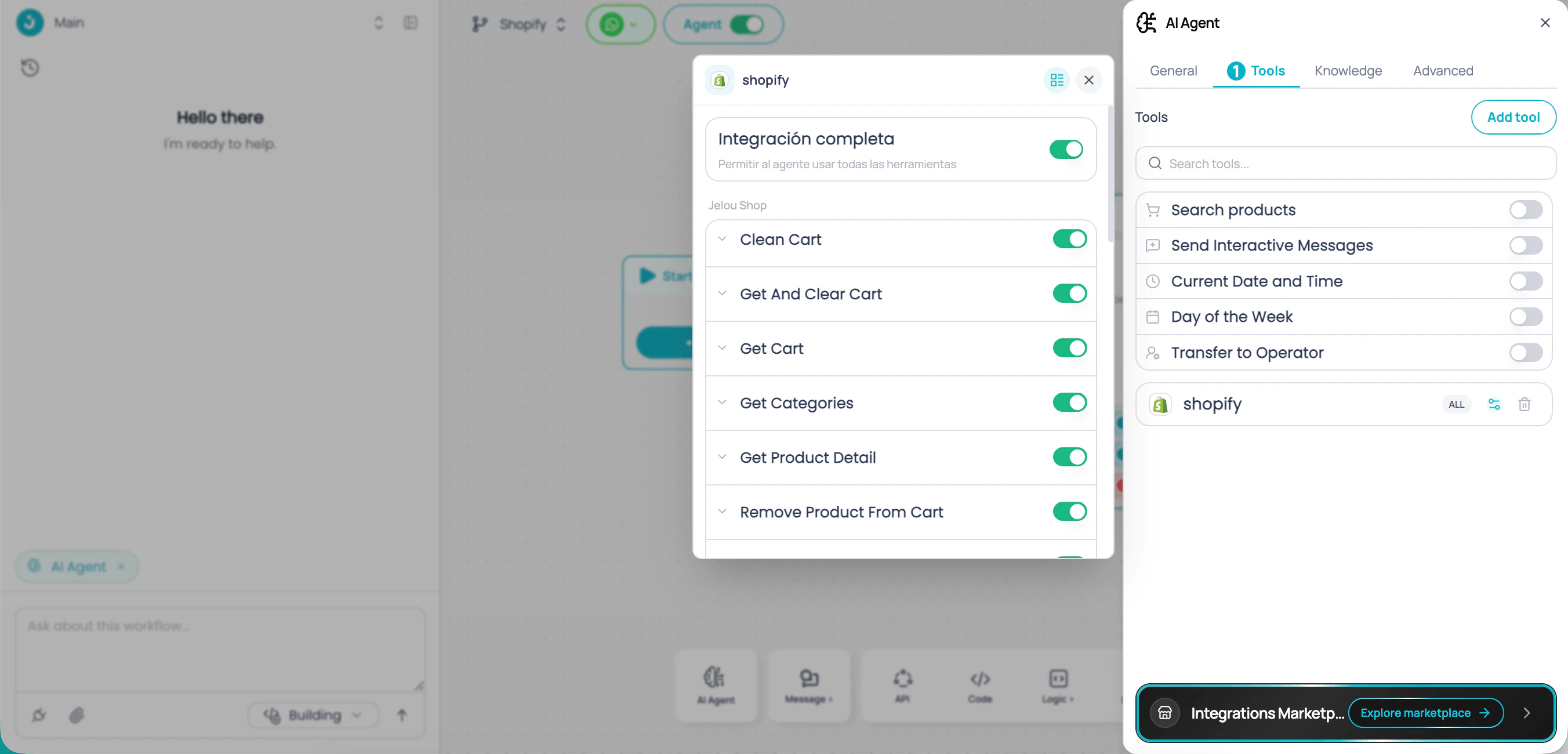 The Shopify integration uses **OAuth 2.0**. You authorize Jelou from your Shopify account in a few steps.
When you connect Shopify, the **Jelou Shop** MCP is included automatically. You can start the connection from the **Jelou Agent** (in Brain Studio) or from the **Marketplace**.
## Connect your store
In the Jelou **Marketplace**, search for and select **Shopify** in the catalog.
The Shopify integration uses **OAuth 2.0**. You authorize Jelou from your Shopify account in a few steps.
When you connect Shopify, the **Jelou Shop** MCP is included automatically. You can start the connection from the **Jelou Agent** (in Brain Studio) or from the **Marketplace**.
## Connect your store
In the Jelou **Marketplace**, search for and select **Shopify** in the catalog.
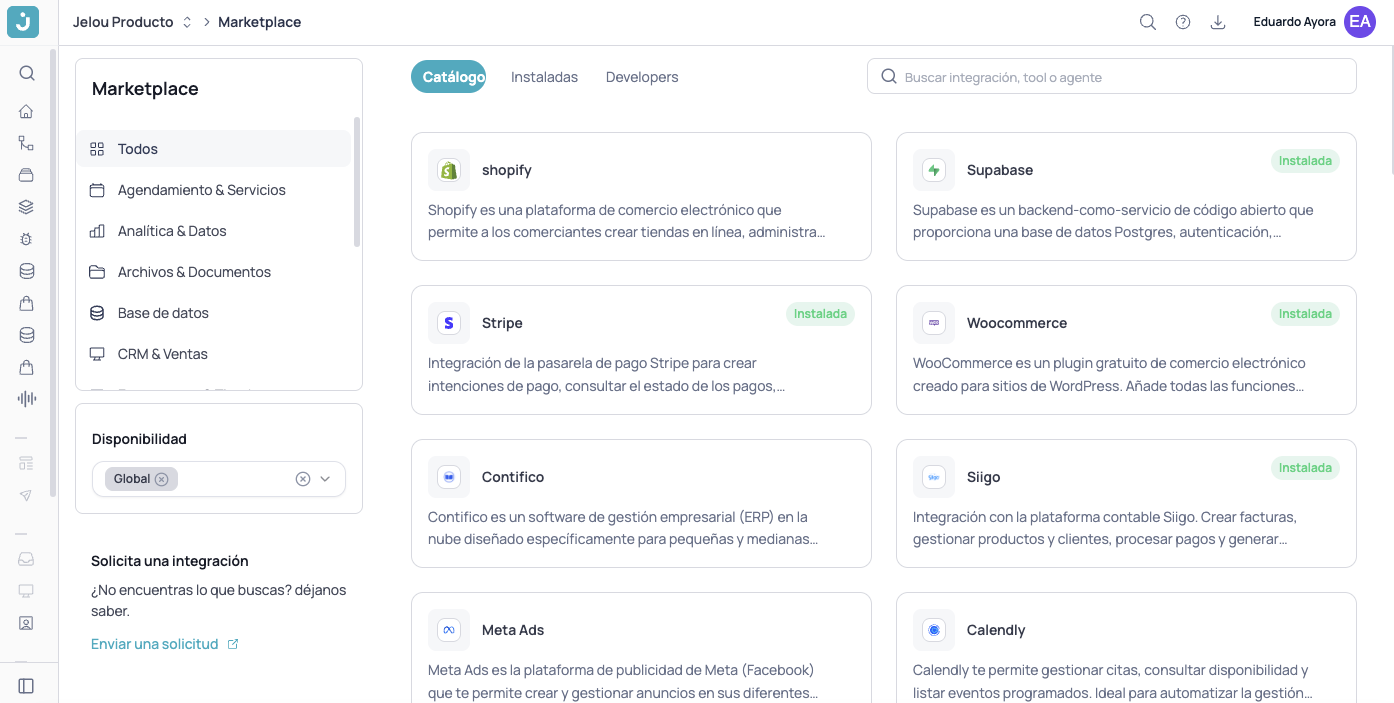 On the integration page, click **Connect**.
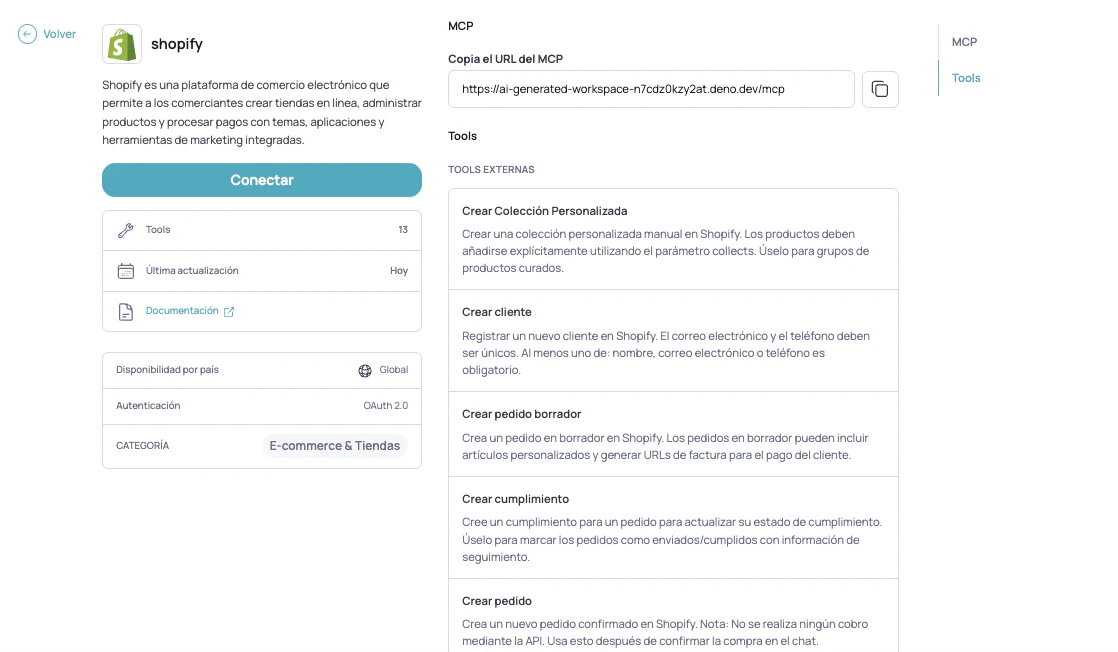 Log in to Shopify and choose the store you want to connect.
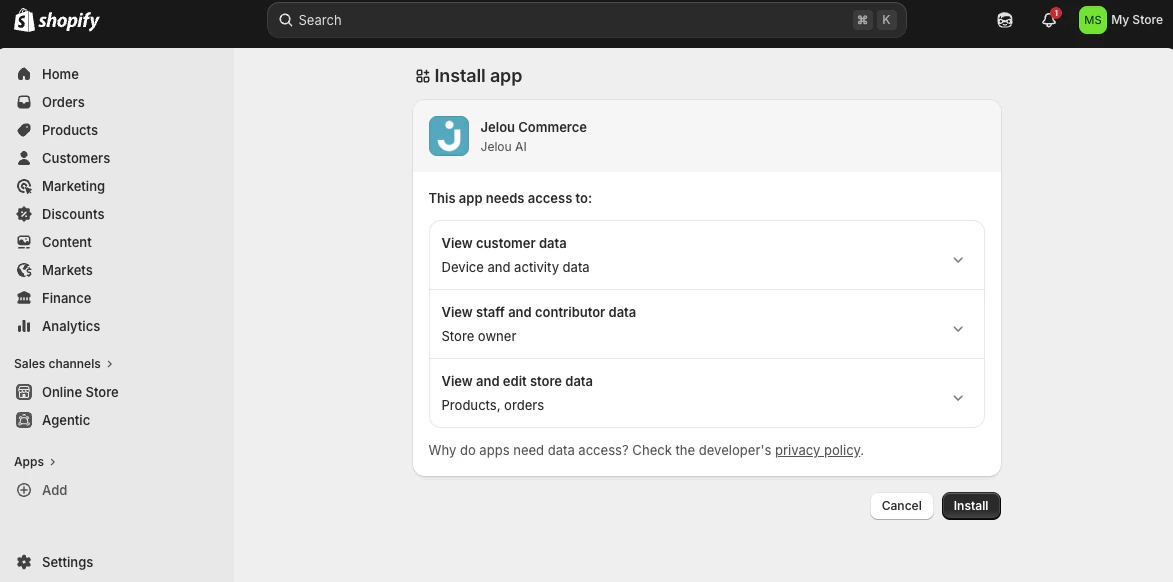
 Review the requested permissions and click **Install** to install the **Jelou Commerce** app in your store.
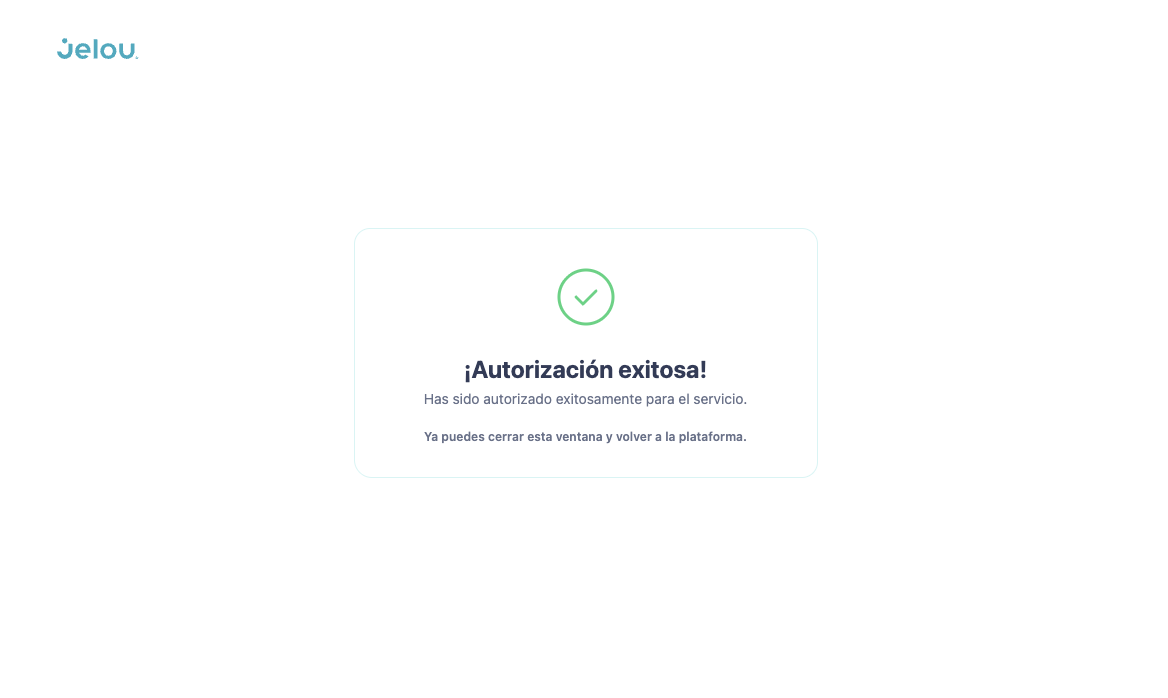
 You will see the **Authorization successful!** message. Close the window and return to Jelou.
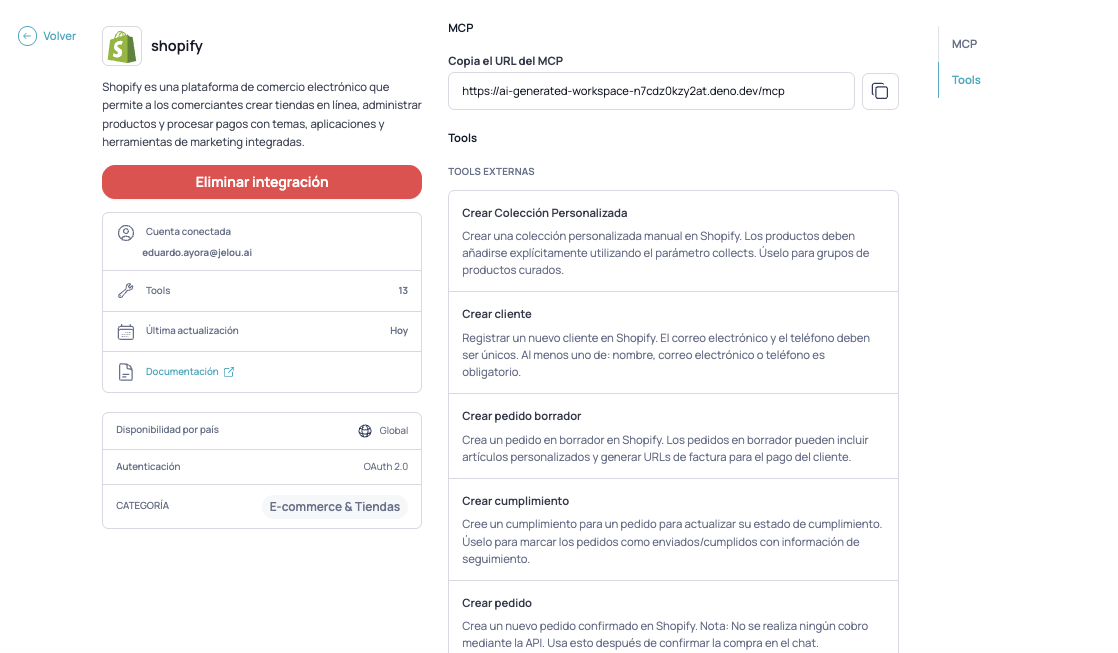
 Once connected, the integration page shows the **connected account**. From there you can also **remove the integration** whenever you need to.
 ## Native checkout in your store
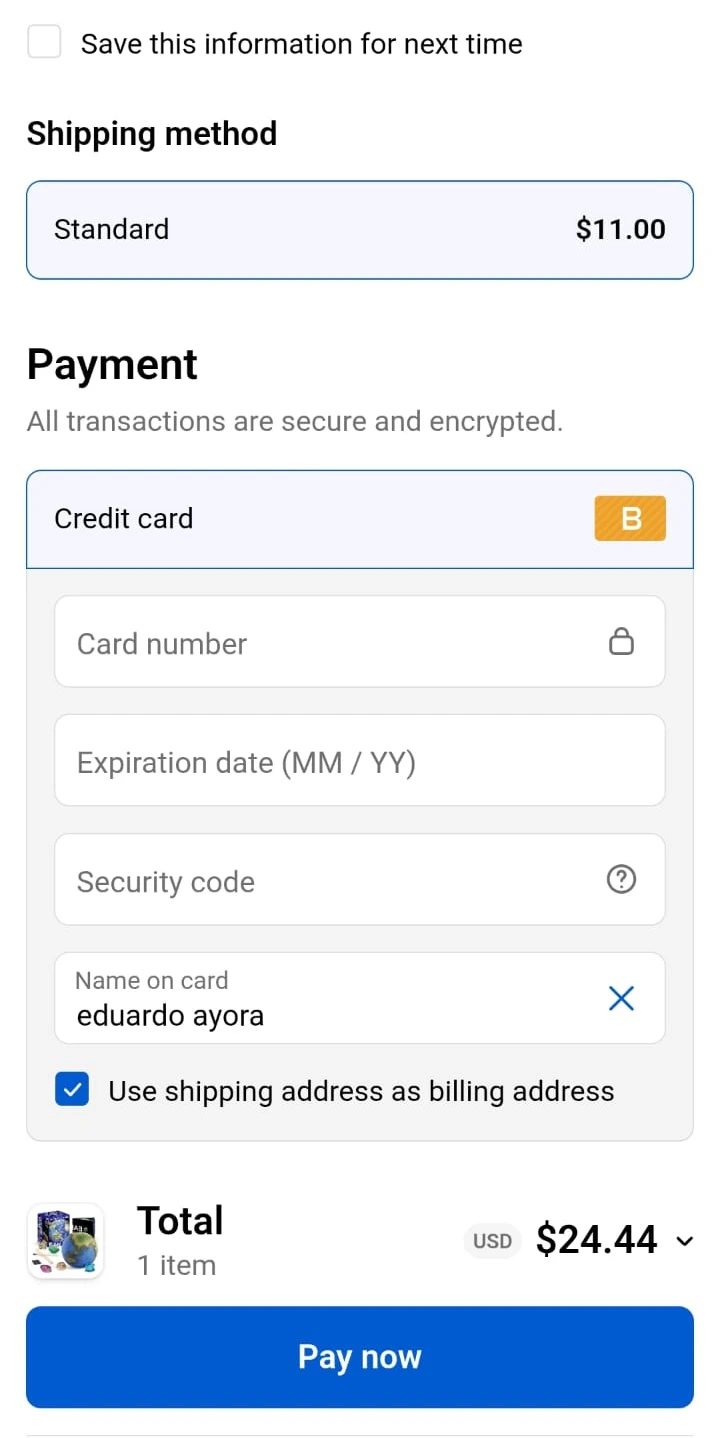
If you prefer the payment to be completed in your own Shopify store instead of the Jelou payment flow, enable `use_external_checkout: true` when running the `get_and_clear_cart` tool. Jelou generates a Shopify cart permalink and returns it in `checkout_url` so the user can finalize the purchase in your store's official checkout.
## Native checkout in your store
If you prefer the payment to be completed in your own Shopify store instead of the Jelou payment flow, enable `use_external_checkout: true` when running the `get_and_clear_cart` tool. Jelou generates a Shopify cart permalink and returns it in `checkout_url` so the user can finalize the purchase in your store's official checkout.
 ```json theme={null}
{
"success": true,
"data": {
"items": [
{ "product_name": "Light blue t-shirt", "sku": "vj6ybab6e1", "quantity": 2, "price": "35.00", "discount_value": 70, "tax_rate": 0 }
],
"total": 70,
"subTotal": 70,
"tax": 0,
"tax_value": 0,
"cart_id": 12345,
"checkout_url": "https://my-store.myshopify.com/cart/456:2?attributes%5Bjelou_cart_id%5D=12345"
}
}
```
## Next step
Once your store is connected, choose how you want your customers to interact with the products:
Send catalogs and carts as interactive webviews inside WhatsApp
The AI agent describes products and manages the cart directly in the conversation
```json theme={null}
{
"success": true,
"data": {
"items": [
{ "product_name": "Light blue t-shirt", "sku": "vj6ybab6e1", "quantity": 2, "price": "35.00", "discount_value": 70, "tax_rate": 0 }
],
"total": 70,
"subTotal": 70,
"tax": 0,
"tax_value": 0,
"cart_id": 12345,
"checkout_url": "https://my-store.myshopify.com/cart/456:2?attributes%5Bjelou_cart_id%5D=12345"
}
}
```
## Next step
Once your store is connected, choose how you want your customers to interact with the products:
Send catalogs and carts as interactive webviews inside WhatsApp
The AI agent describes products and manages the cart directly in the conversation