> ## Documentation Index
> Fetch the complete documentation index at: https://docs.jelou.ai/llms.txt
> Use this file to discover all available pages before exploring further.
# WebView interaction
> Catalog embedded in WhatsApp for a complete shopping experience.
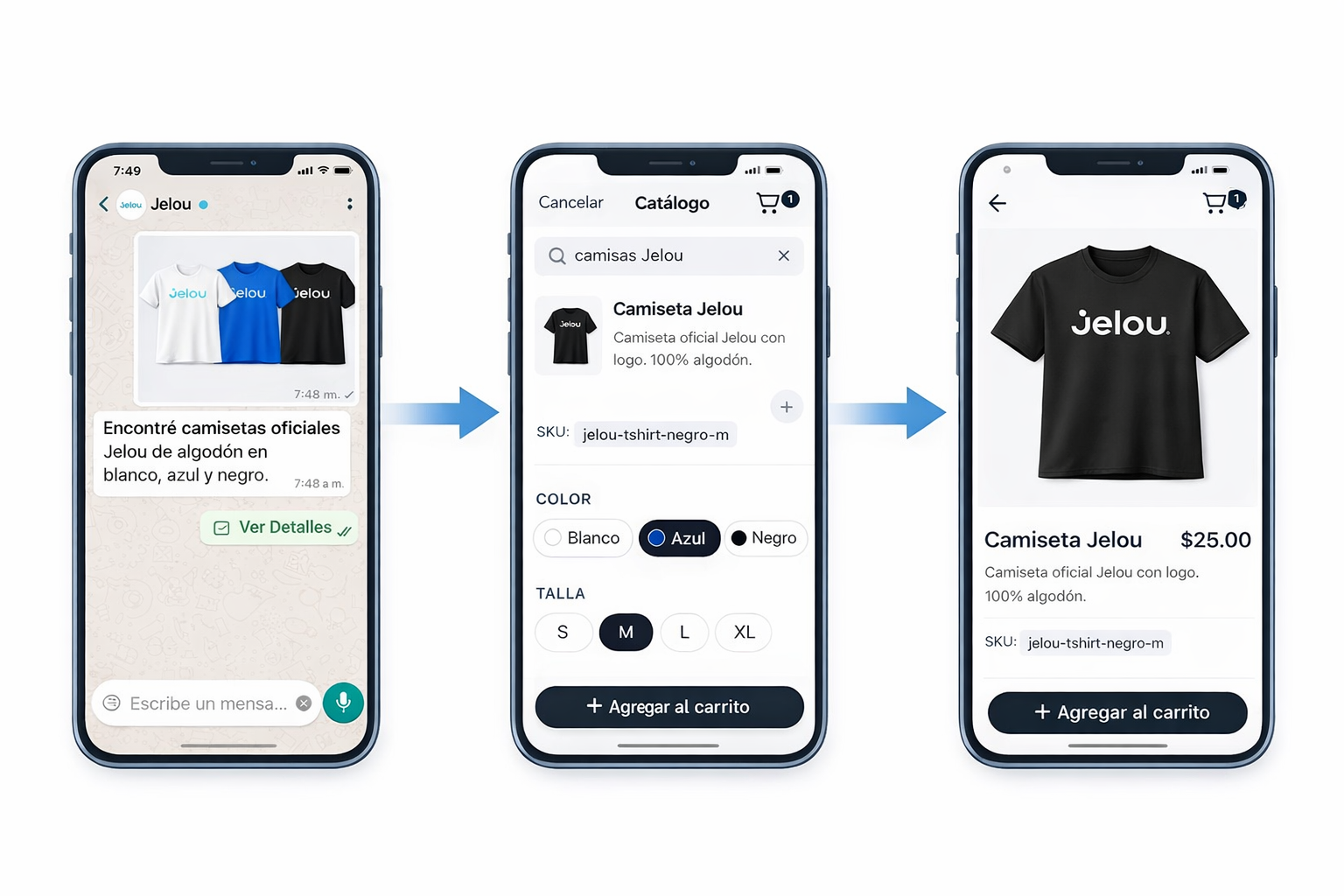
With the **WebView** you access a catalog embedded inside WhatsApp that lets you offer a complete shopping experience without depending on the restrictions of Meta's native catalog.
 ## Requirements
For the WebView to work inside WhatsApp, your account must be verified by Meta.
To display products in the WebView you need them loaded in Jelou Shop:
Sync from Shopify
Sync from VTEX
Sync from WooCommerce
Upload products directly via API
## Installation
Create a new workflow for the e-commerce flow. If this is your first time, see the guide [Your first workflow](/en/guides/getting-started/tu-primer-workflow).
Use an [AI Agent node](/en/guides/agentes-ia) and choose how it connects to your store:
In the Tools tab, select add tool and choose Shopify. The **Jelou Shop** MCP is included automatically with the integration.
## Requirements
For the WebView to work inside WhatsApp, your account must be verified by Meta.
To display products in the WebView you need them loaded in Jelou Shop:
Sync from Shopify
Sync from VTEX
Sync from WooCommerce
Upload products directly via API
## Installation
Create a new workflow for the e-commerce flow. If this is your first time, see the guide [Your first workflow](/en/guides/getting-started/tu-primer-workflow).
Use an [AI Agent node](/en/guides/agentes-ia) and choose how it connects to your store:
In the Tools tab, select add tool and choose Shopify. The **Jelou Shop** MCP is included automatically with the integration.
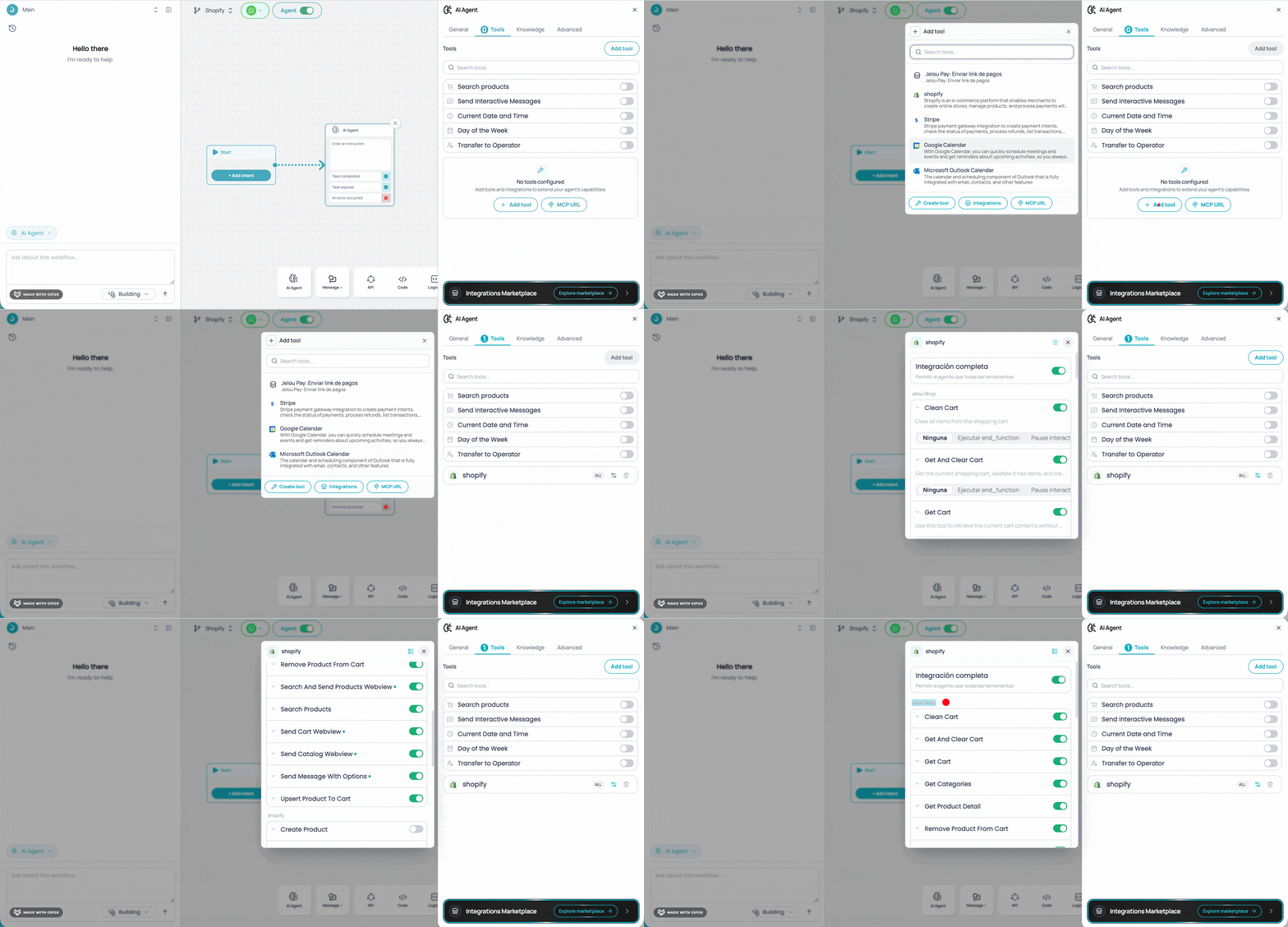 In the Tools tab, select add tool and choose WooCommerce. The **Jelou Shop** MCP is included automatically with the integration.
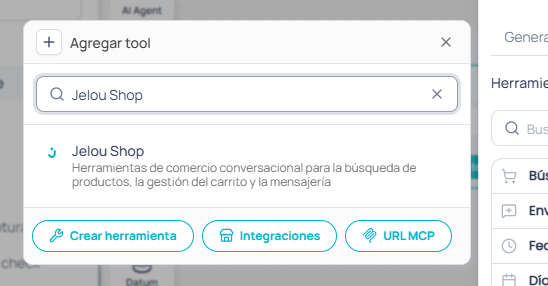
In the Tools tab, select add tool and choose Jelou Shop.
In the Tools tab, select add tool and choose WooCommerce. The **Jelou Shop** MCP is included automatically with the integration.
In the Tools tab, select add tool and choose Jelou Shop.
 Configure the following tools:
| Tool | Description | Pause |
| -------------------------------- | --------------------------------------------- | ----- |
| Send message with options | Send quick-reply buttons to the user | ✓ |
| Get and clear cart | Get the cart and clear it (checkout) | |
| Send cart WebView | Send the cart as an interactive webview | ✓ |
| Search and send products WebView | Search products and send results as a webview | ✓ |
| Clear cart | Remove all products from the cart | |
| Send catalog WebView | Send the full catalog as a webview | ✓ |
These tools accept optional parameters:
* **search\_and\_send\_products\_webview**: `category`, `branchCode`, `search_mode` (`semantic`|`ilike`).
* **send\_catalog\_webview** and **send\_cart\_webview**: `branchCode`, `cart_id`.
* **get\_and\_clear\_cart**: `debit_stock` to debit inventory. Returns `cart_id` for future cart restoration.
* Several tools accept `cart_id` to restore a cart from a prior checkout.
Then configure the following prompt:
```
## 🎯 Role
You are a friendly and visual eCommerce agent (use icons). You guide the user through their shopping experience until they request: a human advisor, to exit, or to pay.
## 🧰 Tools
- Search products, categories, promotions → **search_and_send_products_webview**
- View full catalog → **send_catalog_webview**
- View cart → **send_cart_webview**
- Clear cart → **clean_cart**
- Payment / Checkout → **get_and_clear_cart** (if cart is empty, inform and offer to search for products)
- Show options with buttons → **send_message_with_options**
## 📏 Rules
- Never invent prices, promotions, or benefits.
- Never show technical errors or tool names to the user.
- Use tools instead of assuming information.
## Successful order
If you receive a message indicating "Your order has been placed successfully", use **send_message_with_options** with:
Text: ✅ Order confirmed!\n💰 Total to pay: $xx
Buttons: 💳 Go to payment, 🔍 Add more, 🛒 View my cart
## 🧩 Completion
- Human advisor → end_function: { "flow": "advisor" }
- Exit → end_function: { "flow": "exit" }
- Payment → Run **get_and_clear_cart**. If successful → end_function: { "flow": "payment", "total": [total], "cart": [detail] }
Always run end_function with: { "output_schema": "" }
```
You can get the cart data at any time using:
```javascript theme={null}
const cartData = $memory.getJson("cartData");
```
The `cartData` object contains the following structure:
```json theme={null}
{
"data": [
{
"item_id": 36629,
"image_url": "https://example.com/blue-tshirt.png",
"product_id": "95f851fb-0c3a-4c85-bc25-cf66848894ad",
"product_name": "Jelou T-Shirt",
"quantity": 1,
"sku": "jelou-tshirt-blue-l",
"price": "25.000000",
"price_without_tax": 21.74,
"tax_rate": 15,
"discount": null,
"discount_type": null,
"discount_value": 25,
"discount_value_without_tax": 21.74,
"product_variation_id": "019c47d9-7061-7305-9e7c-c2e92af99781",
"variation": {
"id": "019c47d9-7061-7305-9e7c-c2e92af99781",
"sku": "jelou-tshirt-blue-l",
"price": 25,
"properties": { "color_hex": "#2563EB" }
},
"modifiers": null,
"modifier_hash": null,
"modifiers_total": 0
}
],
"total": 25,
"subTotal": 21.74,
"tax": 3.26,
"tax_value": 0.15,
"tax_breakdown": [
{
"rate": 15,
"label": "IVA 15%",
"amount": 3.26
}
]
}
```
| Field | Description |
| ----------------------------- | ------------------------------------------------------------ |
| `data` | Array with the cart products |
| `data[].item_id` | Unique cart item ID |
| `data[].product_id` | Product UUID |
| `data[].product_name` | Product name |
| `data[].quantity` | Quantity in cart |
| `data[].sku` | Product or variation SKU |
| `data[].price` | Unit price |
| `data[].price_without_tax` | Price without taxes |
| `data[].tax_rate` | Tax rate applied to the product (percentage) |
| `data[].discount_value` | Price with discount applied |
| `data[].product_variation_id` | Variation UUID (if applicable) |
| `data[].variation` | Variation data: `id`, `sku`, `price`, `properties` |
| `data[].modifiers` | Selected modifiers (if applicable) |
| `data[].modifiers_total` | Modifiers total |
| `total` | Cart total (with taxes) |
| `subTotal` | Cart subtotal (without taxes) |
| `tax` | Tax amount |
| `tax_value` | Applied tax rate |
| `tax_breakdown` | Tax breakdown grouped by rate |
| `tax_breakdown[].rate` | Tax rate (percentage) |
| `tax_breakdown[].label` | Descriptive label generated by the backend (e.g., "IVA 15%") |
| `tax_breakdown[].amount` | Tax amount for that rate |
When `enable_per_product_tax` is active, `tax_breakdown` may contain multiple entries with different rates. Otherwise, all taxed items are grouped under the store's global rate. For products with `has_tax: false`, `tax_rate` will be `0`.
## Advantages
* You can view the full catalog without leaving WhatsApp.
* You can see more product details, including multiple images.
* You can select variants (size, color) within a single product.
* Internal filters are available to improve your search experience.
* You can make direct queries to the AI assistant.
* You can add products to the cart and view totals.
* You can complete the purchase in a continuous flow.
## Purchase flow
You open the webview and navigate through the available products.
You view the details, see the images, and select variants (size, color, etc.).
You add products to the cart and review the total.
You finalize the order without leaving WhatsApp.
Configure the following tools:
| Tool | Description | Pause |
| -------------------------------- | --------------------------------------------- | ----- |
| Send message with options | Send quick-reply buttons to the user | ✓ |
| Get and clear cart | Get the cart and clear it (checkout) | |
| Send cart WebView | Send the cart as an interactive webview | ✓ |
| Search and send products WebView | Search products and send results as a webview | ✓ |
| Clear cart | Remove all products from the cart | |
| Send catalog WebView | Send the full catalog as a webview | ✓ |
These tools accept optional parameters:
* **search\_and\_send\_products\_webview**: `category`, `branchCode`, `search_mode` (`semantic`|`ilike`).
* **send\_catalog\_webview** and **send\_cart\_webview**: `branchCode`, `cart_id`.
* **get\_and\_clear\_cart**: `debit_stock` to debit inventory. Returns `cart_id` for future cart restoration.
* Several tools accept `cart_id` to restore a cart from a prior checkout.
Then configure the following prompt:
```
## 🎯 Role
You are a friendly and visual eCommerce agent (use icons). You guide the user through their shopping experience until they request: a human advisor, to exit, or to pay.
## 🧰 Tools
- Search products, categories, promotions → **search_and_send_products_webview**
- View full catalog → **send_catalog_webview**
- View cart → **send_cart_webview**
- Clear cart → **clean_cart**
- Payment / Checkout → **get_and_clear_cart** (if cart is empty, inform and offer to search for products)
- Show options with buttons → **send_message_with_options**
## 📏 Rules
- Never invent prices, promotions, or benefits.
- Never show technical errors or tool names to the user.
- Use tools instead of assuming information.
## Successful order
If you receive a message indicating "Your order has been placed successfully", use **send_message_with_options** with:
Text: ✅ Order confirmed!\n💰 Total to pay: $xx
Buttons: 💳 Go to payment, 🔍 Add more, 🛒 View my cart
## 🧩 Completion
- Human advisor → end_function: { "flow": "advisor" }
- Exit → end_function: { "flow": "exit" }
- Payment → Run **get_and_clear_cart**. If successful → end_function: { "flow": "payment", "total": [total], "cart": [detail] }
Always run end_function with: { "output_schema": "" }
```
You can get the cart data at any time using:
```javascript theme={null}
const cartData = $memory.getJson("cartData");
```
The `cartData` object contains the following structure:
```json theme={null}
{
"data": [
{
"item_id": 36629,
"image_url": "https://example.com/blue-tshirt.png",
"product_id": "95f851fb-0c3a-4c85-bc25-cf66848894ad",
"product_name": "Jelou T-Shirt",
"quantity": 1,
"sku": "jelou-tshirt-blue-l",
"price": "25.000000",
"price_without_tax": 21.74,
"tax_rate": 15,
"discount": null,
"discount_type": null,
"discount_value": 25,
"discount_value_without_tax": 21.74,
"product_variation_id": "019c47d9-7061-7305-9e7c-c2e92af99781",
"variation": {
"id": "019c47d9-7061-7305-9e7c-c2e92af99781",
"sku": "jelou-tshirt-blue-l",
"price": 25,
"properties": { "color_hex": "#2563EB" }
},
"modifiers": null,
"modifier_hash": null,
"modifiers_total": 0
}
],
"total": 25,
"subTotal": 21.74,
"tax": 3.26,
"tax_value": 0.15,
"tax_breakdown": [
{
"rate": 15,
"label": "IVA 15%",
"amount": 3.26
}
]
}
```
| Field | Description |
| ----------------------------- | ------------------------------------------------------------ |
| `data` | Array with the cart products |
| `data[].item_id` | Unique cart item ID |
| `data[].product_id` | Product UUID |
| `data[].product_name` | Product name |
| `data[].quantity` | Quantity in cart |
| `data[].sku` | Product or variation SKU |
| `data[].price` | Unit price |
| `data[].price_without_tax` | Price without taxes |
| `data[].tax_rate` | Tax rate applied to the product (percentage) |
| `data[].discount_value` | Price with discount applied |
| `data[].product_variation_id` | Variation UUID (if applicable) |
| `data[].variation` | Variation data: `id`, `sku`, `price`, `properties` |
| `data[].modifiers` | Selected modifiers (if applicable) |
| `data[].modifiers_total` | Modifiers total |
| `total` | Cart total (with taxes) |
| `subTotal` | Cart subtotal (without taxes) |
| `tax` | Tax amount |
| `tax_value` | Applied tax rate |
| `tax_breakdown` | Tax breakdown grouped by rate |
| `tax_breakdown[].rate` | Tax rate (percentage) |
| `tax_breakdown[].label` | Descriptive label generated by the backend (e.g., "IVA 15%") |
| `tax_breakdown[].amount` | Tax amount for that rate |
When `enable_per_product_tax` is active, `tax_breakdown` may contain multiple entries with different rates. Otherwise, all taxed items are grouped under the store's global rate. For products with `has_tax: false`, `tax_rate` will be `0`.
## Advantages
* You can view the full catalog without leaving WhatsApp.
* You can see more product details, including multiple images.
* You can select variants (size, color) within a single product.
* Internal filters are available to improve your search experience.
* You can make direct queries to the AI assistant.
* You can add products to the cart and view totals.
* You can complete the purchase in a continuous flow.
## Purchase flow
You open the webview and navigate through the available products.
You view the details, see the images, and select variants (size, color, etc.).
You add products to the cart and review the total.
You finalize the order without leaving WhatsApp.