> ## Documentation Index
> Fetch the complete documentation index at: https://docs.jelou.ai/llms.txt
> Use this file to discover all available pages before exploring further.
# How it works
> Charge with any compatible PSP from Brain Studio—without waiting for a dedicated integration.
If the payment gateway you need for your project **isn't** among Jelou's [native payment integrations](/en/guides/integraciones/pagos/proveedores), you can set it up yourself as a **custom gateway**.
You'll need your **PSP's technical documentation** and its **API keys or tokens** (same as BYOK, but you define which keys your provider requires). With that, you describe the integration once in **Payments** and charge from the **Payment** node in Brain Studio, using the [embedded WebView](/en/guides/integraciones/pagos/experiencias/checkout-webview) experience.
## Integration summary
* Configured from **Payments → Integrations** with the **Add gateway** button
* Available in Brain Studio's **Payment** node once it's active
* No backend code required for each new provider
You configure the gateway in **Payments**. Then you select it in the **Payment** node in Brain Studio to charge inside the flow.
* **Embedded WebView:** Yes
* **Native in chat:** No
* **External confirmation:** No
The user completes the payment inside the PSP checkout in WebView.
Capture and processing of sensitive data happen on the provider's infrastructure.
Your PSP must be able to:
* Create a charge with a **single HTTP call** (GET, POST, PUT, or PATCH)
* Expose an endpoint on a **public URL**
* Respond in **JSON** with a **transaction id** and a **checkout URL (paylink)**
* Authenticate with **static headers** (Bearer, API key, Basic, etc.)
If it also reports the outcome via **webhook** or allows a **status check**, Jelou can confirm the payment automatically. Without either, you can still send the paylink, but confirmation is limited.
It does not support recurring payments, cancelling the order from Jelou, card tokenization, or embedded checkout with the PSP's SDK.
## Compatibility assistant
Before you set up the wizard, use this **prompt with your LLM** (ChatGPT, Claude, Cursor, or another). Copy it from the docs, paste it as instructions, and **add your PSP's technical documentation** (URL, PDF, or text). The model tells you if it's compatible and what to fill in each setup step.
Open it in the docs and copy it with the code block button.
Use it as the assistant's instructions (system prompt or first message).
Share the **URL**, **PDF**, or **text** of your provider's API docs. Without that, the assistant can't evaluate compatibility.
Request the verdict and field-by-field wizard mapping. Use it as the base when you [create the gateway](/en/guides/integraciones/pagos/personalizadas/crear-pasarela).
If your PSP fails the checklist (for example OAuth with refresh, SOAP/XML, or a mandatory multi-step flow), email [marketplace@jelou.ai](mailto:marketplace@jelou.ai) to explore a dedicated integration or other options.
## When to use it
* Your PSP **isn't** in the [native integrations](/en/guides/integraciones/pagos/proveedores) and you can't (or don't want to) wait for a dedicated integration.
* You want to charge in conversation with [embedded WebView](/en/guides/integraciones/pagos/experiencias/checkout-webview) using that provider's checkout.
* Your technical team can describe the PSP's API (charge creation + keys) and you configure it in the wizard.
## How it works
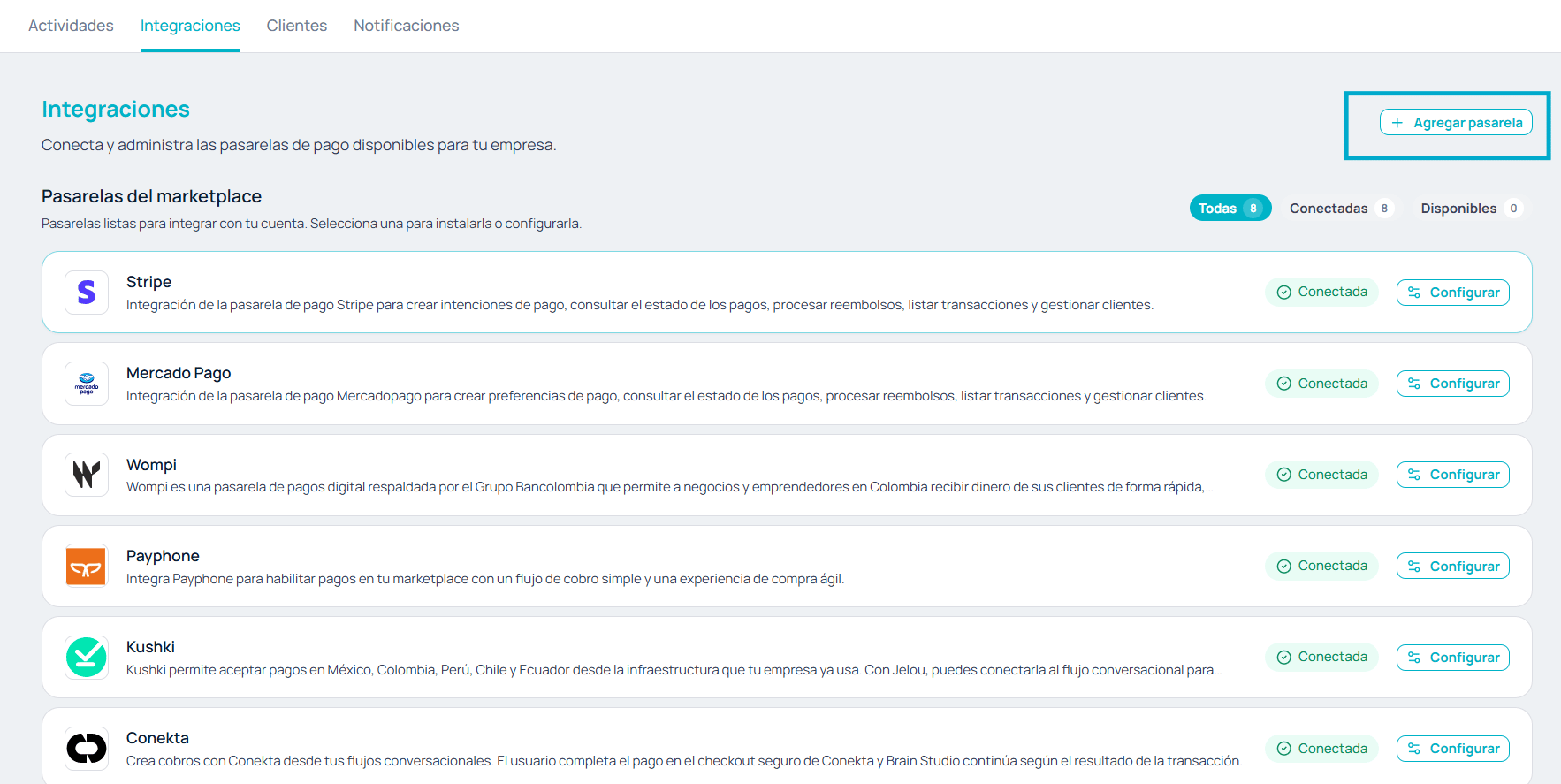 From **Payments**, an admin completes the wizard: credentials, request, webhook, and return.
The gateway is tied to your company and ready to test or edit from Integrations.
When the gateway is **active**, select it in the **Payment** node to charge inside the conversation.
## Before you start
Get this ready before you open the wizard:
* Your **PSP's technical documentation** (charge-creation endpoint, authentication, request/response shape, webhook if any).
* The PSP's **API keys or tokens**: **test / sandbox** keys first, then **production** keys.
* Start by creating the gateway in **Sandbox**, connect it with test keys, and [validate the checkout](/en/guides/integraciones/pagos/personalizadas/probar-pasarela). Only then move to **Production** with real keys.
Same BYOK model as the catalog: the keys are yours. Here you also define *which* keys the wizard declares and *where* they are used (almost always in request headers, for example `Authorization: Bearer {{apiKey}}`).
## Next steps
Walk through the 6-step wizard to set up your PSP.
Configure credentials, request, webhook, and return.
Check the placeholders you can inject into the request to the PSP.
Reference for amount, customer, order, return, and more.
Validate the full flow against the PSP's sandbox.
Generate a test paylink and review the production checklist.
Configure the Payment node to charge with your active gateway.
Node fields, outputs, and use cases.
From **Payments**, an admin completes the wizard: credentials, request, webhook, and return.
The gateway is tied to your company and ready to test or edit from Integrations.
When the gateway is **active**, select it in the **Payment** node to charge inside the conversation.
## Before you start
Get this ready before you open the wizard:
* Your **PSP's technical documentation** (charge-creation endpoint, authentication, request/response shape, webhook if any).
* The PSP's **API keys or tokens**: **test / sandbox** keys first, then **production** keys.
* Start by creating the gateway in **Sandbox**, connect it with test keys, and [validate the checkout](/en/guides/integraciones/pagos/personalizadas/probar-pasarela). Only then move to **Production** with real keys.
Same BYOK model as the catalog: the keys are yours. Here you also define *which* keys the wizard declares and *where* they are used (almost always in request headers, for example `Authorization: Bearer {{apiKey}}`).
## Next steps
Walk through the 6-step wizard to set up your PSP.
Configure credentials, request, webhook, and return.
Check the placeholders you can inject into the request to the PSP.
Reference for amount, customer, order, return, and more.
Validate the full flow against the PSP's sandbox.
Generate a test paylink and review the production checklist.
Configure the Payment node to charge with your active gateway.
Node fields, outputs, and use cases.