> ## Documentation Index
> Fetch the complete documentation index at: https://docs.jelou.ai/llms.txt
> Use this file to discover all available pages before exploring further.
# Connect in Brain Studio
> Connect your Deuna account from Marketplace using your Punto de Venta, Api Key, Api Secret, IVA and Moneda.
Connect Deuna from **Marketplace** to enable the provider in your workspace and make the payment node available in Brain Studio.
***
## Before you begin
Make sure you have:
* An **active Deuna enterprise account** with the onboarding process completed
* The **Punto de Venta** delivered by the Deuna commercial team
* The **Api Key** for the environment you are connecting (DEV or PROD)
* The **Api Secret** for the environment you are connecting (DEV or PROD)
* The **IVA** value — integer percentage (e.g. `15`)
* The **Moneda** — must be `USD`
The Punto de Venta, Api Key and Api Secret are only available **after completing the Enterprise onboarding with Deuna**. If you don't have them yet, follow the [Getting credentials](/en/guides/integraciones/pagos/proveedores/deuna/obtener-credenciales) guide first.
***
## Connect from Marketplace
In Brain Studio, go to **Marketplace** from the side menu.
You can find Deuna in the **Payments & Processing** category or using the search bar.
Click on the **Deuna** card to open its detail.
Click **Connect**.
A modal will open requesting these fields:
* **Punto de Venta** — point of sale identifier delivered by Deuna during onboarding
* **Api Key** — access key for the selected environment (DEV or PROD)
* **Api Secret** — secret key for the selected environment (DEV or PROD)
* **IVA** — applicable tax percentage in Ecuador (e.g. `15`)
* **Moneda** — must be set to **USD** for this integration
Enter all five values and confirm the installation.
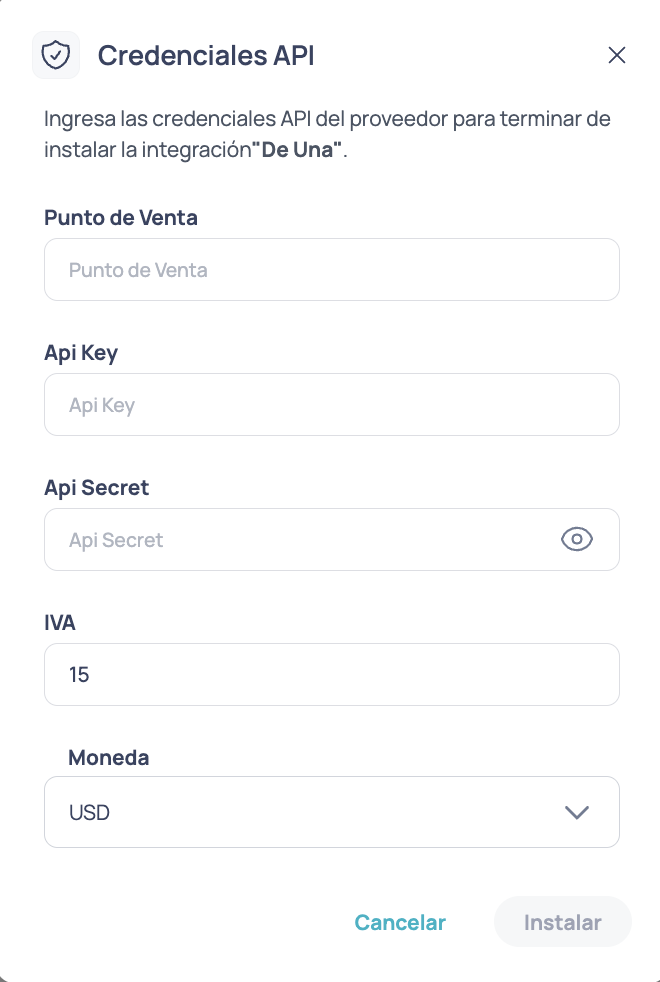 Brain Studio will validate the configuration and connect the provider to your workspace.
If Deuna appears as connected in Marketplace and the node is available in the Canvas, the integration was enabled correctly.
***
## Installation from Jelou Agent
If you install Deuna from **Jelou Agent**, you will see the same installation modal and must enter exactly the same information:
* **Punto de Venta**
* **Api Key**
* **Api Secret**
* **IVA**
* **Moneda (USD)**
The installation from Marketplace and the installation from Jelou Agent use the same provider configuration.
***
## Test and production mode
Deuna uses **different credentials** for the development and production environments. When connecting in Brain Studio, the Api Key and Api Secret you enter determine which environment the integration will operate in.
* For **testing:** use the development Api Key and Api Secret delivered by Deuna
* For **live payments:** use the production Api Key and Api Secret delivered by Deuna
***
## Next step
Once the integration is connected, continue with:
Configure the payment node and handle transaction states in your flow.
Brain Studio will validate the configuration and connect the provider to your workspace.
If Deuna appears as connected in Marketplace and the node is available in the Canvas, the integration was enabled correctly.
***
## Installation from Jelou Agent
If you install Deuna from **Jelou Agent**, you will see the same installation modal and must enter exactly the same information:
* **Punto de Venta**
* **Api Key**
* **Api Secret**
* **IVA**
* **Moneda (USD)**
The installation from Marketplace and the installation from Jelou Agent use the same provider configuration.
***
## Test and production mode
Deuna uses **different credentials** for the development and production environments. When connecting in Brain Studio, the Api Key and Api Secret you enter determine which environment the integration will operate in.
* For **testing:** use the development Api Key and Api Secret delivered by Deuna
* For **live payments:** use the production Api Key and Api Secret delivered by Deuna
***
## Next step
Once the integration is connected, continue with:
Configure the payment node and handle transaction states in your flow.