> ## Documentation Index
> Fetch the complete documentation index at: https://docs.jelou.ai/llms.txt
> Use this file to discover all available pages before exploring further.
# Usage and configuration
> Add the Deuna node to your flow in Canvas and configure its inputs and outputs.
Once the integration is connected in Marketplace with the **Punto de Venta**, **Api Key**, **Api Secret**, **IVA** and **Moneda**, the **Deuna** node is available in your workspace to use within your flows in Canvas.
The node processes the payment through Deuna and exposes the final transaction status so your flow can continue based on the result.
***
## Add the node to Canvas
In the left sidebar of Brain Studio, open the **Marketplace** folder.
If the integration is correctly connected, you will see **Deuna** listed as an available provider.
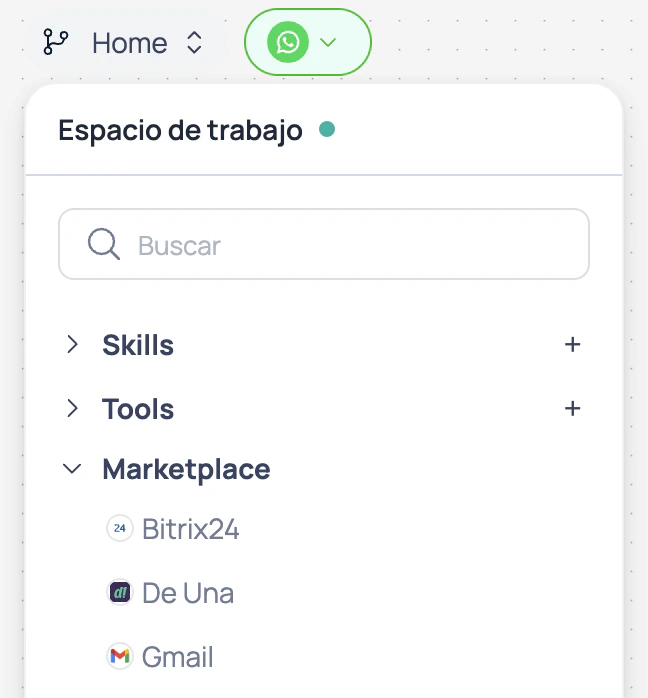 Drag **Deuna** from the sidebar into your flow in the Canvas.
When dropped, the node block will be created with its available outputs.
Select the node in the Canvas to open its configuration panel on the right side.
From there you can fill in the **inputs** and review the available **outputs**.
***
## Configure the node
Defines the name of the variable where Brain Studio will store the **complete JSON response** from the node.
Useful for logs, validations, traceability, or downstream decisions in the flow.
Defines the payment modality.
Currently only the `payment` value (single charge) is supported.
Defines the environment in which the charge will be executed.
**Available values:** `DEV`, `PROD`
The environment must match the credentials used when connecting Deuna in Marketplace.
If you use development credentials with `PROD`, or vice versa, the payment will not be processed correctly.
Defines how long the payment button remains valid from the moment it is sent to the user.
**Available values:** `10`, `20`, `30`, `60`
Descriptive text for the charge.
Examples:
* order number
* product or service name
* internal payment reference
Amount of the charge that is subject to taxes.
This value is added to the tax-free amount to calculate the total payment.
You can use `0` if it does not apply.
Amount of the charge that is not subject to taxes.
This value is added to the taxable amount to calculate the total payment.
You can use `0` if it does not apply.
Additional information for traceability or internal reference.
You can use this field to correlate the payment with an order, reconciliation, or audit.
If you select **Yes**, additional fields are enabled to customize the message that accompanies the payment button.
**Available fields:**
* `Header` (required)
* `Body` (required)
* `Footer` (required)
Allows you to fully customize the message shown to the user before paying in the Deuna wallet.
Title of the message that accompanies the payment button.
Main text of the message that accompanies the payment button.
Closing or clarification text of the message that accompanies the payment button.
Triggered when Deuna confirms the transaction was processed correctly.
This is the official payment confirmation point within the flow.
Usage examples:
* issue an invoice
* activate a subscription
* release a product or service
* update the order status in an external system
Triggered when the transaction was rejected or declined.
Recommendations:
* inform the user
* allow a retry
* redirect to another payment method
Triggered when Deuna returns an internal error code during payment creation or processing.
Triggered when a communication error occurs with the provider, such as a timeout, network issue, or invalid response.
Triggered when the payment button was sent correctly in the conversation.
This output does not confirm the payment. It only indicates that the user has received the CTA and can continue the process in the Deuna wallet.
**Implementation recommendation:**
Connect this output to an **AI Agent** or a conversational support block. This way, if the user has questions or needs help while completing the payment, the conversation does not lose continuity.
Usage examples:
* answer questions about the payment
* indicate that the user must complete the transaction in the Deuna wallet
* accompany the user while waiting for the provider confirmation
This output is useful for keeping the conversational thread active between the button being sent and the final payment confirmation.
**Sample prompt for post-CTA support AI Agent:**
```txt theme={null}
You are a payment support assistant.
Your role is to accompany the user after they received the payment button, resolve brief questions, and keep the conversation active while Deuna confirms the result.
Rules:
- Do not recalculate amounts
- Do not generate new links
- Do not promise approvals
- If the user says they already paid, tell them to wait for confirmation
- If the user has questions, respond briefly and clearly
- If you detect a problem, offer help or escalate to support
```
***
## Important considerations
The environment configured in the node (`DEV` or `PROD`) must match the credentials used when connecting Deuna.
If they do not match, the payment will not be processed correctly.
In payments with Deuna, the user completes the transaction in the provider's wallet.
In some cases, the payment may momentarily remain in a pending state. In that case:
* the user receives a notification in the conversation
* the flow waits for the confirmation
When Deuna confirms the final result, the flow continues automatically through:
* **Pago Exitoso**
* **Pago Fallido**
The pending state is not exposed as an independent node output.
Drag **Deuna** from the sidebar into your flow in the Canvas.
When dropped, the node block will be created with its available outputs.
Select the node in the Canvas to open its configuration panel on the right side.
From there you can fill in the **inputs** and review the available **outputs**.
***
## Configure the node
Defines the name of the variable where Brain Studio will store the **complete JSON response** from the node.
Useful for logs, validations, traceability, or downstream decisions in the flow.
Defines the payment modality.
Currently only the `payment` value (single charge) is supported.
Defines the environment in which the charge will be executed.
**Available values:** `DEV`, `PROD`
The environment must match the credentials used when connecting Deuna in Marketplace.
If you use development credentials with `PROD`, or vice versa, the payment will not be processed correctly.
Defines how long the payment button remains valid from the moment it is sent to the user.
**Available values:** `10`, `20`, `30`, `60`
Descriptive text for the charge.
Examples:
* order number
* product or service name
* internal payment reference
Amount of the charge that is subject to taxes.
This value is added to the tax-free amount to calculate the total payment.
You can use `0` if it does not apply.
Amount of the charge that is not subject to taxes.
This value is added to the taxable amount to calculate the total payment.
You can use `0` if it does not apply.
Additional information for traceability or internal reference.
You can use this field to correlate the payment with an order, reconciliation, or audit.
If you select **Yes**, additional fields are enabled to customize the message that accompanies the payment button.
**Available fields:**
* `Header` (required)
* `Body` (required)
* `Footer` (required)
Allows you to fully customize the message shown to the user before paying in the Deuna wallet.
Title of the message that accompanies the payment button.
Main text of the message that accompanies the payment button.
Closing or clarification text of the message that accompanies the payment button.
Triggered when Deuna confirms the transaction was processed correctly.
This is the official payment confirmation point within the flow.
Usage examples:
* issue an invoice
* activate a subscription
* release a product or service
* update the order status in an external system
Triggered when the transaction was rejected or declined.
Recommendations:
* inform the user
* allow a retry
* redirect to another payment method
Triggered when Deuna returns an internal error code during payment creation or processing.
Triggered when a communication error occurs with the provider, such as a timeout, network issue, or invalid response.
Triggered when the payment button was sent correctly in the conversation.
This output does not confirm the payment. It only indicates that the user has received the CTA and can continue the process in the Deuna wallet.
**Implementation recommendation:**
Connect this output to an **AI Agent** or a conversational support block. This way, if the user has questions or needs help while completing the payment, the conversation does not lose continuity.
Usage examples:
* answer questions about the payment
* indicate that the user must complete the transaction in the Deuna wallet
* accompany the user while waiting for the provider confirmation
This output is useful for keeping the conversational thread active between the button being sent and the final payment confirmation.
**Sample prompt for post-CTA support AI Agent:**
```txt theme={null}
You are a payment support assistant.
Your role is to accompany the user after they received the payment button, resolve brief questions, and keep the conversation active while Deuna confirms the result.
Rules:
- Do not recalculate amounts
- Do not generate new links
- Do not promise approvals
- If the user says they already paid, tell them to wait for confirmation
- If the user has questions, respond briefly and clearly
- If you detect a problem, offer help or escalate to support
```
***
## Important considerations
The environment configured in the node (`DEV` or `PROD`) must match the credentials used when connecting Deuna.
If they do not match, the payment will not be processed correctly.
In payments with Deuna, the user completes the transaction in the provider's wallet.
In some cases, the payment may momentarily remain in a pending state. In that case:
* the user receives a notification in the conversation
* the flow waits for the confirmation
When Deuna confirms the final result, the flow continues automatically through:
* **Pago Exitoso**
* **Pago Fallido**
The pending state is not exposed as an independent node output.