> ## Documentation Index
> Fetch the complete documentation index at: https://docs.jelou.ai/llms.txt
> Use this file to discover all available pages before exploring further.
# Tutorial: Implementing your first payment from WhatsApp
> Implement your first payment from WhatsApp step by step with Mercado Pago.
In this guide you will implement [real payments](/guides/integraciones/pagos/introduccion) within a conversational app on WhatsApp using **Mercado Pago**.
**Prerequisites:**
* A flow in Brain Studio ready (for example, an AI Agent handling a sale).
* A Mercado Pago account with test and production credentials.
We will use a **tour tickets** app: the user picks a tour, date, quantity, and email; then you charge with Mercado Pago in the same flow.
This tutorial has three parts:
1. **Implementation in test mode (Development)**
2. **Testing on WhatsApp**
3. **Go to production**
***
## 1. Implementation in test mode (Development)
### Video 1: Installation and configuration in Brain Studio
The video may show an older UI. For the current installation flow and node fields, use [Connect in Brain Studio](/guides/integraciones/pagos/proveedores/mercado-pago/conectar-en-brain-studio) and [Usage and configuration](/guides/integraciones/pagos/proveedores/mercado-pago/uso-y-configuracion).
***
### Install the integration and add the node
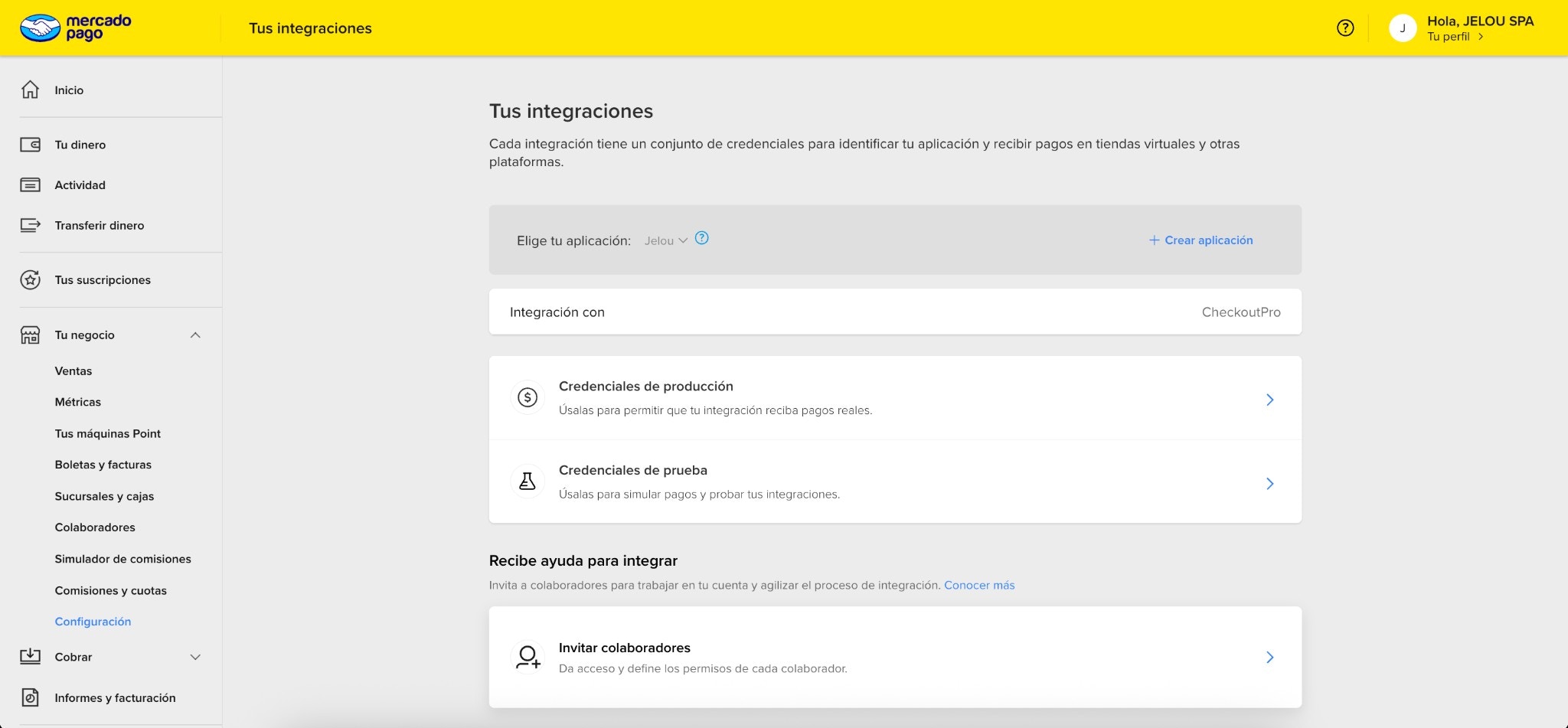
Copy the **Access Token** from **Test credentials** in Mercado Pago.
Follow [Obtaining credentials](/guides/integraciones/pagos/proveedores/mercado-pago/obtener-credenciales) if this is your first time.
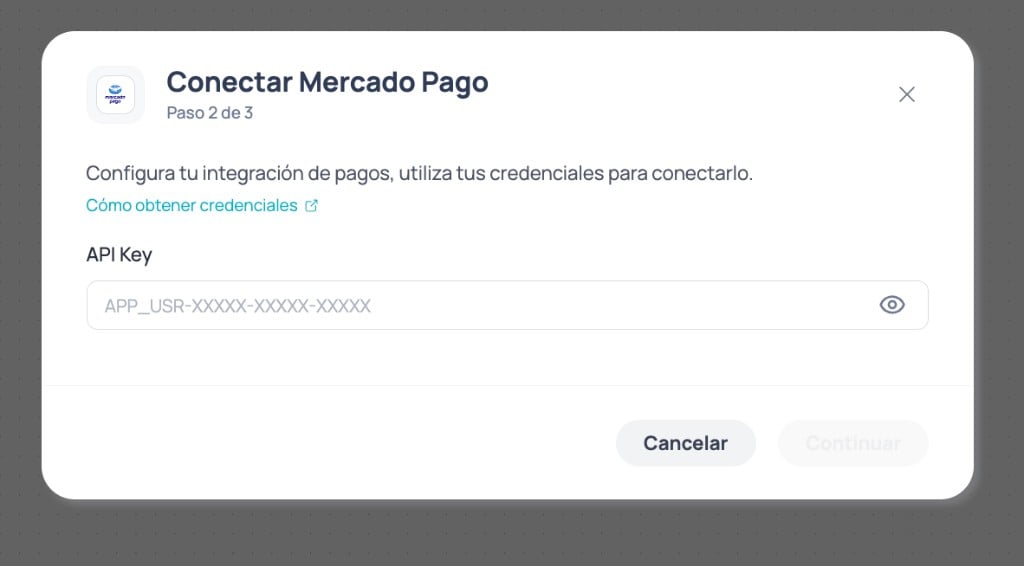
Install the integration with **test** credentials following [Connect in Brain Studio](/guides/integraciones/pagos/proveedores/mercado-pago/conectar-en-brain-studio).
You can start from **Marketplace**, **Jelou Agent**, the **Payments** node in Canvas, or a **template**. The shared modal has four steps: environment, API Key, VAT/currency, and confirmation.
Add **Mercado Pago** from the **Payments** node in Canvas and connect it after the user confirms the purchase.
Step-by-step detail in [Usage and configuration — Add the node to Canvas](/guides/integraciones/pagos/proveedores/mercado-pago/uso-y-configuracion#add-the-node-to-canvas).
***
### Configure the node (tours example)
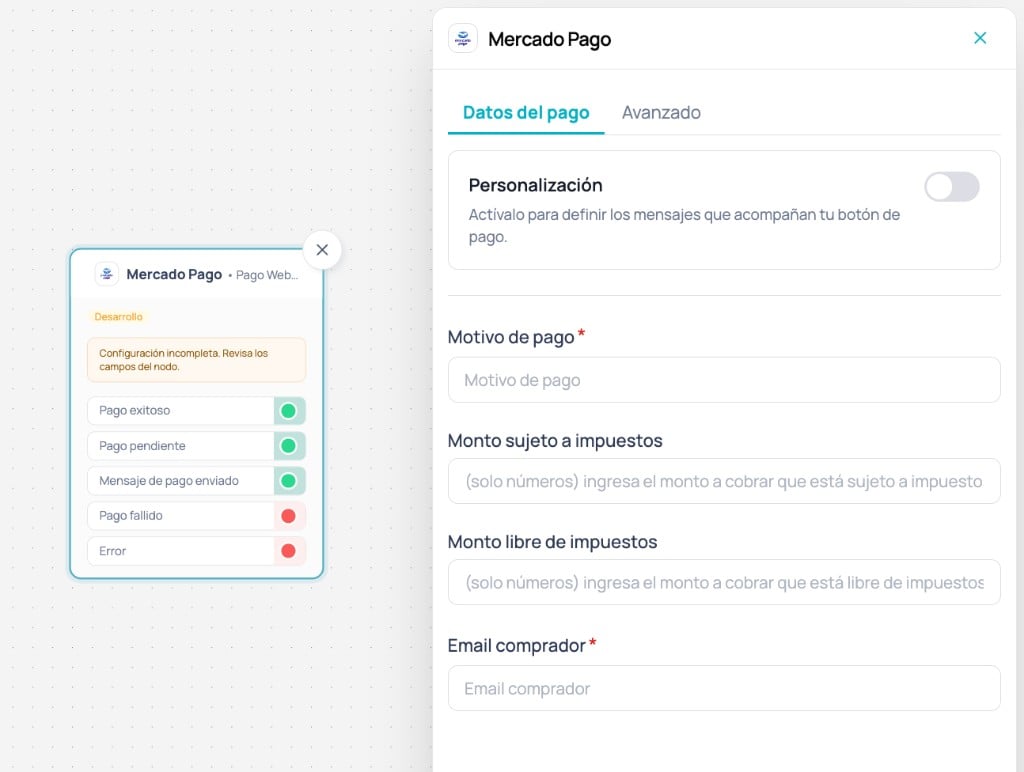
Complete the minimum for the tours case. Full field reference in [Usage and configuration](/guides/integraciones/pagos/proveedores/mercado-pago/uso-y-configuracion).
| Field | Example value (tours) |
| --------------- | ---------------------------------------------------- |
| Payment reason | `Tour Valpo Walk - 2 ticket(s)` or a flow variable |
| Taxable amount | Net charge amount (e.g. `20168`) |
| Tax-free amount | `0` if not applicable |
| Buyer email | Test user for the country (see below) |
| Currency | Match credentials (e.g. `CLP`) |
| VAT percentage | Match installation (e.g. `19`) |
| Save response | `checkout_response` (optional, for the code example) |
In **Development**, the node environment reflects **test** credentials. **Currency** and **VAT** must match what you set when installing the integration.
***
### Test emails by country (test mode)
In **Development**, Mercado Pago only processes payments if **Buyer email** belongs to a *test user* from the **same country** as your credentials.
```txt theme={null}
test_user_230383680042455079@testuser.com
```
```txt theme={null}
test_user_6344464757279593247@testuser.com
```
```txt theme={null}
test_user_7600640374023229585@testuser.com
```
```txt theme={null}
test_user_538195043292703001@testuser.com
```
```txt theme={null}
test_user_6254528388464257378@testuser.com
```
```txt theme={null}
test_user_1511189314898568640@testuser.com
```
```txt theme={null}
test_user_1178397850300963040@testuser.com
```
If payment fails for no clear reason in Development, check the test email first.
***
### Connect the node outputs
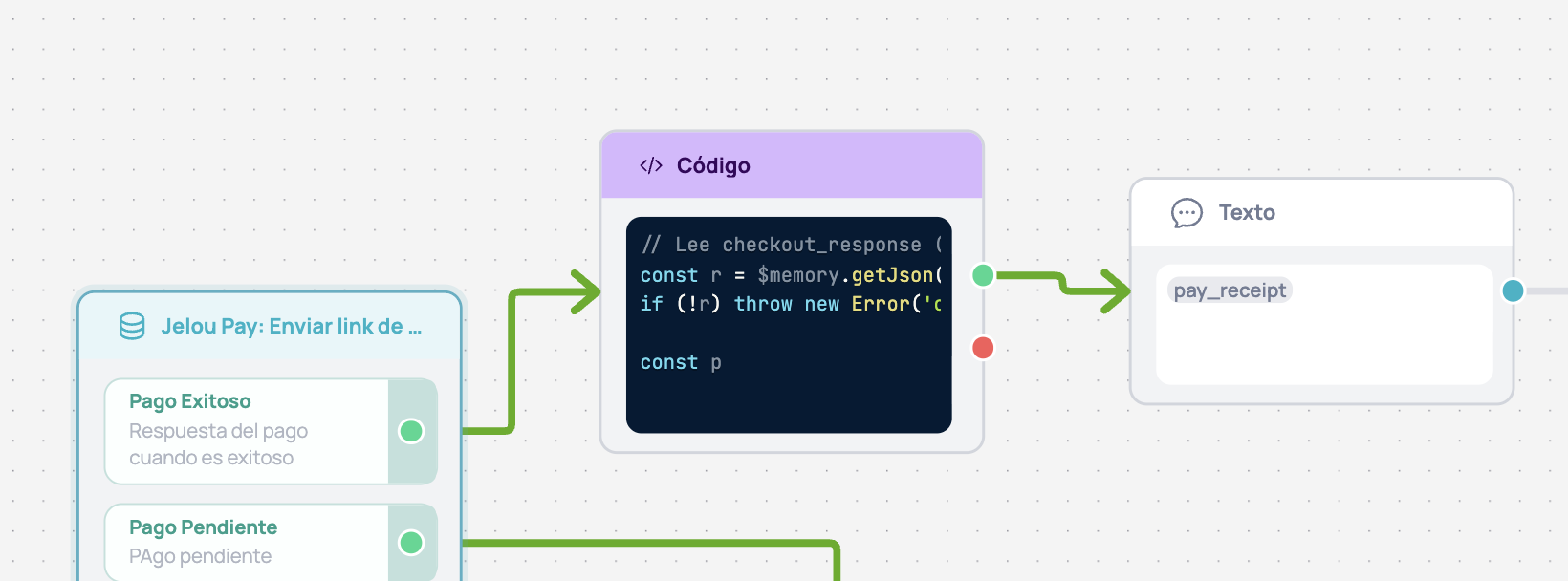
The node exposes five outputs. Connect them based on the result you want to handle.
| Output | Meaning | Connect |
| ------------------------ | ---------------------------------- | ------------------------------------- |
| **Payment message sent** | Button sent; no payment result yet | Post-send support AI Agent (optional) |
| **Successful payment** | Transaction approved | Code → Text (receipt) |
| **Pending payment** | In process or pending settlement | Informative text |
| **Failed payment** | Rejected or not completed | Text + retry |
| **Error** | Technical or provider error | Error handling |
Detailed descriptions and a reference prompt for **Payment message sent** in [Usage and configuration — Node outputs](/guides/integraciones/pagos/proveedores/mercado-pago/uso-y-configuracion#node-outputs).
#### Example: normalize **Successful payment**
If you used **Save response** = `checkout_response`, map the minimum to Context:
```javascript normalize-payment.js theme={null}
const r = $memory.getJson('checkout_response')
if (!r) throw new Error('checkout_response does not exist in memory.')
const pl = r?.paymentLinkResponse
if (!pl) throw new Error('checkout_response.paymentLinkResponse does not exist (check memory).')
const gw = pl.gateway_response || {}
const md = pl.metadata || gw.metadata || {}
const email = String(gw?.payer?.email || md.email || '')
$context.set('pay_operation_id', String(gw.id || ''))
$context.set('pay_amount', Number(pl.amount || 0))
$context.set('pay_currency', String(pl.currency || 'CLP'))
$context.set('pay_email', email)
$context.set('pay_status', String(gw.status || 'approved'))
$context.set(
'pay_receipt',
`Done ✅ Payment approved.\n\nMercado Pago operation #: ${String(gw.id || '')}`
)
```
In a **Text** node connected to **Successful payment**, display:
```txt theme={null}
{{$context.pay_receipt}}
```
***
## 2. Testing on WhatsApp
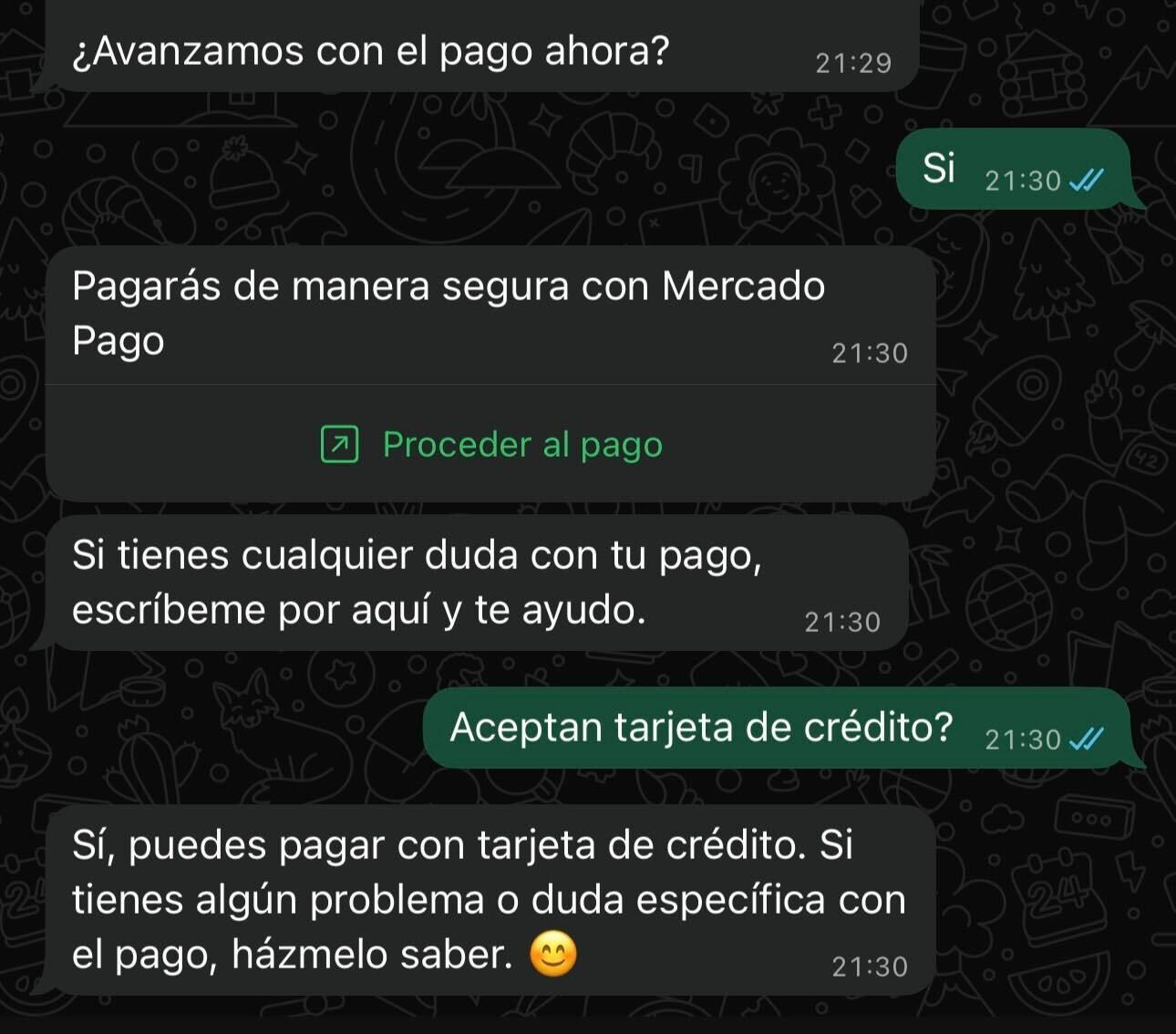
Validate the end-to-end flow from WhatsApp; checkout opens in an **embedded WebView**.
Testing must be done from WhatsApp, not only from the Canvas preview.
### Video 2: Testing from WhatsApp
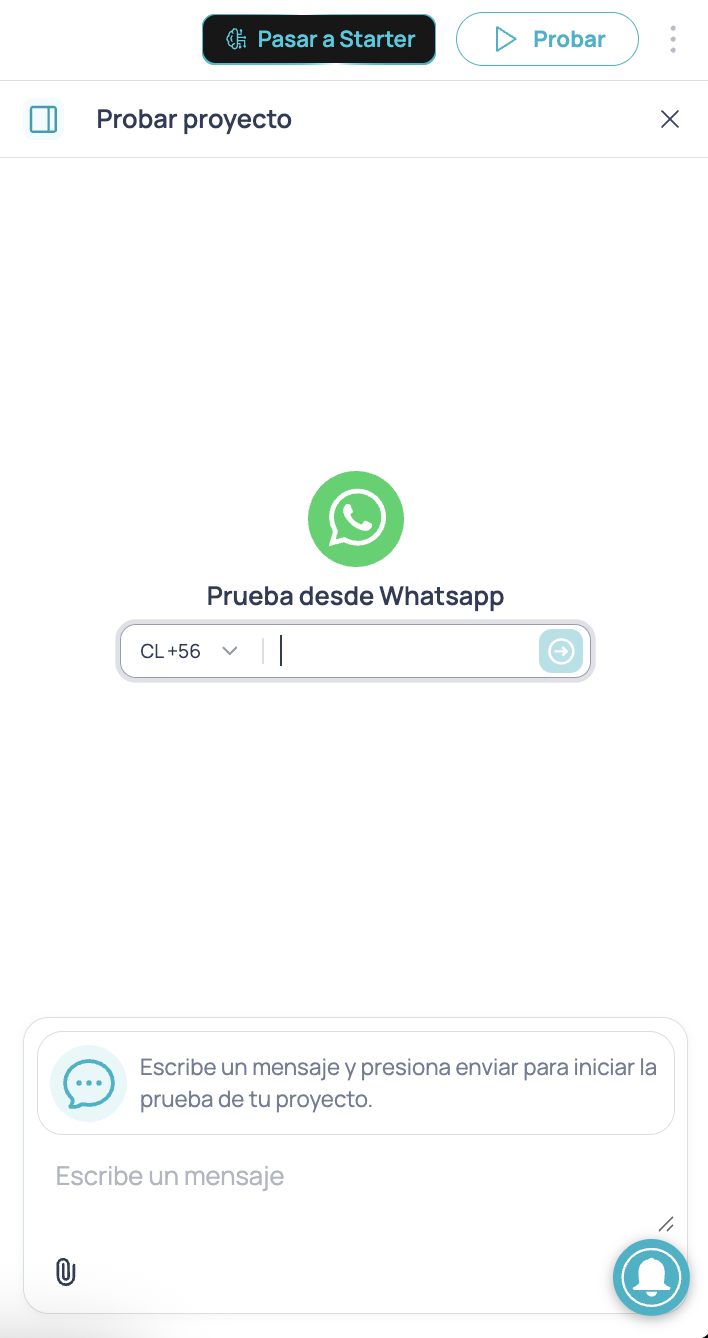
In the top-right corner, click **Test**.
Enter your number, send the first message, and complete the flow until the payment button.
Open the payment button, use a test card for the corresponding country, and verify which **output** the flow continues through.
In some countries, the Mercado Pago app may try to open from the WebView. In Development, close it and return to WhatsApp to use the test card.
***
### Test cards by country
Mercado Pago publishes test cards by country to simulate approval or rejection:
[Test cards (Chile)](https://www.mercadopago.cl/developers/es/docs/checkout-bricks/integration-test/test-cards)
[Test cards (Peru)](https://www.mercadopago.com.pe/developers/es/docs/your-integrations/test/cards)
[Test cards (Colombia)](https://www.mercadopago.com.co/developers/es/docs/your-integrations/test/cards)
[Test cards (Mexico)](https://www.mercadopago.com.mx/developers/es/docs/shopify/additional-content/your-integrations/test/cards)
[Test cards (Brazil)](https://www.mercadopago.com.br/developers/es/docs/checkout-api-payments/additional-content/your-integrations/test/cards)
[Test cards (Argentina)](https://www.mercadopago.com.ar/developers/es/docs/subscriptions/additional-content/your-integrations/test/cards)
[Test cards (Uruguay)](https://www.mercadopago.com.uy/developers/es/docs/subscriptions/additional-content/your-integrations/test/cards)
Test at least one **approved** and one **rejected** case to validate **Successful payment** and **Failed payment**.
***
## 3. Go to production
Going to production means production credentials and the buyer's real data. The WhatsApp experience stays the same.
### Video 3: Production setup + real payment
For the current **Go to production** flow, follow [Connect in Brain Studio](/guides/integraciones/pagos/proveedores/mercado-pago/conectar-en-brain-studio#go-to-production).
In Mercado Pago, copy the **Access Token** from **Production credentials**.
Start **Go to production** from the node's **Advanced** tab in Canvas or from **Mercado Pago** in Marketplace.
Enter the production Access Token and confirm **VAT** and **currency**.
Replace the test user in **Buyer email** with the real email captured in your flow.
Verify **Currency** and **VAT percentage** remain consistent with the production installation.
Complete a real payment and confirm **Successful payment**, the operation number, and the record in your Mercado Pago dashboard.
Production transactions consume Brain Studio credits per attempt, in addition to provider fees.
***
## Next steps
Complete sidepanel and node output reference.
Countries, payment methods, and reference fees.
Provider catalog by country.
 | Field | Example value (tours) |
| --------------- | ---------------------------------------------------- |
| Payment reason | `Tour Valpo Walk - 2 ticket(s)` or a flow variable |
| Taxable amount | Net charge amount (e.g. `20168`) |
| Tax-free amount | `0` if not applicable |
| Buyer email | Test user for the country (see below) |
| Currency | Match credentials (e.g. `CLP`) |
| VAT percentage | Match installation (e.g. `19`) |
| Save response | `checkout_response` (optional, for the code example) |
| Field | Example value (tours) |
| --------------- | ---------------------------------------------------- |
| Payment reason | `Tour Valpo Walk - 2 ticket(s)` or a flow variable |
| Taxable amount | Net charge amount (e.g. `20168`) |
| Tax-free amount | `0` if not applicable |
| Buyer email | Test user for the country (see below) |
| Currency | Match credentials (e.g. `CLP`) |
| VAT percentage | Match installation (e.g. `19`) |
| Save response | `checkout_response` (optional, for the code example) |
 #### Example: normalize **Successful payment**
If you used **Save response** = `checkout_response`, map the minimum to Context:
#### Example: normalize **Successful payment**
If you used **Save response** = `checkout_response`, map the minimum to Context:
 ***
## 2. Testing on WhatsApp
Validate the end-to-end flow from WhatsApp; checkout opens in an **embedded WebView**.
***
## 2. Testing on WhatsApp
Validate the end-to-end flow from WhatsApp; checkout opens in an **embedded WebView**.