> ## Documentation Index
> Fetch the complete documentation index at: https://docs.jelou.ai/llms.txt
> Use this file to discover all available pages before exploring further.
# Obtaining credentials
> Step-by-step guide to generate your Mercado Pago Access Token (Test and Production) and connect it to Brain Studio.
## When do you need this?
You will need this when you try to **Connect** Mercado Pago in Marketplace and Brain Studio asks you for an **Access Token**.
***
To connect **Mercado Pago** with **Brain Studio** you need an **Access Token**, associated with an application (App) created in the merchant's account.
This guide explains how to obtain **test credentials** and **production credentials**, and when to use each one.
By the end of this guide you will have an Access Token (Test or Production) ready to install Mercado Pago in Brain Studio.
## Before you begin
You need an **active account** in Mercado Pago, **access to the merchant panel**, and **permissions to create applications**. No advanced technical knowledge is required.
## Don't have a Mercado Pago account?
🇵🇪} horizontal>
mercadopago.com.pe
🇨🇴} horizontal>
mercadopago.com.co
🇲🇽} horizontal>
mercadopago.com.mx
🇨🇱} horizontal>
mercadopago.cl
🇧🇷} horizontal>
mercadopago.com.br
🇦🇷} horizontal>
mercadopago.com.ar
🇺🇾} horizontal>
mercadopago.com.uy
## Steps to obtain credentials
**Sign in** to the Mercado Pago merchant account.
From your account menu, **navigate** to:
**Your business → Settings → Your integrations**
This is where **applications** and **credentials** for the account are managed.
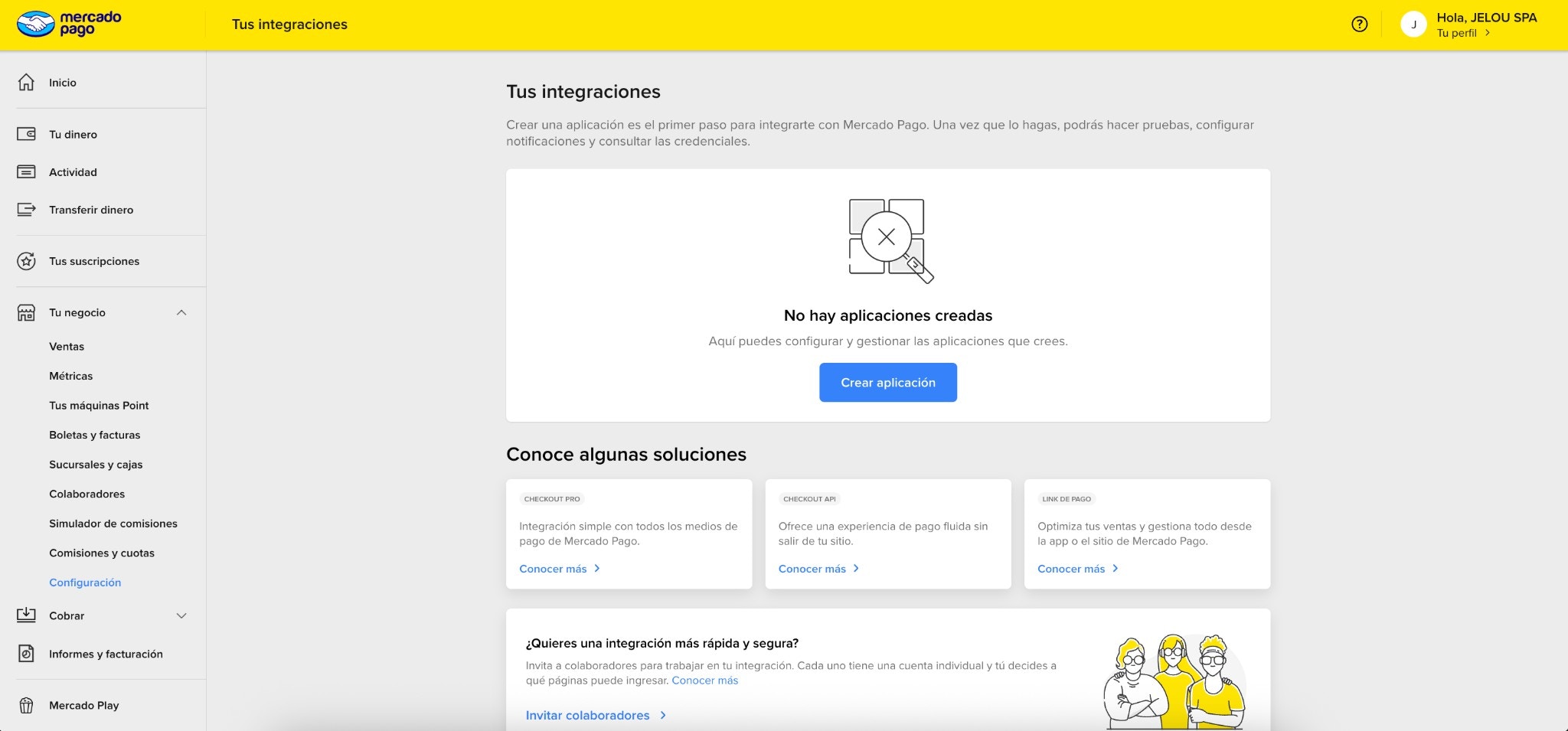 To generate credentials, you must first **create an application**:
1. Click **Create application**
2. **Enter a name** for the app (the name is free-form)
3. **Complete** the creation
The application **does not process payments** on its own. It is used solely to **generate credentials**.
Inside the created application:
1. **Go to** the **Credentials** section
2. You will see **two types** of credentials:
* **Test credentials**
* **Production credentials**
If you can see the Access Token in the Credentials section, this step was completed successfully.
* Generated **automatically** when the application is created.
* Include a **test Access Token**.
* Allow you to **test** the integration without processing real payments.
* Ideal for **development** and **internal validations**.
Copy the **test Access Token** to use in test environments.
* Enabled when the app is **activated for production**.
* Include a **production Access Token**.
* **Required** to accept real payments.
In some countries, Mercado Pago may request **additional information** before enabling production.
Copy the **production Access Token** for real charges.
For **production environments** in Jelou, you must use **production credentials**. Test tokens **do not process real payments**.
During **installation** from the Brain Studio **Marketplace** you will be asked to enter the **Access Token**.
Once configured:
* Payments are processed **directly** in the merchant's account.
* Jelou **does not hold funds**.
* The payment result returns to the **conversational flow**.
## Troubleshooting
Mercado Pago may require:
* Completing business tax information
* Defining industry or category
* Adding a valid website
Review the **Business data** section in your Mercado Pago account and complete any pending information.
Verify that:
* The application was created correctly
* You are inside the App and not in the general view
* You have sufficient permissions on the account
If the issue persists, review the user permissions in Mercado Pago.
## Best practices
* **Do not share** your Access Token.
* If you suspect **exposure** of the token, **rotate it** from the Mercado Pago panel.
* Use **test tokens** only in test environments.
* **Switch** to production credentials before going live.
To generate credentials, you must first **create an application**:
1. Click **Create application**
2. **Enter a name** for the app (the name is free-form)
3. **Complete** the creation
The application **does not process payments** on its own. It is used solely to **generate credentials**.
Inside the created application:
1. **Go to** the **Credentials** section
2. You will see **two types** of credentials:
* **Test credentials**
* **Production credentials**
If you can see the Access Token in the Credentials section, this step was completed successfully.
* Generated **automatically** when the application is created.
* Include a **test Access Token**.
* Allow you to **test** the integration without processing real payments.
* Ideal for **development** and **internal validations**.
Copy the **test Access Token** to use in test environments.
* Enabled when the app is **activated for production**.
* Include a **production Access Token**.
* **Required** to accept real payments.
In some countries, Mercado Pago may request **additional information** before enabling production.
Copy the **production Access Token** for real charges.
For **production environments** in Jelou, you must use **production credentials**. Test tokens **do not process real payments**.
During **installation** from the Brain Studio **Marketplace** you will be asked to enter the **Access Token**.
Once configured:
* Payments are processed **directly** in the merchant's account.
* Jelou **does not hold funds**.
* The payment result returns to the **conversational flow**.
## Troubleshooting
Mercado Pago may require:
* Completing business tax information
* Defining industry or category
* Adding a valid website
Review the **Business data** section in your Mercado Pago account and complete any pending information.
Verify that:
* The application was created correctly
* You are inside the App and not in the general view
* You have sufficient permissions on the account
If the issue persists, review the user permissions in Mercado Pago.
## Best practices
* **Do not share** your Access Token.
* If you suspect **exposure** of the token, **rotate it** from the Mercado Pago panel.
* Use **test tokens** only in test environments.
* **Switch** to production credentials before going live.