> ## Documentation Index
> Fetch the complete documentation index at: https://docs.jelou.ai/llms.txt
> Use this file to discover all available pages before exploring further.
# Databases
> Read, create, update, and delete records from your Datum databases directly on the canvas
The **Databases** node connects your flow to your Datum databases and runs operations on your records without writing code. You pick the database, the collection, and the operation — the panel builds the request for you.
Think of this node as a middleman between your flow and Datum: you tell it what to do with records and it takes care of talking to the service.
To manage your databases, collections, fields, and records in Datum, see the [full Datum documentation](/en/guides/datum/introduccion). This node assumes the database already exists.
***
## Core concept
Every operation is resolved against a **database + collection + operation** triple. All three are required for the node to build the correct request.
| Concept | What it means |
| :------------- | :----------------------------------------------------------------------------------- |
| **Database** | The container you have provisioned in Datum. |
| **Collection** | The table inside the database: users, orders, products, etc. |
| **Operation** | The action you will perform on the collection: list, get, create, update, or delete. |
Changing any of the three clears the fields below that depend on it. If you had already entered data that would be lost, the panel shows a confirmation modal before applying the change.
***
## Configuration
The panel is organized top-down, in the same order you must configure it.
### Database
Dropdown with the databases available on your account in Datum. Next to the label there is an **Open** button that opens the database in a new tab of the Datum app — useful to review collections and records while you configure the node.
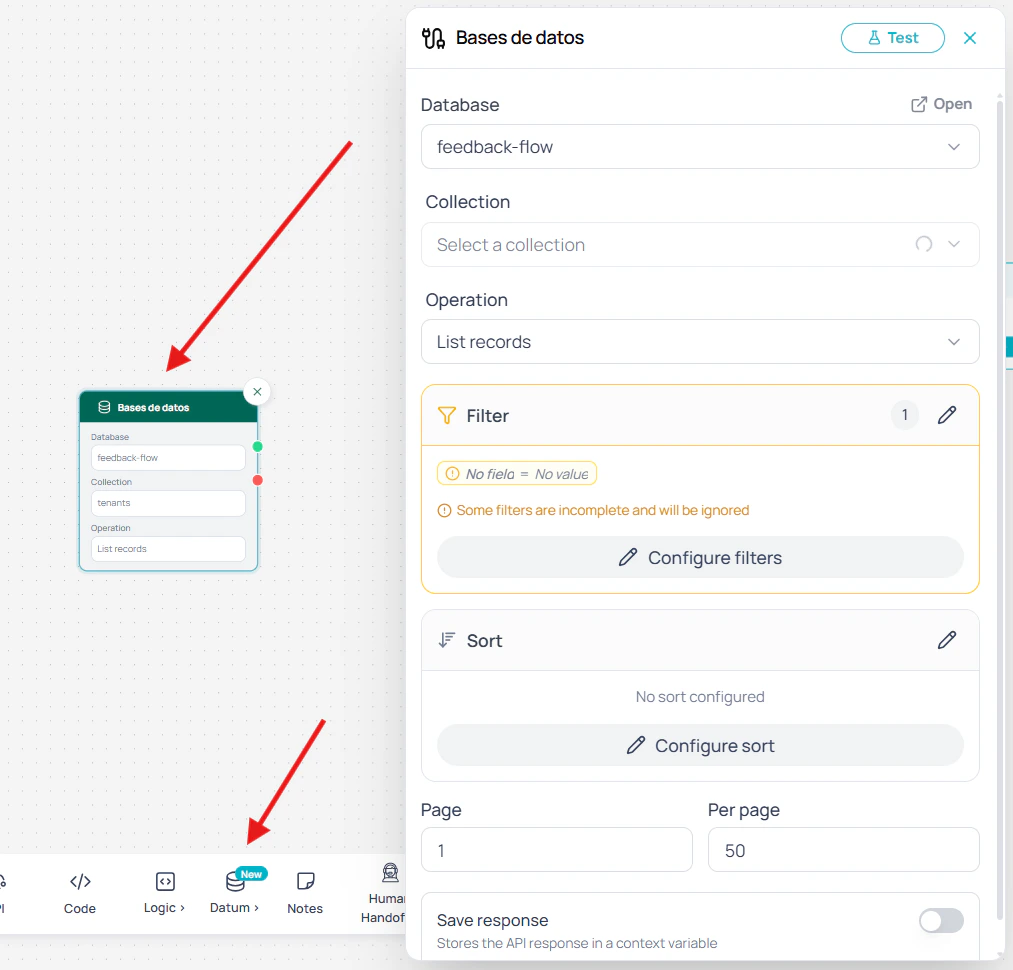 If the list is empty or you see a 401/403 error, your user does not have permission on that database. Contact the Datum administrator on your account.
### Collection
Enabled only when a database is selected. Shows the collections you created in the database (Datum's internal collections are hidden). While loading, the selector is disabled; if loading fails, it stays disabled until the database changes or permissions are fixed.
### Operation
Defines what the node will do on the collection:
| Operation | What it does |
| :---------------- | :--------------------------------------------------------- |
| **List records** | Fetch multiple records with filters, sort, and pagination. |
| **Get record** | Fetch a single record by its `id`. |
| **Create record** | Insert a new record. |
| **Update record** | Modify an existing record by `id`. |
| **Delete record** | Remove a record by `id`. |
### Fields per operation
The rest of the panel changes based on the operation you pick.
#### Record ID
Required by **Get**, **Update**, and **Delete**. Accepts a fixed value or a variable:
```
{{$context.userRecordId}}
```
If you pick **Get**, **Update**, or **Delete** and leave the ID empty, the service replies with `404 Record not found`. This is intentional: it protects you from accidentally hitting the whole collection when you meant to target a single record.
#### Field values
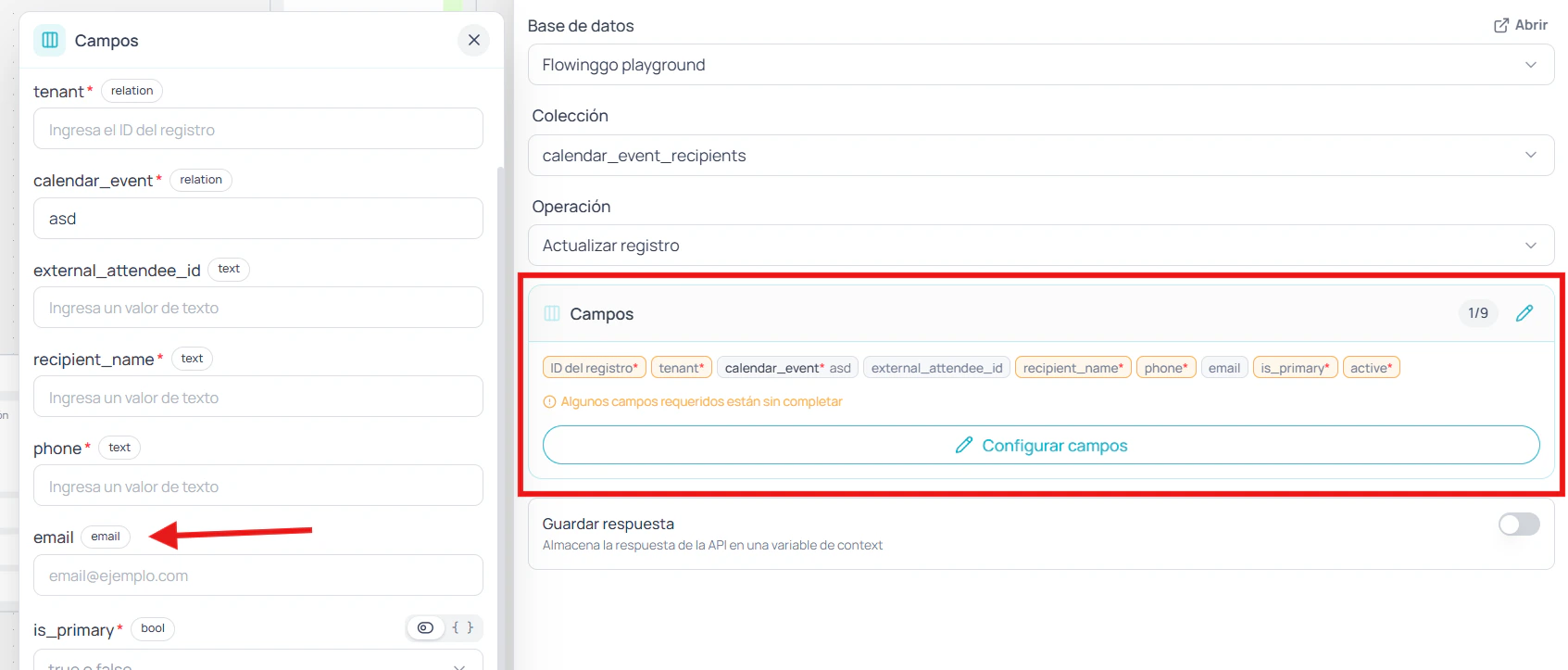
For **Create** and **Update**, the panel opens an editor with a control tailored to each field type declared in the collection:
| Field type | Control |
| :------------------------------- | :--------------------------------------- |
| `text`, `email`, `url`, `number` | Input with variable support |
| `bool` | `true`/`false` switch or variable input |
| `date` | Calendar + time picker or variable input |
| `select` (single or multi) | Dropdown or variable input |
| `editor` | Rich text editor |
| `json` | Textarea with JSON syntax |
For the types that support it, a selector next to the field toggles between **Fixed value** (the native control) and **Variable** (free-form input where you can plug in `{{$memory.x}}` or `{{$context.y}}`).
If the list is empty or you see a 401/403 error, your user does not have permission on that database. Contact the Datum administrator on your account.
### Collection
Enabled only when a database is selected. Shows the collections you created in the database (Datum's internal collections are hidden). While loading, the selector is disabled; if loading fails, it stays disabled until the database changes or permissions are fixed.
### Operation
Defines what the node will do on the collection:
| Operation | What it does |
| :---------------- | :--------------------------------------------------------- |
| **List records** | Fetch multiple records with filters, sort, and pagination. |
| **Get record** | Fetch a single record by its `id`. |
| **Create record** | Insert a new record. |
| **Update record** | Modify an existing record by `id`. |
| **Delete record** | Remove a record by `id`. |
### Fields per operation
The rest of the panel changes based on the operation you pick.
#### Record ID
Required by **Get**, **Update**, and **Delete**. Accepts a fixed value or a variable:
```
{{$context.userRecordId}}
```
If you pick **Get**, **Update**, or **Delete** and leave the ID empty, the service replies with `404 Record not found`. This is intentional: it protects you from accidentally hitting the whole collection when you meant to target a single record.
#### Field values
For **Create** and **Update**, the panel opens an editor with a control tailored to each field type declared in the collection:
| Field type | Control |
| :------------------------------- | :--------------------------------------- |
| `text`, `email`, `url`, `number` | Input with variable support |
| `bool` | `true`/`false` switch or variable input |
| `date` | Calendar + time picker or variable input |
| `select` (single or multi) | Dropdown or variable input |
| `editor` | Rich text editor |
| `json` | Textarea with JSON syntax |
For the types that support it, a selector next to the field toggles between **Fixed value** (the native control) and **Variable** (free-form input where you can plug in `{{$memory.x}}` or `{{$context.y}}`).
 #### Filters (List only)
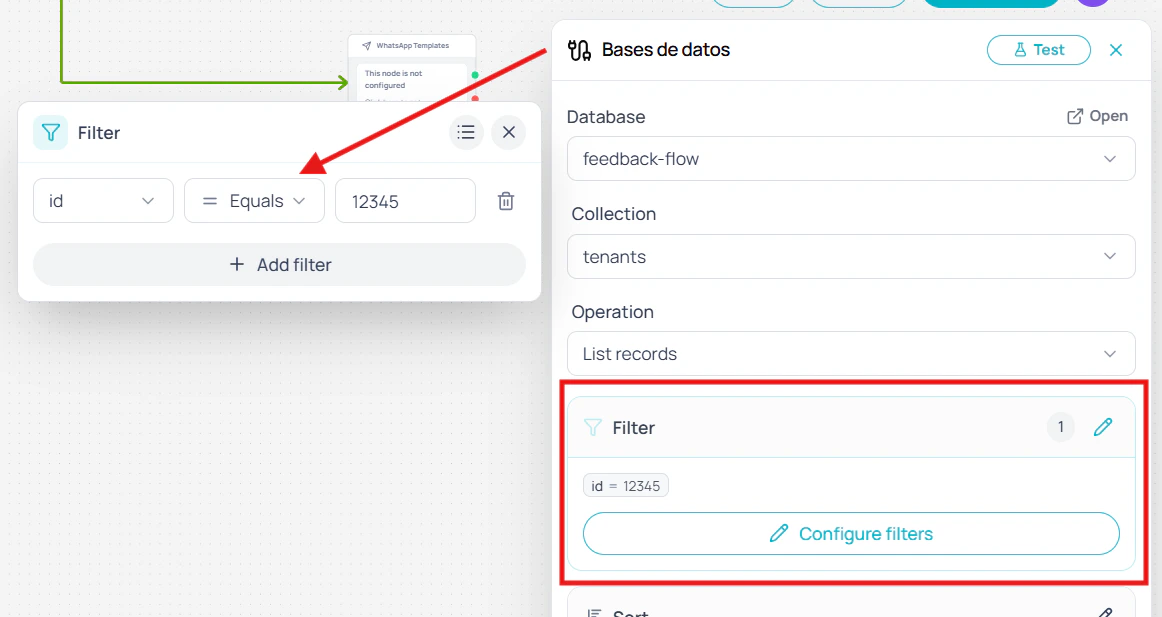
Visual builder with one or more terms joined by AND. Each row is made of field, operator, and value.
| Operator | Meaning |
| :------------------- | :------------------------- |
| `=`, `!=` | Equals / not equals |
| `>`, `>=`, `<`, `<=` | Numeric or date comparison |
| `~` | Contains the text |
| `!~` | Does not contain the text |
Terms missing a field or a value are dropped at run time — they do not block the request or raise an error; they simply do not take part in the final filter.
#### Filters (List only)
Visual builder with one or more terms joined by AND. Each row is made of field, operator, and value.
| Operator | Meaning |
| :------------------- | :------------------------- |
| `=`, `!=` | Equals / not equals |
| `>`, `>=`, `<`, `<=` | Numeric or date comparison |
| `~` | Contains the text |
| `!~` | Does not contain the text |
Terms missing a field or a value are dropped at run time — they do not block the request or raise an error; they simply do not take part in the final filter.
 #### Sort (List only)
Builder with one row per criterion. Each row picks a field and a direction (ascending or descending). Criteria apply in the order they are shown.
#### Pagination (List only)
Two numeric fields: **page** (default `1`) and **per page** (default `50`). If you leave one empty or enter an invalid number, the node falls back to the default at run time.
***
## Save the response
Toggle **Save response** in the panel header and set a variable name. The full service response is stored in that variable and becomes available to downstream nodes.
### Access the response as-is
Use the variable directly in other nodes:
```
{{$context.basesRespuesta}}
```
### Manipulate the response in a Code node
```javascript theme={null}
let respuesta = $context.getHttpResponse('basesRespuesta')
respuesta = respuesta.json()
const primerRegistro = respuesta.items?.[0]
$memory.set('primerRegistro', primerRegistro)
```
The key you pass to `$context.getHttpResponse('basesRespuesta')` must match exactly the one you set in "Save response".
***
## Test response
The **Test** button in the header runs the request against Datum and opens a popover with the result. The popover shows:
* **Status code** (for example, `200` or `404`)
* **Body tab** — response formatted as JSON with a copy button
* **Headers tab** — response headers from the service
#### Sort (List only)
Builder with one row per criterion. Each row picks a field and a direction (ascending or descending). Criteria apply in the order they are shown.
#### Pagination (List only)
Two numeric fields: **page** (default `1`) and **per page** (default `50`). If you leave one empty or enter an invalid number, the node falls back to the default at run time.
***
## Save the response
Toggle **Save response** in the panel header and set a variable name. The full service response is stored in that variable and becomes available to downstream nodes.
### Access the response as-is
Use the variable directly in other nodes:
```
{{$context.basesRespuesta}}
```
### Manipulate the response in a Code node
```javascript theme={null}
let respuesta = $context.getHttpResponse('basesRespuesta')
respuesta = respuesta.json()
const primerRegistro = respuesta.items?.[0]
$memory.set('primerRegistro', primerRegistro)
```
The key you pass to `$context.getHttpResponse('basesRespuesta')` must match exactly the one you set in "Save response".
***
## Test response
The **Test** button in the header runs the request against Datum and opens a popover with the result. The popover shows:
* **Status code** (for example, `200` or `404`)
* **Body tab** — response formatted as JSON with a copy button
* **Headers tab** — response headers from the service
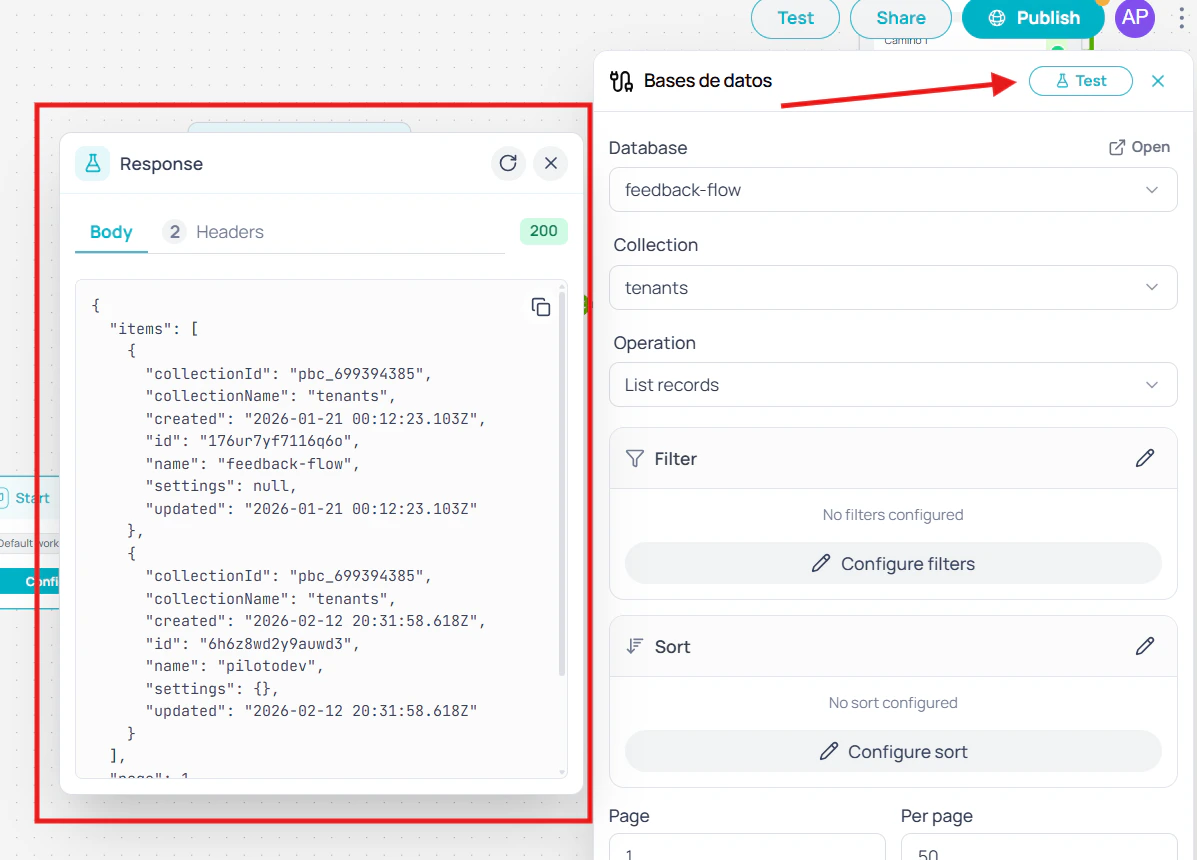 If you close the popover and reopen it without touching the configuration, the node shows the last response instead of making a new call to the service. As soon as you change any field, that response is marked stale and the next time you open the popover it runs again.
***
## Use cases
A WhatsApp workflow that captures leads needs to store the user's phone number and name without going through an external endpoint. Map `{{$user.phone}}` and `{{$memory.nombre}}` to the fields in the `leads` collection, pick the **Create** operation, and the record is saved without writing a single line of code.
A customer support workflow that personalizes responses first queries the `clientes` collection filtered by the user's email. The result is stored in a variable and downstream nodes use it to tailor the message. Before, this required an API node with a hand-crafted URL; now it's three dropdowns and a visual filter.
An order-tracking workflow receives a code, fetches the record using the **Get** operation, and updates the `status` field to `entregado` with the date taken from `{{$context.now}}`. The same process that used to require two API nodes now takes just one.
If you close the popover and reopen it without touching the configuration, the node shows the last response instead of making a new call to the service. As soon as you change any field, that response is marked stale and the next time you open the popover it runs again.
***
## Use cases
A WhatsApp workflow that captures leads needs to store the user's phone number and name without going through an external endpoint. Map `{{$user.phone}}` and `{{$memory.nombre}}` to the fields in the `leads` collection, pick the **Create** operation, and the record is saved without writing a single line of code.
A customer support workflow that personalizes responses first queries the `clientes` collection filtered by the user's email. The result is stored in a variable and downstream nodes use it to tailor the message. Before, this required an API node with a hand-crafted URL; now it's three dropdowns and a visual filter.
An order-tracking workflow receives a code, fetches the record using the **Get** operation, and updates the `status` field to `entregado` with the date taken from `{{$context.now}}`. The same process that used to require two API nodes now takes just one.