> ## Documentation Index
> Fetch the complete documentation index at: https://docs.jelou.ai/llms.txt
> Use this file to discover all available pages before exploring further.
# Campaigns
> Schedule outbound calls with an agent, an origin number, and an editable contact table.
A **campaign** places outbound calls over a set of contacts with a given agent. It's how you cover proactive cases — confirmations, reminders, surveys, collections — without dialing one by one.
They're in the **Campaigns** tab of Voice, and you create them with **+ Create campaign**.
## The campaign list
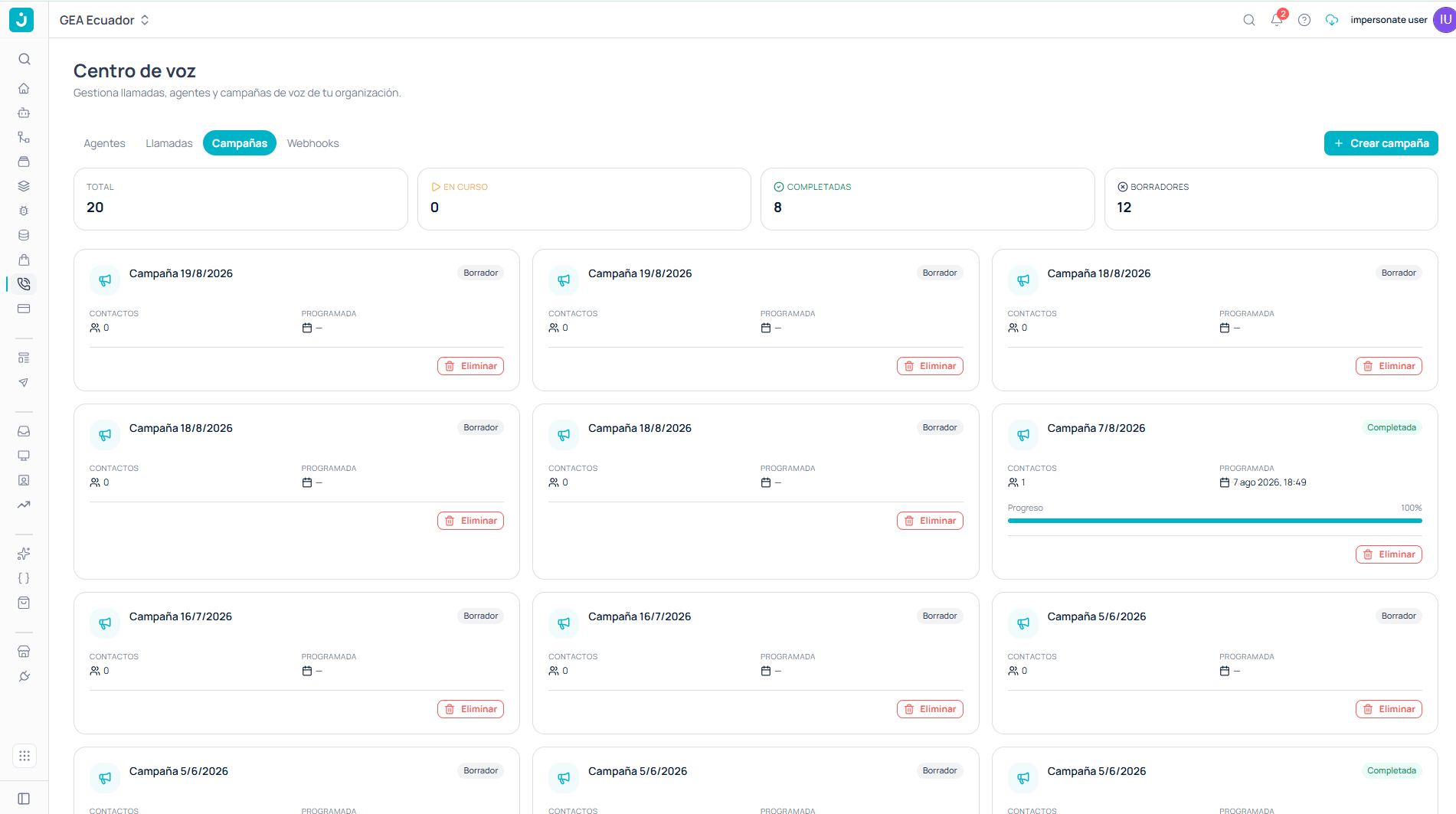 At the top, four counters summarize the state of your campaigns: **Total**, **In progress**, **Completed**, and **Drafts**.
Below them, each campaign appears as a card with its **name**, a **status badge**, how many **contacts** it includes, the **scheduled** date — or a dash if it has none — and a **Delete** button. Campaigns that already started also show a **progress** bar with their percentage.
## A campaign's states
The drafts counter reveals the most important thing to understand: **creating a campaign does not start it dialing**.
Created but inactive. It dials nothing. You can review and fix it without pressure.
Dialing. From here real calls go out and credits are consumed.
It finished working through its contacts.
## The campaign editor
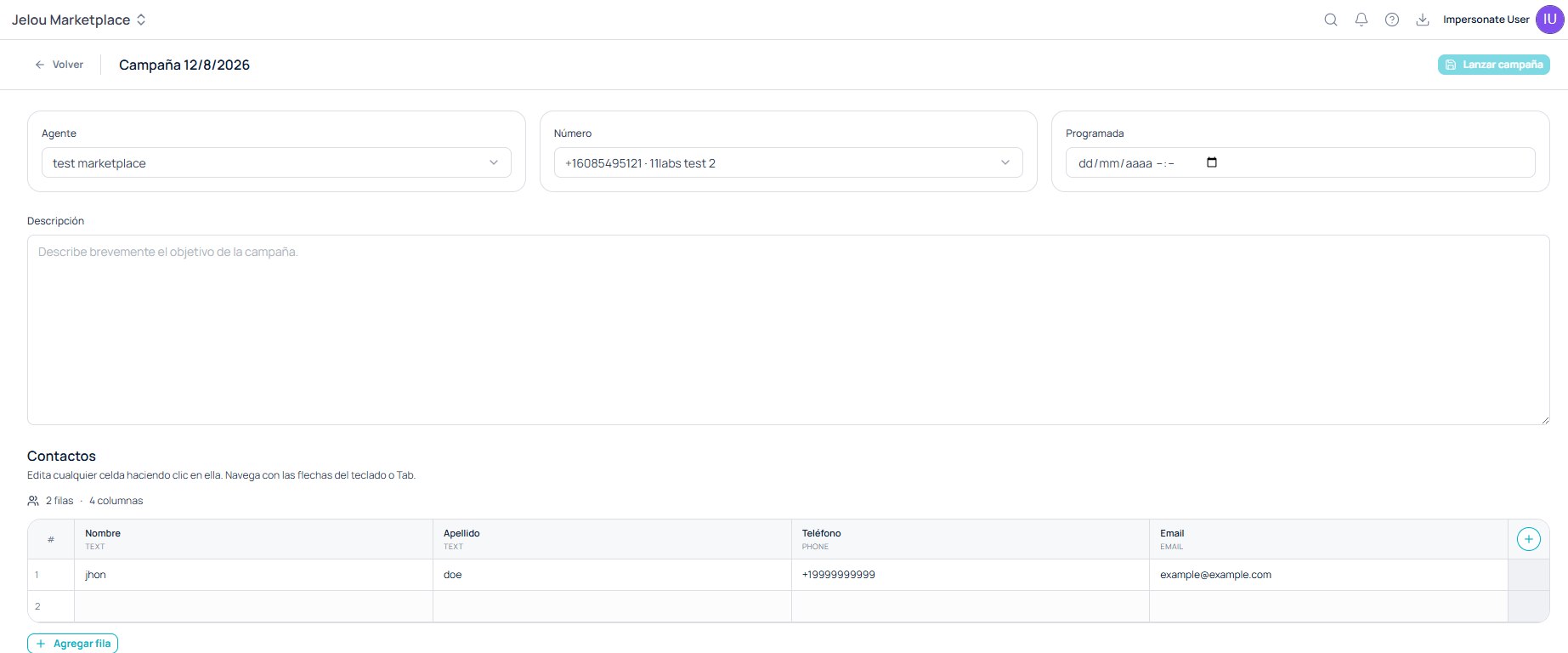
Opening a campaign takes you into its editor. Everything is configured on a single screen, and the **Launch campaign** button at the top right is what sets it dialing.
At the top, four counters summarize the state of your campaigns: **Total**, **In progress**, **Completed**, and **Drafts**.
Below them, each campaign appears as a card with its **name**, a **status badge**, how many **contacts** it includes, the **scheduled** date — or a dash if it has none — and a **Delete** button. Campaigns that already started also show a **progress** bar with their percentage.
## A campaign's states
The drafts counter reveals the most important thing to understand: **creating a campaign does not start it dialing**.
Created but inactive. It dials nothing. You can review and fix it without pressure.
Dialing. From here real calls go out and credits are consumed.
It finished working through its contacts.
## The campaign editor
Opening a campaign takes you into its editor. Everything is configured on a single screen, and the **Launch campaign** button at the top right is what sets it dialing.
 ### The three selectors
| Field | What it defines |
| ------------- | --------------------------------------------------------------------------------------------------------------------- |
| **Agent** | The voice agent that will speak on each call. |
| **Number** | The origin number the calls go out from. The dropdown shows the number next to the name of the channel it belongs to. |
| **Scheduled** | The campaign's start date and time. |
The **Number** dropdown lists the numbers from your ElevenLabs channels. If it's empty, you haven't provisioned one yet: see [Numbers and the ElevenLabs channel](/en/guides/voice/numbers).
### Description
A free-text field to briefly describe the campaign's goal. It doesn't affect the agent's behavior — it's so your team knows what the campaign is about when they see it in the list.
It's worth filling in. In an organization with dozens of campaigns named after their date, the description is the only thing that tells one from another when you come back weeks later.
### Contacts
Contacts are edited **directly in the campaign**, in a table that behaves like a spreadsheet: you click any cell to edit it and navigate with the arrow keys or Tab.
The header shows how many **rows** and **columns** the table has. Columns carry an associated type, visible under their name:
| Column | Type |
| ------------- | ----- |
| **Name** | TEXT |
| **Last name** | TEXT |
| **Phone** | PHONE |
| **Email** | EMAIL |
**+ Add row** appends contacts at the end, and the **+** button at the far right of the header adds new columns.
The phone must be in international format, with the `+` sign and the country code. A malformed number causes a failed call that still consumes the attempt.
Since the table behaves like a spreadsheet, you can prepare your contacts in Excel or Sheets and paste them in rather than typing them one by one.
## Launching the campaign
Once the agent, the number, the date, and the contacts are set, **Launch campaign** puts it to work.
Launching a campaign starts dialing real numbers and consumes credits. Check the row count of the contact table before launching.
## Control during execution
The campaigns screen lets you create, edit, launch, and track them. For fine-grained control while they dial — pausing, resuming, cancelling, reviewing the detail of the calls a campaign placed, or testing against a single contact before launching — the CLI covers the full cycle.
Create, activate, watch dialing progress, list the calls placed, pause, resume, and cancel a campaign from the terminal.
The CLI also works with reusable **contact lists** (`jelou voice contacts lists`), which can be built from a CSV or XLSX file and targeted from several campaigns. It's the alternative to the editor's table when you handle large or repeated bases.
## Best practices
**Start with a few rows of internal contacts.** Validating the greeting, the flow, and your tools' responses with five calls costs little; discovering a mistake after calling a thousand contacts costs far more.
**Mind the scheduled time.** Calling outside reasonable hours lowers your answer rate and hurts how your brand is perceived.
**Enable voicemail detection on the agent.** On outbound campaigns it's the difference between hanging up when a recorder is detected and burning the full call time talking to a voicemail. See [Agent tools](/en/guides/voice/tools).
**One campaign, one goal.** The agent's message should match the reason for the call; reusing the same agent across campaigns with different purposes produces conversations that don't fit.
**Review the results in the call log.** Every call from the campaign lands there with its recording and transcript. See [Call log](/en/guides/voice/calls).
### The three selectors
| Field | What it defines |
| ------------- | --------------------------------------------------------------------------------------------------------------------- |
| **Agent** | The voice agent that will speak on each call. |
| **Number** | The origin number the calls go out from. The dropdown shows the number next to the name of the channel it belongs to. |
| **Scheduled** | The campaign's start date and time. |
The **Number** dropdown lists the numbers from your ElevenLabs channels. If it's empty, you haven't provisioned one yet: see [Numbers and the ElevenLabs channel](/en/guides/voice/numbers).
### Description
A free-text field to briefly describe the campaign's goal. It doesn't affect the agent's behavior — it's so your team knows what the campaign is about when they see it in the list.
It's worth filling in. In an organization with dozens of campaigns named after their date, the description is the only thing that tells one from another when you come back weeks later.
### Contacts
Contacts are edited **directly in the campaign**, in a table that behaves like a spreadsheet: you click any cell to edit it and navigate with the arrow keys or Tab.
The header shows how many **rows** and **columns** the table has. Columns carry an associated type, visible under their name:
| Column | Type |
| ------------- | ----- |
| **Name** | TEXT |
| **Last name** | TEXT |
| **Phone** | PHONE |
| **Email** | EMAIL |
**+ Add row** appends contacts at the end, and the **+** button at the far right of the header adds new columns.
The phone must be in international format, with the `+` sign and the country code. A malformed number causes a failed call that still consumes the attempt.
Since the table behaves like a spreadsheet, you can prepare your contacts in Excel or Sheets and paste them in rather than typing them one by one.
## Launching the campaign
Once the agent, the number, the date, and the contacts are set, **Launch campaign** puts it to work.
Launching a campaign starts dialing real numbers and consumes credits. Check the row count of the contact table before launching.
## Control during execution
The campaigns screen lets you create, edit, launch, and track them. For fine-grained control while they dial — pausing, resuming, cancelling, reviewing the detail of the calls a campaign placed, or testing against a single contact before launching — the CLI covers the full cycle.
Create, activate, watch dialing progress, list the calls placed, pause, resume, and cancel a campaign from the terminal.
The CLI also works with reusable **contact lists** (`jelou voice contacts lists`), which can be built from a CSV or XLSX file and targeted from several campaigns. It's the alternative to the editor's table when you handle large or repeated bases.
## Best practices
**Start with a few rows of internal contacts.** Validating the greeting, the flow, and your tools' responses with five calls costs little; discovering a mistake after calling a thousand contacts costs far more.
**Mind the scheduled time.** Calling outside reasonable hours lowers your answer rate and hurts how your brand is perceived.
**Enable voicemail detection on the agent.** On outbound campaigns it's the difference between hanging up when a recorder is detected and burning the full call time talking to a voicemail. See [Agent tools](/en/guides/voice/tools).
**One campaign, one goal.** The agent's message should match the reason for the call; reusing the same agent across campaigns with different purposes produces conversations that don't fit.
**Review the results in the call log.** Every call from the campaign lands there with its recording and transcript. See [Call log](/en/guides/voice/calls).