> ## Documentation Index
> Fetch the complete documentation index at: https://docs.jelou.ai/llms.txt
> Use this file to discover all available pages before exploring further.
# WhatsApp calling
> Let your customers call you by voice from WhatsApp and connect a voice agent to that number.
Besides provisioning a new phone number, you can enable **voice calls on your own WhatsApp number**. Your customers call from the same chat where they already message you, without dialing a different number.
It's configured on the WhatsApp channel screen, not in Voice.
Available for **WhatsApp Cloud API** and **Gupshup** numbers.
 ## Enabling calls
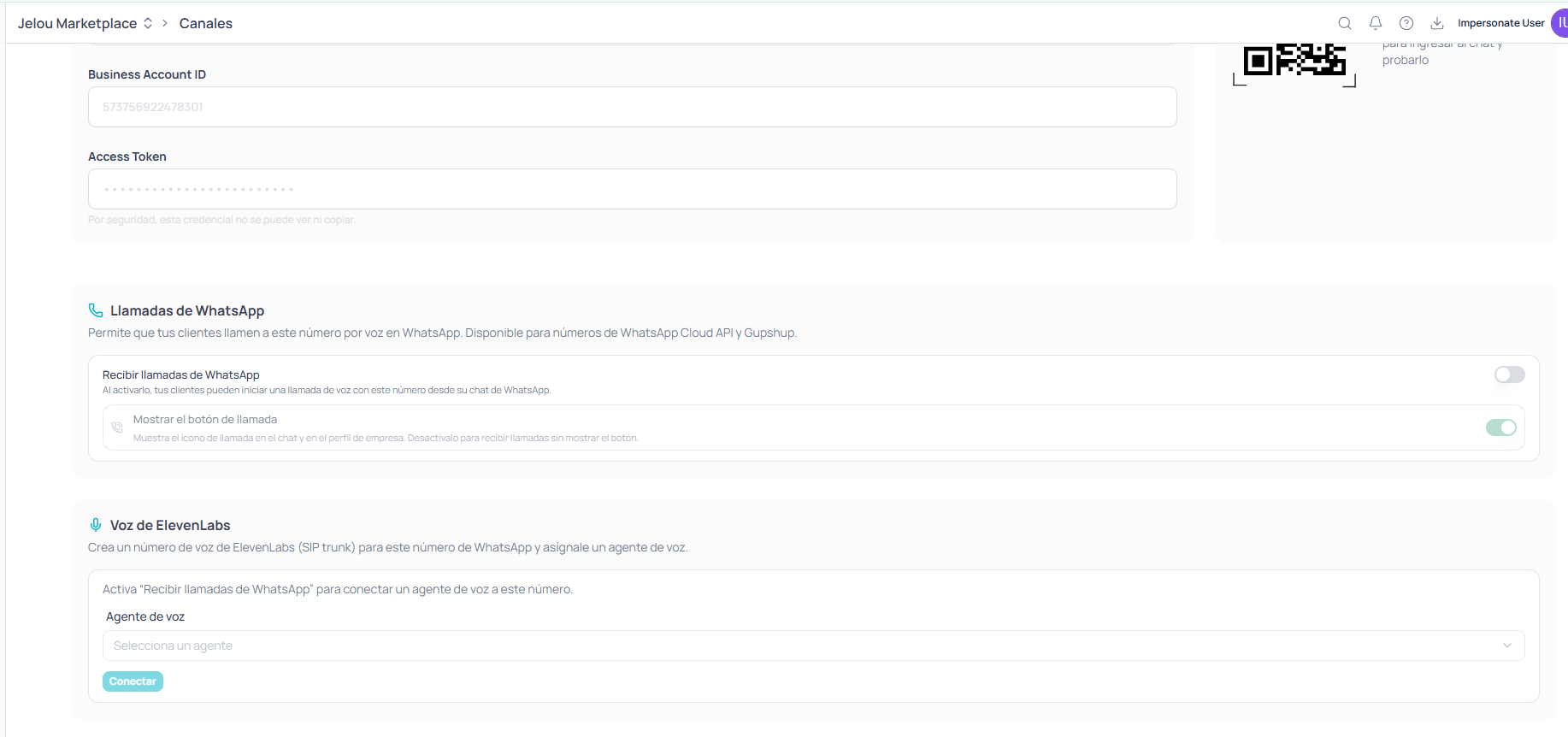
The **WhatsApp calling** section lets your customers call that number by voice on WhatsApp, and has two nested toggles.
When enabled, your customers can start a voice call with this number from their WhatsApp chat. It's the main toggle: without it, nothing else applies.
Displays the call icon in the chat and on the business profile. Turn it off if you want to **receive calls without showing the button**.
Turning off the button while leaving calling enabled is useful for a gradual rollout: you can test with a group that already knows the path, or keep the capability available without inviting all your traffic to use it from day one.
## Connecting a voice agent
The **ElevenLabs voice** section creates an ElevenLabs voice number (SIP trunk) for this WhatsApp number and assigns a voice agent to it.
This section stays locked until you enable **Receive WhatsApp calls**. The panel says so itself: first you enable calling, then you connect the agent.
Once calling is enabled, you pick the **voice agent** from the dropdown and confirm with **Connect**.
The agent you connect here is one of those you already created in Voice. If you don't have one yet, create it first: see [Voice agents](/en/guides/voice/agents).
## How it compares to a provisioned number
Both paths end in the same place — a voice agent answering calls — but they don't serve the same purpose.
| | WhatsApp calling | [Provisioned number](/en/guides/voice/numbers) |
| ------------------ | ------------------------------------------------- | ---------------------------------------------- |
| **Who can call** | Only people who message you on WhatsApp | Anyone who dials the number |
| **New number** | No, it uses the one you have | Yes, it gets provisioned |
| **Outbound calls** | Not applicable | Yes, campaigns included |
| **When it fits** | Support over a channel your customers already use | Public support lines and outbound operations |
They're not mutually exclusive. It's common to have WhatsApp calling for inbound support of existing customers and a separate provisioned number for outbound campaigns.
## After connecting
Calls that come in through WhatsApp are logged like any other, with their recording and transcript.
Review the direction, status, duration, and credits of every call.
## Enabling calls
The **WhatsApp calling** section lets your customers call that number by voice on WhatsApp, and has two nested toggles.
When enabled, your customers can start a voice call with this number from their WhatsApp chat. It's the main toggle: without it, nothing else applies.
Displays the call icon in the chat and on the business profile. Turn it off if you want to **receive calls without showing the button**.
Turning off the button while leaving calling enabled is useful for a gradual rollout: you can test with a group that already knows the path, or keep the capability available without inviting all your traffic to use it from day one.
## Connecting a voice agent
The **ElevenLabs voice** section creates an ElevenLabs voice number (SIP trunk) for this WhatsApp number and assigns a voice agent to it.
This section stays locked until you enable **Receive WhatsApp calls**. The panel says so itself: first you enable calling, then you connect the agent.
Once calling is enabled, you pick the **voice agent** from the dropdown and confirm with **Connect**.
The agent you connect here is one of those you already created in Voice. If you don't have one yet, create it first: see [Voice agents](/en/guides/voice/agents).
## How it compares to a provisioned number
Both paths end in the same place — a voice agent answering calls — but they don't serve the same purpose.
| | WhatsApp calling | [Provisioned number](/en/guides/voice/numbers) |
| ------------------ | ------------------------------------------------- | ---------------------------------------------- |
| **Who can call** | Only people who message you on WhatsApp | Anyone who dials the number |
| **New number** | No, it uses the one you have | Yes, it gets provisioned |
| **Outbound calls** | Not applicable | Yes, campaigns included |
| **When it fits** | Support over a channel your customers already use | Public support lines and outbound operations |
They're not mutually exclusive. It's common to have WhatsApp calling for inbound support of existing customers and a separate provisioned number for outbound campaigns.
## After connecting
Calls that come in through WhatsApp are logged like any other, with their recording and transcript.
Review the direction, status, duration, and credits of every call.