> ## Documentation Index
> Fetch the complete documentation index at: https://docs.jelou.ai/llms.txt
> Use this file to discover all available pages before exploring further.
# Use Jelou Apps
> Share your conversational workflows with anyone using the WhatsApp number provided by Jelou.
**Jelou Apps** is a WhatsApp number provided by Jelou that lets you share and test your conversational workflows and agents without needing to connect your own WhatsApp number.
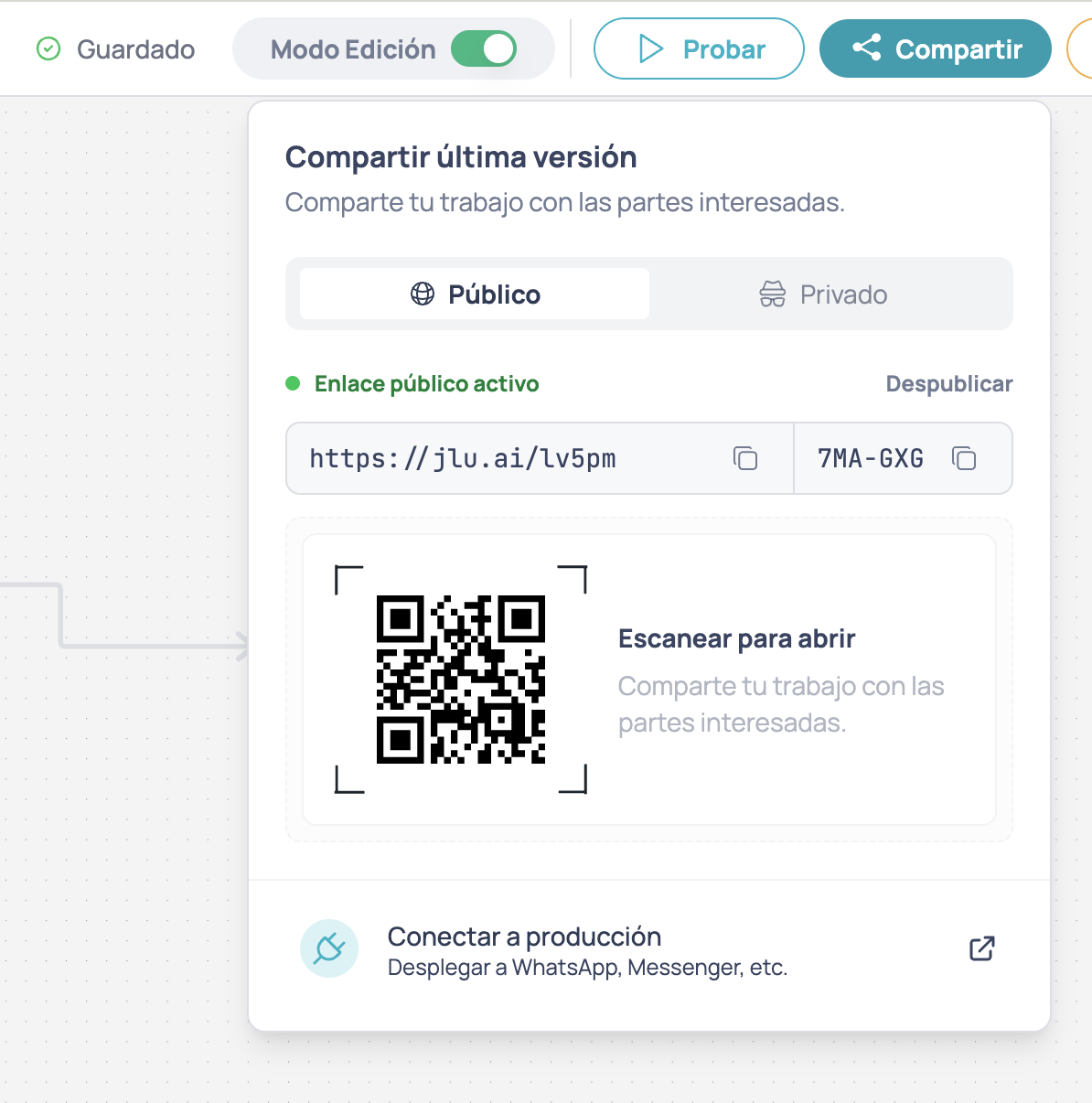
In the upper-right corner of the canvas, click **Share** to open the panel and share the latest version. What you see depends on whether your project has [auto-publish](/en/guides/getting-started/publicar-versiones#auto-publish) enabled.
## With auto-publish enabled
When auto-publish is enabled, the panel shows your project's link and QR code directly, ready to share.
* **Link** (`jlu.ai`): click the URL to copy it to the clipboard. You can also hold `Shift` or `Ctrl` while clicking to open it directly in a new tab.
* **Project code** (`XXX-XXX`): unique per-project identifier that users can send to the **Jelou Apps** number to start a flow.
* **QR code**: scanning it opens WhatsApp with the project code already pre-filled, ready to send.
## With auto-publish disabled
When auto-publish is disabled, the panel shows two tabs: **Public** and **Private**.
### Public link
The **Public** tab generates a link and a project code that anyone can use to test your workflow directly in **Jelou Apps**.
If this is your first time sharing, click **Publish & Share**. If you already have published versions, the button will say **Publish Public Link**.
Once published you will see:
* **Link** (`jlu.ai`): click the URL to copy it to the clipboard. You can also hold `Shift` or `Ctrl` while clicking to open it directly in a new tab.
* **Project code** (`XXX-XXX`): unique per-project identifier that users can send to the **Jelou Apps** number to start a flow.
* **QR code**: scanning it opens WhatsApp with the project code already pre-filled, ready to send.
Send the link or QR to stakeholders, QA, or anyone who needs to test the flow. They do not need a Jelou account.
```txt theme={null}
https://jlu.ai/?text=123-456
```
| Parameter | Description |
| ---------------- | -------------------------------------------------------------------------------------- |
| `` | **Jelou Apps** WhatsApp number. |
| `123-456` | 6-digit code (three and three separated by a hyphen) that identifies your publication. |
#### Revoking the public link
Click **Unpublish** inside the Public tab. The link will stop working immediately.
Revoking the link is irreversible. If you need to share again, you will need to generate a new link.
### Private mode
The **Private** tab lets you add specific WhatsApp numbers for controlled testing directly in the real channel.
Type the number in international format (e.g. `+593991234567`) and click **Add**. The system will validate that it is a valid number.
The system will publish your project if there are pending changes and start a WhatsApp session. The user will receive a message to begin the interaction.
Private testing requires your project to have a WhatsApp channel configured. If you don't have one, see the WhatsApp activation guide.
## Connect your own WhatsApp
**Jelou Apps** is ideal for testing and sharing your projects quickly. When you are ready to operate in production, you can [connect your own WhatsApp number](/en/guides/channels/whatsapp).
By doing so, anyone who writes to your number will interact directly with your project — you no longer need **Jelou Apps** or the access code.