
Introduction
The WhatsApp channel connects a WhatsApp Business number to Jelou so conversations reach the platform. The channel can be connected in two ways:- To a Brain project, where a workflow replies.
- To the inbox, where operators reply.
Prerequisites
Before connecting the WhatsApp channel, make sure you have:- An active Jelou account.
- An active business portfolio in Meta, preferably verified.
- An available phone number with no WhatsApp account attached to it.
Self-service accounts connect their number by signing in directly with Facebook. No additional technical setup or intervention from the Jelou team is required.
Where can you connect WhatsApp?
- From Brain Studio
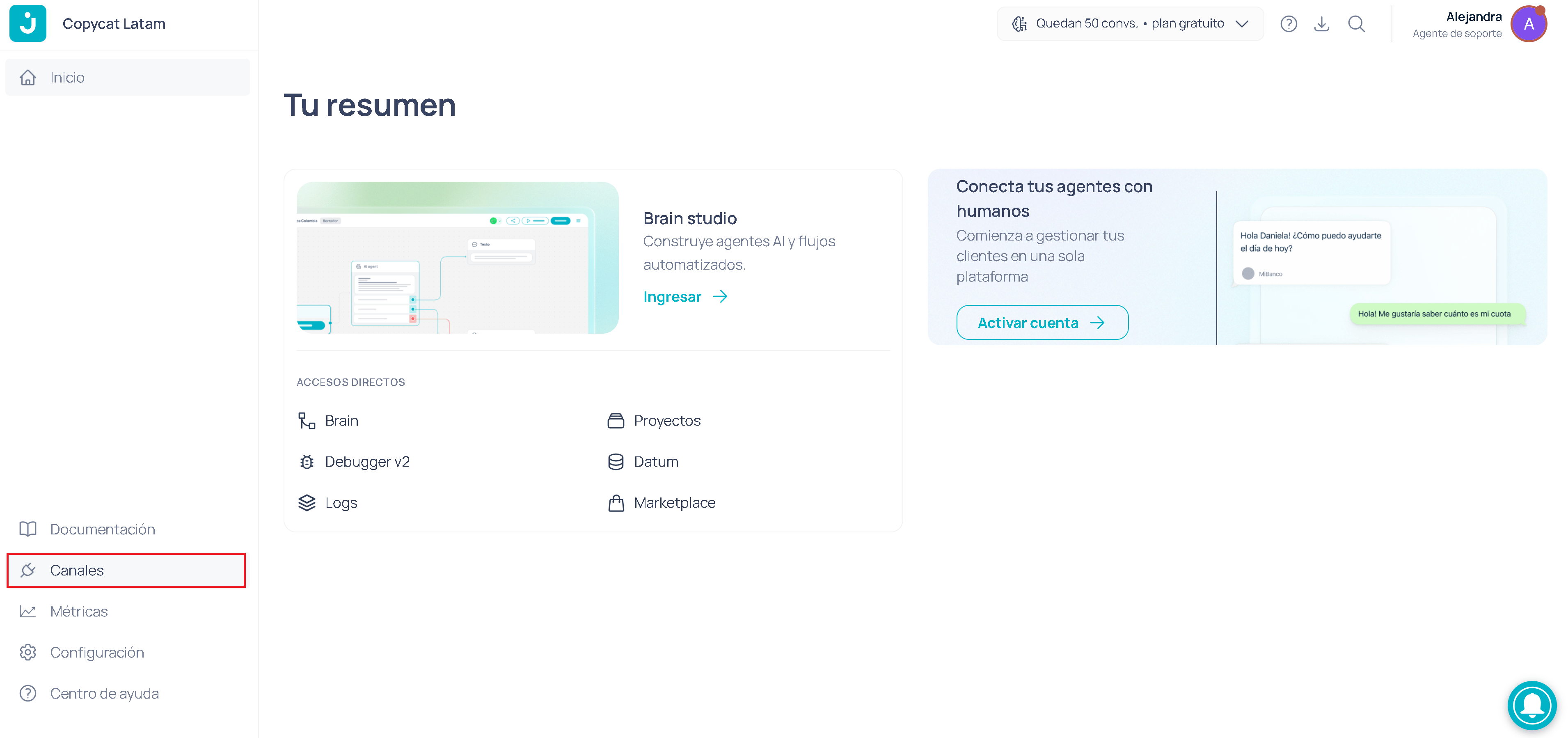
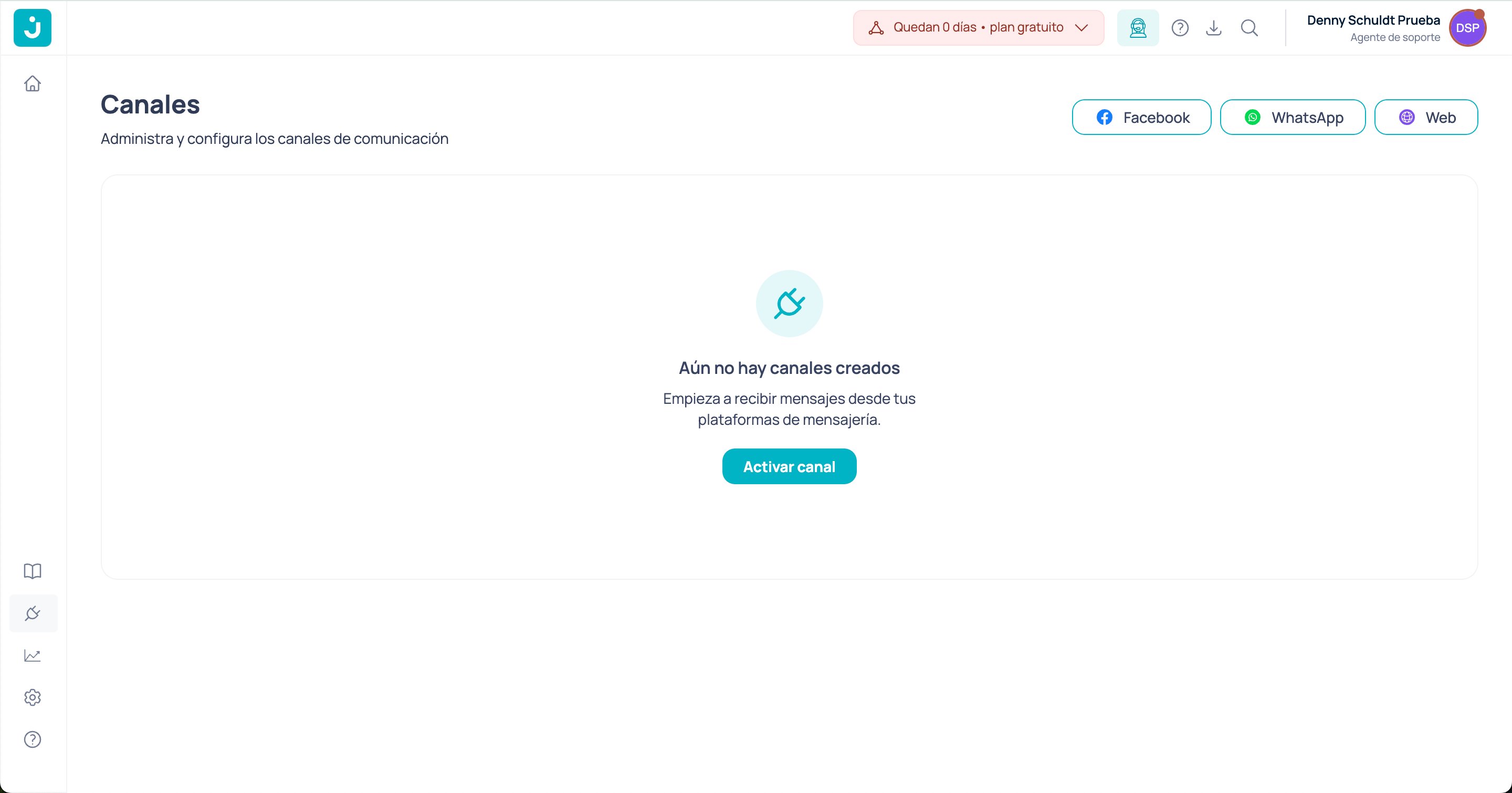
- From the Channels section
While working on a project in Brain Studio, you can connect a channel from two places:
-
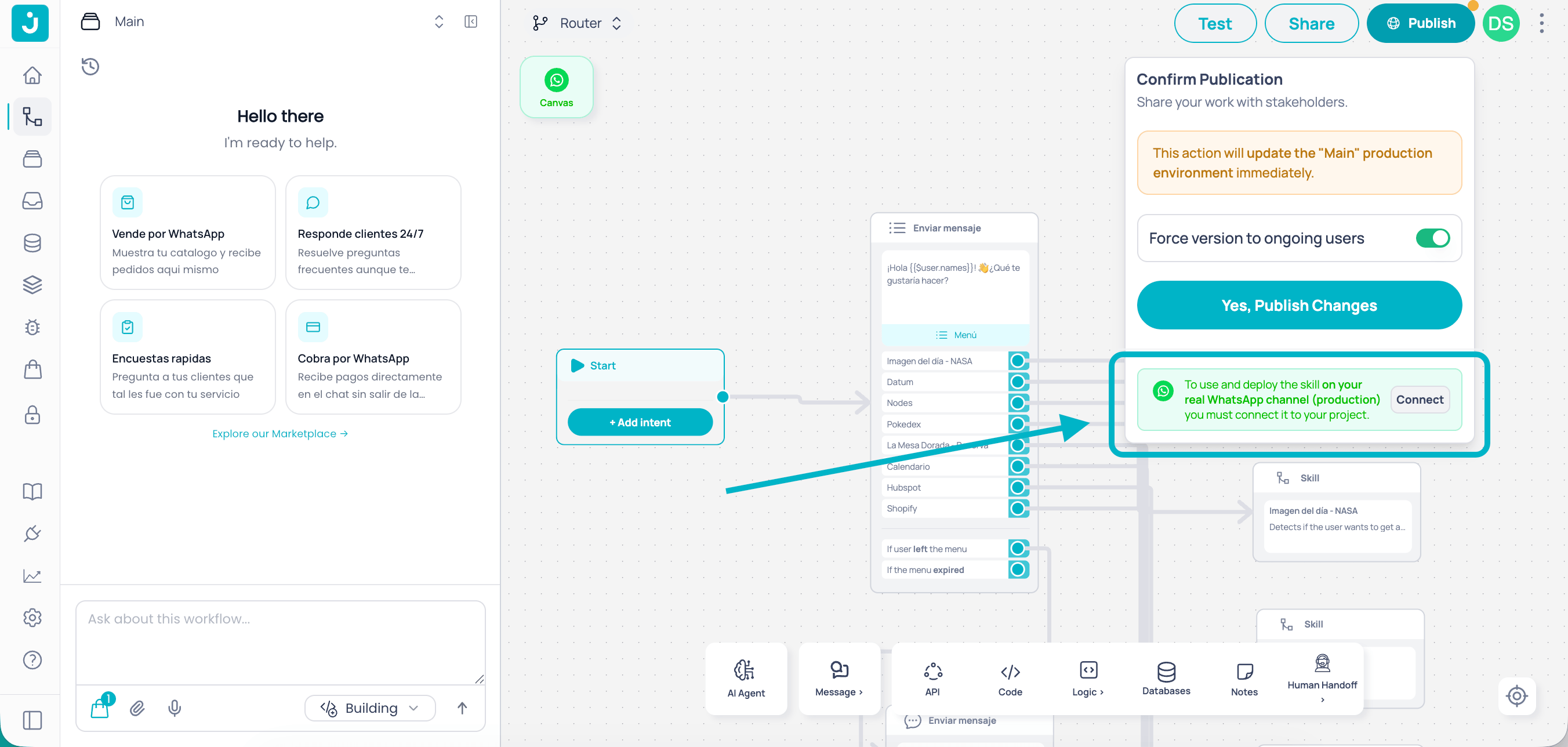
Publish button: click Publish and then Connect your channel at the bottom of the panel.
-
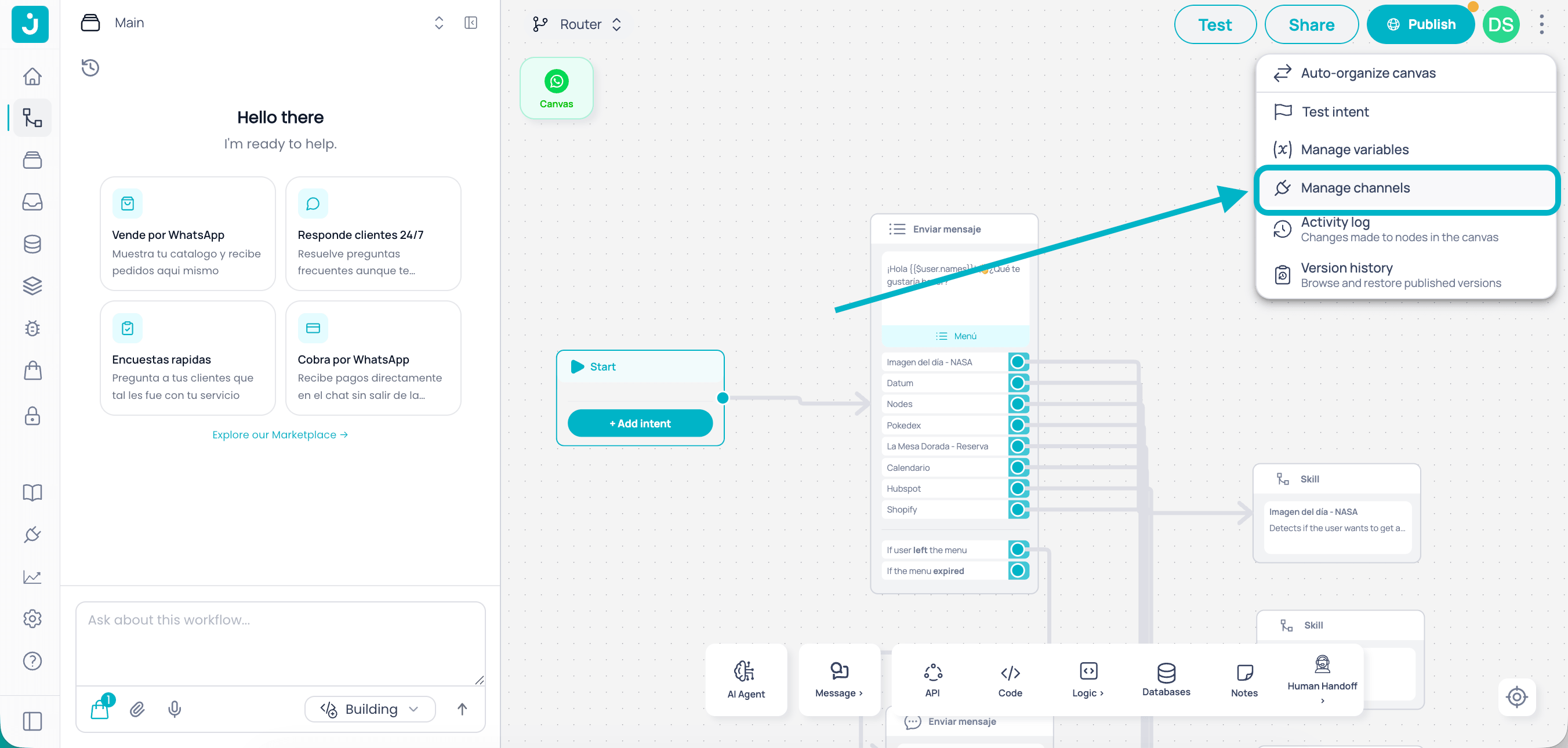
Manage channels: click the Manage channels option in the menu at the top-right corner of the canvas.
Step 1: basic details
If you prefer operators to handle the conversations, open the Advanced section and turn on Channel connected to the inbox. Turning it on removes the Project field.
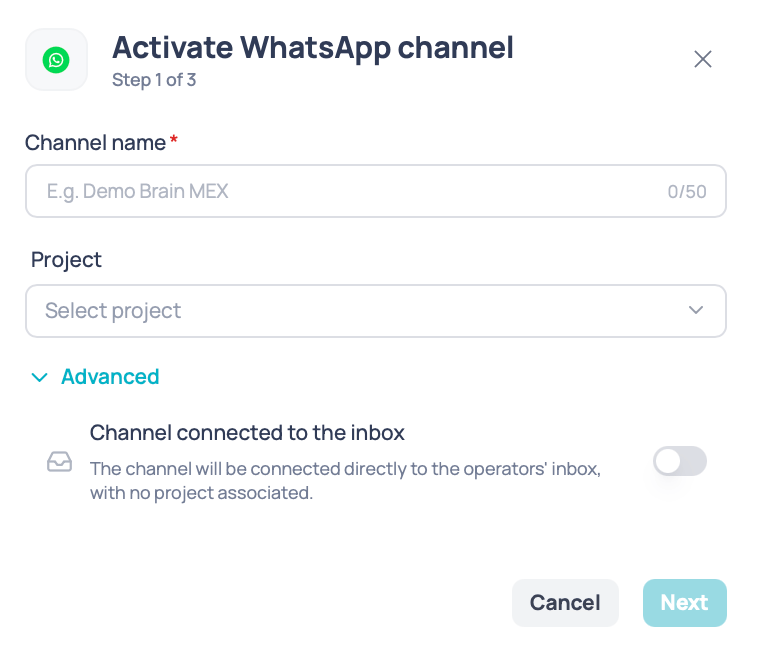
Step 2: WhatsApp provider
Here you choose how the number will be connected. The available options depend on the account type:Step 3: setup by provider
WhatsApp Cloud — Embedded signup
The Sign in with Facebook button opens Meta’s embedded signup. Once you complete it, Jelou automatically gets the access token, the account ID, the phone ID, and the number that will be displayed; you don’t have to type anything.1
Sign in with Facebook
Click Sign in with Facebook. A pop-up window opens with Meta’s authentication flow.
2
Select your business portfolio
Choose the Facebook Business account that will own the WhatsApp number.
3
Create or select your WhatsApp Business Account (WABA)
You can create a new WABA or select an existing one. If there’s no WABA associated with the chosen business, one is created automatically.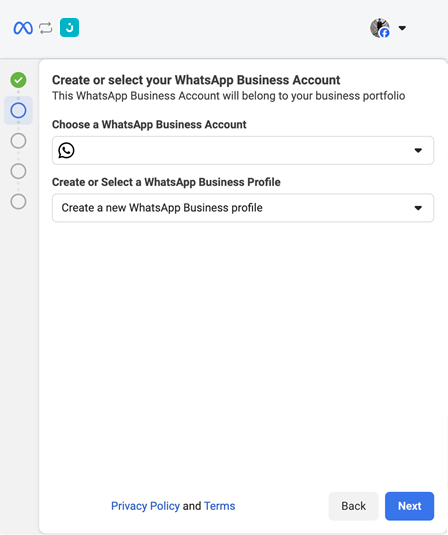
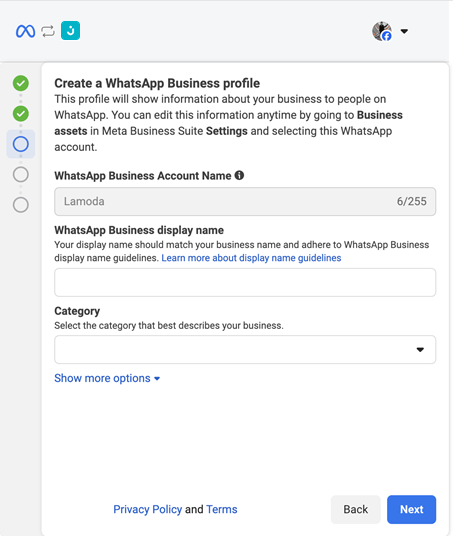
- Enter your business’s display name on WhatsApp (follow Meta’s guidelines to avoid rejections).
- Select the category that best describes your company.
4
Add or choose a phone number
Connect the phone number you’ll use on WhatsApp: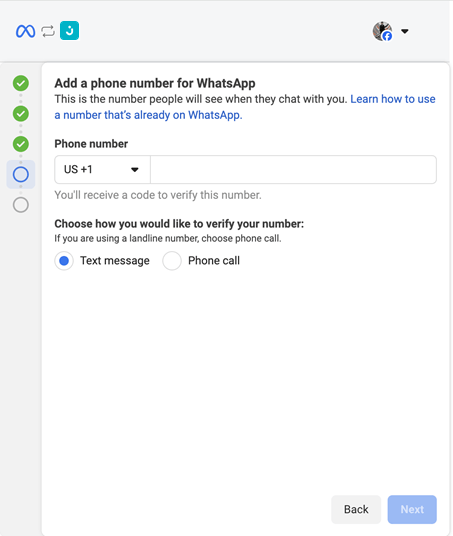
- If it’s a new number: enter it and type the verification code you’ll receive by SMS or call.
- If you already have a WhatsApp Business number in use: select it from the list of available numbers.
5
Accept the permissions and finish
Accept the permissions Jelou requests to manage messages on your behalf.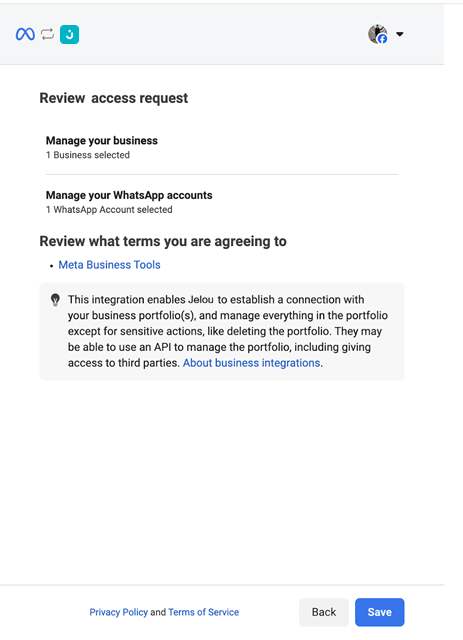
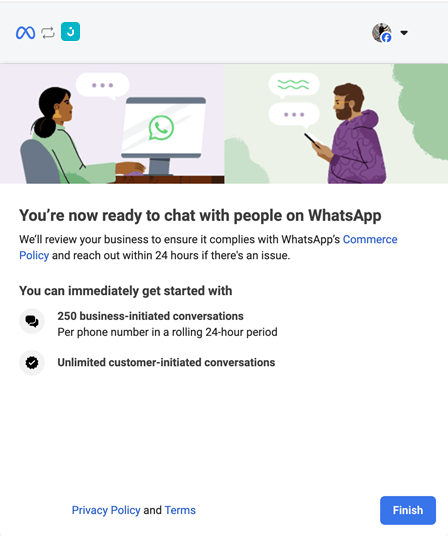
6
Accept the terms and activate the channel
Back in Jelou, accept the terms and conditions. Your number is registered and ready to send and receive conversations.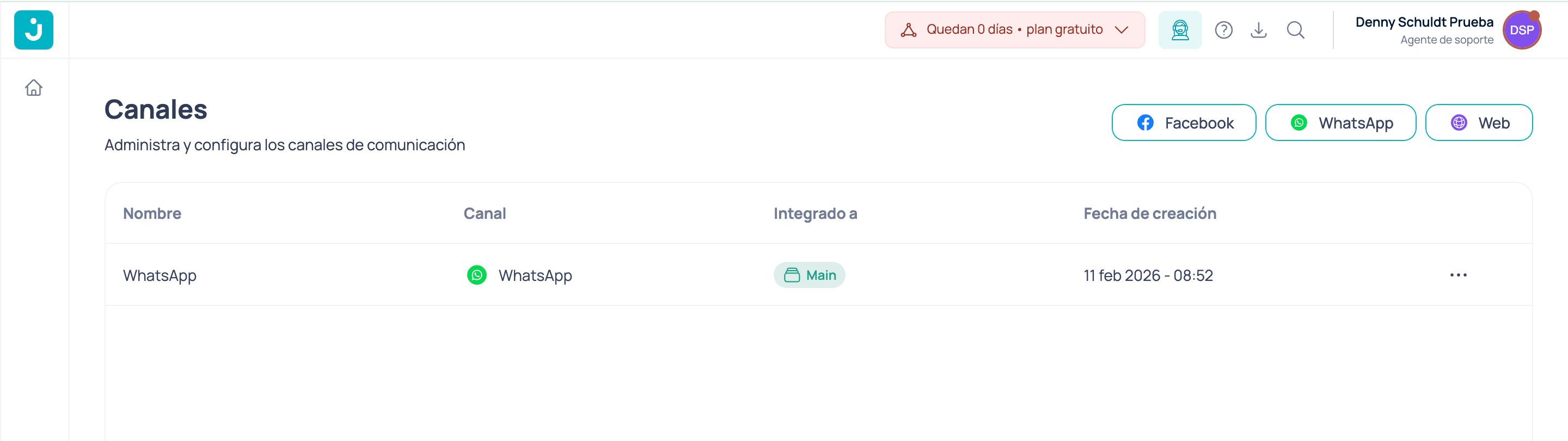
If Meta returns a two-step verification PIN, it appears on screen with a button to copy it. Save it: Meta asks for it in later validations of the number.
WhatsApp Cloud — Manual
Every field is required. The data comes from your Meta account and Meta — not Jelou — validates it, so double-check before continuing.Step 4: validate the channel connection
Open the channel from the Channels table to see its settings. The connection data is read-only:
From this same screen you can edit the channel name and delete it.
WhatsApp Business account verification
Verifying your WhatsApp Business account lets you go beyond the 250 conversations per month limit and reach 1,000 or more. Without verification, your number operates with reduced capacity.
Next steps
Once the channel is active you’ll be able to:- Set up your message templates (HSM) approved by WhatsApp
- Test sending and receiving messages
- Connect the channel to an automated flow in Brain Studio
- Escalate conversations to human agents in Connect
- Launch campaigns through approved templates
Best practices
- Reply fast: WhatsApp monitors response times and may limit your account if they’re slow.
- Respect the 24-hour window: After 24 hours without a reply from the user, you need an approved template to resume the conversation.
- Keep quality high: Avoid unsolicited bulk messages; user complaints can restrict your number.
- Use the right templates: Pick the correct template for each conversation’s context.
Notes
- The channel name can still be edited later; the number and credentials aren’t changed from here.
- Number validation in WhatsApp Cloud is Meta’s own process: if the data is wrong, the error appears on Meta’s side and the process has to be restarted there.
- A single project can have several WhatsApp channels, but a number can’t be repeated across channels.
- To use the same number in Jelou and in the WhatsApp Business app, see Coexistence. That setting only lists WhatsApp channels that are in production, active, and not sandbox.