
What node alerts are
There are three groups of alerts, one for each node type:Model lifecycle notices also appear in the Notification Center bell, under the Infrastructure filter, whether or not you configured recipients. Email is an additional channel.
How to configure them
1
Open Node alerts
Go to Settings > Node alerts.
2
Choose the node type
In the Node type sub-menu select the API / SOAP, Code or AI Agent tab. Each tab has its own list of recipients.
3
Add recipients
In the Recipients card, type an email address and click + Add. To remove one, click the ✕ next to it.
4
Choose alert types (AI Agent only)
In the Alert types card check Model lifecycle, Security, or both.
5
Save your changes
Click Save. To undo what you changed, click Discard.
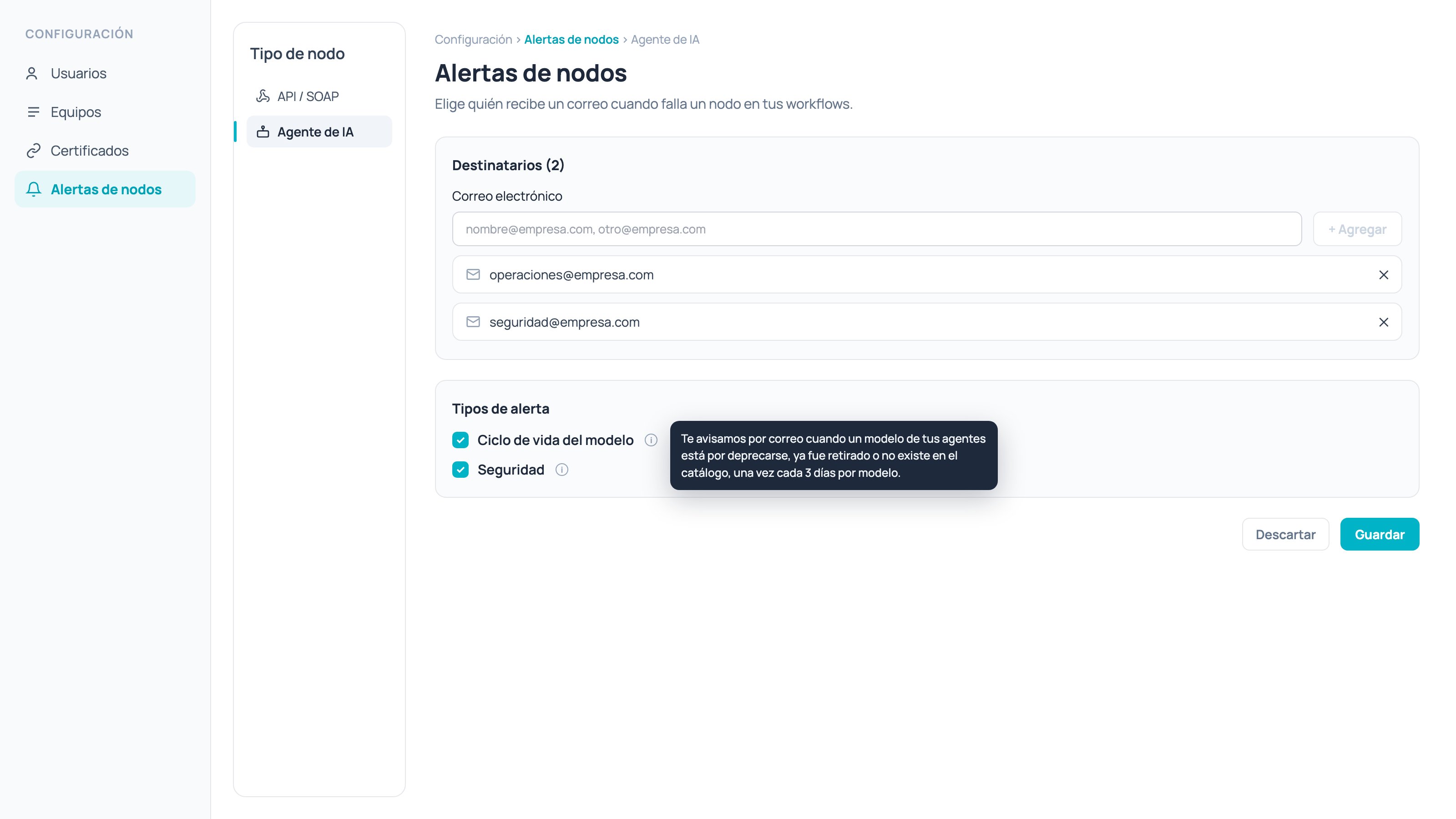
Settings > Node alerts > AI Agent (the screen is shown in Spanish)
API / SOAP alerts
An email is sent when an API or SOAP node fails 100 times in 5 minutes against the same endpoint. After that alert, we wait 8 hours before alerting again for that same endpoint. The email includes:- Company, service URL, affected users, event count and monitoring interval.
- The failing request and the error message.
- Model type and name, execution ID, alert ID and node ID.
Code alerts
Code node alerts are sent to the emails you add in the Code tab.When an alert is sent
By default, an email is sent on the first failure of a node. Two company-level values (not shown on this screen) can make it stricter: a threshold of N failures of the same error type in the same node within a window of X minutes. The defaults are 1 failure and 10 minutes, and the maximums are 1000 failures and 1440 minutes.
After an alert, we wait 24 hours before alerting again for that same node and error type.
Alerts raised with
$utils.logger.alert are only emailed when that alert type is enabled for your company. By default only failures are emailed. In one execution, a script can raise up to 5 alerts and each message is cut at 240 characters.Which bots send alerts
In the Code tab, the Bots that send alerts field limits which bots can trigger Code alerts.
The field shows “Nothing selected: we alert for all bots.” or “Selected bots: N. Only they will send alerts.” The bot is the one of the conversation where the node ran. With a selection, an execution that has no bot is not alerted.
What the email includes
- Company, node name, node type, error type and date and time (UTC).
- The error message, with emails, phone numbers, tokens and secrets hidden, cut at 240 characters.
- Additional information, each row shown only when known: flow (name and ID), bot (name and ID), channel, execution ID, user ID, room ID and node ID.
- A Review the node button that opens the node, when the link is available.
The email never includes the name, phone number or email of the end user. Only the internal user ID and room ID are shown.
AI Agent alerts
The AI Agent tab has an Alert types card with two options. If no specific selection is made, all types are sent.Model lifecycle
You get an email when a model used by an AI Agent or AI Task node is about to be deprecated, has been retired, or no longer exists in the catalog. At most one email is sent every 3 days per model. The email includes the model, its status, the retirement date and where it is used (skill and node ID).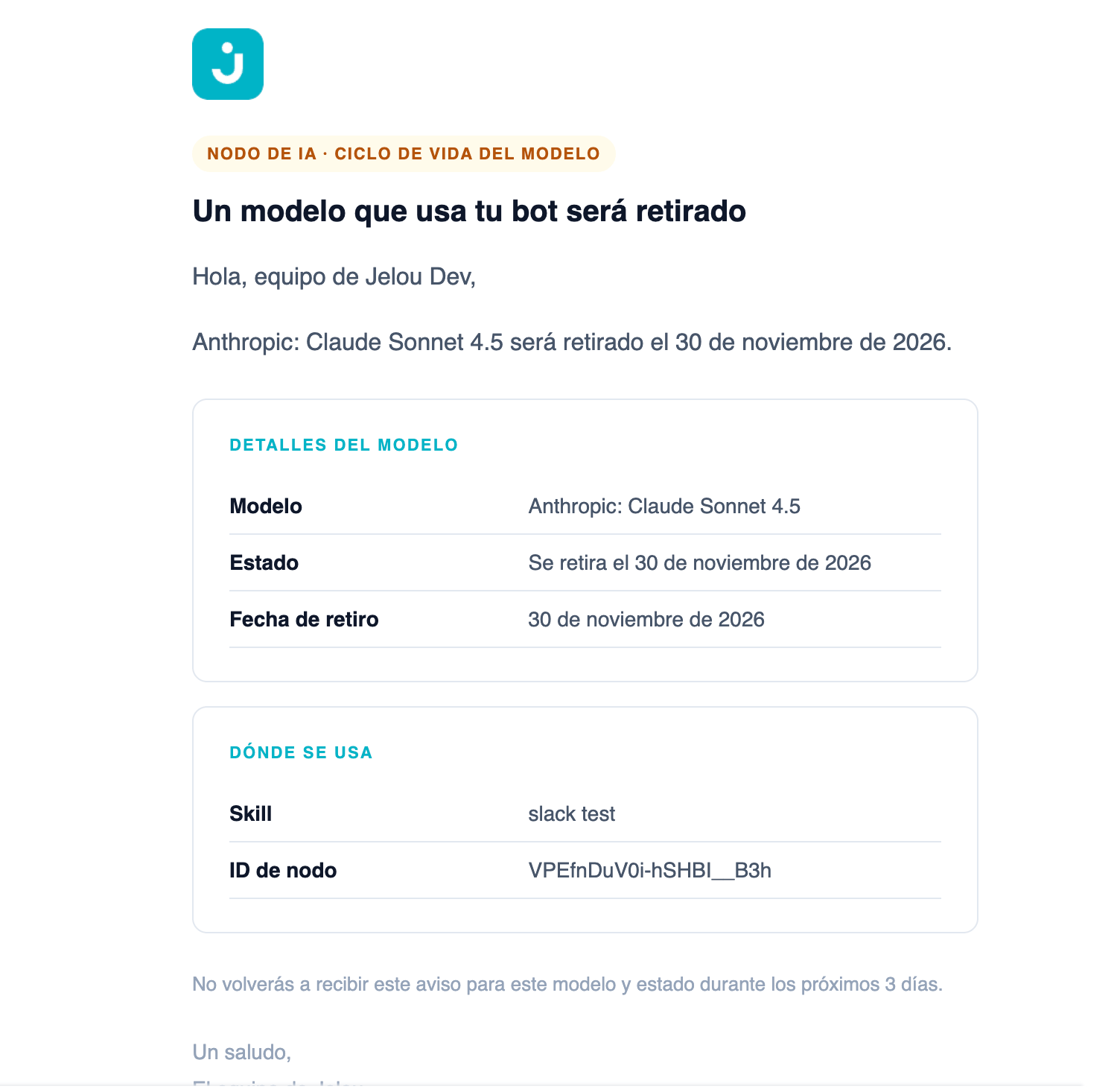
Model lifecycle email (shown in Spanish)
Security
You get an email when a security threat is detected or blocked in an AI agent, for example prompt injection, jailbreak or system prompt leak. The email includes the result (blocked or detected), the phase, the threat types, the level, the confidence, the detection methods and where it happened.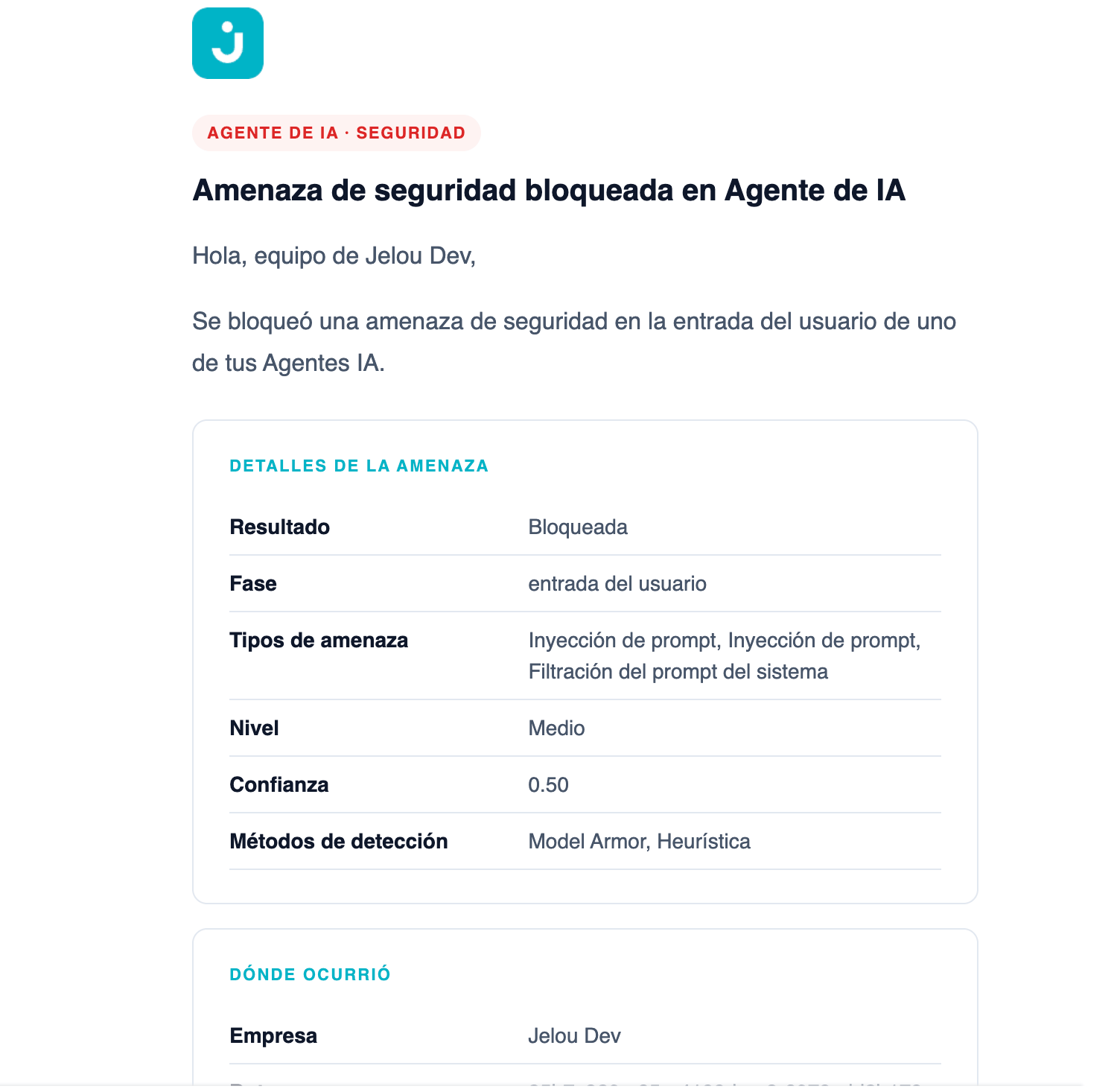
Security threat email (shown in Spanish)
Anti-spam limits
Email language
Emails use the new Jelou design, with a colored badge by alert type: amber for model lifecycle and red for security. They are available in Spanish, English and Portuguese.FAQ
Why am I not receiving emails?
Why am I not receiving emails?
Check these two causes:
- There are no recipients: the node type tab has no emails added. Add them and click Save.
- The alert type is unchecked: in the AI Agent tab, confirm that Model lifecycle or Security is checked.
Why am I not receiving Code alerts?
Why am I not receiving Code alerts?
Check these causes:
- There are no recipients in the Code tab.
- The bot is not selected: if Bots that send alerts has a selection, only those bots send alerts.
- It was a test execution: tests never send alerts.
- The 24-hour wait for that node and error type has not ended.
- The alert came from
$utils.logger.alertand that alert type is not enabled for your company.
Does each tab have its own recipients?
Does each tab have its own recipients?
Yes. API / SOAP and AI Agent are configured separately.
If I don't configure emails, will I still see model notices?
If I don't configure emails, will I still see model notices?
Yes, model lifecycle notices still appear in the bell, under the Infrastructure filter.
Related nodes
API node
Connect your flow to external services.
Code node
Run your own JavaScript in the flow.
AI Agent node
Configure your AI agent.