Campaigns let you send bulk messages on WhatsApp using approved templates and a contact database. In this guide you will create your first campaign in Jelou: you will choose a template, load recipients, and send the message immediately or on a schedule.
1

Go to the Campaigns module

From the dashboard, click Campaigns.Select the +Send Campaigns button.
2

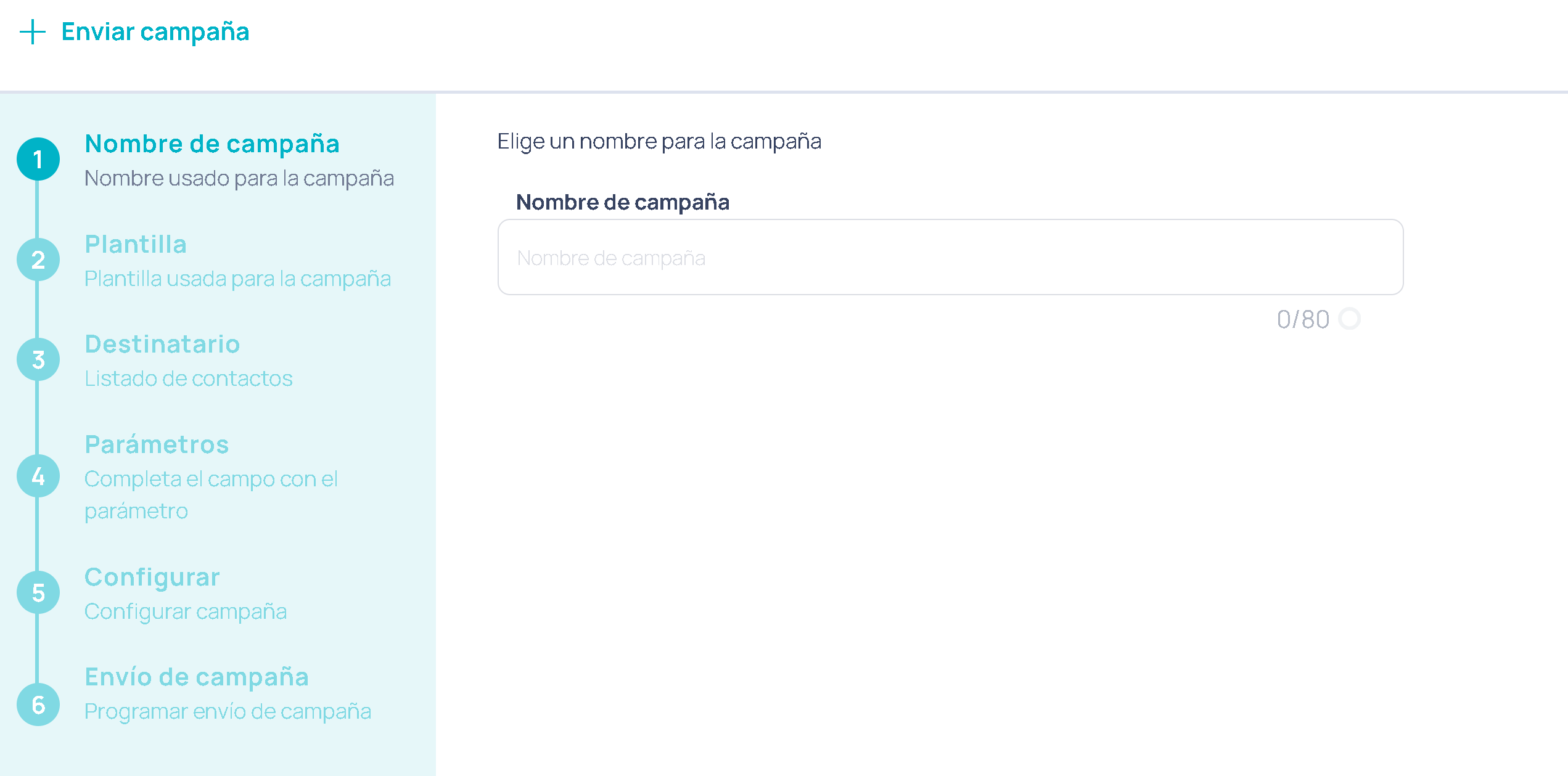
Assign a name to the campaign

Write a clear and easy-to-identify name.
The name can be up to 80 characters.
Use something descriptive like: Promo_March_VIPClients.
3

Select the template

Choose:
  • The associated bot
  • The WhatsApp-approved template
If the template includes multimedia, attach the corresponding file.Review the preview before continuing.
Templates can include parameters such as {{name}} to personalize the message.
4

Load the recipients

Upload a CSV file with your contact database.Basic rules:
  • The first column must be the phone number with the country code.
  • You can include additional columns for personalization.
Make sure the CSV columns match the template parameters.
5

Configure the parameters

Map each template parameter to a CSV column.This allows each person to receive their message with personalized data.
6

Define the campaign configuration

You can:
  • Use a saved configuration
  • Create a new one from scratch
Here you can define:
  • Button behavior
  • CRM data preloading
  • Rules for interaction with human support
If you save the configuration, you can reuse it as a preset in future campaigns.
7

Send or schedule

Choose whether you want to:
  • Send the campaign immediately
  • Schedule it for a specific date and time
Messages will be sent progressively according to WhatsApp’s rules.
8

Review the results

Approximately one hour after sending you will be able to see metrics on the dashboard.Available metrics:
  • Delivered
  • Received
  • Read
  • Replied
Make sure your campaigns comply with WhatsApp’s messaging policies to avoid rejections or blocks.