
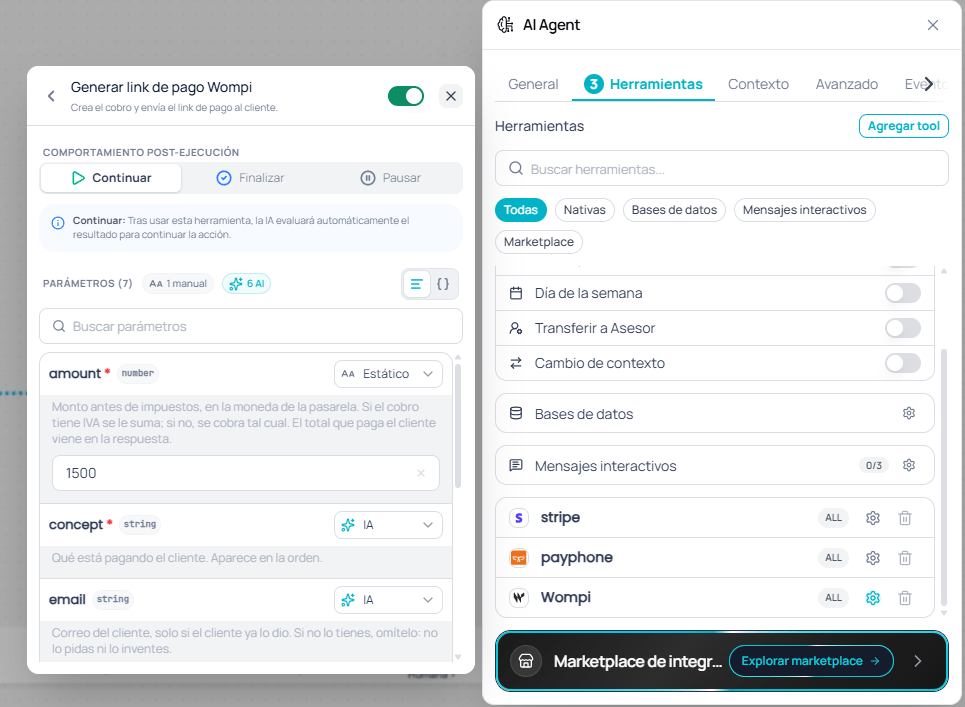
Wompi tools in the AI Agent node, with a fixed amount
Before you start
The gateway must be installed and connected, with its VAT configured, either from the Marketplace or through assisted setup by the Jelou team. Check how your provider is installed. The agent uses the credentials of that installation. It never sees them, and you don’t enter them again in the node. Available gateways: Wompi, Kushki, Nuvei, Mercado Pago, Payphone, DeUna, PayPal, Datafast, Stripe and Conekta. Placetopay, Niubiz, Culqi and Jelou Pay don’t have tools for the agent: to charge with them, use the payment node.Available tools
Each gateway comes with two tools. Their names include the gateway, so you can add several gateways to the same agent without mixing them up.The payment method doesn’t go through the agent: the system sends it straight to the customer. The agent only receives the order number to use as a reference.
Add the tools to the agent
1
Open the node's tools
In Canvas, open the AI Agent node and go to the Tools tab.
2
Add the gateway
Click Add tool, filter by Marketplace and pick the gateway. It shows up in the agent’s tool list.
3
Configure the charge tool
Click the gateway’s settings icon and open Create payment link. There you set how each parameter is filled in and the behavior after it runs.To charge, use Continue: the agent gets the order number and keeps the conversation going to share it with the customer.
4
Test the charge
Test the conversation in the tester before publishing. Every charge creates a real order in the gateway, so use an installation in test mode or with test credentials. Test mode allows up to 10 tests per configuration, and DeUna doesn’t have it.
Fix the amount and other values
Each parameter of Create payment link can be filled in two ways:- AI: the agent takes it from the conversation.
- Static: the value is fixed. The agent doesn’t ask for it and can’t change it, even if the customer mentions a different amount in the chat.
The customer pays the amount plus VAT, unless
without_tax is on. The agent gets that total in the tool’s response.
Customer data by gateway
Besides the amount and the concept, each gateway requires some payer data. The agent only asks for the data the gateway requires and it doesn’t have yet. It sends the optional fields if the customer already shared them.On WhatsApp the phone number comes from the conversation, so the agent doesn’t ask for it.
What the customer sees
When the agent creates the charge, the customer gets the same payment message the payment node sends, with the Proceed to payment button. With a verified WhatsApp Business account, the checkout opens as a WebView without leaving WhatsApp; if the account isn’t verified, it opens in the device’s browser. Afterwards they can ask the agent whether their payment went through, and the agent checks it with Check payment status.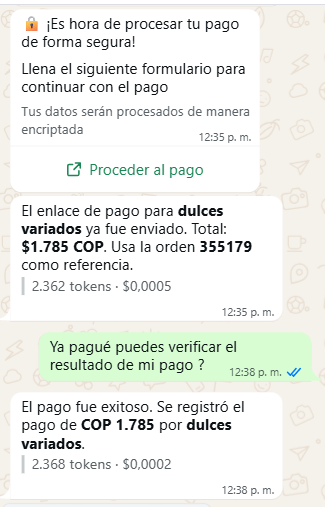
Charge and payment confirmation, tested from the tester
The agent only checks orders created for the same contact, even from another conversation. That way the customer can come back another day to ask about their payment, but can’t look up other contacts’ orders.
Current limits
- Link expiration. In Mercado Pago, Stripe, Conekta and DeUna the link expires after 30 minutes. In Kushki, the payment session lasts 15 minutes from when the link is opened. The other gateways have no common expiration; until the customer pays, the order stays pending.
- Each charge is a new order. If the agent creates another charge, a new order is created, even if there’s a pending one.
- There’s no maximum amount. If
amountis in AI mode, the conversation sets the amount. When the price is known, keep it Static.
Prompt recommendations
- Confirm before charging. Every call creates a real order. Tell the agent to show the concept and the amount and wait for the customer to confirm.
- Check for a pending order. Before creating another charge, the agent should check the status of the previous order.
- Don’t ask for what’s fixed. If the amount or the concept is static, avoid instructions like “confirm the amount with the customer”: the agent can’t change it.
- Don’t paste the link. The customer already gets the payment message. The agent should only mention the order number.
Troubleshooting
The agent asks for a value I already fixed
The agent asks for a value I already fixed
Check that the parameter is set to Static in the tool and that the prompt doesn’t ask the agent to confirm it with the customer.
The charge is rejected for the minimum amount
The charge is rejected for the minimum amount
Each gateway has a minimum amount per currency. If the total falls below it, the tool returns a message like “
<gateway> no acepta cobros menores a <minimum> <currency>”. Raise the amount or check the VAT applied.Charges with Stripe or Conekta are rejected
Charges with Stripe or Conekta are rejected
The installation uses Stripe Connect or Conekta Connect. Connect the gateway with the merchant’s own keys.
The gateway rejects the customer's data
The gateway rejects the customer's data
Some gateways require email, first name, last name or phone. Check the customer data by gateway table and make sure the agent doesn’t send empty values.
The agent says it couldn't create the charge
The agent says it couldn't create the charge
Check the run in the debugger to see the actual message the tool returned.
Next steps
Payment providers
How to install and connect each gateway.
Test mode
Try a gateway without your own credentials.
Payment experiences
Differences between checkout, native payment and external confirmation.
Fees and costs
What each gateway charges per transaction.