This guide walks you through preparing credentials for testing and production. It also covers configuring webhooks, which are required so that payment statuses return correctly to your Brain Studio flows.
After completing this guide you will have Sandbox or Live credentials and webhooks configured to connect PayPal in Brain Studio.

Before you begin

You need:
  • A PayPal account enabled for commercial and API use
  • Access to the PayPal Business Dashboard or the PayPal Developer Dashboard
  • Permissions to create applications and configure webhooks in the account you will use
VAT and Currency are not obtained from PayPal: you enter them in Brain Studio during the installation of the integration, along with the Client Id and the Client Secret.

Access PayPal Developer

You can access PayPal’s developer environment in two ways:
  1. From PayPal Business Dashboard → Business Tools → API Credentials (link or access to the API credentials area that takes you to Developer).
  2. You can also enter directly from PayPal Developer Dashboard.
Sign in with the same credentials you use for your PayPal Business account.

Environments in PayPal: Sandbox vs Live

  • Sandbox: testing and development environment. Operations are not real payments.
  • Live: production environment. Operations correspond to real payments.
The Client ID and Client Secret are different in each environment. Webhooks must be configured in the app and environment you will use from Brain Studio (Sandbox or Live).
If you install PayPal in Brain Studio with Sandbox credentials, the integration remains for testing. To process real payments, use Live credentials and configure the corresponding webhook.

Part 1 — Get development credentials

In Sandbox you will create the app and credentials that you will use for testing before connecting the integration in Brain Studio with the development/test environment.
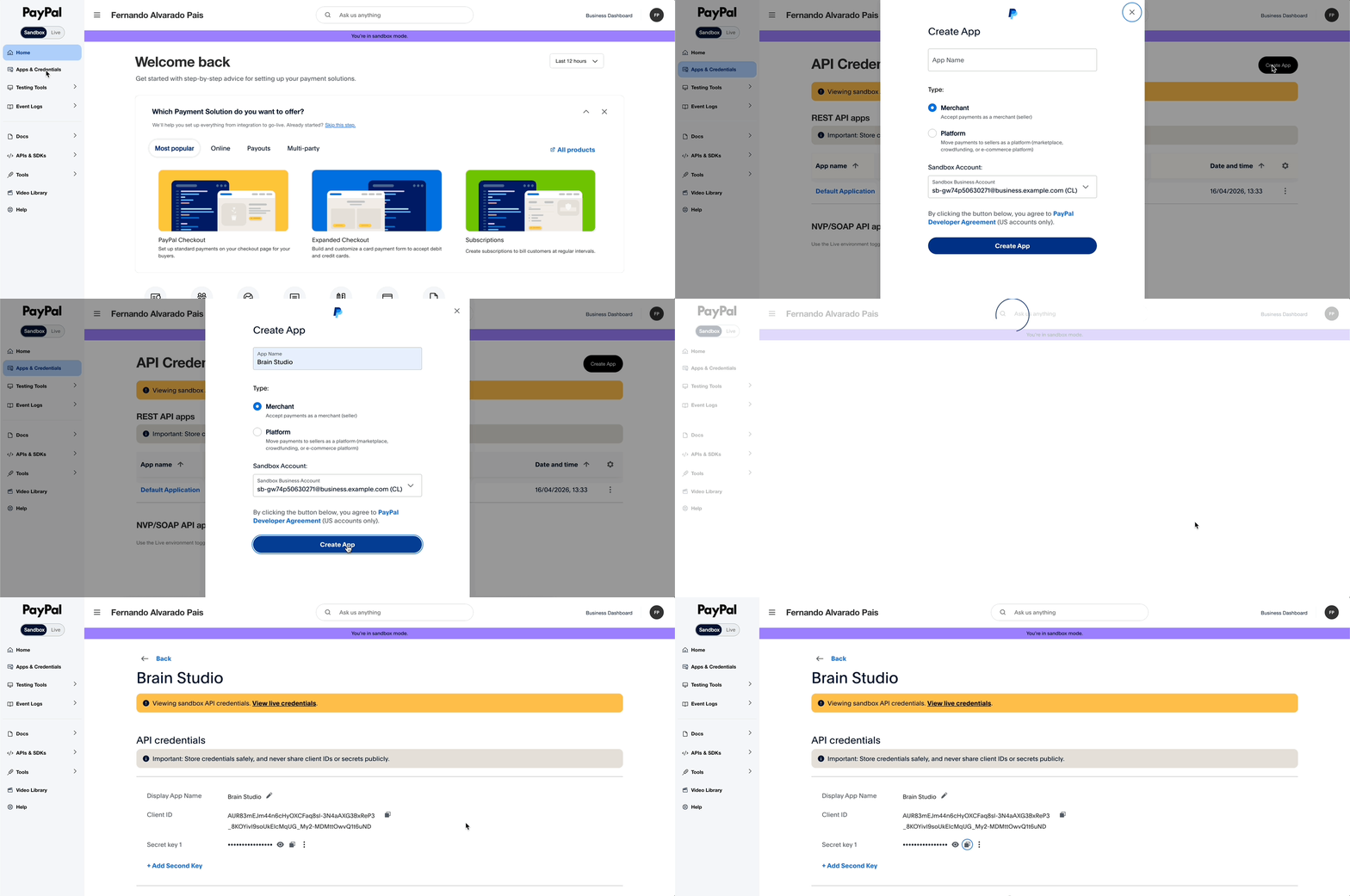
Animation in PayPal Developer (Sandbox): go to Apps & Credentials, create an app (for example Jelou Test) with Merchant type, and copy Client ID and Secret

PayPal Developer (Sandbox): Apps & Credentials, create an app, and copy Client ID and Secret

1

Select Sandbox

In the PayPal Developer Dashboard, use the environment selector and choose Sandbox.
2

Go to Apps & Credentials

Open the Apps & Credentials section for the Sandbox environment.
3

Create an app

Click Create App.
4

Complete app data

Indicate a name for the application.In Type, select Merchant.Create the app and wait until PayPal shows it in the list.
5

Copy Client ID and Secret

In the newly created app, copy the Client ID.For the Secret, use the option to reveal or show the value and copy it in full.
Treat the Client Secret as sensitive information. Do not share it or paste it in public places.

Part 2 — Configure development webhook

Jelou needs PayPal to send events to the webhook to reflect the payment status and keep Brain Studio flows aligned.
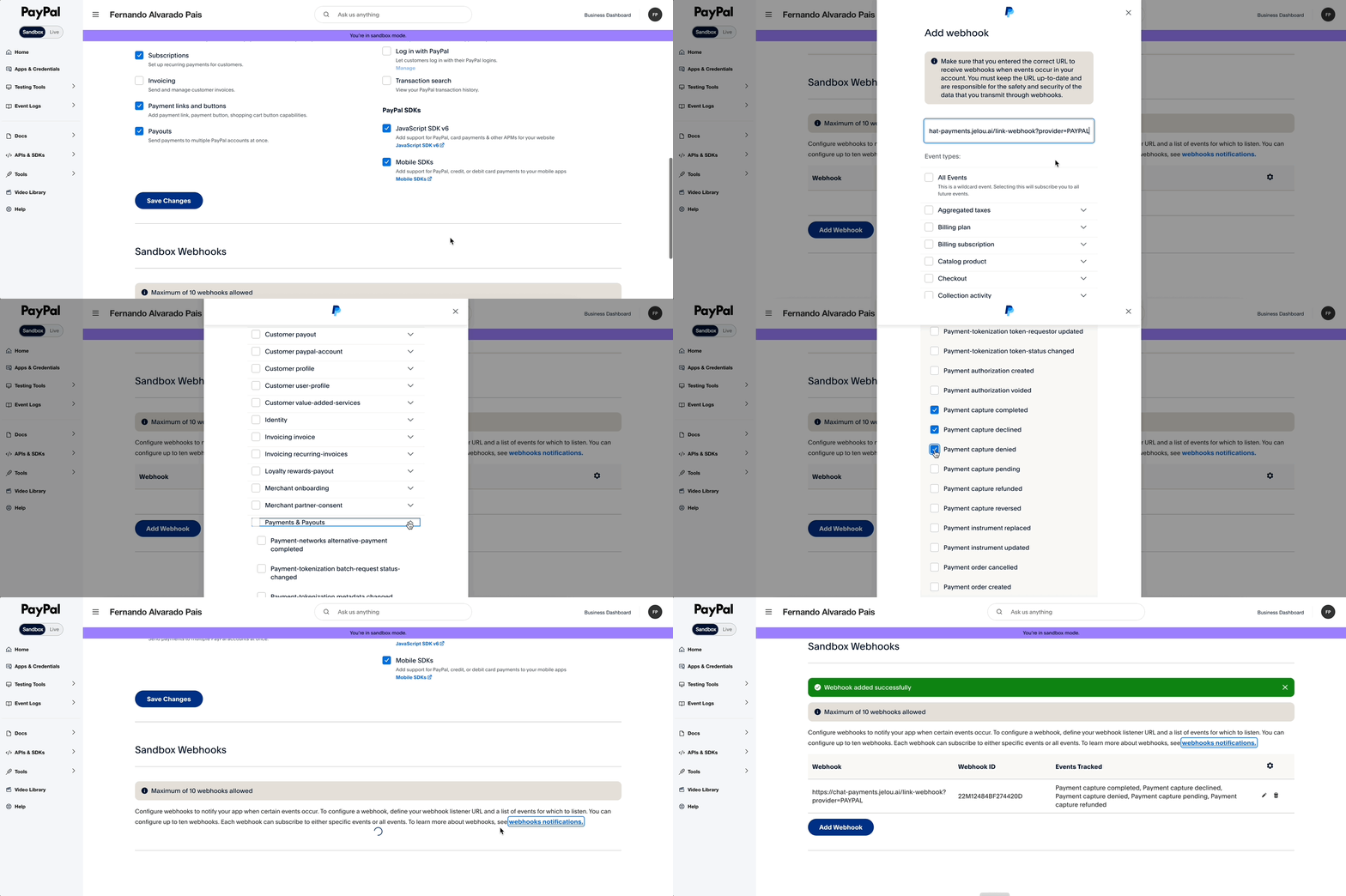
Animation in PayPal Developer (Sandbox): add webhook, paste Jelou's URL, and select payment capture events

PayPal Developer (Sandbox): configure webhook with Jelou's URL and capture events

1

Go to Sandbox Webhooks

In the same Sandbox app, scroll to the Sandbox Webhooks section.
2

Add webhook

Click Add Webhook.
3

Paste the webhook URL

In the webhook URL field, paste exactly:
4

Select events

Select the required events. At a minimum, include these payment capture events:
  • Payment capture completed
  • Payment capture declined
  • Payment capture denied
  • Payment capture pending
  • Payment capture refunded
If you prefer a broader group, you can choose the Payments & Payouts category; in any case, make sure that at least the capture events listed above are covered.
5

Save webhook

Save the webhook and verify that it appears in the Sandbox app list.
If the webhook is registered in the Sandbox app with Jelou’s URL and the selected capture events, the development configuration is ready.

Part 3 — Get production credentials

Live credentials are created separately and are used for real payments.
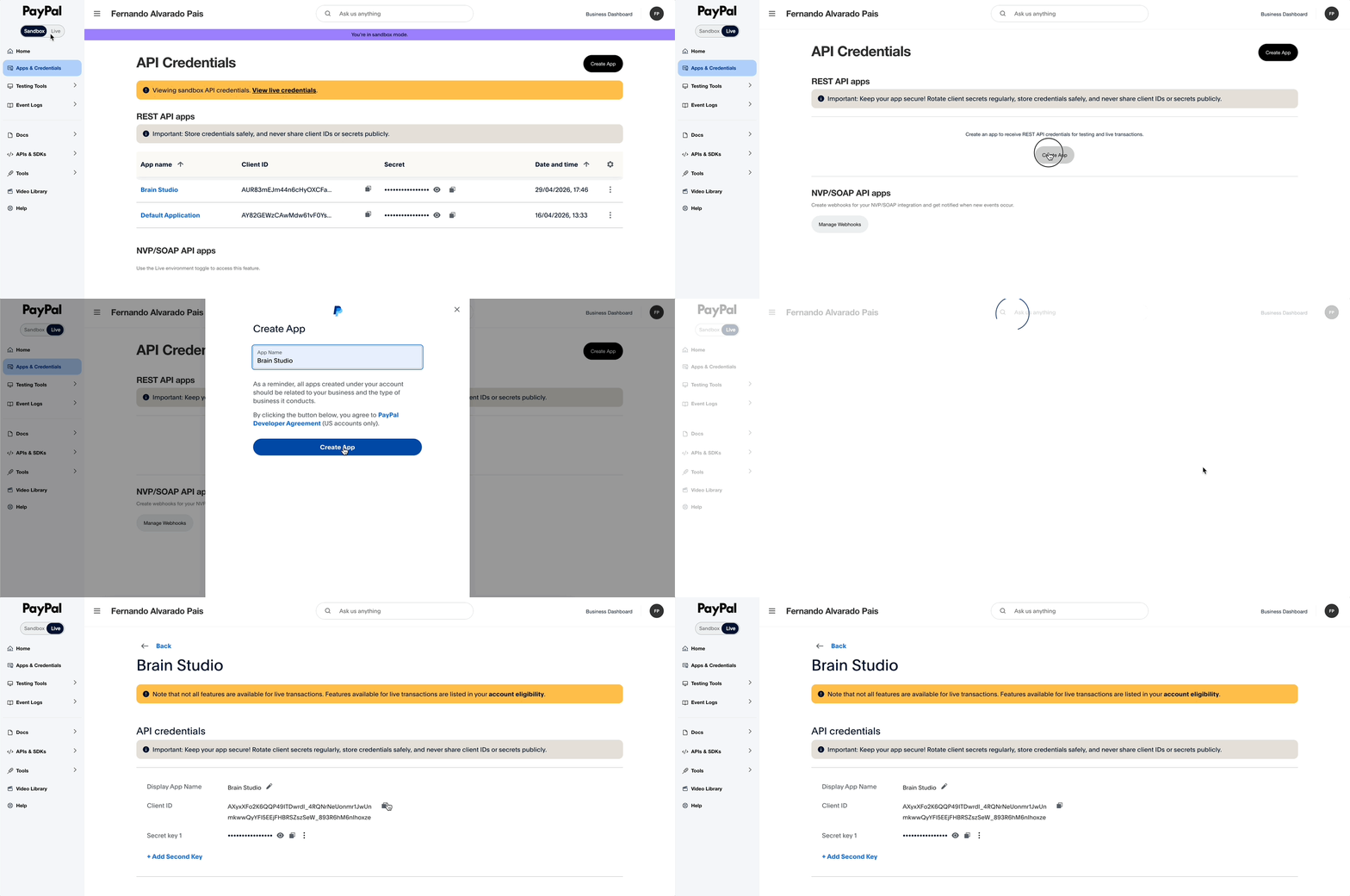
Animation in PayPal Developer (Live): create an app, copy Client ID, and reveal Client Secret for production

PayPal Developer (Live): create an app and copy Client ID and Secret

1

Switch to Live

In the PayPal Developer Dashboard, change the environment selector to Live.
2

Create Live app

Go to Apps & Credentials in Live and create a new app with Create App.Assign a name to the application.
3

Copy Live Client ID and Secret

Copy the Client ID from the Live app and reveal or show the Secret to copy it in full.
Live credentials process real payments. Use them only when your operation is ready for production.

Part 4 — Configure production webhook

Configure the webhook in the Live app the same way as in Sandbox.
1

Open webhooks in the Live app

In the Live app, locate the webhooks section (equivalent to the Sandbox one) and add a new webhook.
2

Use the same URL and events

Use the same URL:
Select the same minimum payment capture events:
  • Payment capture completed
  • Payment capture declined
  • Payment capture denied
  • Payment capture pending
  • Payment capture refunded
Optionally, you can use the Payments & Payouts category, verifying that the previous capture events are included.
3

Save

Save the webhook and confirm that it is registered in the Live app.
If you have Client Id, Client Secret, and a webhook configured in Live, you can switch PayPal to production in Brain Studio.

Use credentials in Brain Studio

During the PayPal connection in Brain Studio, you will first complete the Client Id and Client Secret. Then you will define the applied VAT and the operating Currency.
  • Use Sandbox credentials when connecting the integration in development/test mode.
  • Use Live credentials when connecting in production.
Follow the Connect in Brain Studio guide to complete the installation.

Troubleshooting

Check that you are signed in to PayPal Developer with the correct PayPal Business account and that the environment selector (Sandbox or Live) is the one you need. If you enter from the Business Dashboard, open Developer again and review the side menu.
The Secret is only displayed when revealed or generated on the app screen. Copy it and store it in a secure credential manager; if you lose it, you will need to generate a new one from PayPal Developer following the options the interface provides.
You must create a separate Live app, get the Live Client ID and Client Secret, and configure the webhook in Live with the same URL. In Brain Studio, use the Switch to production flow from the Advanced tab of the PayPal node in Canvas or from the PayPal page in Marketplace.
Verify that the webhook in the same environment you use in Brain Studio has the URL https://chat-payments.jelou.ai/link-webhook?provider=PAYPAL and the minimum capture events. Also check that the app is the one associated with the credentials you pasted in Brain Studio.
Edit the webhook in PayPal Developer or recreate it with the capture events listed in this guide (or the Payments & Payouts category if it covers those events). Save the changes and test the flow again.
To test payments with Sandbox credentials, use a Personal test account from Testing Tools → Sandbox Accounts in PayPal Developer. The full step is documented in Usage and configuration.

Best practices

Do not share the Client Secret, do not upload it to public repositories, and rotate the value if you suspect it was exposed.
Keep Sandbox and Live apps and webhooks clearly identified. Do not mix credentials from one environment with the webhook from the other.
Every time you switch from Sandbox to Live (or vice versa), confirm that the webhook URL and events are correct in the app of the active environment.

Next step

Connect in Brain Studio

Install PayPal using the Client Id, Client Secret, VAT, and Currency corresponding to the environment you will use.