
Add the node to Canvas
Open your flow in Canvas
Add the Mercado Pago node
Connect the node at the payment step
Open the configuration panel
Configure the node
- Payment data
- Advanced
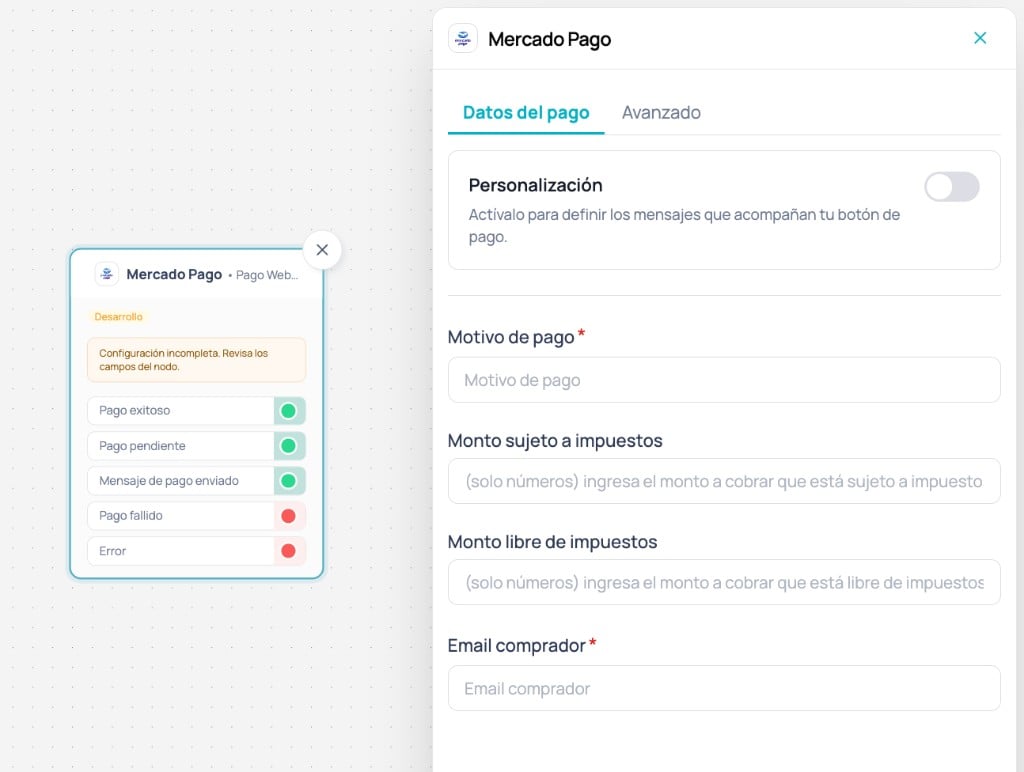
Payment data tab: personalization, amounts, and buyer email
Personalization
Personalization
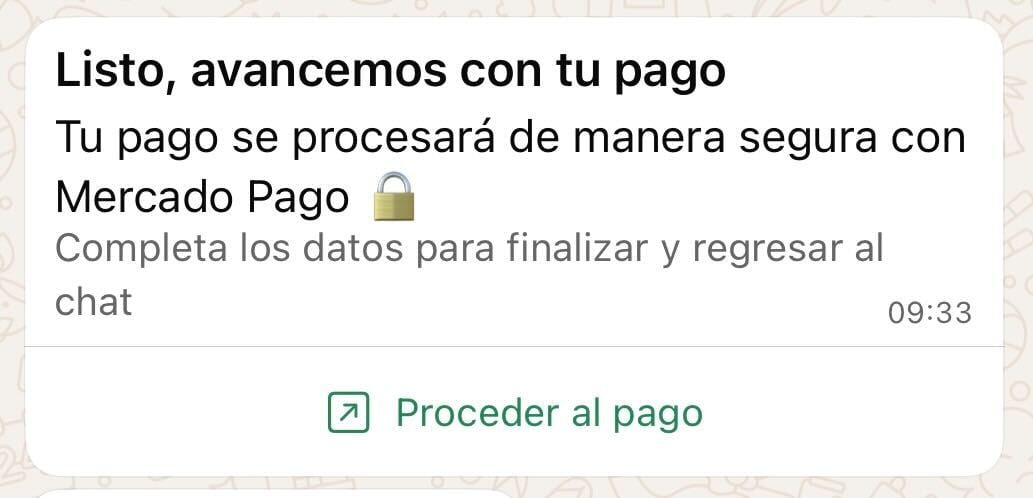
Example of a customized payment button message in WhatsApp
Header
Header
Body
Body
Payment reason
Payment reason
Taxable amount
Taxable amount
Tax-free amount
Tax-free amount
0.Buyer email
Buyer email
🇨🇱 Chile
🇨🇱 Chile
🇵🇪 Peru
🇵🇪 Peru
🇨🇴 Colombia
🇨🇴 Colombia
🇲🇽 Mexico
🇲🇽 Mexico
🇧🇷 Brazil
🇧🇷 Brazil
🇦🇷 Argentina
🇦🇷 Argentina
🇺🇾 Uruguay
🇺🇾 Uruguay
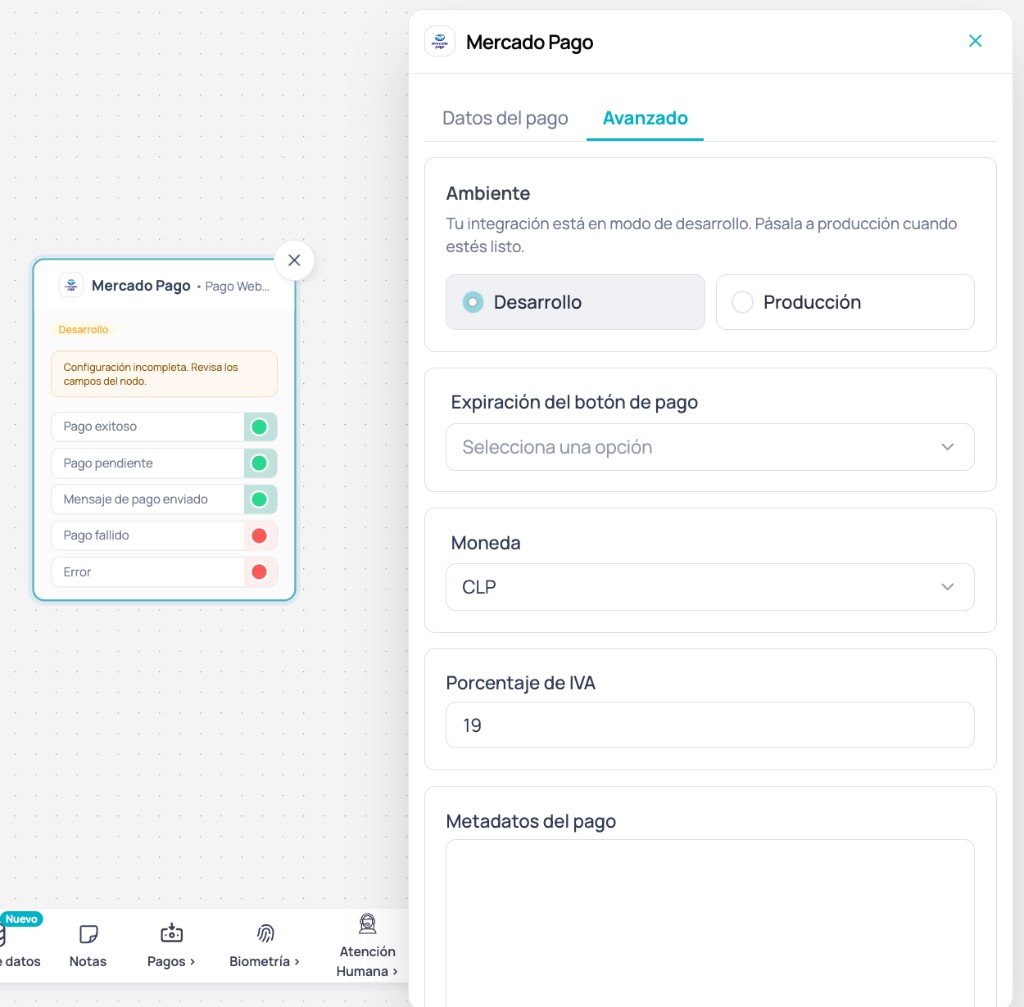
Node outputs
Outputs appear on the Mercado Pago node in Canvas. Connect them according to the result you want to handle in your flow.Successful payment
Successful payment
- confirm the order
- send a receipt or notification
- update purchase status in your systems
Pending payment
Pending payment
- inform the user clearly
- avoid creating a second charge while the status is being resolved
- wait for a webhook update or later query when applicable
Payment message sent
Payment message sent
- answer questions about how to open the payment button
- help if the WebView does not load or the user does not understand the step
- avoid creating a new charge without context
- do not confirm payments from this output
Failed payment
Failed payment
- allow a controlled retry
- offer a support path or an alternative route
Error
Error
- log the error
- show a contingency message
- retry in a controlled way and escalate if it persists
Test payments
If Mercado Pago is connected with test credentials, checkout must be completed with a Mercado Pago test user.Confirm test credentials
Configure the node in test environment
Use a test user email
Test from WhatsApp
Validate flow output
- Payment message sent (button send only)
- Successful payment
- Pending payment
- Failed payment
- Error
Go to production
If you installed Mercado Pago with test credentials, you can start going to production from the Advanced tab of the Mercado Pago node in Canvas or from the Mercado Pago page in Marketplace. In both cases, the same modal opens to enter the production Access Token and confirm the configuration. Before operating with real payments:- Make sure you have a Production credentials Access Token in Mercado Pago.
- Use the Go to production flow described in Connect in Brain Studio.
- Confirm that Currency and VAT percentage in the node match the production configuration.
- Replace any test data in the node with real flow data.
- In production, use the buyer’s real email.
- Run a low-amount real test before scaling.
Important considerations
Environment depends on installation
Environment depends on installation
Buyer email is critical in Development
Buyer email is critical in Development
Currency and VAT must be consistent
Currency and VAT must be consistent
Avoid duplicate payments
Avoid duplicate payments
Payment methods and pending statuses
Payment methods and pending statuses
Embedded WebView in WhatsApp
Embedded WebView in WhatsApp