
In this guide you will create your first template in Jelou and get it ready for Meta review.
Before you begin
Make sure you have:- A WhatsApp channel already connected
- A defined message objective (informational, promotional, or authentication)
1
Go to Templates
Navigate to
Campaigns → Templates.Click + Create.Here you can see all your templates and their status:- Pending
- Approved
- Rejected
2
Complete the general configuration
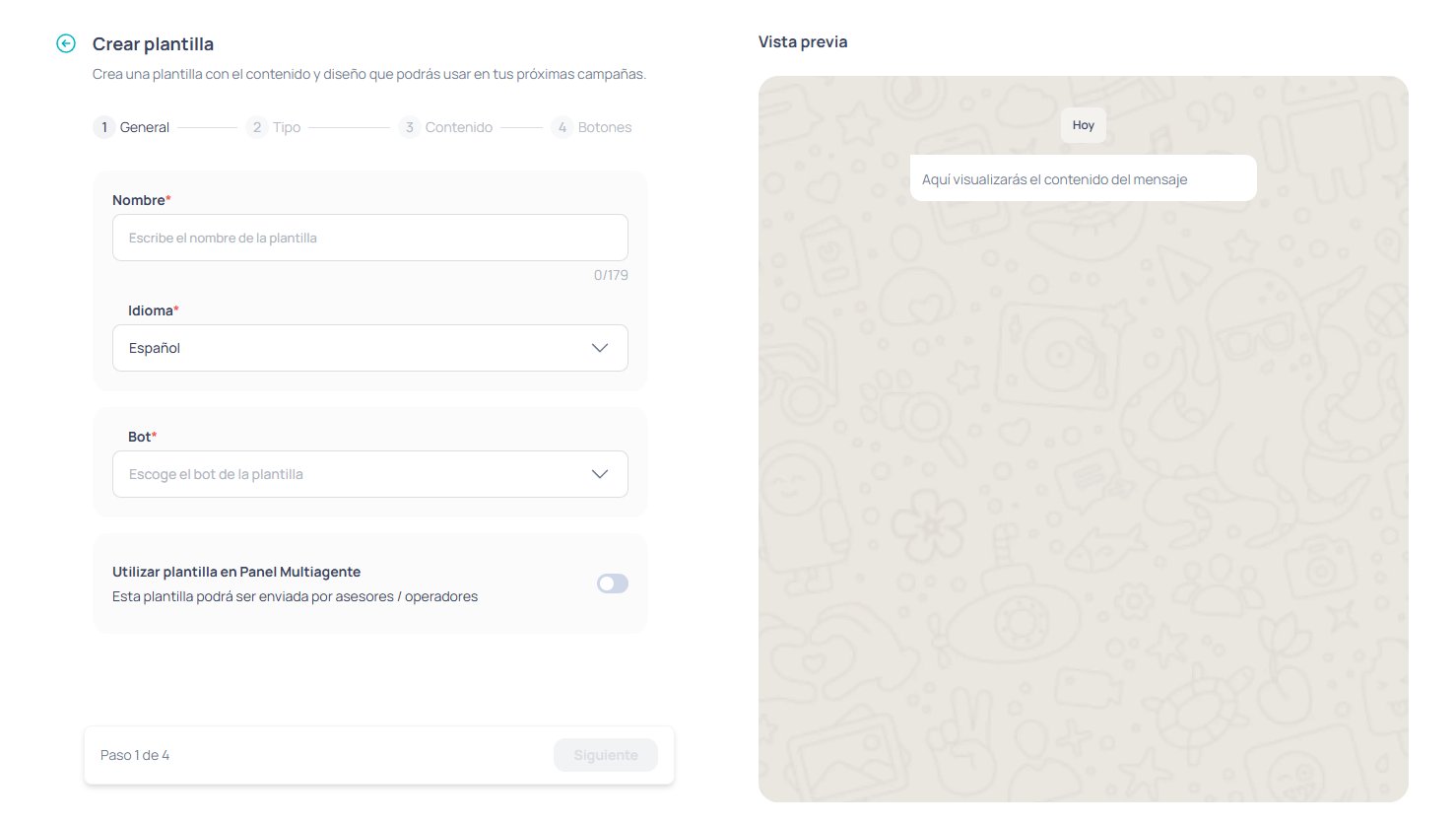
Use a clear and descriptive name (e.g.,
appointment_reminder).The technical identifier is generated automatically according to Meta’s rules.
Select the message language:
- Spanish
- English
- Portuguese
Define which channel or flow will use this template to start or continue the conversation.Visibility in Connect
Decide whether agents can use this template manually from the Inbox.
3
Select the correct category
Choose the category based on the message objective:
- Utility: operational or transactional messages (confirmations, reminders).
- Marketing: promotions, campaigns, announcements.
- Authentication: sending security codes (OTP).
4
Write the message content
Choose the format:
- Text only
- Image
- Video
- Document
- Indicate how many you are using
- Provide an example
5
Add buttons (optional)
Depending on the template type, you can include buttons:
- Redirect to a flow or workflow
- URL (static or dynamic)
- Phone call
The number and type of buttons allowed depends on the selected category.
6
Review and submit for approval
Before submitting:
- Review the preview
- Verify parameters and buttons
- Confirm the creation
Done
With your approved template you will be able to:- Start conversations outside the 24-hour window
- Launch bulk campaigns
- Allow agents to use templates from Connect
- Automate operational or promotional notifications