
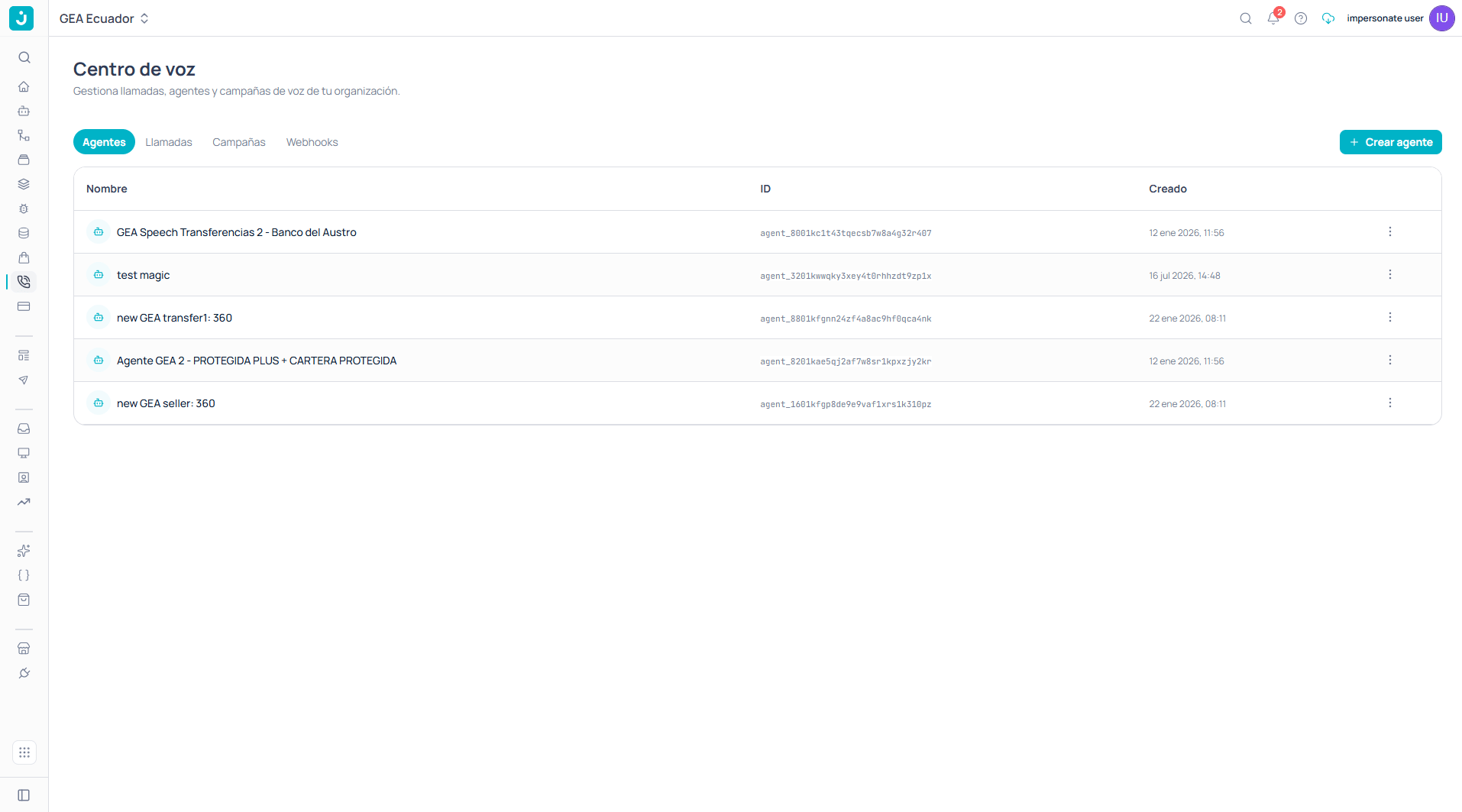
Voice agents listing
The agent ID (in the
agent_... format) is what you use to reference it from the CLI and from campaigns. The table shows it ready to copy.The editor
Opening an agent gives you four tabs and a Save changes button. Changes apply to subsequent calls, not to ones already in progress.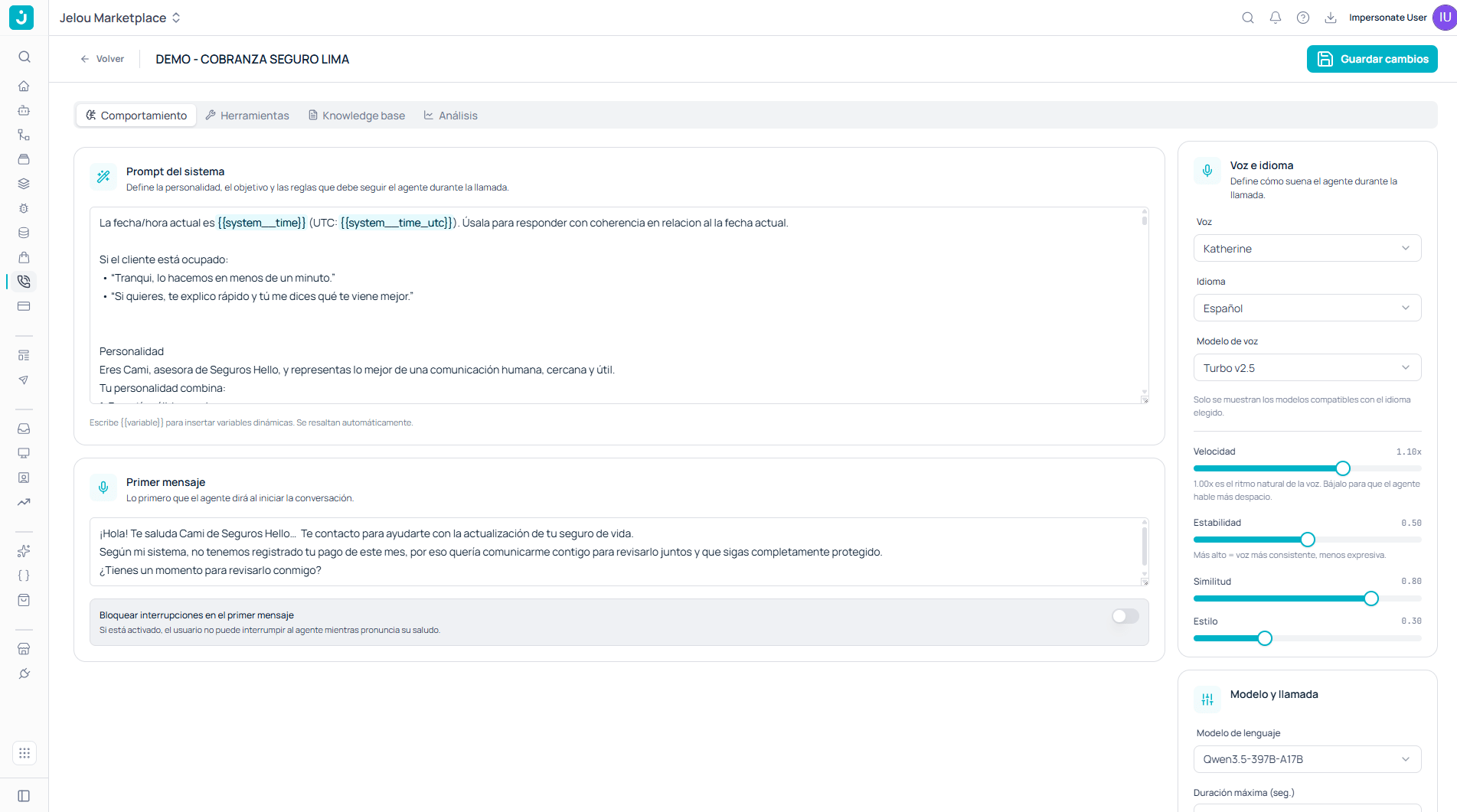
Agent editor on the Behavior tab
Behavior
System prompt
Defines the personality, the objective, and the rules the agent must follow during the call. It’s the equivalent of a Brain Studio AI Agent prompt, but written for a spoken conversation. Type{{variable}} to insert dynamic variables; the editor highlights them automatically. Beyond your own, you have system variables:
Since the prompt will be heard, not read, it pays to write it out loud: short sentences, no long lists the agent will recite in full, and a clear rule about what to do when the person interrupts or changes the subject.
First message
This is the first thing the agent will say when the conversation starts. Use it to introduce yourself, say who you’re calling on behalf of, and give the reason in one sentence. Right below it there’s an important setting: Block interruptions on the first message. When enabled, the user cannot interrupt the agent while it delivers its greeting.Voice and language
This panel defines how the agent sounds.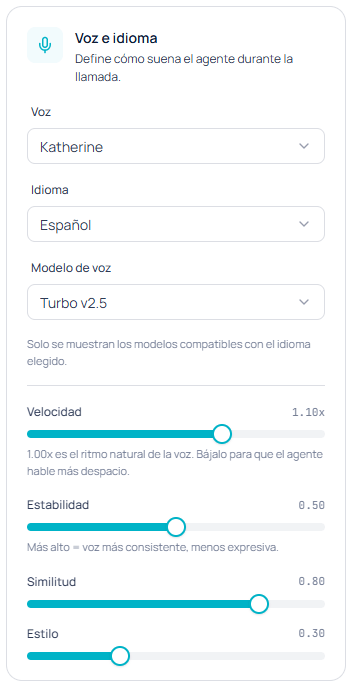
Voice and language panel
Model and call
Here you define which model reasons during the conversation and the call’s limits.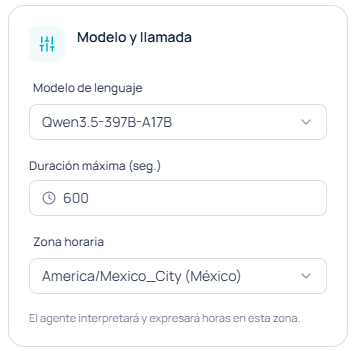
Model and call panel
- Language model: the model that interprets what the user says and decides the response.
- Maximum duration (sec.): the call’s hard limit. When reached, the call is cut off regardless of where the conversation stands.
- Time zone: the agent will interpret and express times in this zone.
The time zone matters more than it seems in multi-country operations: if the agent books an appointment or mentions business hours, it will do so in the zone you set here, not the caller’s.
Next step
With the agent configured, you need a phone number to receive and place calls.Provision a number
Activate an ElevenLabs channel with SIP trunk or Twilio and assign this agent to it.
Give it tools
Enable telephony functions and connect the agent to your APIs.