
Introduction
The Web channel is the chat widget you install on your website. When you create it, Jelou automatically generates a widget API Key and publishes the channel to production; you use that API Key to embed the widget on your page through a script. The widget can be connected in two ways:- To a Brain project, where a workflow replies.
- To the inbox, where operators reply.
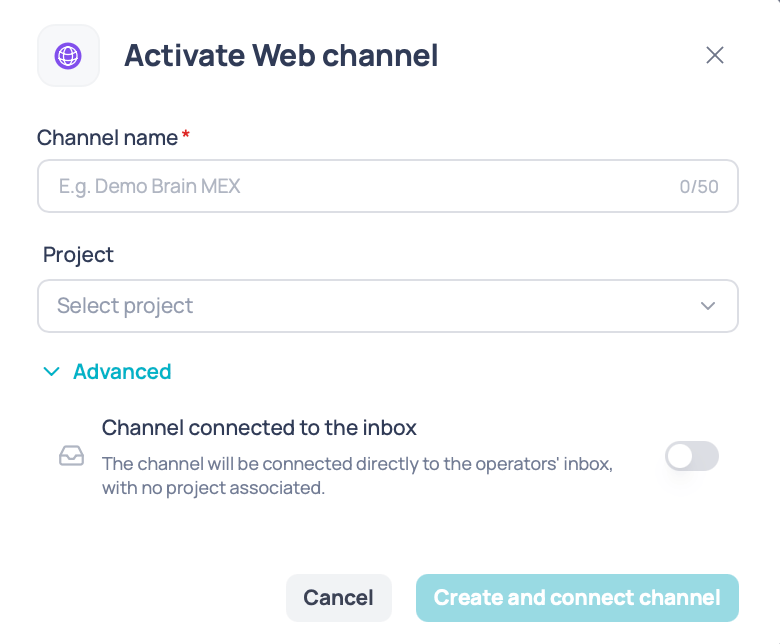
Activate Web channel window
Prerequisites
Before activating the channel you need:- Access to the Channels section and permission to create channels.
- Access to your site’s source code, or permission to add scripts to your pages.
The Web channel is available to every company type.
Activate the channel
1
Open the form
Go to Channels and choose Web. The Activate Web channel window opens.
2
Name the channel
Type a descriptive name, for example
Web Main Site. It must be between 4 and 50 characters.3
Choose the connection
By default the channel connects to a project: pick it from the list, which is searchable.If you prefer operators to handle the conversations, open the Advanced section and turn on Channel connected to the inbox.
4
Create and connect
Click Create and connect channel. The button stays disabled until the name is longer than 3 characters and there’s a valid connection: a selected project or the inbox turned on.
Install the widget
Open the channel from the Channels table to see its settings, organized in four tabs:Notes
- You can keep editing the channel name afterwards; the API Key doesn’t change.
- The widget’s appearance is configured automatically with default values, so the channel works from the start even if you never open the Appearance tab.
- A single project can have several Web channels; each one has its own API Key.