
How to install an integration
With Jelou Agent
Describe what you want to build. Jelou Agent detects which integration you need, asks you to confirm the connection, and builds the flow automatically.1
Describe what you want to build
Enable Jelou Agent mode in Canvas and write your prompt.Examples:
- “Build an agent that checks the latest leads in Bitrix24 and lets me add a new one by voice”
- “Create a flow that charges with Stripe and confirms payment to the user”
- “Build an agent that schedules appointments in Google Calendar”
2
Confirm the integration
If the integration is not installed, Jelou Agent detects it and shows a confirmation card. Click Confirm to connect it. Jelou Agent shows the integration as Connected and continues building the flow.
3
Click Drag to canvas
Jelou Agent generates the full flow with all nodes configured. Click Drag to canvas to move it.
Jelou Agent chooses the right surface for each case. A payments flow generates Canvas nodes with the payment tool and its specific outputs. A CRM or scheduling flow generates an AI Agent with the integration configured as a tool.
The flow appears in Canvas with all nodes configured.
From the Marketplace
1
Open Marketplace
In Brain Studio, select Marketplace from the left sidebar menu.
2
Connect the integration
Browse by categories or use search. Click the integration and then click Connect. Enter your credentials (API key, token) or authorize access via OAuth.
3
Install
Click Install.
The integration appears in the Installed tab in Marketplace and in the Canvas sidebar under the Marketplace section.
How to use an installed integration
The standard approach is to use the integration as a tool in an AI Agent node: the model decides when to call each tool based on the conversation. Use Canvas when the process requires explicit branches and outputs (for example, payments with several possible results). If you build with Jelou Agent, it places the integration on the surface that best fits your case.
In an AI Agent
Most common case: inside an AI Agent node, you grant access to one or more Marketplace integrations; the agent decides when to invoke each tool based on conversation context. This is the natural surface when user intents are varied: the same agent can query a CRM, schedule on a calendar, or send an email, depending on what the user asks at each moment.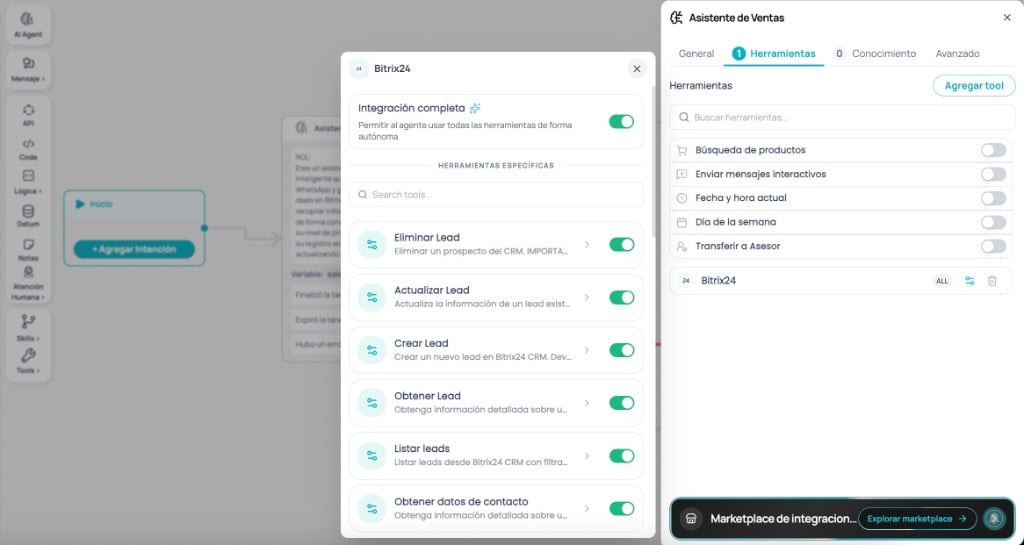
AI Agent - Tools tab, added integration, and tool configuration (example in Brain Studio)
1
Open the Tools tab
In the AI Agent node, go to the Tools tab and click Add tool.
2
Find and select the integration
Type the integration name in search and select it.
3
Choose which tools it can use
- Full integration: the agent can access all available tools.
- Individual selection: enable only the tools you need.
Some integrations show two tool groups inside AI Agent. Shopify, for example, separates native Jelou Shop tools (enabled by default) from external Shopify API tools (disabled by default). Enable the tools that match your use case.
4
Define behavior per tool
For each enabled tool, configure what the agent does when it runs it:
- None: the agent continues the conversation normally.
- Run end_function: the agent ends the task after completing that action.
- Pause interaction: the agent waits before continuing, useful for intermediate validations or confirmations.
In Canvas
Use Canvas when the process needs ordered steps and each result requires a different route in the flow. The clearest case is payments: a payment can end in success, failure, code error, or HTTP error, and the flow must react differently to each one. Payment tools expose those outputs; Canvas lets you connect each one to the next appropriate step.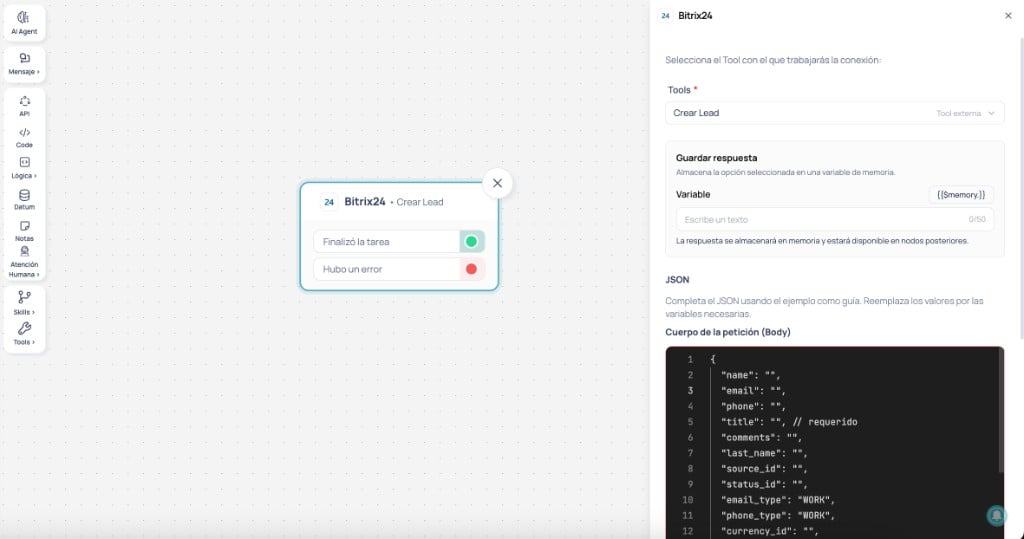
Canvas - Marketplace integration node with selected tool and request body (example in Brain Studio)
1
Drag the integration into Canvas
In the left sidebar panel, expand the Marketplace section. Drag the integration you want to use into Canvas.
2
Select the tool
In the right panel, open the Tools selector and choose the action you want to run.Tools are labeled by type:
- Native tool - capability built by Jelou, with process-specific outputs (Payment Successful, Payment Failed, Error Code, Validation Successful, etc.)
- External tool - provider API action, with two generic outputs: Task completed and There was an error
3
Configure inputs
- Native tool: complete the form fields (amount, payment reason, environment, etc.).
- External tool: complete the request body in JSON. Use
{{$memory.variable}}to pass flow variables.
4
Connect outputs
Connect each output to the next step according to the expected result.
The node shows the selected tool name when configured correctly. “Unconfigured node” means you still need to select a tool or complete required fields.
Canvas vs AI Agent
Quick comparison between Canvas and AI Agent:Canvas and AI Agent are not mutually exclusive. An agent can route to a Canvas node to run a transaction that requires controlled steps, then resume the conversation once completed.
Integrations
Explore all available integrations organized by category.