
Add the node to Canvas
1
Open your flow in Canvas
Open in Brain Studio the flow where you want to add Deuna payments.
2
Add the Deuna node
Add Deuna from the Canvas toolbar, the Payments node, or from available payment providers once the integration is installed.The exact location may vary depending on whether you started installation from Marketplace, Jelou Agent, the payments node in Canvas, or a template.
3
Connect the node at the charge point
Connect the Deuna node after the flow already has the amount and purchase confirmation.
4
Open the configuration panel
Select the node to open the right-side panel. Complete the Payment data and Advanced tabs, and review the outputs available on the Canvas node.If required fields are missing, the node shows Incomplete configuration. Check the node fields. and the environment badge (Development or Production).
Configure the node
- Payment data
- Advanced
Personalization
Personalization
boolean
default:"false"
Enable it to define the messages that accompany your payment button.When active, it enables Header, Body, and Footer fields.
Header
Header
string
Title of the payment button message.Shown when Personalization is active.
Body
Body
string
Main text of the payment button message.Shown when Personalization is active.
Payment method
Payment method
string
required
Defines how the user starts payment in Deuna. Available options:
- Redirect to app — the message includes a button that opens the Deuna app to complete payment.
- Unique code — Brain Studio generates a code the user must copy and paste into the Deuna app to pay.
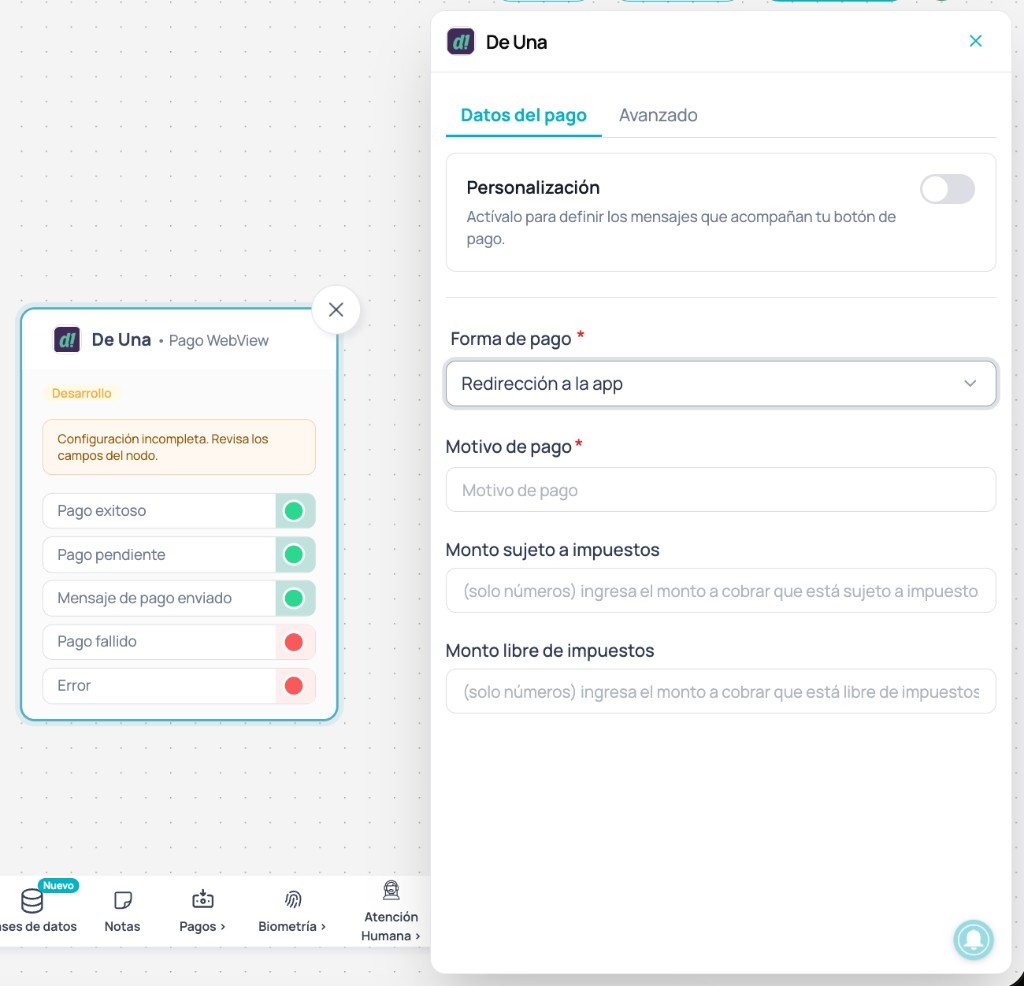
Payment method: Redirect to app
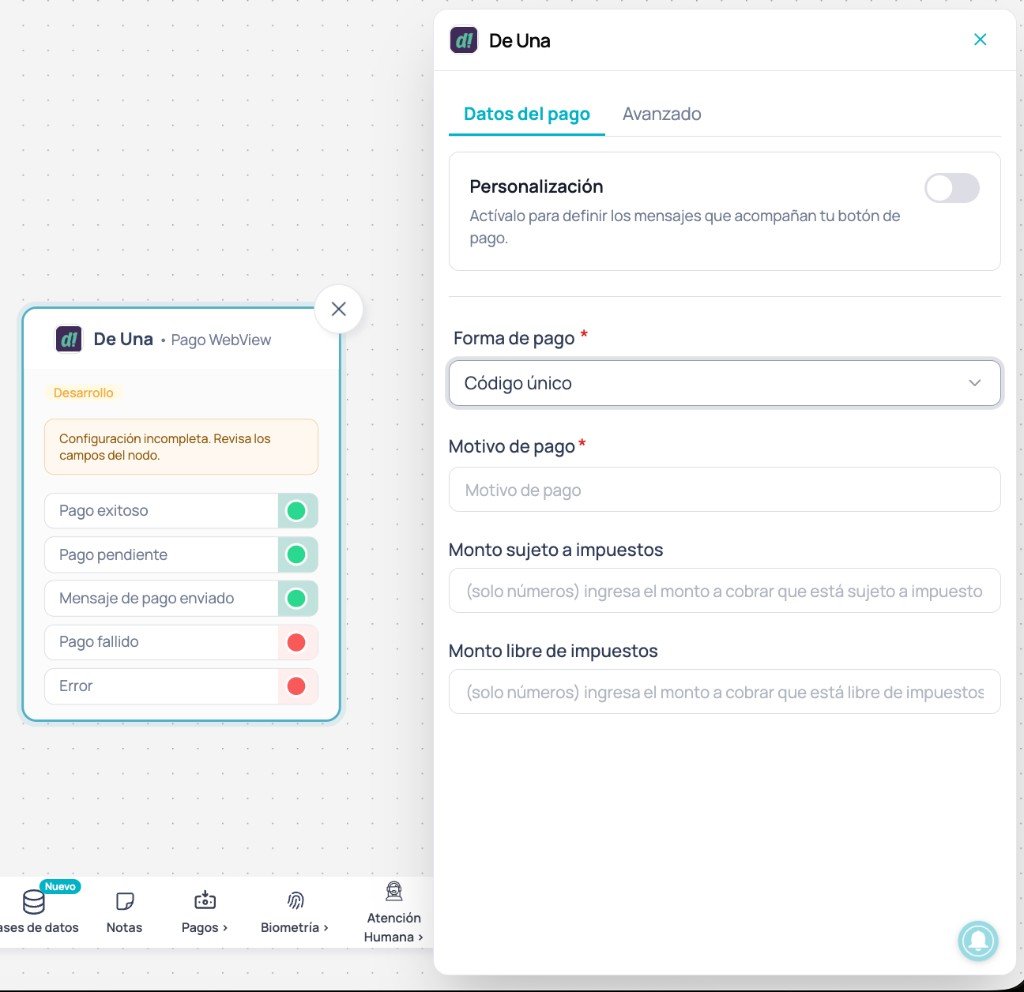
Payment method: Unique code
Payment reason
Payment reason
string
required
Descriptive text for the charge. Examples: order number, product, service, or internal reference.
Taxable amount
Taxable amount
number
required
Amount subject to VAT. Numbers only, in US dollars (USD).
Tax-free amount
Tax-free amount
number
required
Tax-exempt amount. Numbers only. If not applicable, use
0.
Node outputs
Outputs appear on the Deuna node in Canvas. Connect them based on the result you want to handle in your flow.Successful payment
Successful payment
Triggered when Deuna confirms the transaction was approved.Recommendations:
- confirm the order
- send receipt or notification
- update purchase status in your systems
Pending payment
Pending payment
Triggered when the transaction is in process or awaiting confirmation in the Deuna app.Recommendations:
- inform the user clearly
- indicate they must complete payment in Deuna (app or code)
- avoid creating a second charge while the status is unresolved
Payment message sent
Payment message sent
Triggered when the payment button message or unique code is sent successfully in the conversation.This output does not confirm payment. It only indicates the user received the CTA (redirect or code) and can continue in the Deuna app.You can connect this output to a post-send payment message support AI Agent to assist the user while they complete payment outside WhatsApp.Recommendations:
- explain how to open the app or paste the code in Deuna
- answer questions while waiting for provider confirmation
- do not confirm payments from this output
Failed payment
Failed payment
Triggered when the transaction was rejected, declined, or not completed.Recommendations:
- allow a controlled retry
- offer support or an alternate path
Error
Error
Triggered on technical errors, provider errors, or communication failures during payment creation or processing.Recommendations:
- log the error
- show a contingency message
- retry in a controlled way and escalate if it persists
Test payments
If Deuna is connected with test credentials, validate the flow before going to production.In test mode, verify the node shows Development in the Advanced tab. Payment completes in the Deuna app; the WhatsApp flow continues when Deuna notifies the result.
1
Confirm test credentials
Verify Deuna was installed with test credentials (development Api key, Api secret, and merchant code).
2
Choose Payment method
In Payment data, select Redirect to app or Unique code depending on the scenario you want to test.
3
Test from WhatsApp
Trigger the flow from WhatsApp. With redirect, open the Deuna app from the button. With unique code, paste the code in the Deuna app.
4
Validate flow output
Verify which output the flow continues through:
- Payment message sent (CTA send only)
- Successful payment
- Pending payment
- Failed payment
- Error
Go to production
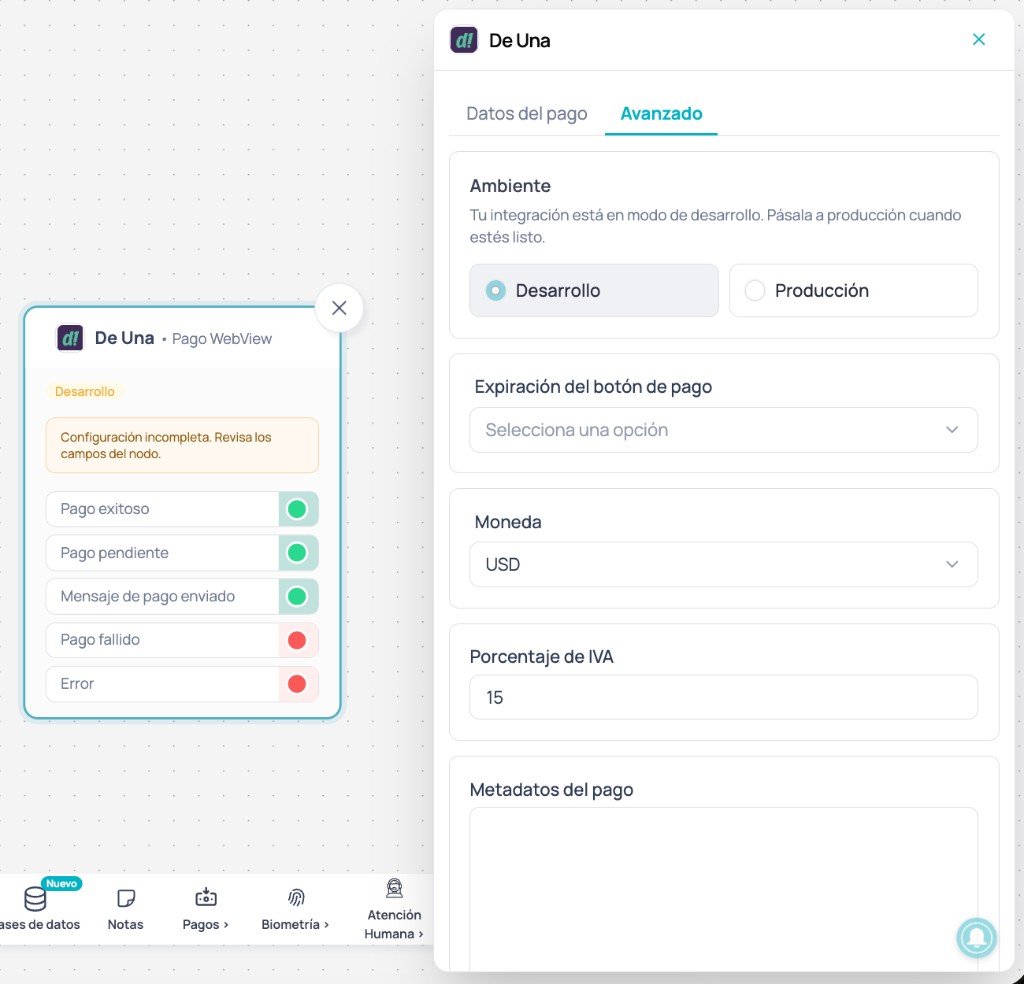
If you installed Deuna with test credentials, you can start going to production from the Deuna node’s Advanced tab in Canvas or from the Deuna page in Marketplace. You must enter production Api key, Api secret, and merchant code. Details in Connect in Brain Studio — Go to production. Before operating with real payments:- Make sure you have production credentials from Deuna.
- Confirm VAT percentage and Currency (USD) on the node match your operation.
- Remember the $0.10 USD cost per production transaction.
- Run a low-amount real payment test before scaling.
Important considerations
External confirmation
External confirmation
Deuna does not use an embedded WebView in WhatsApp. The user pays in the Deuna app. Your flow must handle Payment message sent, Pending payment, and final outputs without assuming immediate confirmation.
Redirect vs unique code
Redirect vs unique code
Redirect to app opens Deuna directly. Unique code requires the user to copy and paste the code. Choose based on your audience and flow copy.
Environment and credentials
Environment and credentials
Test and production credentials are different. Node environment (Development / Production) must match credentials used at installation or when going to production.
Pending payments
Pending payments
After sending the CTA, payment may remain pending until the user acts in Deuna. Inform clearly and avoid a second charge until the status is resolved.
Next step
Coverage and pricing
Review availability, payment methods, and Deuna reference fees.