
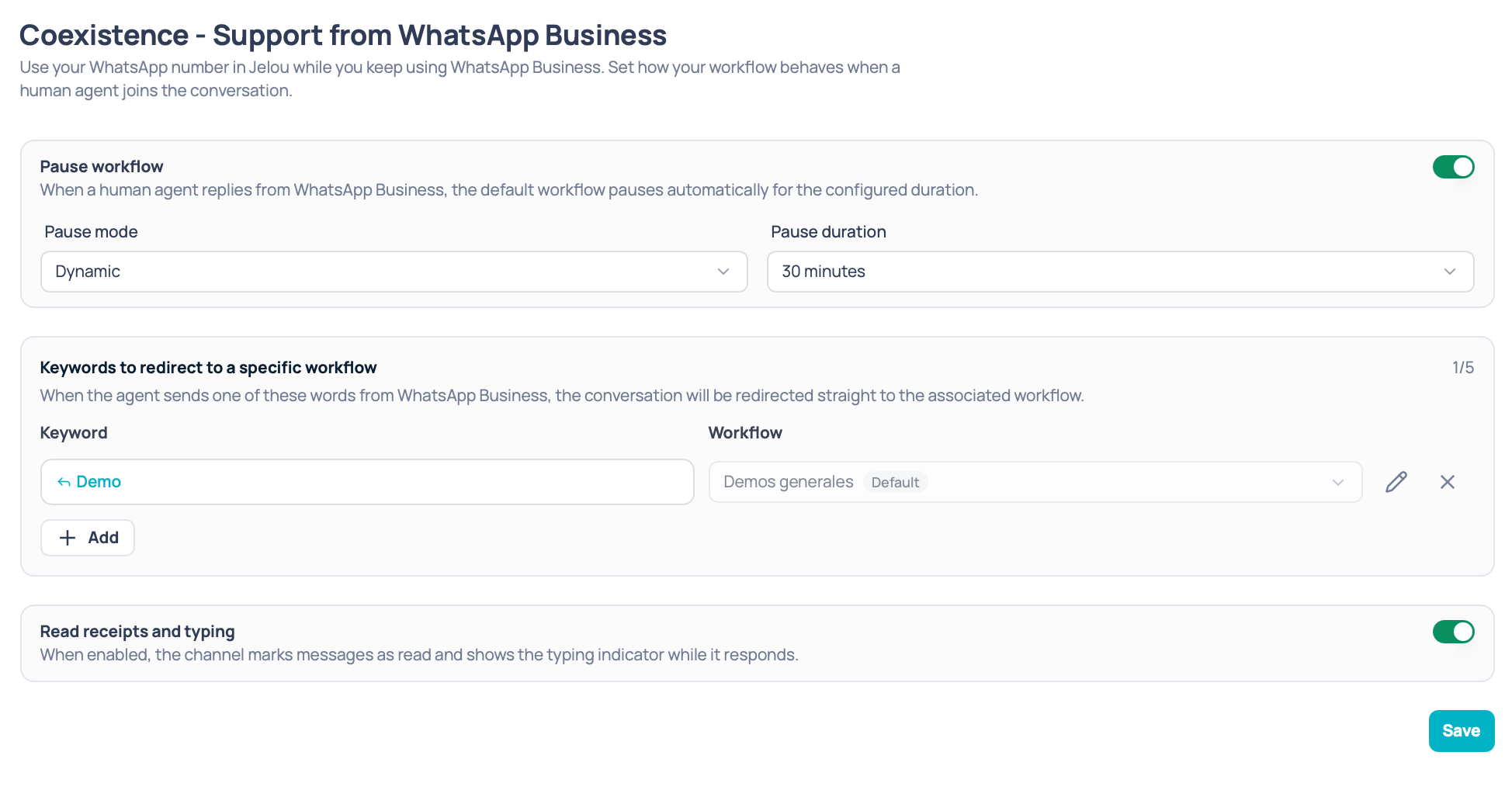
Settings → Coexistence you define, for each WhatsApp channel:
- Whether the workflow pauses when a human agent steps in, and for how long.
- Which keywords the agent uses to route the conversation to a specific workflow.
- Whether the channel sends read receipts and the typing indicator.
This screen configures how the channel behaves during coexistence. To connect a WhatsApp Business App number to the Cloud API, see the Coexistence guide.
Prerequisite: select a channel
Settings are saved per channel, so you first need to pick one in the selector on the left. The selector only lists channels that meet all of the following:- They are WhatsApp channels.
- They are in production and active.
Pause workflow
This is the main block on the screen and it’s controlled by a toggle.Keywords to route to a specific workflow
When the agent types one of these words from WhatsApp Business, the conversation is routed straight to the associated workflow. This is how you hand control back to the AI in a specific flow — a satisfaction survey, for example — without waiting for the pause to end. Each row in the list has two columns:Keyword rules
- Up to 5 keywords per channel. The counter in the top right shows how many you’ve used, for example
2/5. - Between 3 and 10 characters.
- No spaces (a single word) and no emojis.
- You can’t repeat a keyword already used in the list.
- You can’t use a word already reserved for routing to the default workflow.
Read receipts and typing indicator
This is a toggle independent from the rest of the configuration.
This toggle works even when Pause workflow is off; it’s only disabled when no channel is selected.