
Assignment methods
Change the method
If you already have a saved configuration, changing the method opens the Change chat assignment modal, with a different message depending on whether you go from direct to queues or from queues to direct.Queue assignments
Everything is configured in a single panel with four sections. When you’re done, press Save. The button is disabled if there are incomplete or invalid fields, or if there are no changes to save.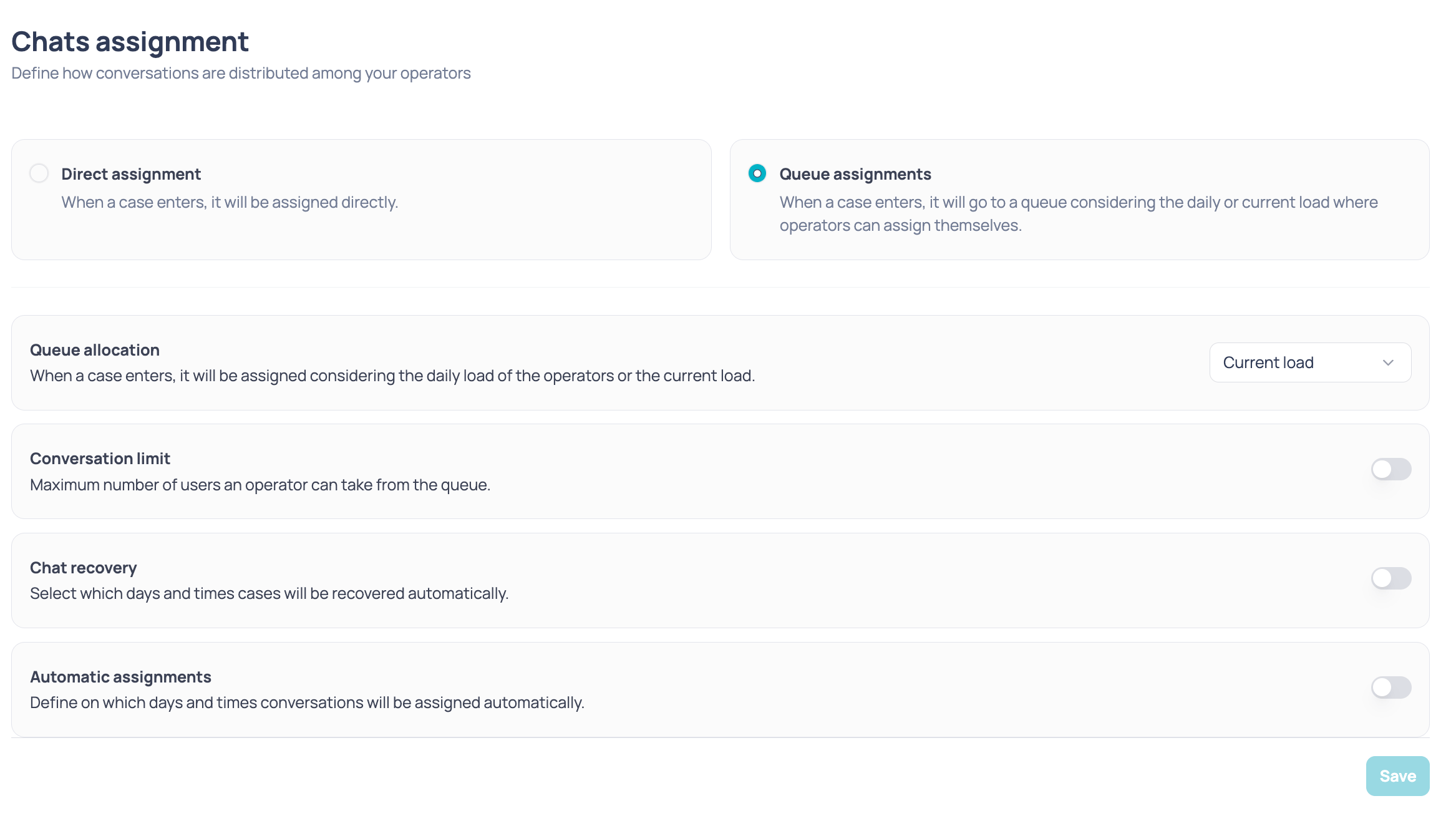
Queue allocation
Use Select load type to choose which load is considered when assigning a case:Conversation limit
Turn on the switch to set the maximum number of users an operator can take from the queue.- The limit must be greater than 0 and the maximum value is 55.
- With a teams limit, at least one team must have a limit greater than 0.
Chat recovery
Turn on the switch to define on which days and times the cases to recover are assigned automatically.- Days: Every day, Monday to Friday, Weekends or individual days.
- Time: in HH:MM format.
- Teams: by default it applies to All teams. Select teams to limit the scope.
Chat recovery applies to both methods: you can configure it with either Queue assignments or Direct assignment.
Automatic assignments
Turn on the switch to define on which days and times conversations are assigned automatically. Each schedule has:- Days: the days it applies.
- Start time and End time.
- Team: the General queue is used by default. Select a team to limit the assignment to that team’s queue.
Direct assignment
With this method the screen shows the Chat recovery section, with the same schedule, day and team settings. The queue panel appears inactive: it is a reference of what would be enabled if you switch methods.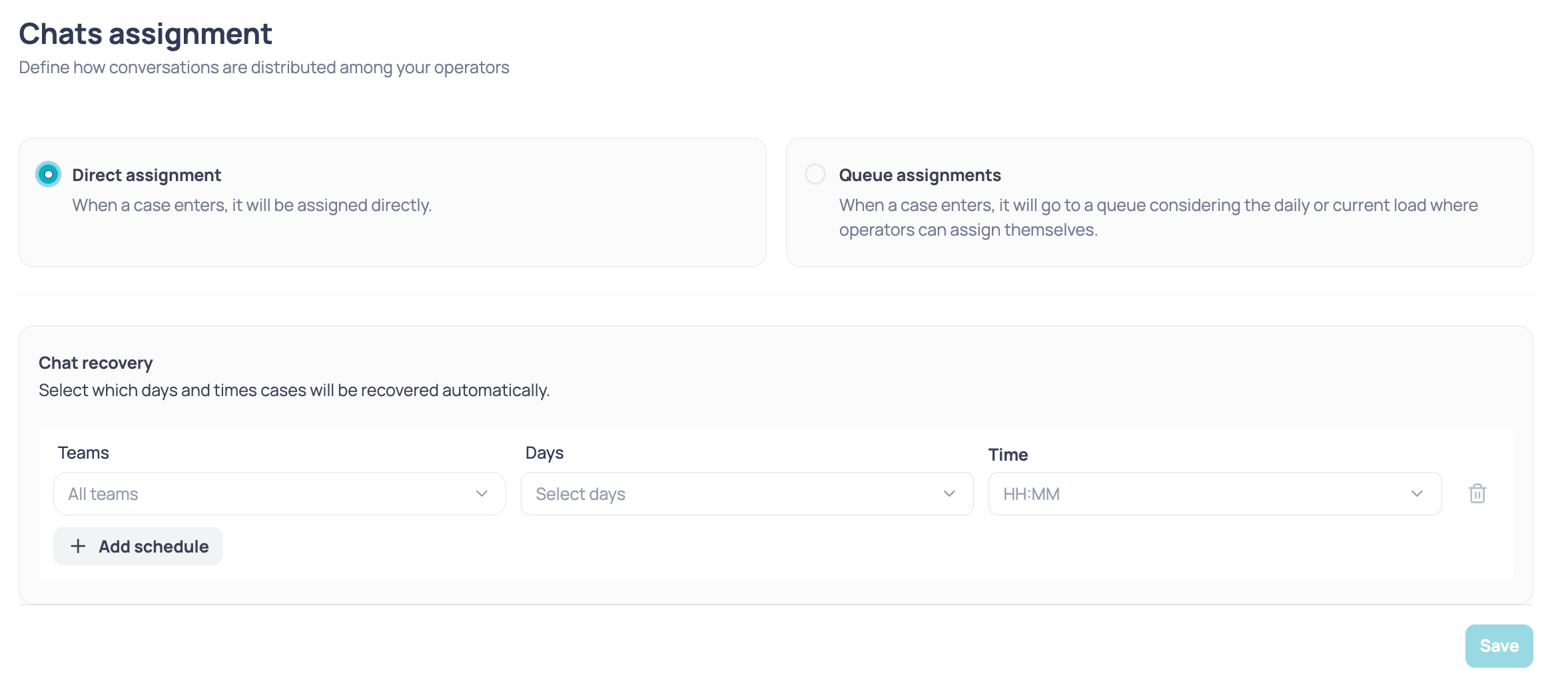
Rules and limits
- You can create up to 5 schedules per list, in both Automatic assignments and Chat recovery.
- The teams you see in the selectors depend on your permissions: if you can monitor all teams, you see them all; otherwise, only those in your scope.
- Schedules are saved in a time zone. If it differs from yours, the screen shows a notice with the conversion.
- If a save fails, the schedules on screen are cleared, the configuration is reloaded and you’ll see an error.
If your configuration comes from a previous version, the screen becomes read-only and you won’t be able to modify it. Contact support to update it.
Automatic messages
Configure inactivity, warnings and automatic closing of conversations.