
Frustration alerts are turned on from Settings. For companies on paid plans and enterprise, activation is requested through your CSM. Until it is active, you won’t see the Alerts tab in Monitoring.
What you see in the table
The tab shows a table with your company’s alerts. All alerts are shown by default, and you can filter them by Status.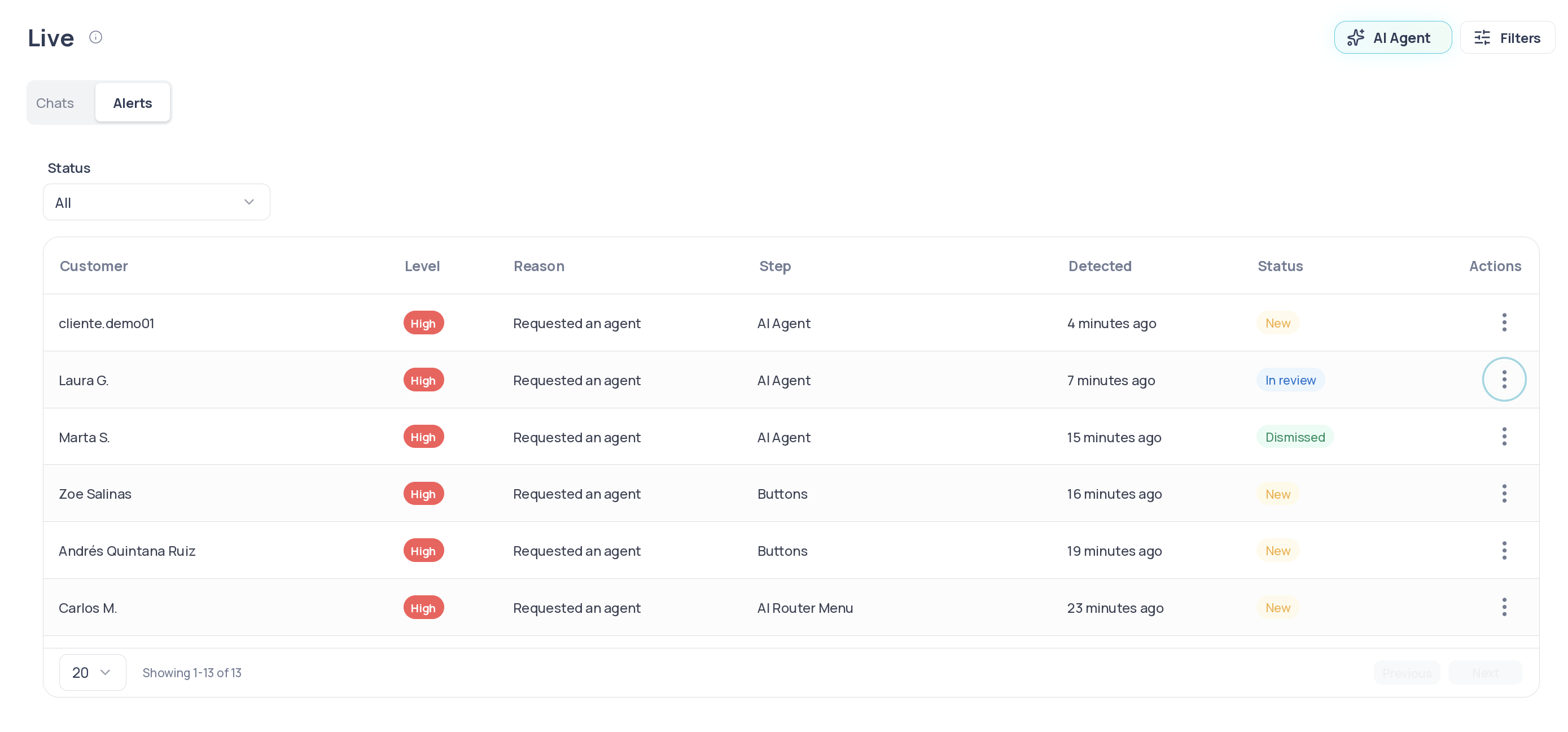
The table refreshes on its own every 30 seconds, so you see the changes other supervisors make without reloading the page.
Reasons
Statuses
An alert is open while nobody has resolved it, and that is when you can act on it.What you can do with an alert
Each row has an Options menu in the last column.Review conversation
Marks the alert as In review and opens the conversation in a new tab, so you don’t lose your place in the list.Connect with an operator
Hands the conversation over to a person to continue the support. It’s only available if the alert is open (New or In review) and your role has permission to view Monitoring.1
Open the Options menu
On the alert’s row, choose Connect with an operator.
2
Choose who to hand it over to
Select By operator or By team, and then the operator or team that will handle the conversation. Only operators who are online are listed.
3
Confirm the handover
Read the warning and continue. The alert changes to Connected.
Dismiss
Available only while the alert is open. It asks for confirmation and, once you accept, marks it as Dismissed.Real-time notifications
When a new alert is detected, you receive a notification with a summary of the case and a link to the conversation. The notification appears on any screen of the platform, not only in Monitoring, and the table updates immediately.Live monitoring
Learn about the rest of the indicators and live case management.