
The three statuses
The traffic light relies on two thresholds in minutes that your company defines:The middle status (Delayed) is not configured: it is derived automatically from the range left between the other two.
Prerequisite
Nothing is displayed until at least one threshold configuration is saved and the main toggle is on. Without that, conversations look exactly as before, with no color indicator.Configure the thresholds
Go to Settings > Response time traffic light. The screen has a main toggle at the top and two tabs below it.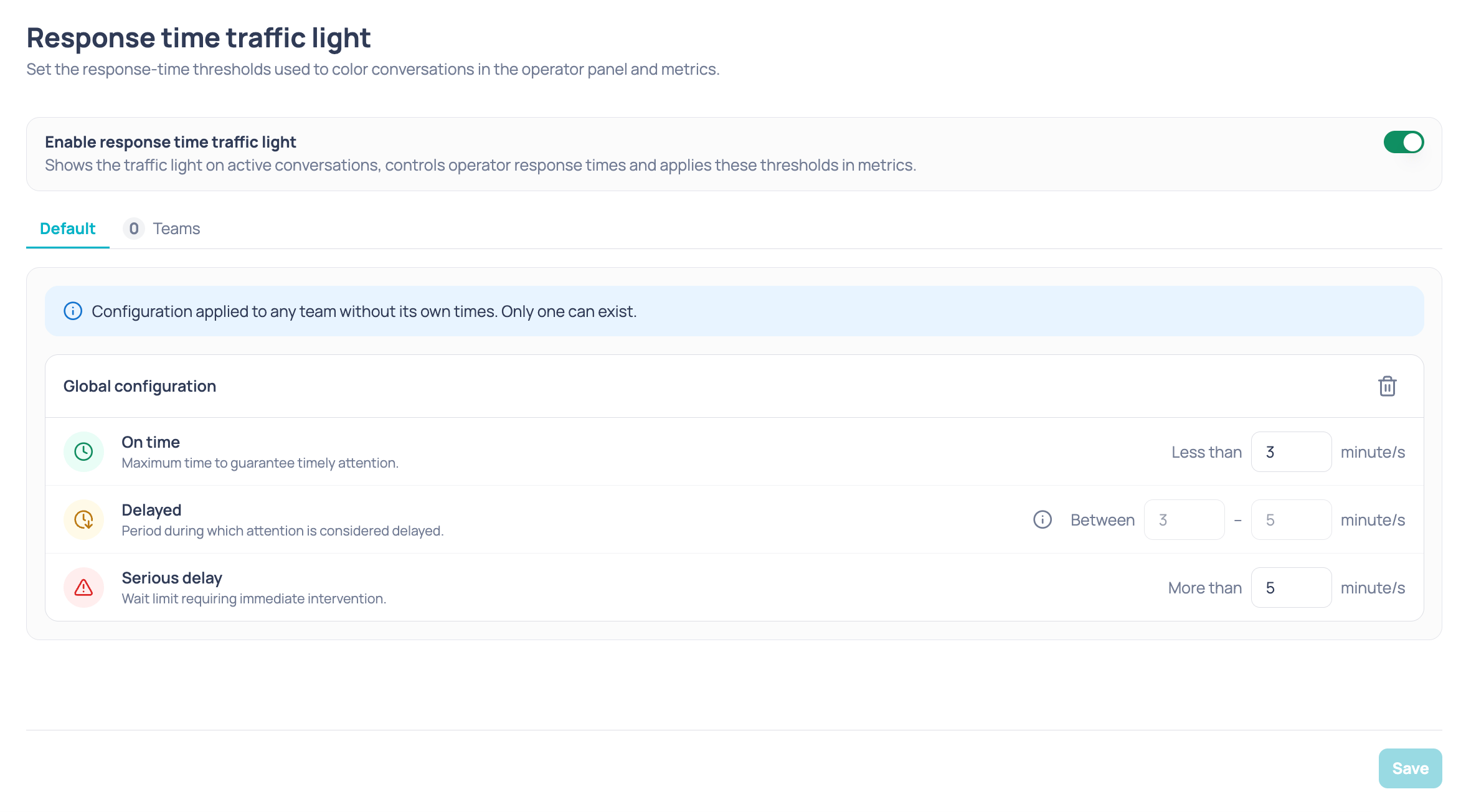
Main toggle
Enable response time traffic light turns it on or off for the entire company. While it is off, the tabs below remain visible but dimmed and cannot be edited. If an active configuration already exists when you open the screen —global or for a team— the toggle appears turned on automatically.Default tab
This is the configuration applied to any team that does not have its own times. Only one can exist. If there is none yet, you will see the Add configuration button. Creating it displays a card with three rows:
Value rules:
- They must be whole numbers between 1 and 120 minutes.
- On time must be lower than Serious delay.
- The Delayed row adjusts on its own when you change the other two.
Teams tab
This lets you define different thresholds for groups of teams. The tab shows a counter with the number of configurations created. Each team configuration has:
Keep in mind that:
- A team can only belong to one configuration. Teams already used in another card appear disabled in the selector.
- Cards collapse and expand by clicking their header. If a collapsed card has an error, the error is shown in the header.
- Add configuration creates a new card; the trash icon deletes it.
- Teams you remove from a configuration go back to using the Default configuration.
Save changes
A single Save button saves the default configuration and any changed team configurations at once. When it finishes, a success or error message appears. Changes apply immediately: operators don’t need to reload their session for the traffic light to start using the new thresholds.Where the traffic light appears
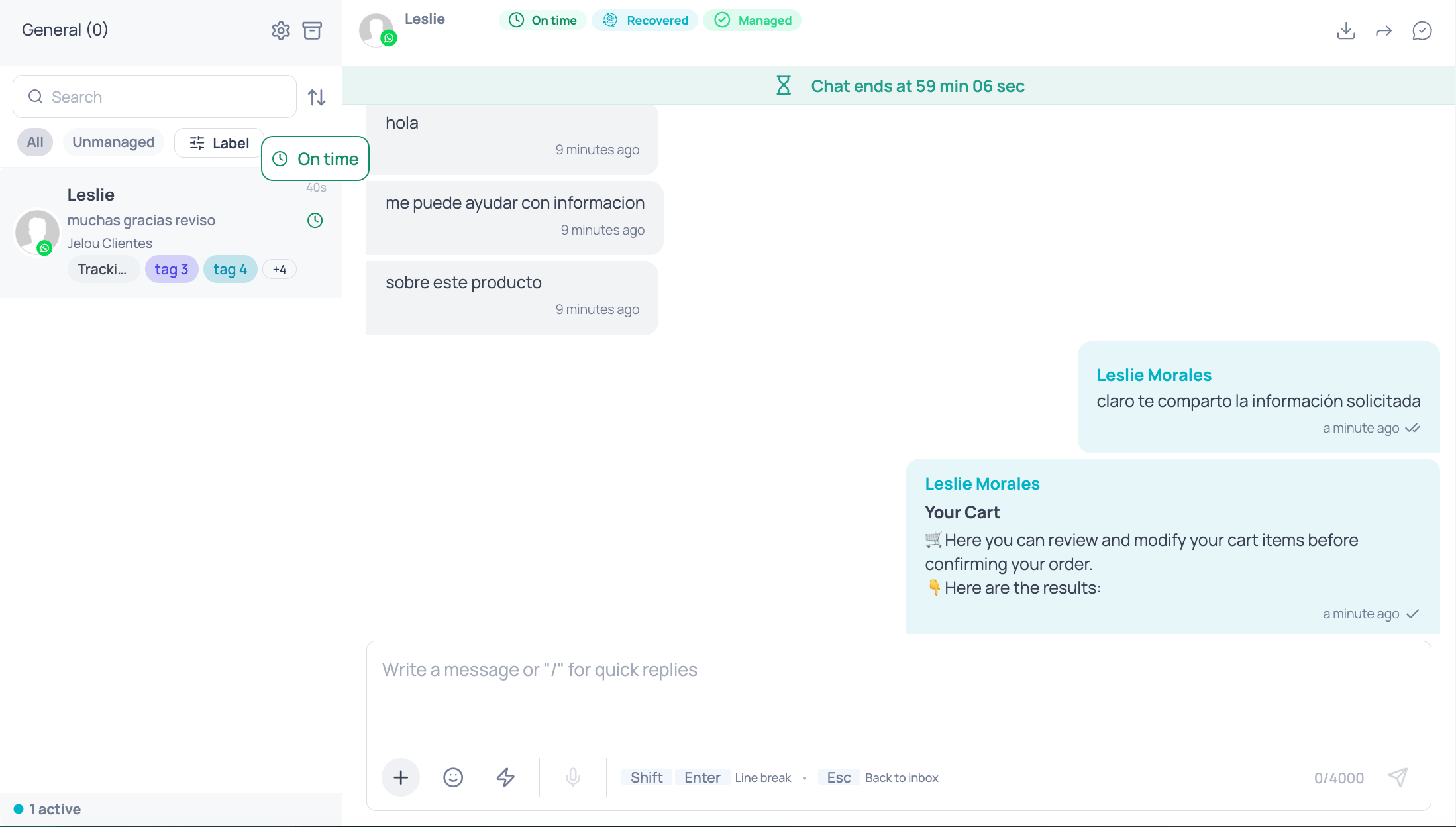
In the Inbox
- Chat list: a colored icon next to each conversation. Hovering over it shows the status label.
- Header of the open conversation: the same status, as a chip with text.
In Live Monitoring
In Monitoring > Live > Chats, the traffic light adds a column, a summary of counters, and a filter.Monitoring labels the middle status In delay, while the settings screen calls it Delayed. Both are the same status.
Attention column
In the active conversations table, an Attention column appears next to the operator column, because the status indicates what that operator owes.
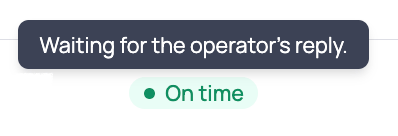
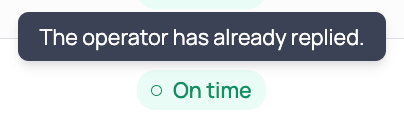
--.
Attention summary
In the Attention time statistics card, an Attention summary row shows three counters: how many active conversations are on time, in delay, and serious delay.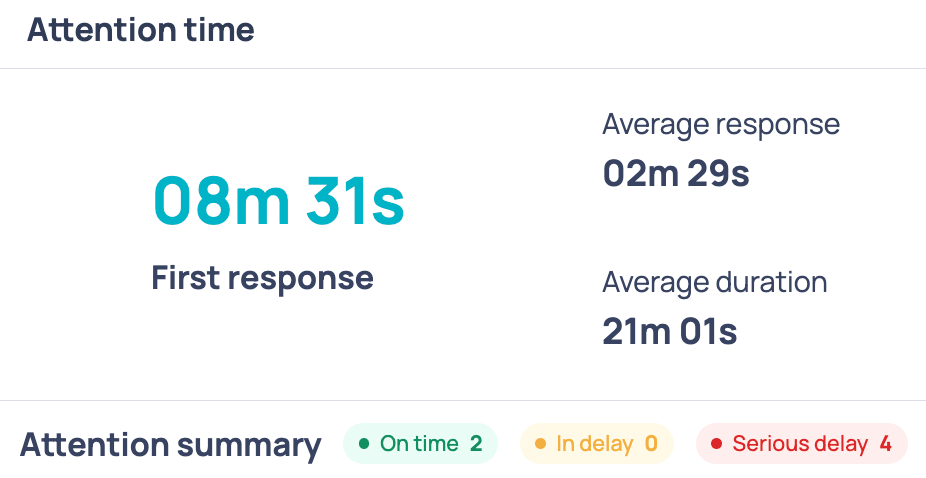
- Cover all active conversations measured by the traffic light, not just those on the page you are viewing.
- Respect the team filter, but not the status filter or pagination.
- Count by status, regardless of whether the operator has already replied.
Filter by attention status
The Filters panel in the Monitoring header adds an Attention selector that lets you keep only the conversations that are on time, in delay, or serious delay.Real-time updates
The status updates on its own: when a conversation changes status, the table repaints that row and adjusts the counters. There is no timer counting seconds on screen; the row changes when the status actually changes. A supervisor filtered to a specific team only receives updates for that team’s conversations.Live Monitoring
How to supervise the state of your operation in real time.
In Reports
The cases report you download includes a Wait time column with each conversation’s status, written as text:On time, In delay, or Serious delay.
The column contains no minutes and no colors: it summarizes in a single value the average attention that conversation received.