
- DKIM — signs your emails to prove they are legitimate.
- Return-Path — defines where undeliverable emails bounce back to.
This setup is performed by the team that manages your domain’s DNS. The exact steps depend on your provider (Namecheap, GoDaddy, Cloudflare, Route 53, among others).
Step 1: Share your domain with Jelou
Tell Jelou which domain you will be sending emails from.- Format:
<companyName>.com - Example:
google.com
Step 2: Receive the DNS records
Jelou will provide the DKIM and Return-Path values you need to add. They will look similar to this: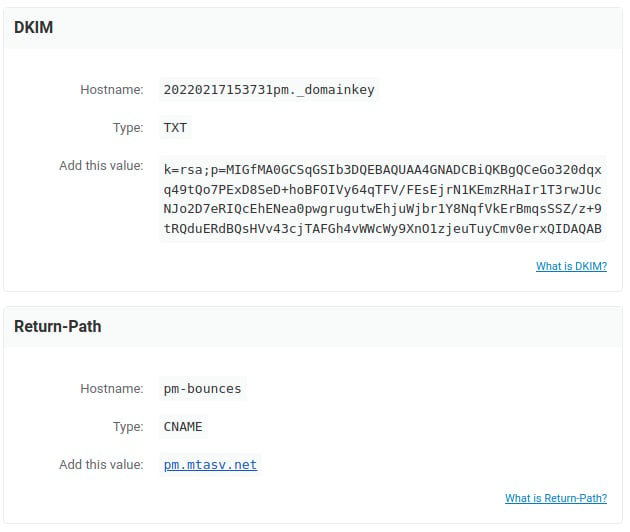
DKIM and Return-Path records provided by Jelou
Step 3: Add the records in your provider
Below is an example using Namecheap.Open your domain management
Sign in to your account, choose Domain List in the left menu and click Manage next to your domain: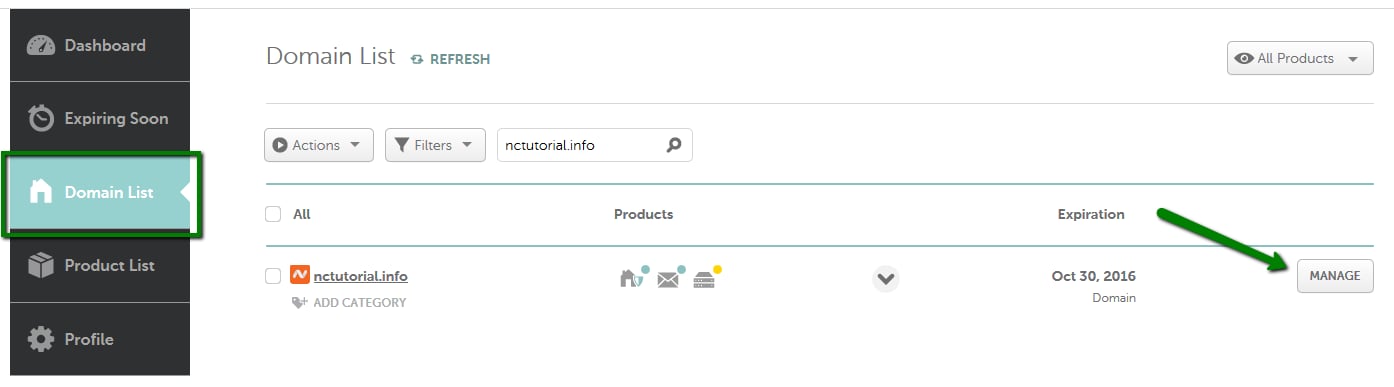
Namecheap domain list with the Manage button
Open Advanced DNS
Go to the Advanced DNS tab from the top menu and click Add New Record: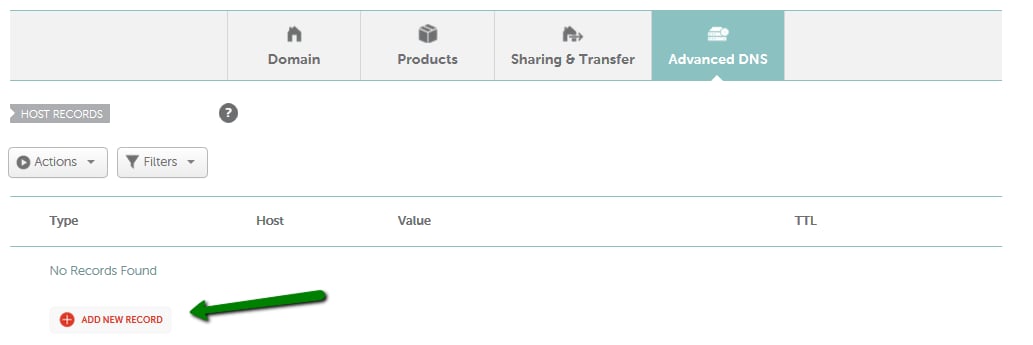
Namecheap Advanced DNS tab with the Add New Record button
Create both records
Add one record for each value Jelou provided:
Once finished, the records should look like this:

Return-Path CNAME record created

DKIM TXT record created
Step 4: Save and wait for propagation
Click Save All Changes. Newly created records usually take about 30 minutes to take effect, though propagation can take longer depending on your provider.Step 5: Notify Jelou
Once you have saved the records, let Jelou know so the configuration can be verified and sending from your domain activated.Troubleshooting
Jelou reports the records are not detected
Jelou reports the records are not detected
DNS propagation takes time. Wait at least 30 minutes and request another verification. Also confirm the records were created on the same domain you reported in Step 1.
The DKIM value appears truncated
The DKIM value appears truncated
Some DNS panels visually truncate long strings, which is normal. If you suspect the value is incomplete, edit the record and paste the full value again.
My provider appends the domain to the Host automatically
My provider appends the domain to the Host automatically
Several providers complete the domain for you. Enter only the hostname portion (for example
pm-bounces), without repeating your domain at the end.Next step
To receive the emails arriving in your mailboxes in Jelou, set up automatic forwarding:Email forwarding
Set up automatic forwarding from your mailboxes to Jelou.