
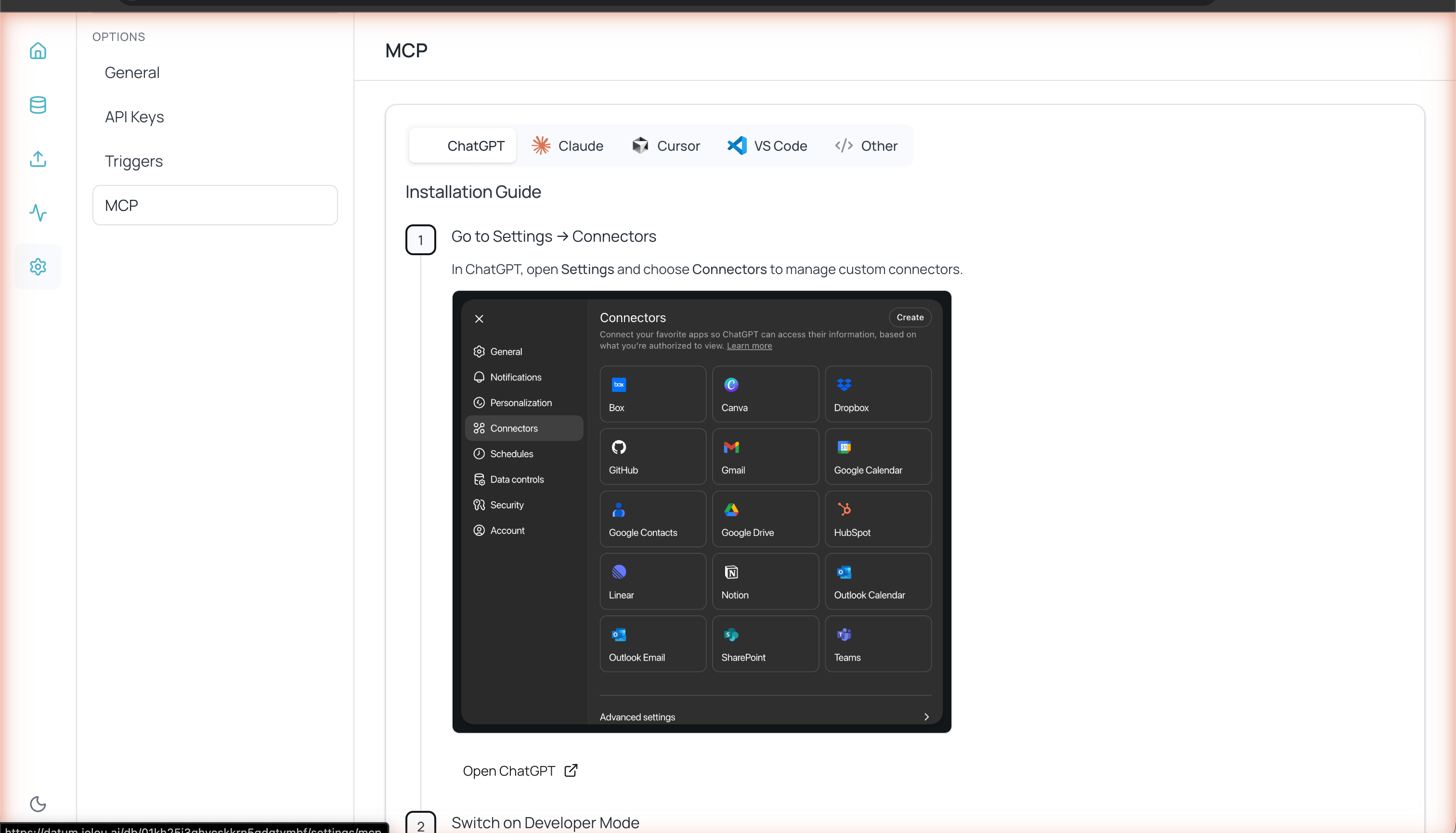
MCP configuration with installation guides for each tool
How does it work?
Databases creates an MCP URL to connect your database with an AI tool. Through it, the tool can query and manage your data. To access the MCP configuration, go to Settings > MCP from the left sidebar.Setup by tool
- ChatGPT
- Claude
- Cursor
- VS Code
- Other
1
Go to Settings → Connectors in ChatGPT
In ChatGPT, open Settings and select Connectors to manage custom connectors.
2
Enable Developer Mode
Enable Developer Mode in the Connectors → Advanced settings section to accept custom connector URLs.
3
Generate the Databases MCP URL
On the Databases MCP page, copy the generated URL.
4
Create the connector
In ChatGPT Connectors:
- Select Create connector and add a name
- Set authentication to No Authentication
- Paste the MCP URL and check I trust this application
- Click Create
5
Enable Developer Mode in the chat
Open a new chat, go to More → Developer Mode to activate the connector.
6
Add the resource
Click Add sources, enable your Databases database, and interact with your data.