
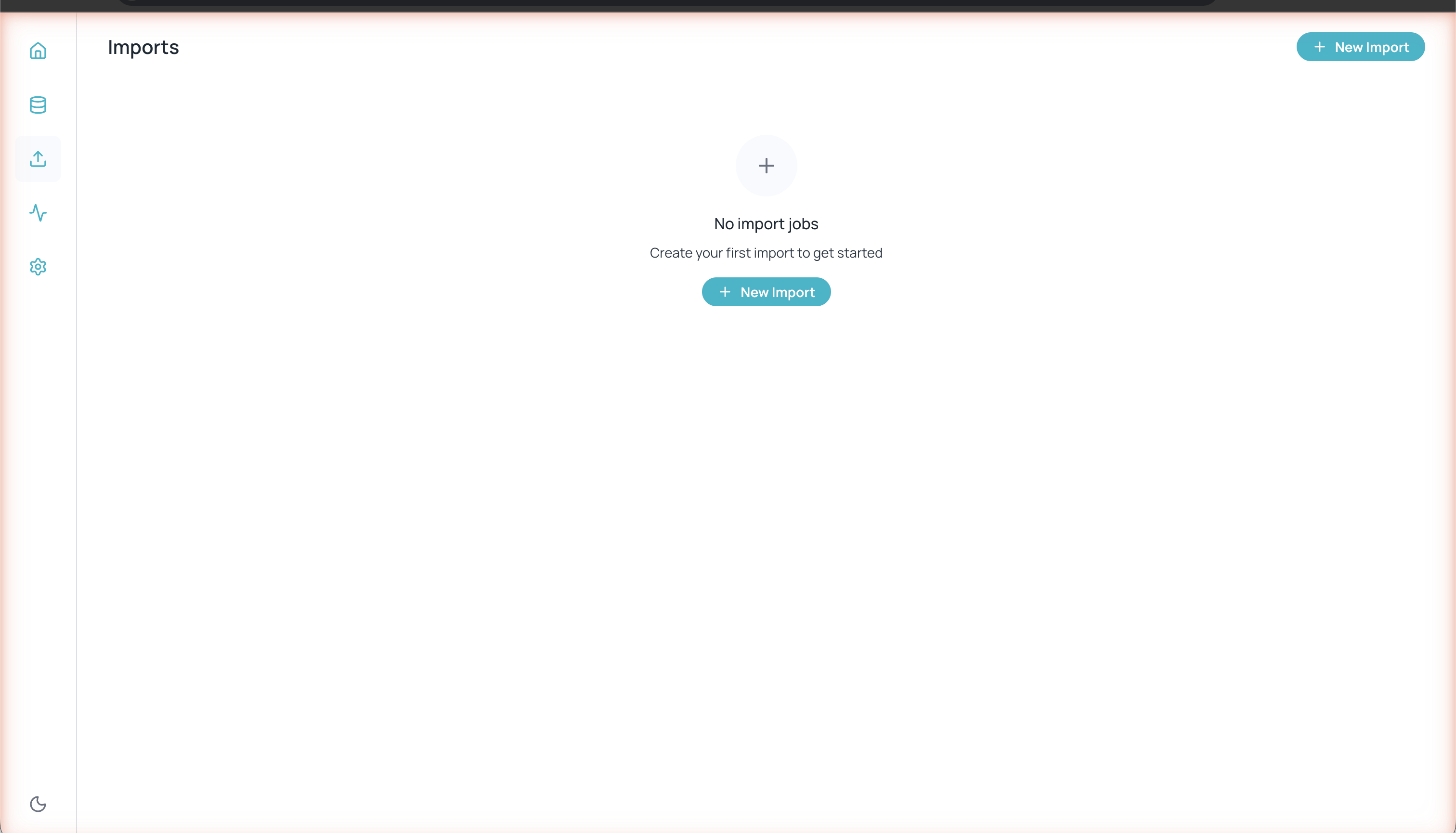
Databases imports section
Importing into an existing collection
Click the import icon in the left sidebar and then + New Import to open the wizard.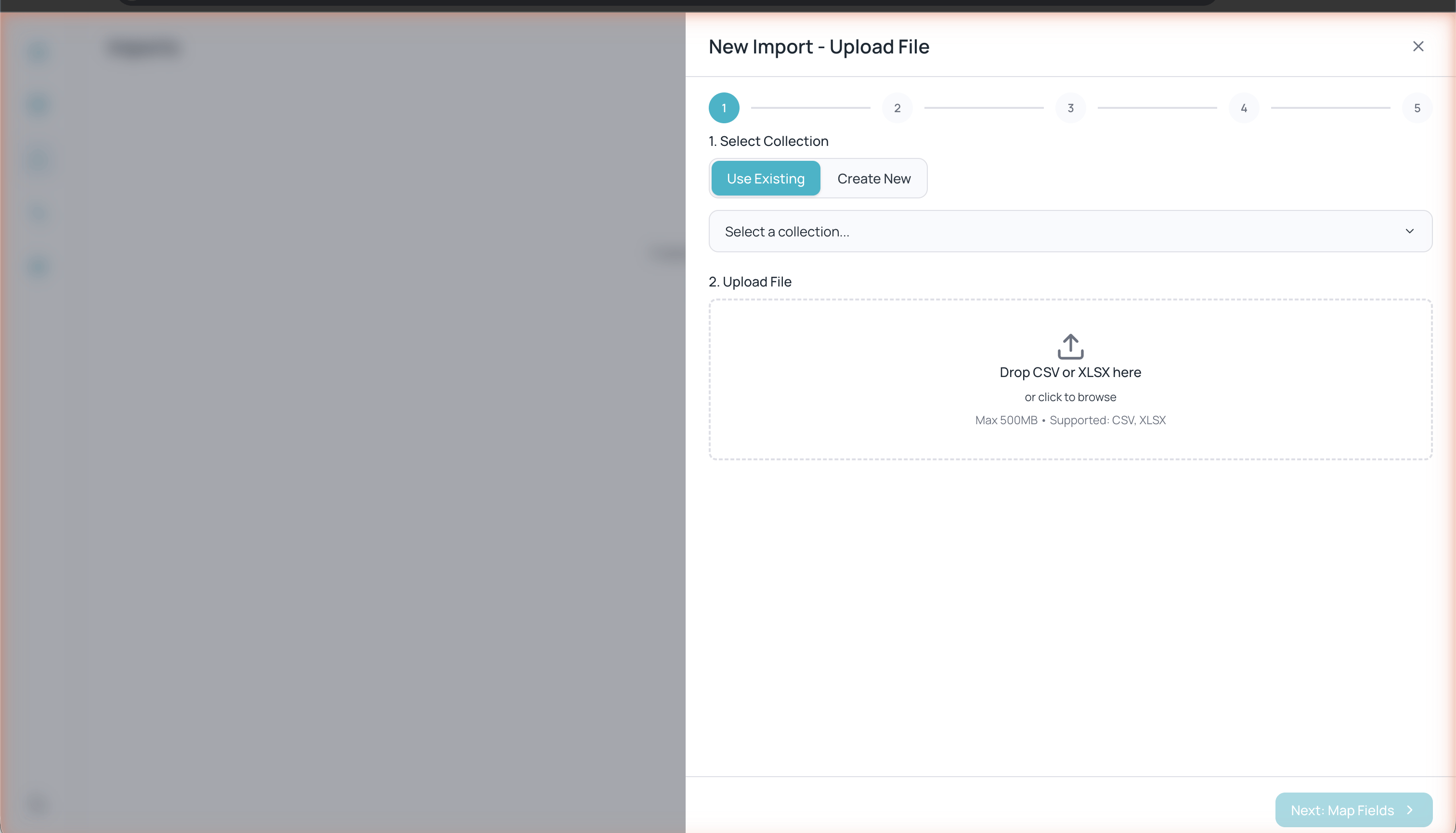
Import wizard: collection selection and file upload
1
Upload File
Make sure Use Existing is selected, choose the target collection from the dropdown, and drag your CSV or XLSX file to the upload zone (or click to select it).
Maximum file size: 500 MB. Supported formats: CSV and XLSX.
2
Review Mappings
Map each collection field to a column in the CSV file. The wizard automatically detects matches (e.g. an
email field is mapped automatically). For each field you can select a Subtype (General Text, ID Number) and a Country when applicable. CSV columns you don’t map will appear in the Unused CSV columns section and will be ignored.3
Configure Options
Optionally enable Enable duplicate detection to avoid duplicate records. Enabling it shows additional options:
- Unique field for matching — The field that identifies a duplicate.
- When a duplicate is found — Action to take: Skip, Update, or Error.
- Update strategy (only if you choose Update) — Merge (updates only the mapped fields and keeps the rest) or Replace (overwrites all fields, except system ones).
4
Preview Data
Review a preview of the first rows. You will see counters for valid rows, errors, and duplicates. Click any row to see the error details.
5
Review & Confirm
Review the final summary with the file details, target collection, column mappings, and skipped fields. Click Start Import to run the import.
Importing by creating a new collection
This flow has 6 steps (one more than the existing-collection flow, because you first define the fields):1
Upload File
Click + New Import, select Create New, enter the name of the new collection, and upload your CSV or XLSX file.
2
Define Fields
Databases will automatically infer field types from the file’s columns. You can adjust the types manually if needed.
3
Review Mappings
Review and adjust the association between the file’s columns and the fields you defined. For each field you can choose a Subtype (General Text or ID Number) and a Country when applicable.
4
Configure Options
Configure duplicate detection with the same options described in the previous flow.
5
Preview Data
Review the row preview and verify that the data and types are correct.
6
Review & Confirm
Review the final summary and click Start Import.
Import history
All imports are shown in the Imports section with their status. From here you can monitor the progress of ongoing imports and review the results of previous ones. You can also:- Cancel an ongoing import (while it’s in progress or pending).
- Delete any import from the history.
- Download, from an import’s detail panel, the Performance report (completed imports) and the Error report (when there were failed rows), both in CSV format.