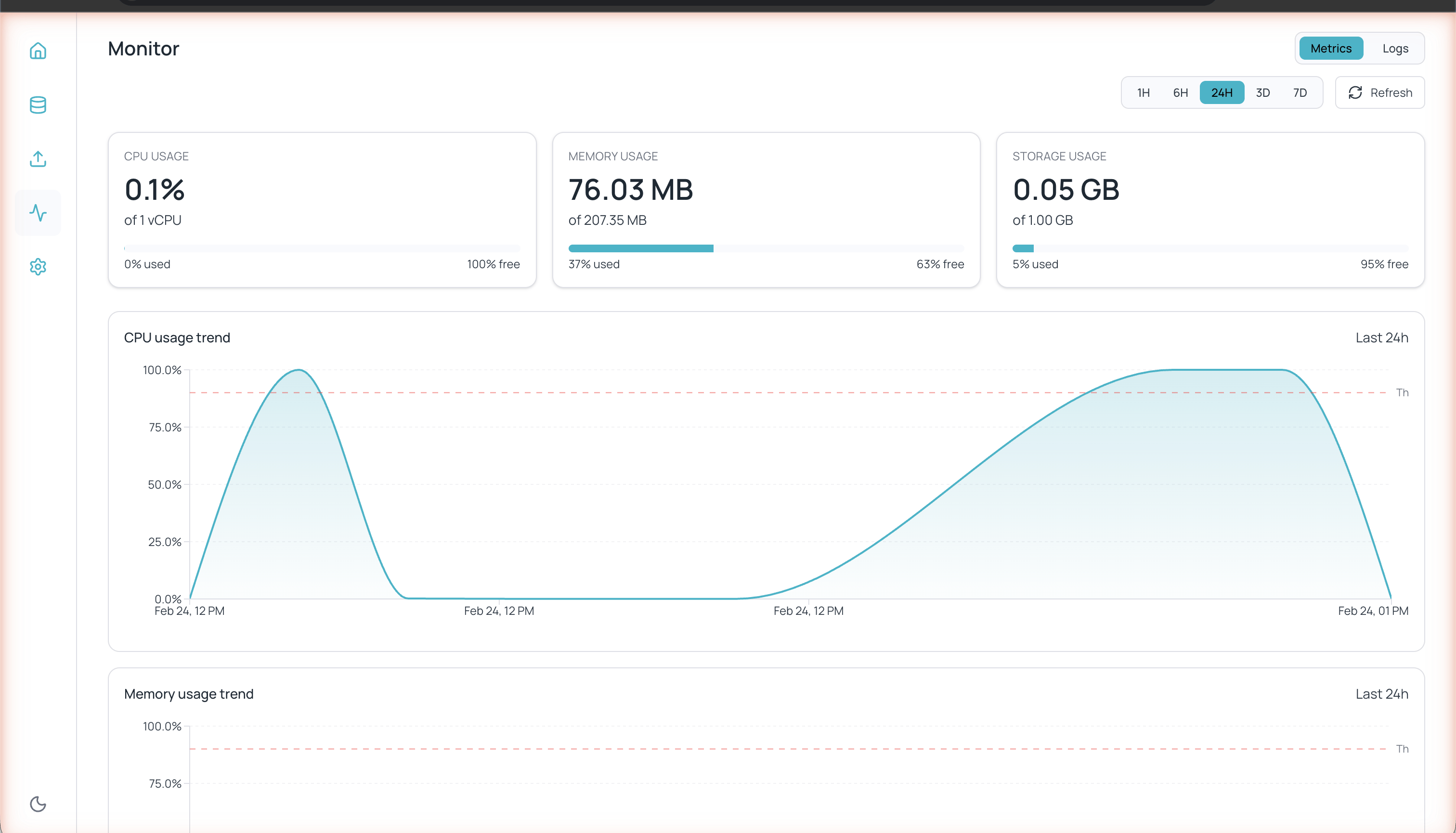
The Monitor section lets you supervise the status and performance of your database in real time. Access it from the chart icon in the left sidebar.

Metrics

Monitor Metrics tab showing CPU Usage, Memory Usage, Storage Usage, and trend charts
The Metrics tab shows three main indicators:
MetricDescription
CPU UsageCPU usage percentage for your instance (e.g. 0.2% of 1 vCPU)
Memory UsageRAM used vs. available (e.g. 75.41 MB of 207.35 MB)
Storage UsageStorage space used vs. total (e.g. 0.05 GB of 1.00 GB)
Each metric includes a visual bar showing the usage percentage and free space.

Trend charts

Below the indicators you will find trend charts for CPU usage trend and Memory usage trend. Each chart includes a dashed red line indicating the alert threshold.

Time ranges

You can adjust the metrics period with the range buttons:
RangeDescription
1HLast hour
6HLast 6 hours
24HLast 24 hours (default)
3DLast 3 days
7DLast 7 days
Click Refresh to update the data in real time.

Logs
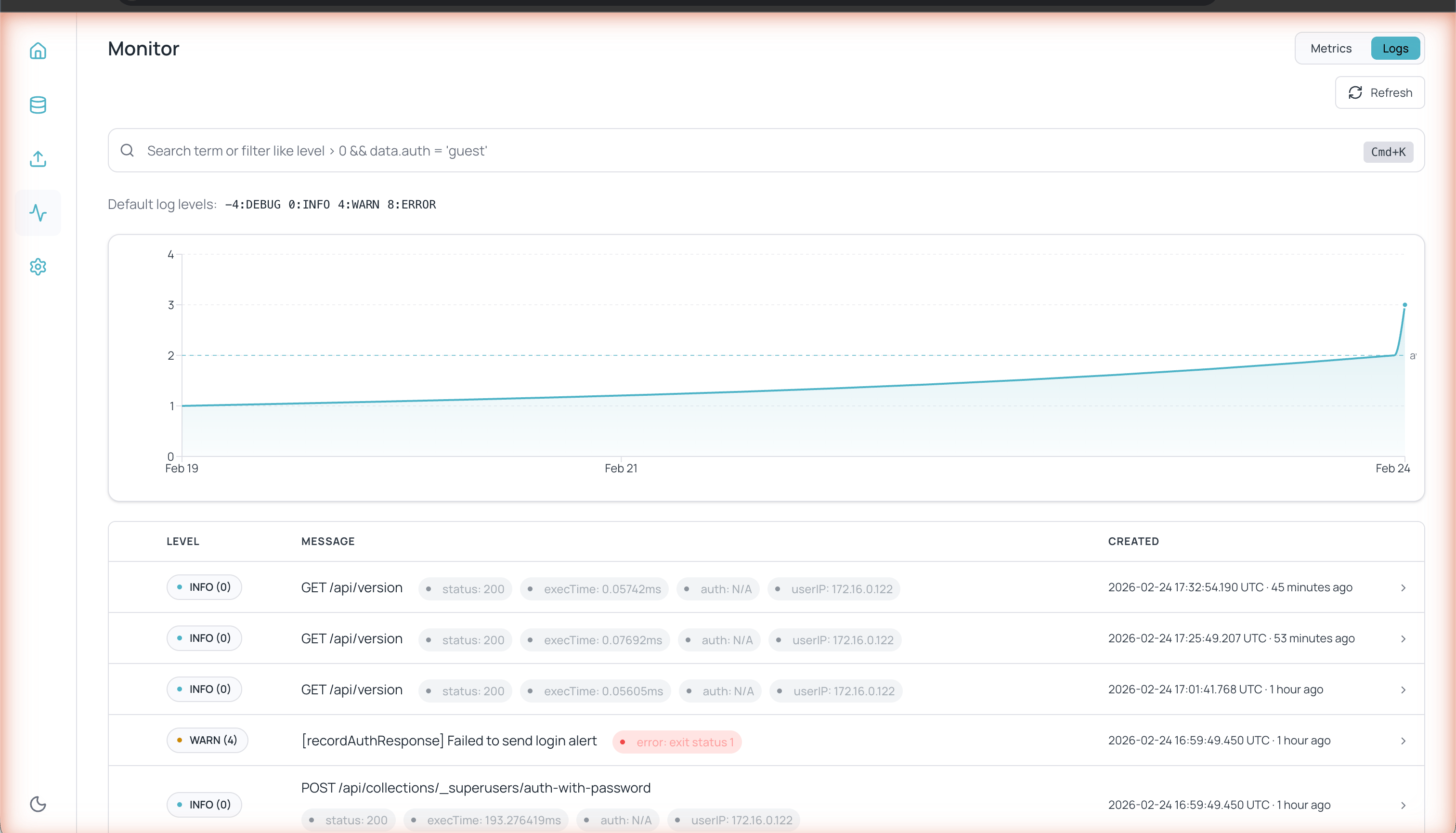
Monitor Logs tab showing timeline chart, log table with level, message, and timestamp
The Logs tab shows a chronological record of all activity in your database:
  • API requests (GET, POST, PUT, DELETE) with status code, execution time, and IP address
  • System errors and warnings
  • Authentication events

Log levels

LevelCodeDescription
DEBUG-4Detailed information for diagnosis
INFO0Normal system operations
WARN4Situations that require attention
ERROR8Errors that require action

Searching and filtering logs

Use the search bar at the top to filter logs. You can search by free text or use filter expressions such as:
level > 0 && data.auth = 'guest'
The timeline chart above the log table shows the distribution of events over time, letting you identify activity spikes or errors.