Version: always use the latest available version
This agent lets you run a complete identity verification within WhatsApp Flows, combining photo liveness check, document validation, and facial comparison.
This agent blocks the use of documents from the gallery or files, preventing fraud.

Prerequisites

✅ Checklist to start without blockers

  • You must have a verified WhatsApp account.
  • You must have a Terms and Conditions PDF (public URL) to configure in the agent. This is mandatory.
  • The user must be able to take photos from the chat (camera permissions must be enabled on the device).
  • Recommended: define the handling flow if you enable Human in the loop (who reviews, response times, and what happens if there is no response).

How does it work?

In less than 1 minute, the user completes the following steps:
1

Take a photo of their face

Using the front camera, the user takes a photo of their face. Access to the photo gallery or documents is blocked.
2

Capture photos of their identity document

Front and back photos of the identity document are requested to validate validity and authenticity. Access to the photo gallery or documents is blocked.
3

Automatic facial comparison

The system applies the 1:1 technique, comparing the photo with the image on the document (or with the official government source if enabled).
Threshold configuration, expiration, and error handling depend on each stage of the flow.

How is the agent composed?

The Biometrics Agent (Flows) is made up of three specialized agents:
  1. Liveness check agent with WhatsApp Flows - Validates the person’s liveness via photo: confirms there is a single face, detects recaptures, and evaluates fraud attempt signals.
  2. Document verification agent - Verifies the authenticity and validity of the document, detects recaptures, and evaluates fraud attempt signals.
  3. Facial comparison agent - 1:1 facial comparison between the photo and the face from the document/government entity. As a result it delivers a match percentage and binary status (approved/rejected) according to the configured threshold.
If you only need to implement part of the process (for example, document only), see the configuration in Agents by stage.

How to connect the integration?

The Flows option is available only on Business and Enterprise plans.
1

Open the platform

Use the Agent to create a biometrics flow, or select the Identity validation template. To start a flow from scratch, click Brain Studio in the sidebar.
2

Select Biometrics

In the toolbar you will see the Biometrics option. Click Connect.
3

Connect the integration

Once connected, you will see the Biometrics node. In the side panel, select Biometrics with photo — Flows WhatsApp from the Select biometrics type dropdown.
4

Configure outputs

This agent has 1 success output and 3 error outputs. Each can route to:
  • Text input with a custom message.
  • Connect, only if you have this module.
5

Run tests

With the configuration you just set, run tests with the Test button.
Important: The “Terms and Conditions PDF” field is mandatory. The document must explicitly include the use, storage, and handling of personal and biometric data. It must be presented and accepted before starting the verification process.

Configuration

Success

Confirms that biometric verification succeeded.Variable: biometricVerificationSuccessResponse structure (JSON):
{
  "response_document_check_success": {
    "document_check": {
      "verified_fields": { "...": "Main document data" },
      "secondary_fields": { "...": "Secondary document data" },
      "details": { "...": "Document type details" },
      "image_quality_details": { "...": "Image quality details" },
      "images_extracted": { "...": "Images extracted from the document" },
      "gov_entity_fields": { "document_number": "Identity document number" }
    },
    "gov_entity_data": { "...": "Government entity data for the country" },
    "document_image_front_url": "Front document image URL",
    "document_image_back_url": "Back document image URL",
    "document_face_image_url": "Face photo from document URL"
  },
  "response_liveness_success": {
    "result": "true/false",
    "url_selfie_image": "URL of the photo used for liveness"
  },
  "result_facematch": {
    "facematch_result": "approved / decline",
    "facematch_confidence": "Match percentage (0-100)"
  },
  "reporte_de_biometria": {
    "report": "Biometric report URL (web)",
    "report_pdf": "Biometric report URL (PDF)"
  }
}
Important fields:
  • response_document_check_success: ID document information
  • response_liveness_success: Photo used for liveness
  • result_facematch: Facial comparison result
  • reporte_de_biometria: Report URLs (web and PDF)

Errors

Biometric verification could not be completed.Variables: documentCheckError · livenessErrorDescription: The user’s document could not be validated, or the user’s liveness could not be detected.
The user left the process before completing it.Variable: userExitProcess
A problem occurred with the service.Variable: serviceError

Report

By default a database called “Biometrics Agent Report” is created with the following fields:
FieldDescription
Biometrics CodeUnique process identifier
Date and TimeVerification timestamp
Biometrics ResultFinal process status
Identification NumberUser’s document
Identification TypeDocument type
First NamesUser’s first names
Last NamesUser’s last names
Date of BirthDate of birth
PhoneUser’s phone number
EmailEmail address
Liveness Check ResultLiveness check status
Selfie PhotoURL of extracted photo
Document Check ResultDocument validation status
Front Document PhotoURL of front image
Back Document PhotoURL of back image
Face Photo on DocumentURL of document face photo
Government EntityEntity queried
Facematch ResultFacial match percentage
Biometrics ReportWeb report URL
Failure DescriptionError details (if applicable)
ObservationsAdditional notes
The biometric report is available for download in PDF format and contains all the information detailed in the table.

How to customize the experience?

When you click the Biometrics node on the canvas, a side panel opens with the following configuration tabs.
Configure the number of retries and validation options for the complete experience.
  • Maximum biometrics attempts — defines how many times the user can retry the complete process (1, 2, or 3 attempts).
  • Expiry date verification — enables validation of the document’s expiry date.
  • Terms and conditions — enables the terms acceptance screen before starting the process.
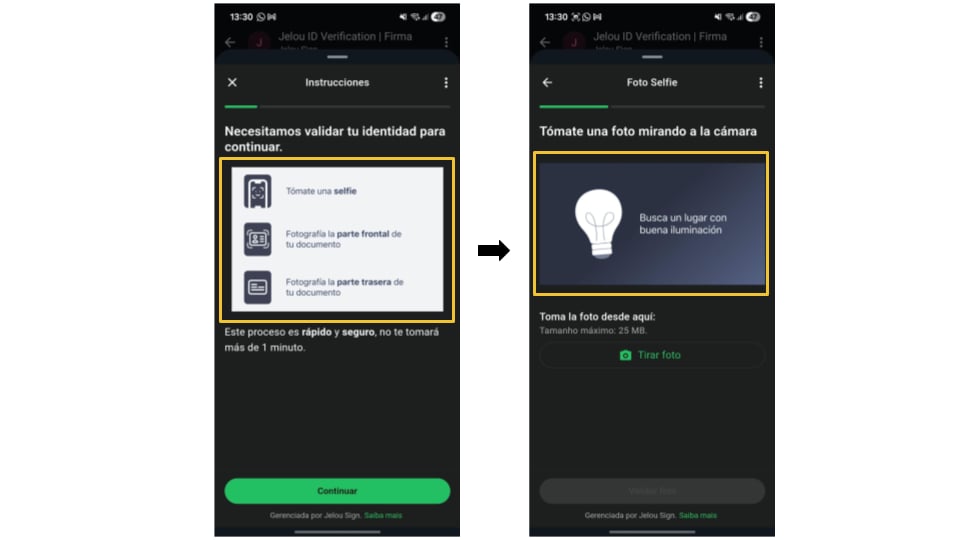
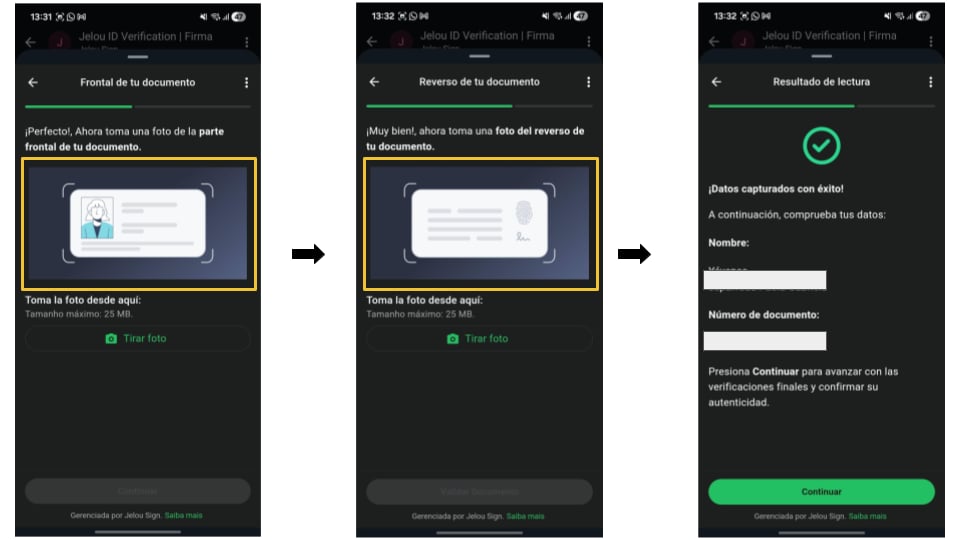
In Flows, you can customize only the images that appear on each screen; the rest of the flow copy is not editable.
Fields marked with a yellow box on the flow screens are customizable. The remaining texts cannot be modified.
General view of the biometrics flow in Flows with yellow boxes on the customizable fields
General view of the document flow in Flows with yellow boxes on the customizable sections

Frequently asked questions

Yes, the agent can respond because all fields have default values. However, selecting the agent version is mandatory; we recommend always selecting the latest available public version.
Photos of the identity document from both sides are required: front and back.
No. This agent is designed as a complete flow: photo + document + facematch. If you only need part of it (for example, document only), you must install the agents by stage.
No, you cannot modify the interaction texts. You can add messages, conditionals, and other customizations in your workflow on the canvas.
HIL is an add-on service with an additional cost. When active, some cases may go to manual review (for example, if the threshold is not reached or attempts are exhausted). In this agent, manual review is applied after document validation.
  • Encryption in transit and at rest.
  • Evidence recording with hashes to ensure integrity.
  • Access control with roles (RBAC) and MFA.
It depends on your configuration:
  • Maximum biometrics attempts (maxBiometricAttempts): controls biometrics attempts.