
How to add the node
Both kinds of AI agent are added from the same entry point: the AI Agent item in the builder’s toolbar. Its behavior changes depending on how you use it:- Click: adds a normal AI Agent node: Jelou’s own AI agent.
- Hover: opens a selector of external AI agent providers. Picking a provider adds an External AI agent node preconfigured for that provider.
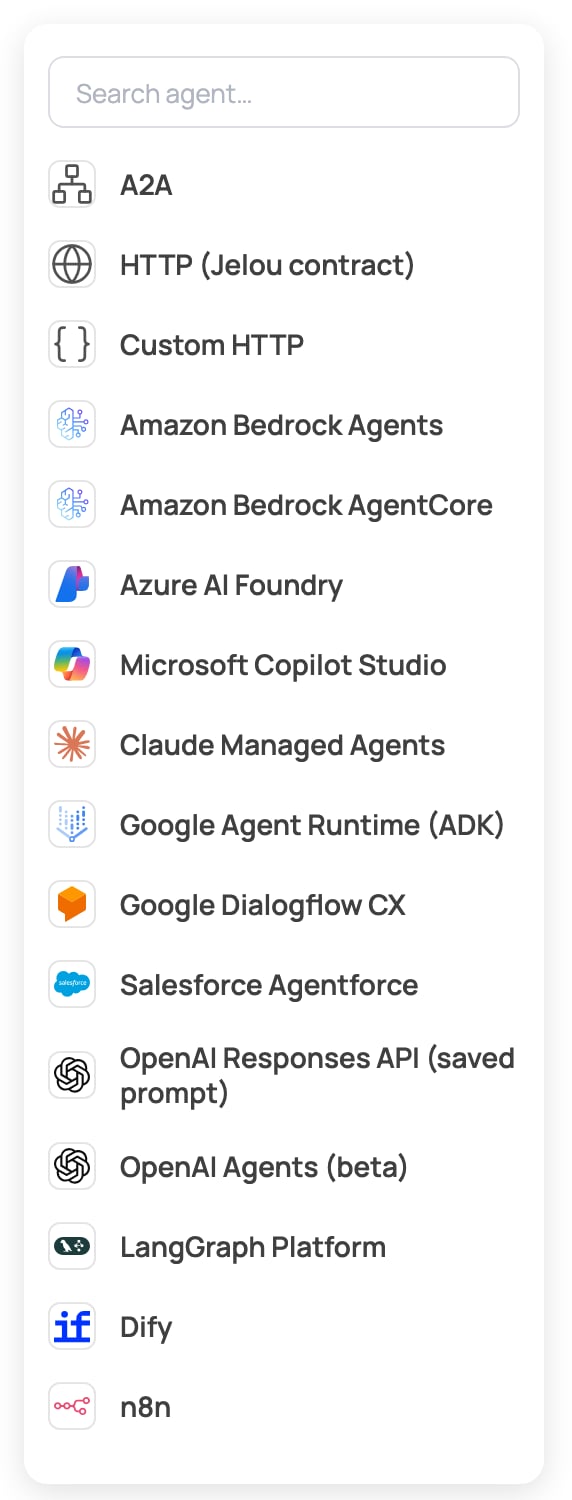
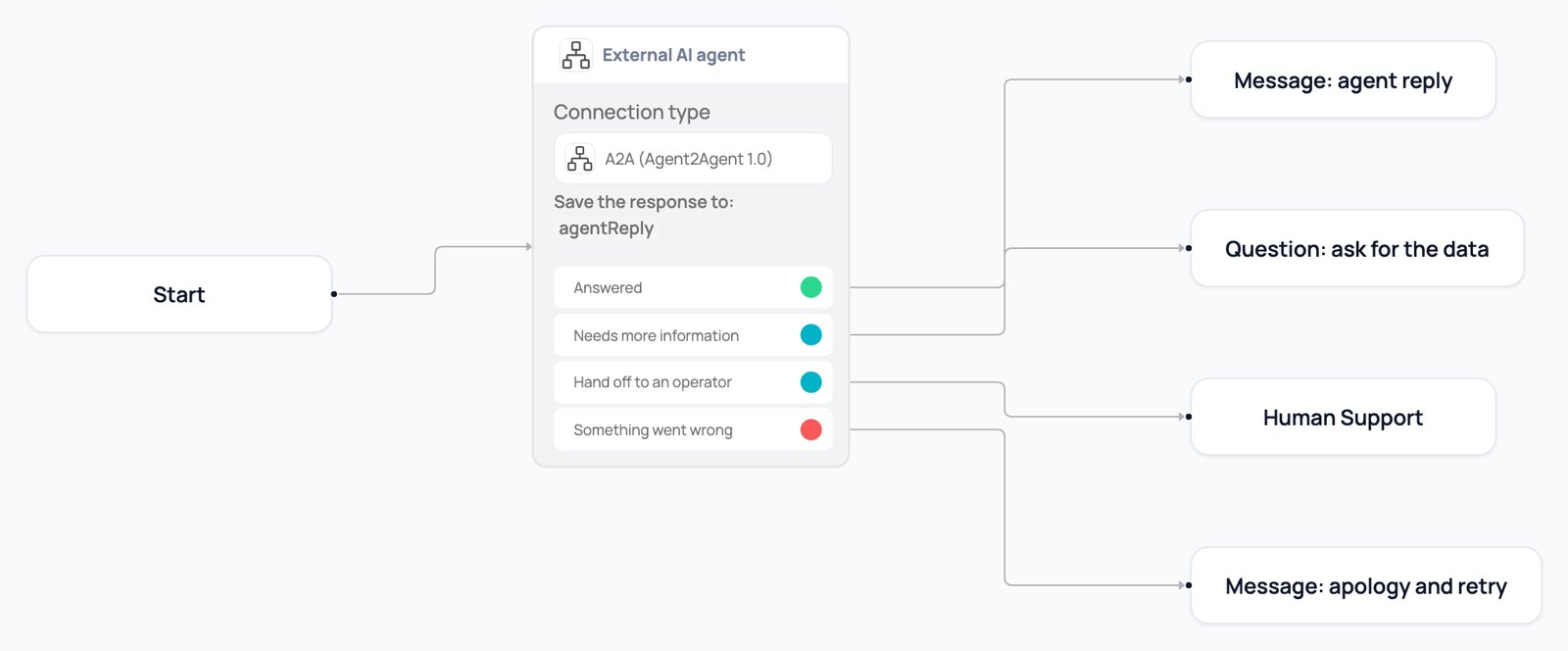
AI Agent or external AI agent
Choose based on where the agent lives. To build one inside Jelou, use the AI Agent node (general guide).Available providers
Each provider asks for its own fields, taken directly from its console, and validates them as you type. Credentials are selected by the name of the organization secret that stores them; the secret’s value is never shown or saved in the flow.AWS now lists Amazon Bedrock Agents as “Agents Classic” and recommends AgentCore for new agents. With Amazon Bedrock AgentCore in HTTP mode, Jelou sends its full turn body (see the contract), so your handler must read it; in A2A mode the runtime can publish an A2A 1.0 or 0.3 Agent Card (0.3 is what runtimes built with the AgentCore SDK’s default extra publish).
Provider behavior
These details explain which output the node takes in the cases each provider handles in its own way. Remember that Needs more information only exists in one task; in several turns the node delivers the message and waits for the user.- Amazon Bedrock Agents: if the agent asks for a return-of-control action, the node takes Needs more information. The result of that action travels to the agent on the next turn, together with the invocation identifier, and the agent continues. Only one action per turn is supported; if the agent asks for several at once, the turn fails.
- Amazon Bedrock AgentCore: in A2A mode, both 1.0 and 0.3 Agent Cards are accepted. The endpoint qualifier applies to the Agent Card and to the calls, and Jelou keeps the same runtime session identifier for the whole conversation so that turns reach the same session. In HTTP mode, if the runtime reports an error inside the response itself (
error,error_typeandmessage), the turn fails with that reason. - Claude Managed Agents: Jelou reads the session by streaming until the agent goes idle. If the agent stops waiting for a tool result, the node takes Needs more information. If the agent runs out of retries, the turn fails and can be retried; if it reaches its budget or the model refuses to answer, it fails with no retry; if the session terminates, it fails because the agent is no longer active. A transient error that the agent itself is retrying does not cut the turn short. A pinned agent version is an integer from 1 up.
- Salesforce Agentforce: each message is interpreted by its type.
Informis text for the user.InquireandConfirmare also delivered as text and, in one task, the node takes Needs more information.Escalatetakes Hand off to an operator,SessionEndedends the conversation, andFailureorErrorfail the turn with the reason Salesforce reports, with no retry. - LangGraph Platform: if the graph stops on an interrupt, the node takes Needs more information and your reply resumes the graph. When several interrupts are pending at once, Jelou resumes the first one by its ID. An error the graph returns inside a successful response fails the turn with its reason.
- Microsoft Copilot Studio: Jelou delivers only the bot’s activities and drops the echo of the user’s own message.
- Azure AI Foundry: if the response arrives as failed, cancelled or incomplete, or with an error even though the HTTP status is 200, the turn fails with the reason Foundry reports. A response cut short by the content filter is treated as rejected and is not retried; a
rate_limit_exceededorserver_errorerror is retried. With the classic API, the reason comes from the run’slast_errorfield.
OpenAI Agents (beta)
The OpenAI Agents (beta) provider connects an agent saved on the OpenAI platform through its Agents API, which is in beta. It is different from OpenAI Responses API (saved prompt), which uses a reusable prompt (pmpt_...) that OpenAI stops offering on November 30, 2026; for new agents, use OpenAI Agents.
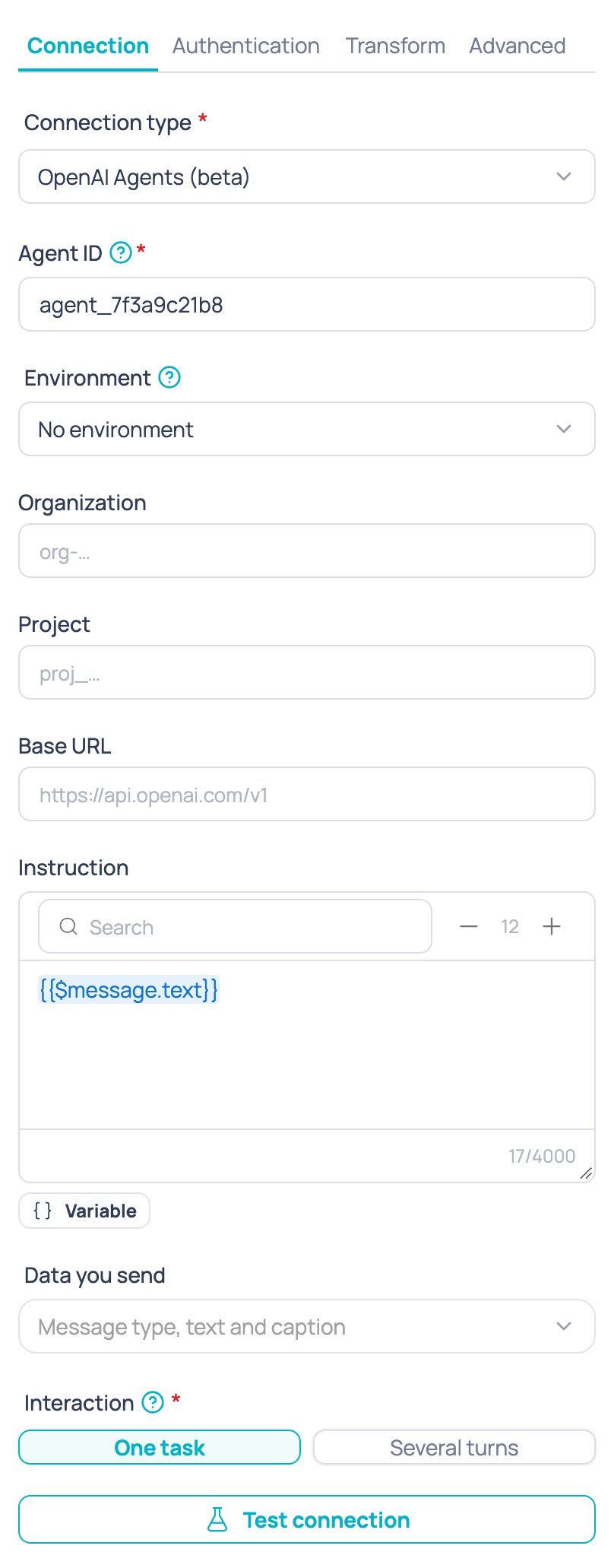
Authentication: Bearer token. Choose the organization secret that holds your OpenAI API key; the key must belong to the project that owns the agent. A restricted key needs the
api.agents.read and api.agents.write permissions.
How a turn works:
- Jelou creates a session with the saved agent and sends it the message.
- It polls the turn until it finishes, within the turn timeout, and delivers the text of the agent’s final answer.
- In one task, the session is deleted when it ends. In several turns, Jelou keeps the session and sends each user message as a new message in it.
- If the agent calls a function on your side, in one task the node takes Needs more information, and your result goes back to the agent as the tool result.
- If the agent asks for a computer-use approval or an environment reconnection, the turn fails as rejected with a readable message, because a chat cannot answer it.
- If the turn does not finish within the timeout, the node takes Something went wrong and Jelou tries to cancel the turn.
- OpenAI usage, spend and billing limits and policies fail the turn with no retry; an overload or a rate limit is retried.
Node tabs
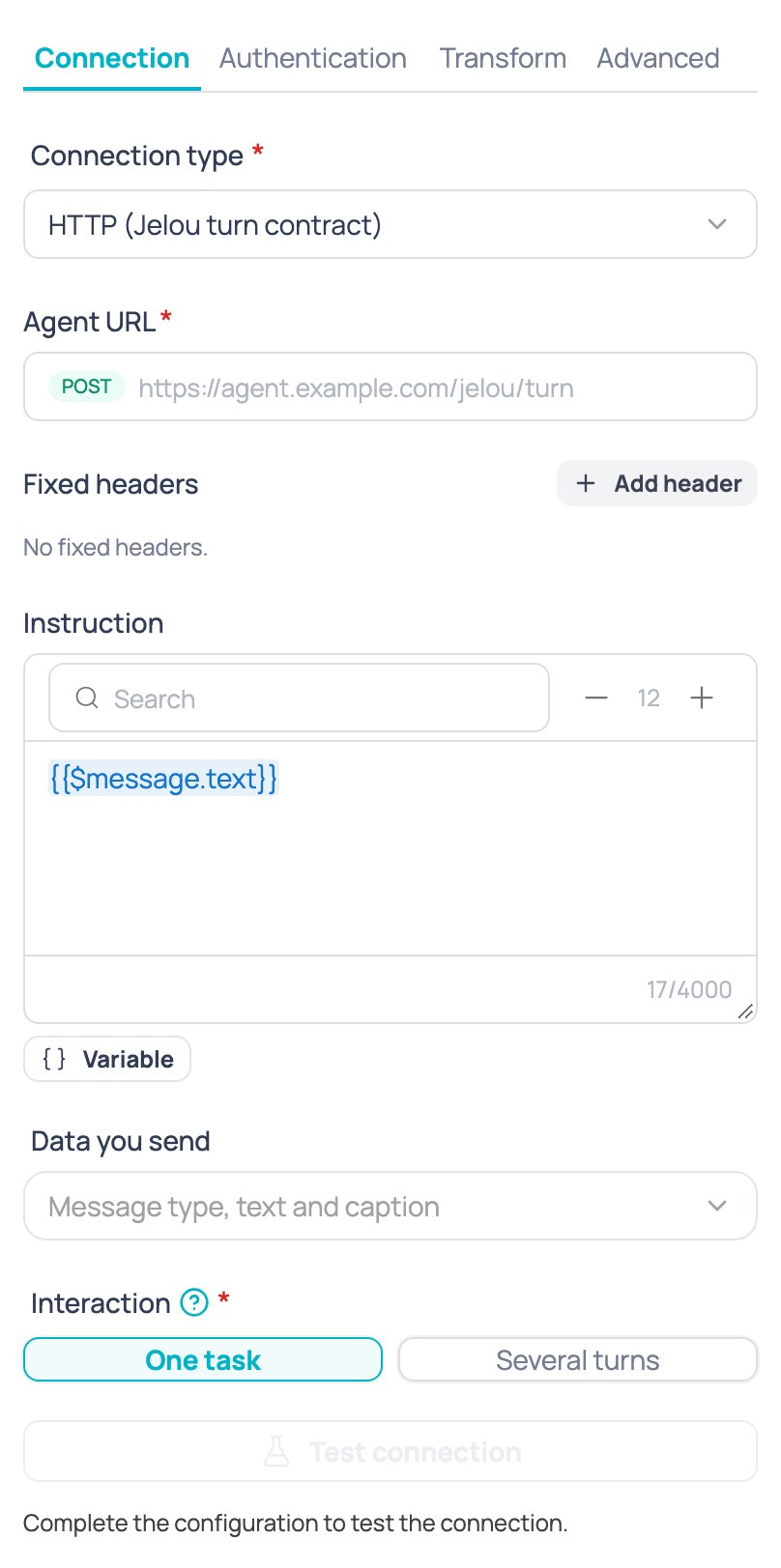
The node panel has four tabs and, if your company has event metrics enabled, a fifth one, Events:- Connection: the connection type, the URL or the provider’s fields, the fixed headers, the Instruction sent to the agent (
{{$message.text}}by default), the Data you send and the Interaction (one task or several turns). - Authentication: the authentication type, the organization secret, the mTLS certificate and HMAC signing.
- Transform: the pre-request and post-response scripts and, depending on the provider, the shape of the request and the response.
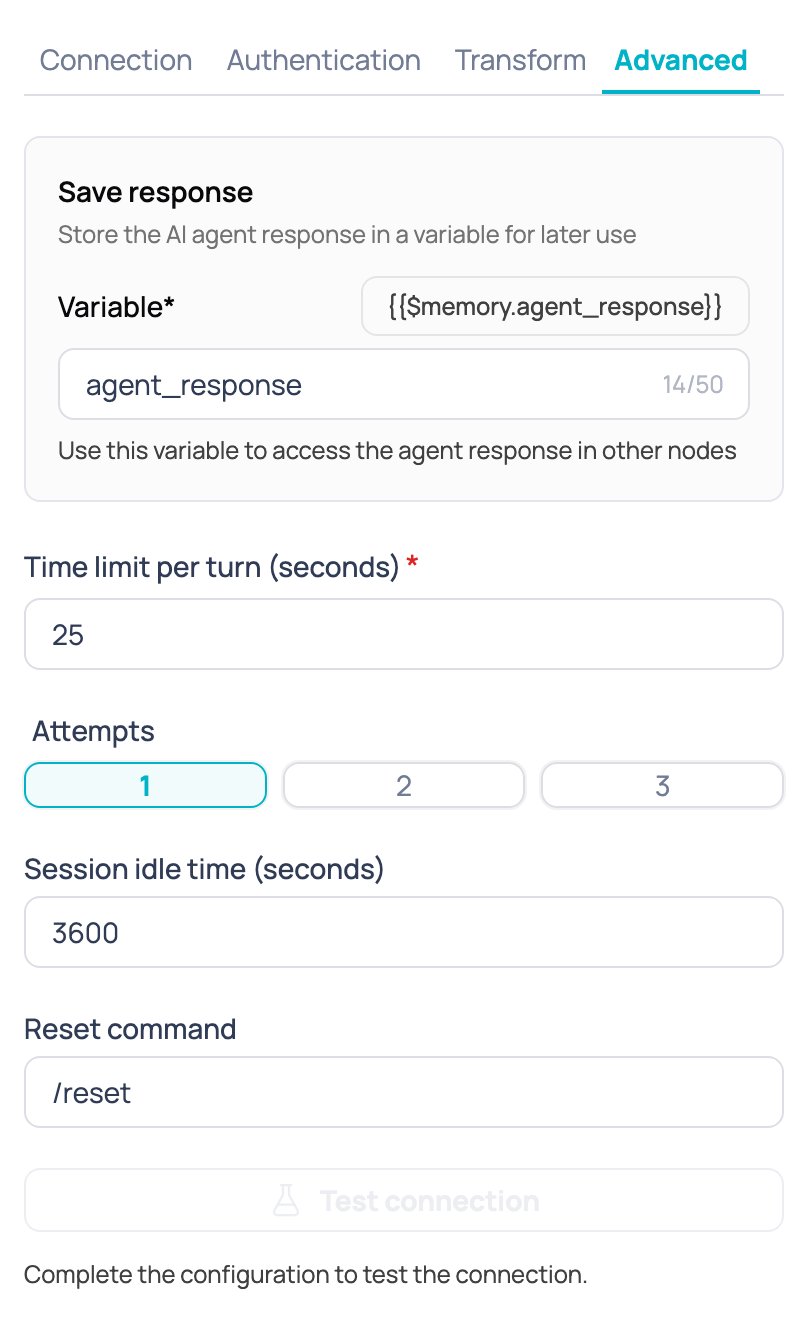
- Advanced: the response variable, the turn timeout, the attempts and, in several turns, the session inactivity and the reset command.
Events and evaluation conditions
The Events tab has the same two sections as the AI Agent: Event configuration and Evaluation conditions. It only appears if your company has event metrics enabled. Evaluation conditions measure the outcome of the conversation with the external agent. You define with a prompt what must happen; when the conversation ends successfully, Jelou analyzes the history (what the user said and what the agent answered) against every active condition. For each condition that is met, an event with its name is fired, ready to analyze in Metrics.- One task: the conversation is evaluated when the agent completes the task.
- Several turns: it is evaluated when the agent ends the conversation, with every turn from the start.
- If the turn fails, nothing is evaluated.
- A node without active conditions behaves exactly as before and stores no conversation for evaluation.
One task or several turns
When you configure the node, you choose how it interacts with your agent:- One task: the node sends the task once, receives the answer and exits the node.
- Several turns: the node keeps the conversation going with the agent, message by message, until the agent ends it or hands it off. While the agent answers without ending the conversation, the node doesn’t take any output: it delivers the messages to the user and waits for their next message to continue with the agent.
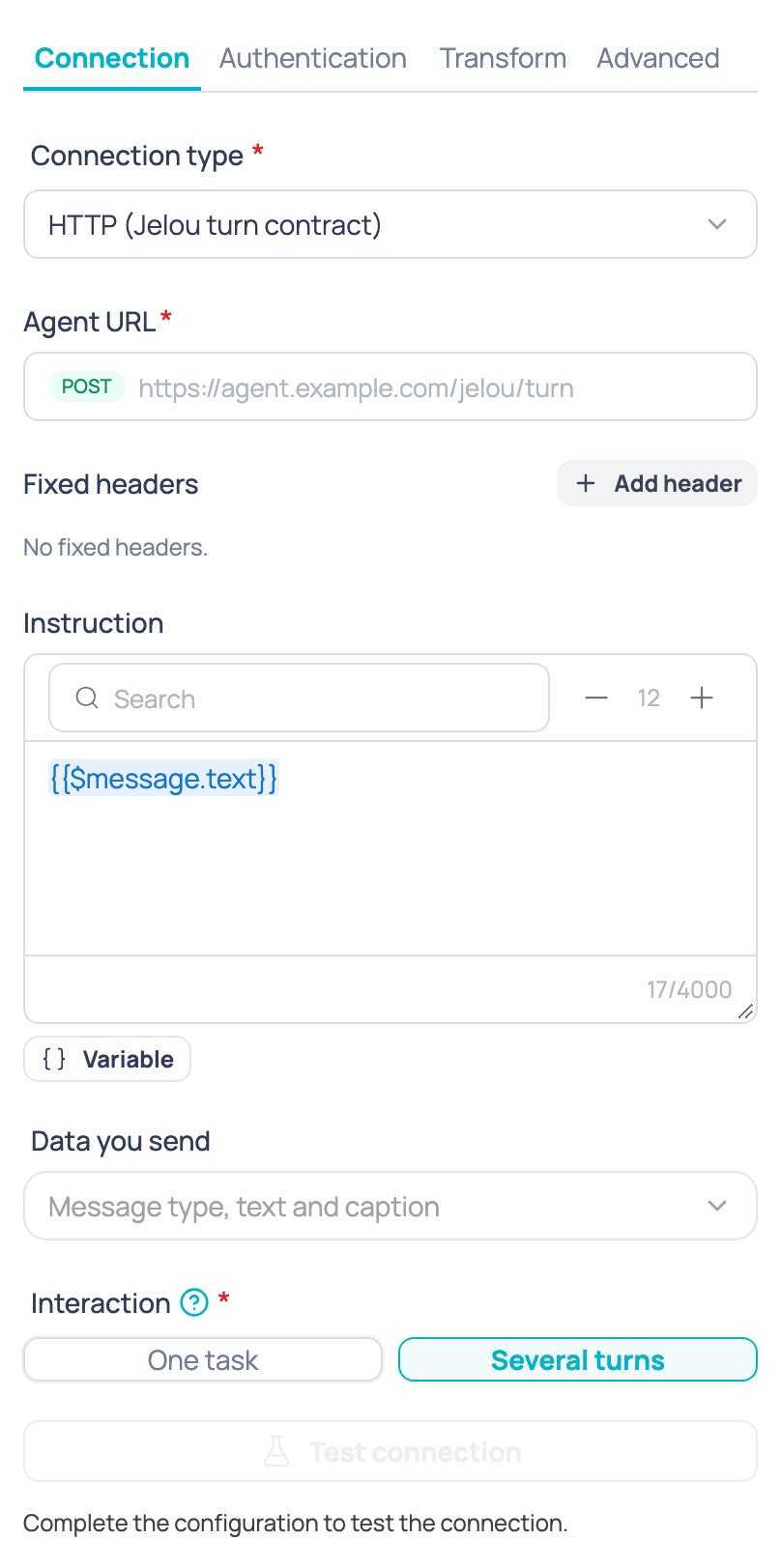
Example: one task
Example: several turns
Node outputs
The External AI agent node has four outputs: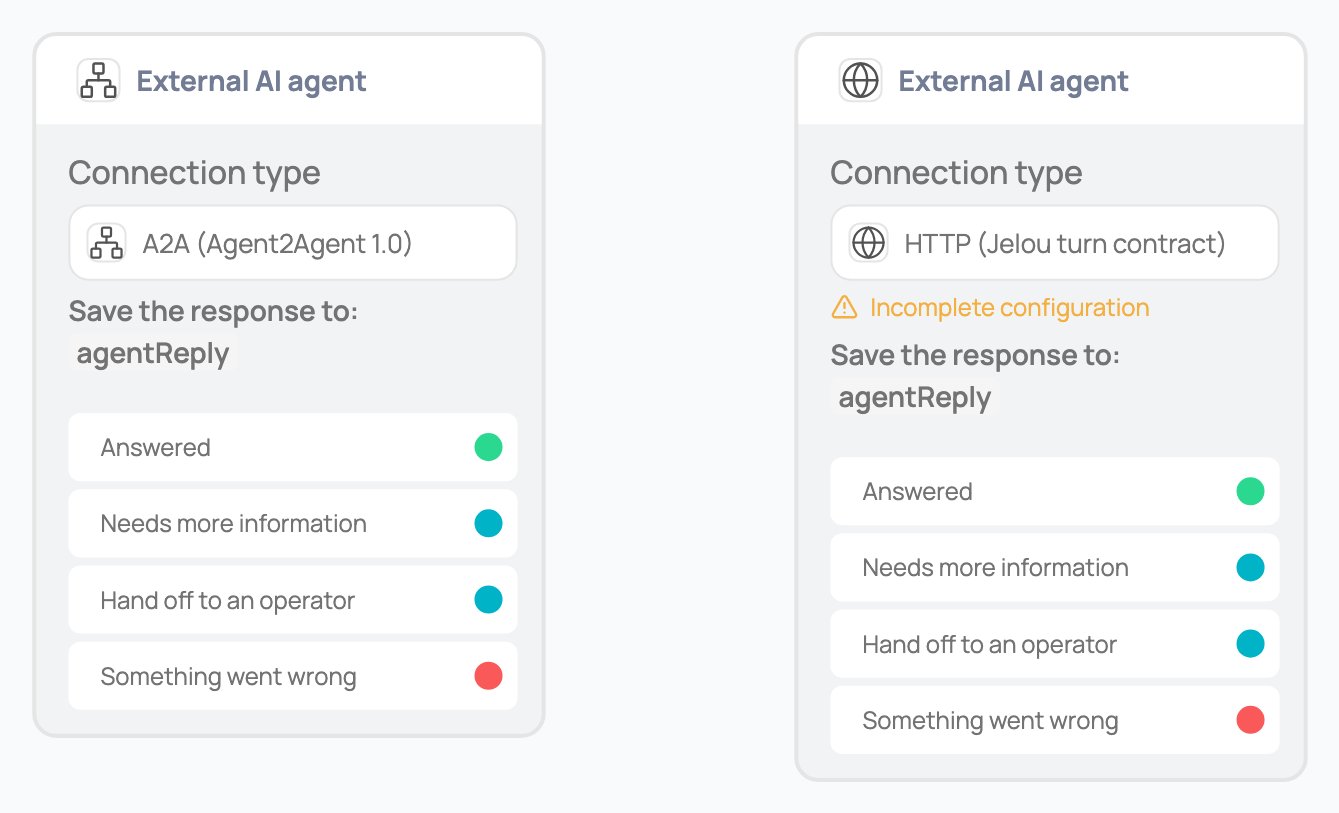
- Answered → the agent’s message was already delivered; continue the flow or end it.
- Needs more information → a question node that collects the missing piece and calls the agent again.
- Hand off to an operator → your handoff node to the Inbox.
- Something went wrong → an apology message and, if it applies, a retry or a handoff to an operator.
The response variable
The agent’s message is delivered to the user directly. The structured data the agent returns, for example with avariables_set signal or through custom HTTP’s data path, is stored in the flow’s memory under the variable you set in the Save response card of the Advanced tab (agentReply by default; on the canvas it shows as “Save the response to”). You can then read each field in later nodes, for example {{$memory.agentReply.ticket}} in a message node or a condition.
If you don’t need that data in the flow, turn off the Save response switch: the node writes nothing to memory, the agent’s message is still delivered and the outputs work the same. Existing nodes keep the switch on.
If the agent returns no structured data, the variable stays empty: the text of the answer is not stored there.
Authentication and organization secrets
Each provider supports one or more credential schemes, depending on what its API accepts:
In every case, the node only stores the organization secret’s name, never its value. The secret is resolved at call time and is never shown or saved in the flow.
Advanced options for custom HTTP
When your agent uses HTTP (Jelou turn contract) or custom HTTP, you have additional options. They are set up in the Connection (fixed headers), Authentication (OAuth, mTLS certificate and HMAC signing), Transform (scripts) and Advanced (retries and time limit) tabs: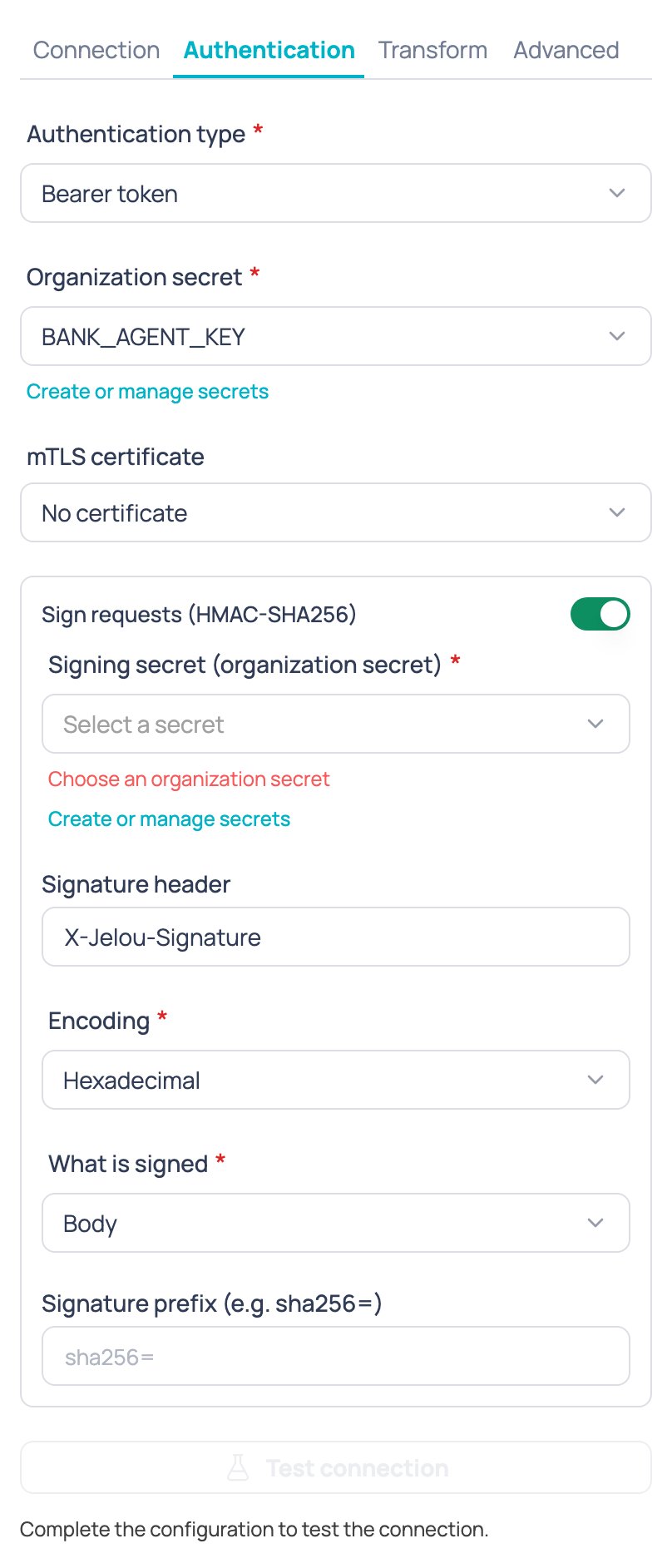
HMAC signing, static headers and mTLS are available without a special plan (for mTLS, first register a client certificate in Jelou). Pre and post scripts depend on an option Jelou enables per company: if the Transform tab shows they are unavailable, ask your Jelou account executive to enable them.
HMAC signing: what’s signed and how to verify it
When you turn on request signing, Jelou computes an HMAC-SHA256 over the exact request body (the same bytes sent) using the secret you choose, and sends it in a header:
Your own server can verify the signature like this (Node.js, body-only variant):
{{$message.text}}: it holds the text of the message that reached the flow. {{$input.message}} is not a message variable: $input only holds the data your flow collected (for example, with an Input node), so it comes out empty when the node runs from a chat message.
Pre-request and post-response scripts
Scripts run in the same secure environment (sandbox) the API node uses. They are set up in the node’s Transform tab, in two sub-tabs: Jelou → Your agent (pre-request script) and Your agent → Jelou (post-response script). What each script can change depends on the provider:
In every case, an empty or unchanged text keeps the original, and a script error fails the turn.
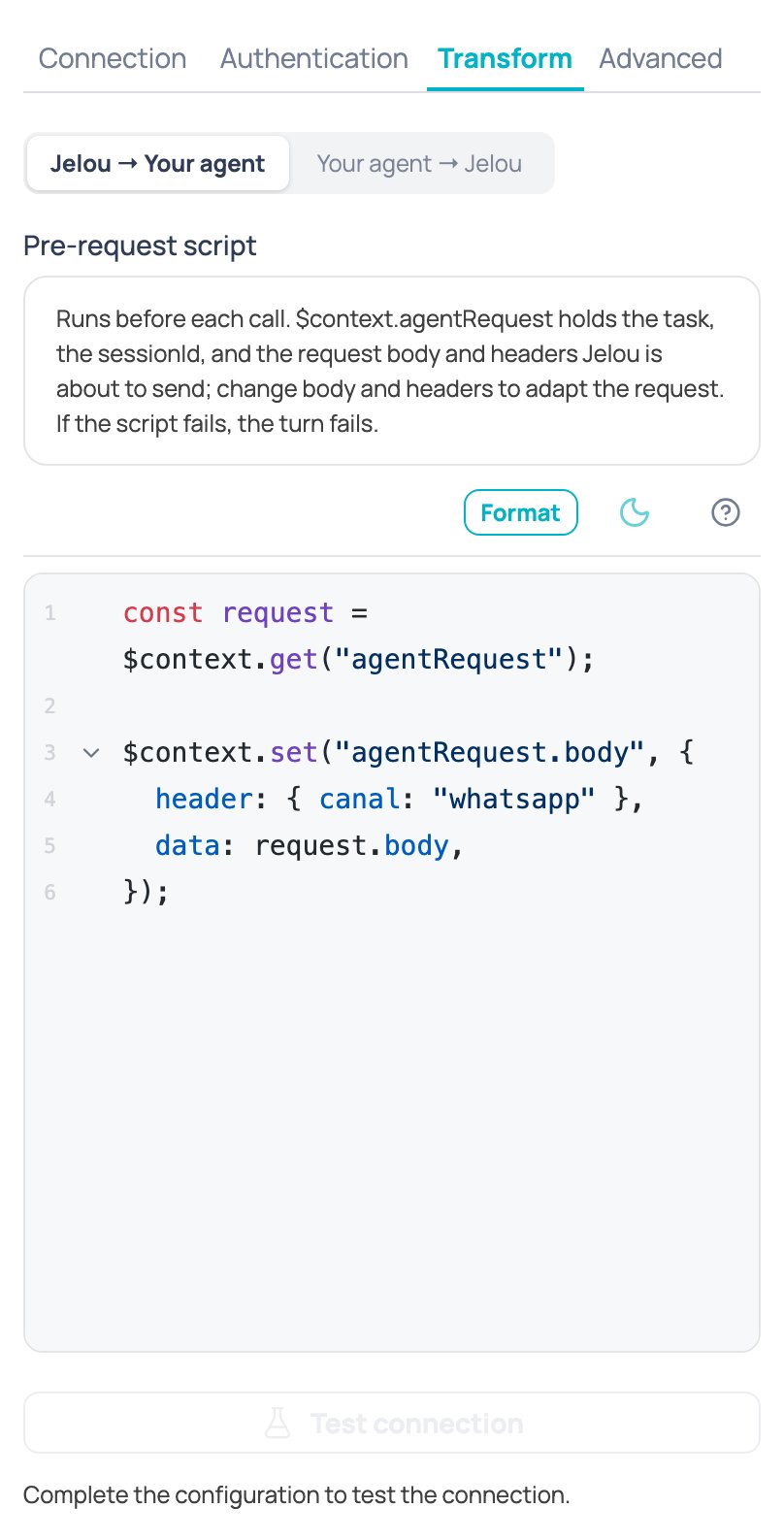
$context.get("agentRequest") contains { task, sessionId, body, headers }. For example, to wrap the body in your company’s own envelope:
$context.get("agentResponse") contains { status, body }. The script must leave in agentResponse.body the object the response mapping then reads (the textPath, dataPath, sessionIdPath, etc. paths).
A script error fails the turn through the node’s Something went wrong output. Script changes never touch the flow’s own variables: they only modify what Jelou sends or reads for this call.
Reply later (acknowledges, replies later)
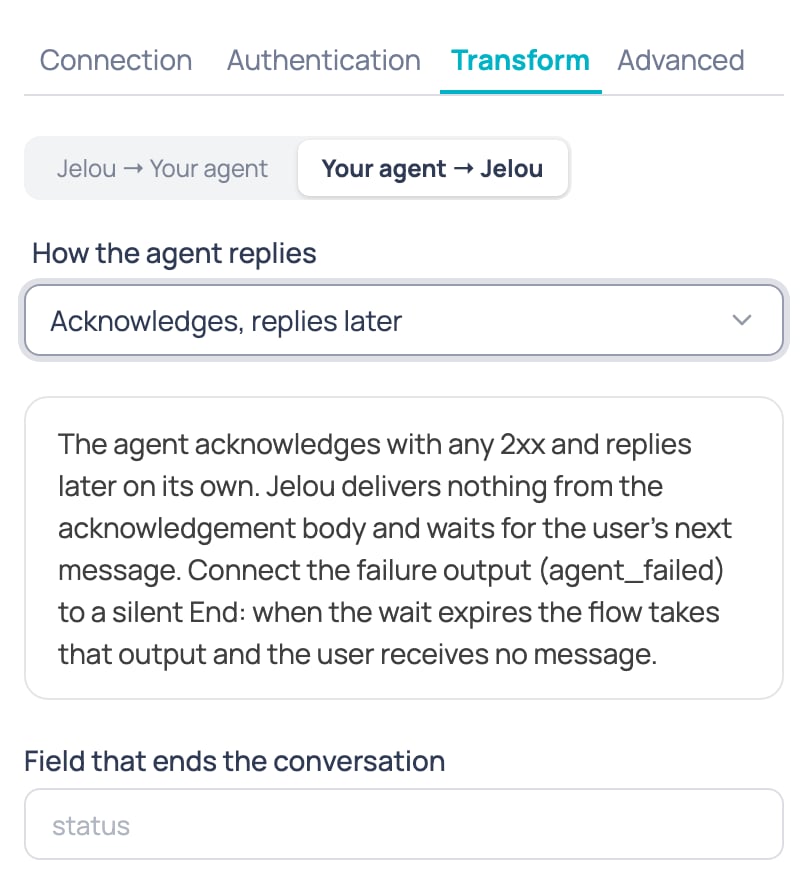
Some external agents don’t answer inside the same call: they acknowledge that they received the message and send their answer later, on their own. For that case, the External AI agent node has an optional mode. It is off by default, so an existing node behaves exactly as before. The How the agent replies field appears on the Transform tab, in the Your agent → Jelou sub-tab, when the connection type is HTTP (Jelou turn contract) or Custom HTTP and the interaction is Several turns. It has two options:- In the same response (default): the agent answers inside the same call, as before.
- Acknowledges, replies later: the agent acknowledges with any 2xx response. Jelou delivers nothing from the acknowledgement body and leaves the node waiting for the user’s next message, with the same session inactivity time. That message is forwarded to the agent within the same execution.
When the conversation ends
In the same sub-tab, these two optional fields appear only in this mode:- Field that ends the conversation: the path of the field in the acknowledgement body, for example
status,data.stateoritems[0].s(up to 200 characters). - Values that end the conversation: 1 to 20 distinct values, separated by commas. It accepts text, integers and true or false. When the field holds one of them, the conversation ends and the flow continues through the Answered output.
Outputs you must connect
- Always connect the Something went wrong output: it is the one the node takes when the wait expires without the user writing. Without that connection you can’t publish the flow.
- Connect the Answered output only if you defined the field that ends the conversation. Without those fields it isn’t used.
- The Hand off to an operator output is not required.
Do not reply after the time limit
If your agent acknowledges late and the node has already timed out, the flow follows Something went wrong and may send its fallback message. If your agent still posts its reply afterwards, the user receives both. Jelou cannot recall a message your agent already sent through the send API, so the rule is on the agent side: do not send the reply once the turn limit has passed. How you learn when it expires depends on how your agent is connected:- With Custom HTTP, the pre-request script (Transform tab) receives
agentRequest.turnwithturnId,inputId,deadlineMsandexpiresAt(absolute time in ISO format). Pass it in the body so your agent can see it:
reply_by before sending and drops the reply if it has passed. Nodes whose script does not read turn behave exactly as before.
- With HTTP (Jelou turn contract), the request body already carries
turnId,inputIdanddeadlineMs.deadlineMsis the number of milliseconds the node waits from the moment it sends the request, not an absolute time: work out the limit by adding it to the time your agent receives the message.
Actions: the agent picks the output
With multi-turn Custom HTTP, or HTTP (Jelou turn contract) in Acknowledges, replies later mode, your agent can decide where the flow goes next. In the Your agent → Jelou sub-tab of the Transform tab, the Actions (extra outputs) section lets you declare up to 12 actions, for examplelogin or execute_loan. Each action adds its own output to the node, Action: login, Action: execute_loan, and the flow continues through it in the same execution, without waiting for the user.
- Action name: lowercase letters, numbers and underscores, up to 32 characters, no repeats.
- Field with the action name: the path in your agent’s reply that carries the name. Defaults to
action. - Field with the action’s data (optional): the path of a value you want to use in the branch. It is saved next to the name in the response variable as
actionData.
result.action and the data path result.data, this reply from your agent takes the Action: execute_loan output:
action with the name and actionData with { "amount": 1500 }.
- An empty or missing field is not an action: the turn continues as usual.
- A name that is not on the list fails the turn and the flow continues through Something went wrong.
- Connect every action to a node: the node shows a warning on the canvas until you do. If you remove an action, its connections are removed too.
- When the branch ends and returns to the node, the node waits for the user’s next message and forwards it to the agent in the same execution.
Non-text messages
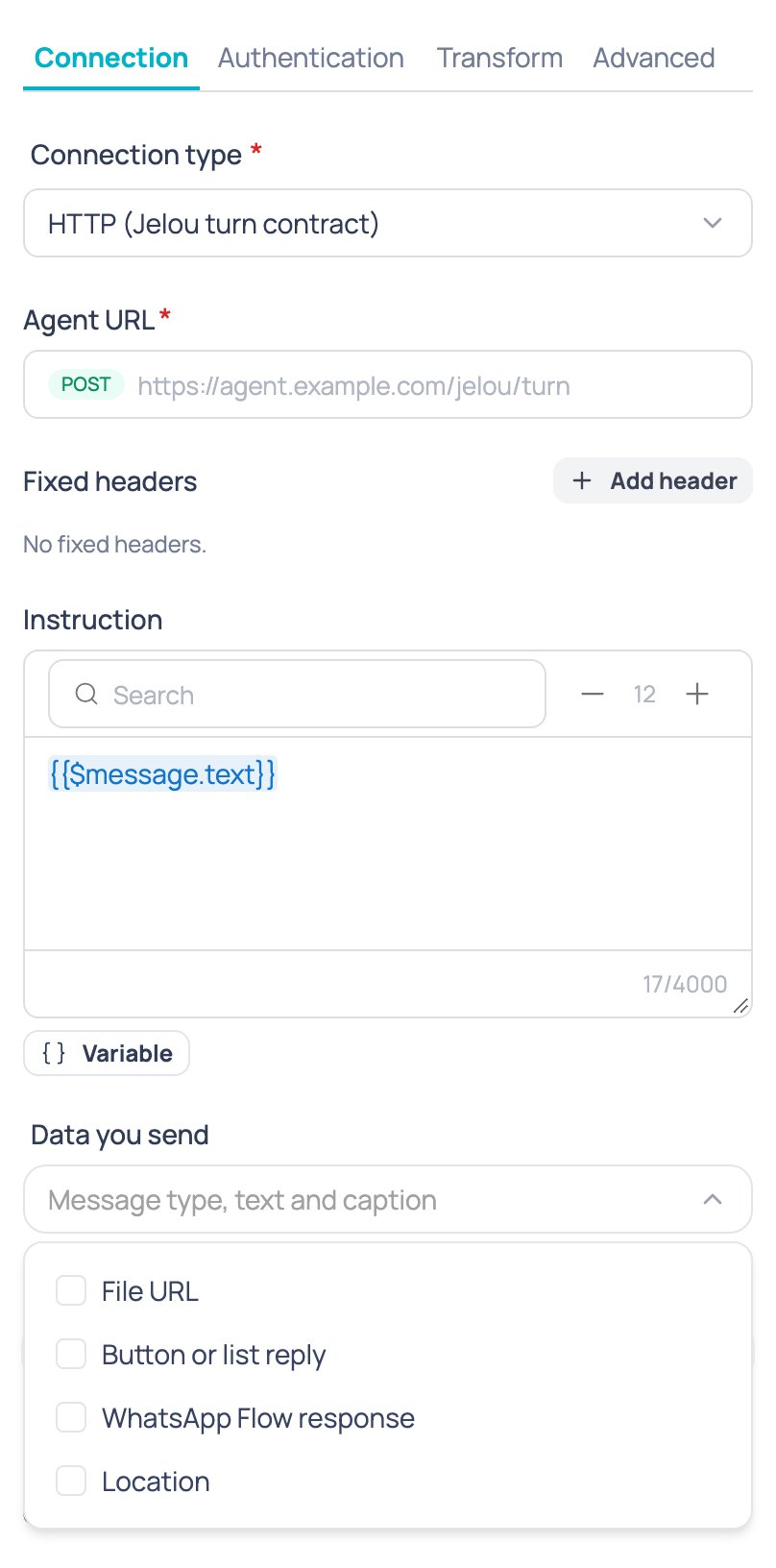
When the user sends an image, audio, a document, a WhatsApp Flow response, a button, a list or a location, the agent no longer receives an empty task. The task arrives as[type] caption (or just [type]), and the request includes an input.inbound object with the type, text, caption, file type and message id.
Sensitive data is not sent by default. On the Connection tab, the Data you send field lets you choose which to add:
- File URL
- Button or list reply
- WhatsApp Flow response
- Location
Signature prefix
Some agents expect the HMAC signature with text in front of it, for examplesha256= followed by the value. On the Authentication tab, under Sign requests, the Signature prefix (e.g. sha256=) field adds that literal text before the signature value. It accepts 1 to 32 characters: letters, digits and _ = . : / + -; spaces and templates are not allowed. The timestamp header is never prefixed. It applies to HTTP (Jelou turn contract) and Custom HTTP, and on every retry.
OAuth2 token over mTLS
If your agent uses OAuth2 client credentials and requires the client certificate to request the token too, on the Authentication tab, choose an mTLS certificate and turn on Also request the token with the mTLS certificate. The token request goes over the same certificate as the agent call. The token URL must still be https. The switch appears only with that authentication and a chosen certificate; if you remove the certificate, it turns off. When off, the token is requested as usual.The Jelou turn contract
When you pick HTTP (Jelou turn contract), your server receives and answers with a fixed shape Jelou already knows how to read, with no path mapping. Jelou sends aPOST with the turn (turnId, input.parts, conversation, user, deadlineMs, interaction…) and your agent answers with status, outputs and, when needed, signals. The field-by-field description, with examples you can copy, is in External AI agent: what your agent receives and returns.
conversation_ended signal:
Agent's second response
If your agent doesn’t speak this contract, use custom HTTP: there you define the shape of the body that gets sent and the paths where Jelou should read the answer text, the structured data and the session id, in the node’s Transform tab.
Test connection
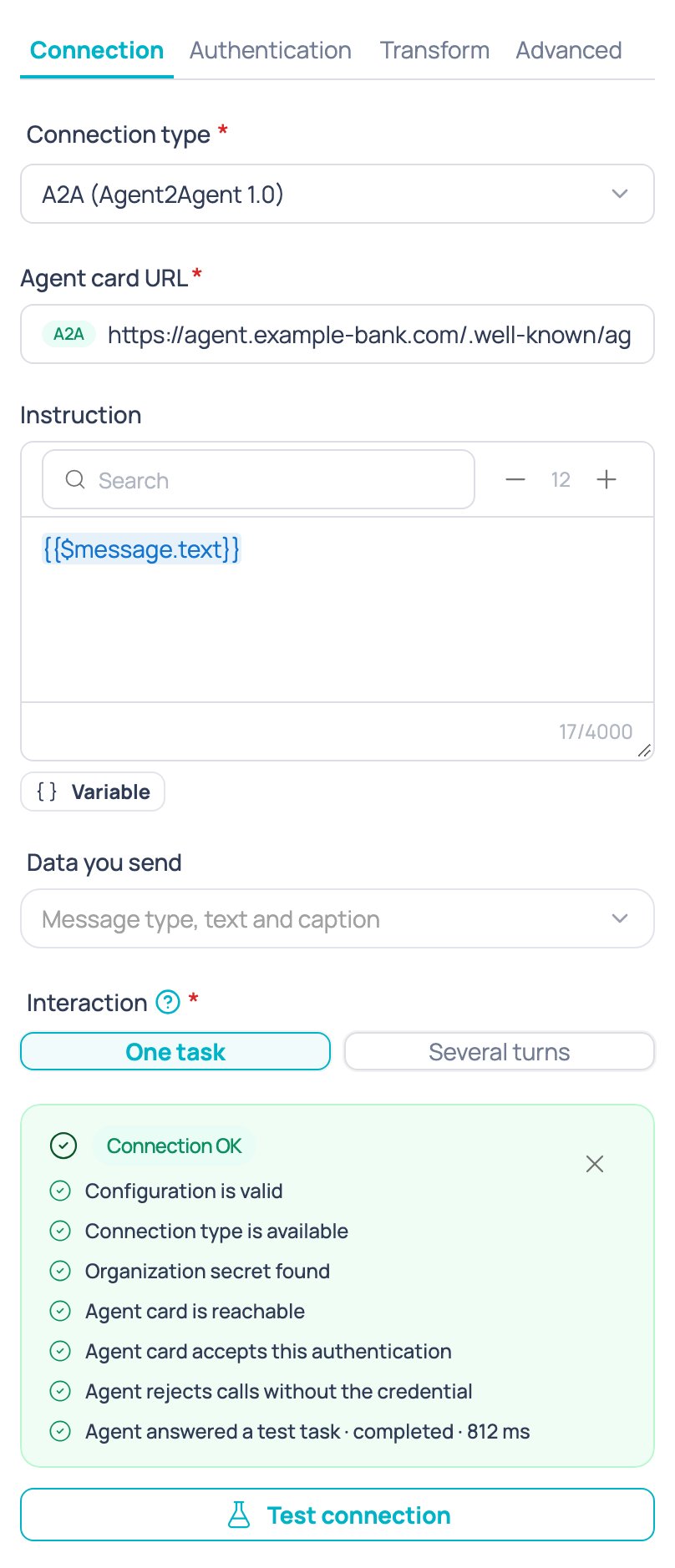
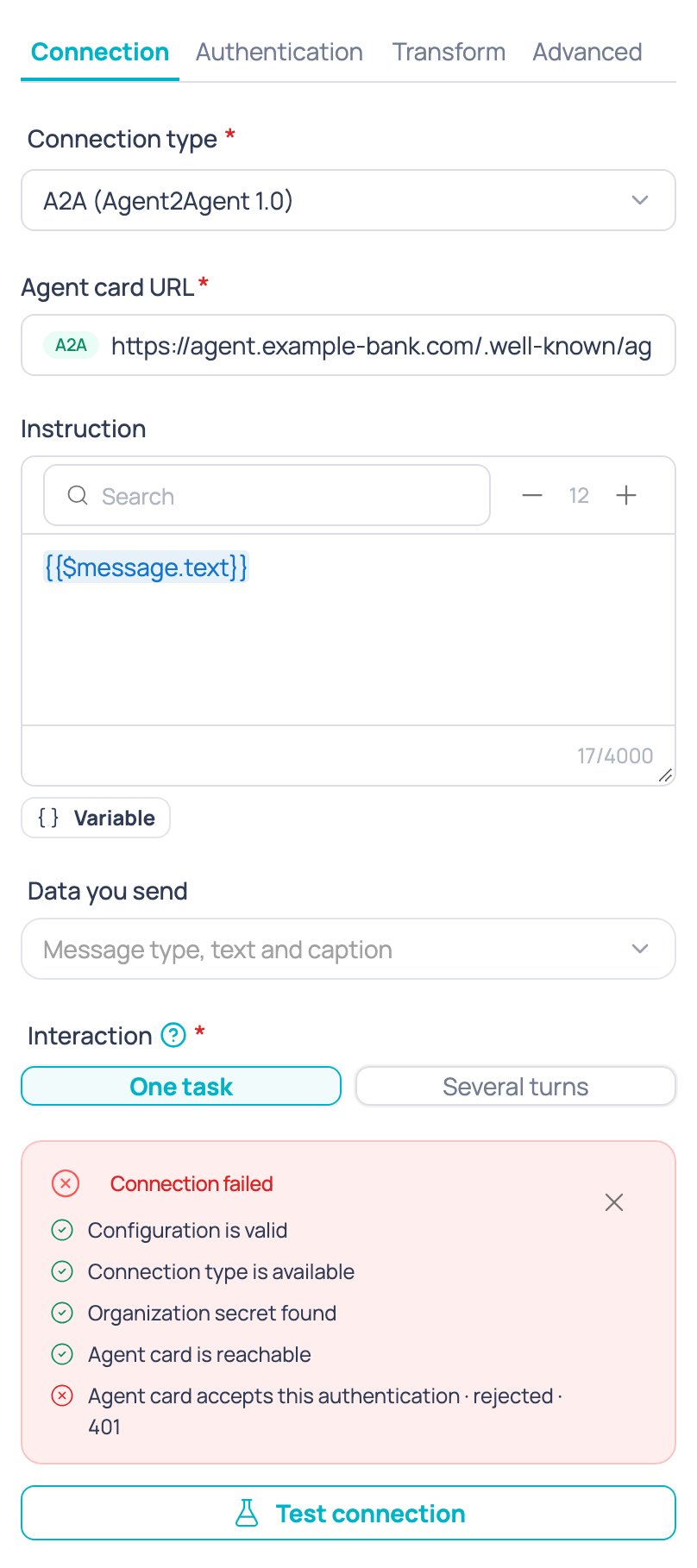
Before publishing your flow, use the Test connection button at the bottom of any tab of the node to check that everything is configured correctly, without waiting for a real user to trigger the node. The test runs a chain of checks, stopping at the first one that fails:
If every check passes, you see a confirmation:
Security
- Credentials never leave your organization’s secrets. The node only stores the secret’s name; its value is never shown or saved in the flow.
- HTTPS only. Jelou doesn’t call internal or private addresses.
- Your agent’s answers go through Jelou’s same security checks as an AI Agent’s answers, before they reach the user: they’re screened like any other outbound message, with nothing extra to configure on the node.
Troubleshooting
The node always exits through 'Something went wrong'
The node always exits through 'Something went wrong'
Check Test connection first: it almost always points to whether the problem is the certificate, the secret, the token or the agent itself. The most common causes are an expired or revoked credential, a URL that stopped responding, or an agent answer that isn’t valid JSON or is missing the field expected at the configured path.
The turn takes a long time and ends in an error
The turn takes a long time and ends in an error
The node waits at most the configured turn timeout (25 seconds by default, up to 120 as a maximum). If your agent needs more time, raise the limit in the Advanced tab; if the agent fails intermittently, check retries: they only apply to timeouts, rate limits (HTTP 429) and server errors (5xx), never a request the agent explicitly rejected.
The HMAC signature doesn't match on my server
The HMAC signature doesn't match on my server
Always verify against the request’s raw body, before parsing the JSON (see the HMAC signing section above). Also confirm you’re using the same secret, the same encoding (hexadecimal or Base64), and, if you turned on
timestamp.body, that you’re signing "{timestamp}.{body}" and not just the body.'Needs more information' doesn't show up in several turns
'Needs more information' doesn't show up in several turns
That’s expected: that output only exists in one task mode. In several turns, when the agent needs an extra piece of information it simply asks for it as a normal message and the node keeps waiting for the user’s reply, without taking any output.
Availability
The External AI agent node is available in every project.AI Agent node
General configuration of the AI Agent node.