
- Select the AI Agent node in your flow
- Open the TOOLS section in the node configuration
- Click the ”+ Add tools” button
- In the “Select a Tool” field, you will see the list of all available tools, including native ones (marked with the text “(Native)”)
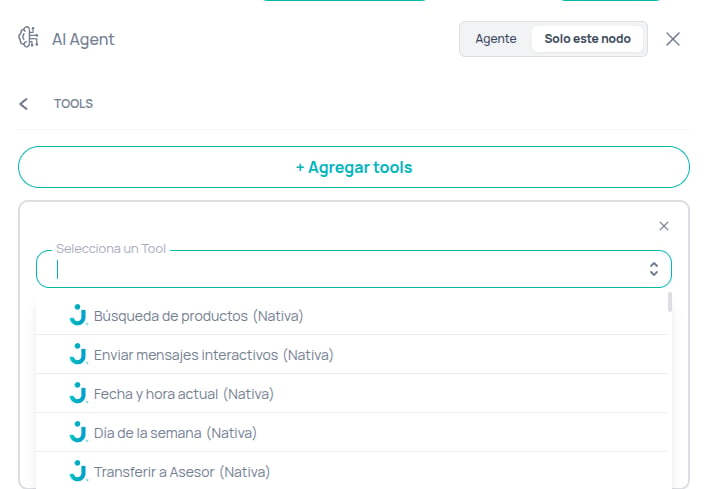
Product search
Searches products in the available catalog to recommend to the user. Uses a search engine to find matches based on the product name or related terms. Parameters:
Prompt Example:
“If the user asks about the availability of a specific item or model, you MUST use the search_products tool to query the catalog before responding.”
Arguments Example:
- Requires the channel to have a product catalog configured and accessible.
Transfer to agent
Transfers the user’s current conversation to a human agent or an attention queue. Allows specifying routing strategies and priorities. Parameters:
Prompt Example:
“When the user expresses frustration or explicitly requests to speak with a real person, execute the transfer_to_agent function immediately.”
Arguments Example:
Case: Automatic direct transfer (most common)
- Can end the AI flow immediately.
- When using
assignment_type: "queue"withassignment_by: "general", a ticket is created in the general attention queue. - Important: Team or operator IDs must not be made up; only those explicitly configured should be used.
Interactive messages
Interactive messages brings together the button messages the agent can send: Buttons and list, Webview, and Call to Action. Each message has its own toggle, so you turn on only the ones the agent needs. The agent decides when to send each one based on the criteria you give it. The Interactive messages row appears in the Tools tab of the AI Agent node and shows how many messages are active (for example,2/3). Click it to open the settings panel.
General settings: Buttons and list
Buttons and list turns on the native tool Buttons and list. With it, the agent chooses the format (buttons or list) and the content of the message in each conversation. You configure it once per agent. Once it is on, you can edit its Description: the text the model reads to decide when to use it.Custom messages: Webview and Call to Action
Custom messages let you define in advance what the agent sends and in which situation.1
Turn on the message
Turn on the Webview or Call to Action toggle and click the arrow on the row to open its settings.
2
Give it a name
Enter a Name that identifies the message, for example
Book an appointment or Sign-up form. It can’t be the same as, or very similar to, the name of the other custom message.3
Define when the agent should use it
In When the agent should use it, describe the customer intent that triggers the message. You have up to 1000 characters.
4
Fill in the message fields
For each field, choose how its value is obtained and fill in the required fields. The fields of each type are described below.
If you turn on a message but it is missing information, the row shows Active but incomplete and the agent can’t send it yet. Hover over the badge to see what is missing: the Name, When the agent should use it, or an empty required field in Static or Variable mode. Fields in AI mode are never incomplete, because the agent fills them in when it sends the message.
Webview fields
Call to Action fields
Supported channels
Custom messages are available on these channels:
If the conversation’s channel doesn’t support a custom message, the agent doesn’t get it as an option.
On Facebook Messenger and Instagram, the Webview arrives as a Meta button message: the text and the button are shown, without a title or footer. On Instagram, that button only shows in the mobile app; the web version of Instagram doesn’t display it.
Buttons and list
Without the Interactive messages catalog, this tool appears in the panel as Send interactive messages. Sends a structured or interactive message to the user. The exact format depends on the channel (WhatsApp, Web, etc.), but generally includes buttons or option lists. Parameters:
Structure of
options (Array of objects):
title(string, required): Text of the option/button. Maximum 20 characters. Duplicate titles are not allowed.description(string, optional): Additional description of the option. Maximum 72 characters.
“If the user asks what services we offer, you MUST use send_interactive_message to display a menu with the available options.”
Arguments Example (Buttons - 3 or fewer options):
In WhatsApp, when you send 4 or more options, the message is displayed as a dropdown list. The
caption value is used as the button text that opens the list (in the example above, “View options”)."Message sent successfully." if the sending was successful or an error message otherwise.
Notes:
- Sends a real message to the user.
- The message type adapts automatically according to the channel and number of options.
Send Call to Action (CTA) (Legacy)
Replaced by Interactive messages. Sends a call-to-action button that opens an external URL. It can be configured as a WebView for forms or payments that require waiting for a user response. Parameters:
Prompt Example:
“When the user confirms they want to make the payment, useArguments Example (Simple CTA):send_call_to_actionwithis_webview=trueto send the payment link and wait for confirmation.”
- Normal CTA:
"Call-to-action message sent successfully." - WebView:
"WebView message sent. Waiting for user action."
- Available only for WhatsApp providers that support this type of message.
- When
is_webview=true, the flow pauses until the WebView returns a callback or the time expires. - The
inputvalue is converted to URL query string parameters. - The callback response is saved in the variable specified in
response_variable.
Reply with voice notes
This tool converts the agent’s replies into voice notes instead of text. It is enabled like any other native tool from the Tools tab.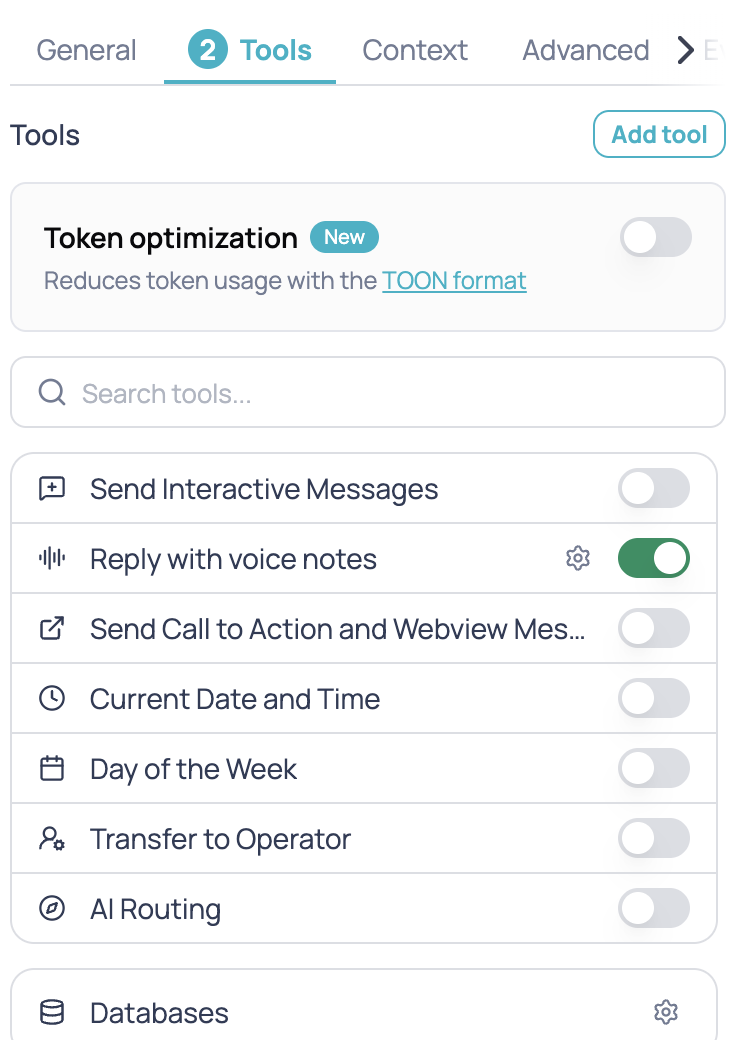
It is only available on WhatsApp, Instagram, and Facebook channels.
1
Open the AI Agent node
Select the node in a WhatsApp, Instagram, or Facebook channel.
2
Enable the tool
In the Tools tab, enable Reply with voice notes.
3
Adjust the description (optional)
Open the tool settings to edit the description that guides the agent on when to use it, and save.
4
Save the node
From then on, the agent can reply with voice notes.
- The agent’s turn ends after sending the voice note. The tool always pauses; this is not configurable.
- The platform chooses the voice. There is no field to select it.
- You can only edit the tool’s description; it has no parameters or behavior section.
Current date and time
Gets the current date and time. Allows specifying a time zone to get the correct local time. Parameters:
Prompt Example:
“Before processing any time-dependent request (such as ‘good morning’ or appointments for ‘today’), call get_current_date_time to know the exact time.”
Arguments Example:
"Monday, December 08, 2025 10:30 AM".
Notes:
- Has no visible side effects for the user.
- It is purely informational for the model.
Day of the week
Calculates and returns the day of the week corresponding to a specific date provided. Parameters:
Prompt Example:
“If the user wants to schedule for a specific date, first verify what day of the week it is using get_weekday_of_a_date to ensure it is a business day.”
Arguments Example:
"Wednesday".
Notes:
- Useful for validating appointments or schedules.
Memory management
The following tools are enabled from the Memory management section of the AI Agent node’s Context tab. They give the agent working memory, access to the inbox CRM, flow context variables, and platform information. See the Memory management section of the AI Agent node for how to enable them and configure their permissions.Internal memory
Lets the agent save, recall, and delete information from the conversation to reuse it later. It is per-user working memory with limited retention: it recalls the same user’s data across conversations, but it is not a permanent store. Operations:
Notes:
- Includes an optional Memory space field to isolate or group saved entries, preventing different contexts from mixing.
- Each operation supports configuring its parameters in AI, variable, or static mode, along with a post-execution behavior (Continue, End, or Pause).
Inbox CRM
Reads, sets, and updates the contact’s CRM data (name, phone, tags, notes, and more) directly from the inbox. Operations:
Notes:
- Permissions are managed per group (contact data / tags) with separate read and write access. You can restrict which tags the agent may access.
- Requires at least one connected channel for contacts to exist to operate on.
$context
Reads and writes flow context variables to share data between nodes. Operations:
Notes:
- It appears in the tools list as $context to distinguish it from the Context tab.
- Variables written become available to later nodes of the flow, for example
{{$context.my_variable}}.
Platform information
Read-only context blocks that inject platform data into the agent’s prompt. They do not consume a tool call: the information is added automatically as context when the source is active.
Notes:
- All three sources are read-only; the agent cannot modify them.
- They are injected as context blocks, so they do not count as a tool invocation.
Databases
Native connection to Databases (Datum v2) from the Tools tab of the AI Agent node. It lets the agent search, create, update, and delete records in your collections without chaining auxiliary nodes. Operations: search, create, update, and delete records on the collections you enable.
Notes:
- The agent can only operate on collections from the same company that you explicitly enable in the Configure popover.
- Write operations persist immediately.
- Post-execution behavior (Continue, End, or Pause) is configured per operation.
AI Routing
Sends the user’s request to the workflow that can handle it, when they ask for something this agent cannot do. It uses the project’s AI Routing to pick the destination, so the project must have AI Routing enabled. Parameters:
Prompt example:
Unlike other tools,
ai_router does not need you to tell it when to fire: enabling it automatically appends the handoff rules to the agent’s instructions. All you have to define is the agent’s scope, because whatever falls outside it is what gets handed off.
“You only handle billing questions: account statements, payment dates and charge breakdowns.”Argument examples: Case: the user asks something outside the agent’s scope (most common)
search, and in direct with no match, it returns the available destinations and hands off nothing.
Notes:
- A successful handoff ends the agent’s turn: the user’s reply comes from the destination workflow. The agent must not answer as well.
- If nothing matches or the handoff fails, the agent still owns the conversation and must keep helping the user.
- Requires the project to have AI Routing enabled, with workflows that have a name and description configured. The post-execution behaviour is fixed: a handoff always ends the agent’s turn.
- The agent can only hand off to workflows in the same project.
The handoff rules are appended automatically when you enable the tool: the agent already knows it must answer whatever its instructions cover, that it must not hand off because another tool failed or because it is unsure, and that it must not answer on top of handing off. You do not need to write any of this in the prompt.
Knowledge files: search by file
When you upload files in the Context tab of the AI Agent node, the agent automatically gets thesearch function to query them. With file search turned on, that same function searches better. No new functions or parameters appear:
- It detects when a question refers to a specific document and searches only that document.
- It searches every document of the agent, not only those in the first project.
- It answers grounded in the documents: if nothing relevant is found, it says so.
File search is turned on per agent, in the AI Agent node configuration (
knowledgeSettings.fileSearch). It is off by default: without that setting, the agent behaves exactly as before. To turn it on, open the Context tab of the AI Agent node and enable Search by document name. The switch appears once the node has knowledge files.How the document is detected
The agent compares the question with the names of the documents uploaded to the node:- Case, accents, dashes and the extension are ignored, and small typos are tolerated: “tarifario 2026”, “TARIFARIO” and “Tarifario_2026.pdf” find the same file.
- A document is detected when the question includes its full name (“how much is the basic plan in the tarifario 2026?”) or mentions it after a word such as “in”, “according to”, “search”, “check” or “document”. The cue words are matched in Spanish, the language of most agents: “en”, “según”, “busca”, “revisa”, “consulta”, “dice”, “documento”, “archivo”.
- Generic words such as “manual”, “guide”, “policy” or “document” are not enough on their own to pick a file.
If no document matches, every document is searched, as always. If the mentioned document has nothing relevant, the search is repeated over every document before answering.
Only the documents uploaded to that AI Agent node are considered. Files from other agents or other companies are never queried. If a file was renamed or deleted after the agent was saved, its current state is used.
Answers grounded in your documents
With file search on, thesearch result tells the agent to answer only from what the documents returned. When nothing relevant is found, the agent doesn’t get an empty list: it gets an explicit notice that there are no relevant results and that it must not answer from general knowledge.
In our tests with questions the documents cannot answer, this change reduced invented answers from 11 in 15 to 1 in 15, without changing the agent’s instructions.